
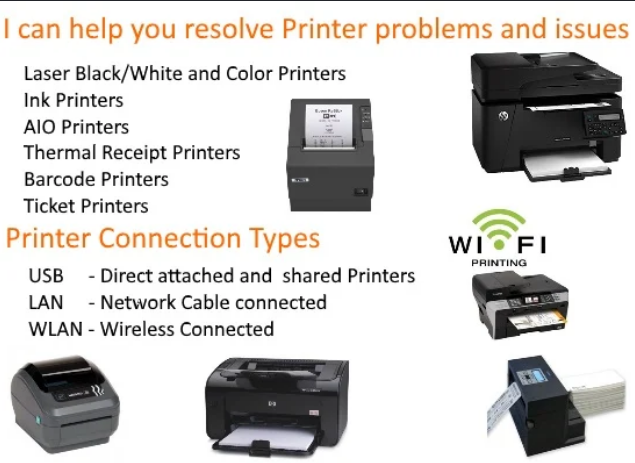
Having trouble connecting your printer to your computer, laptop, or mobile device? You’re not alone. Printer connection issues are among the most common problems users experience, whether using a home printer or an office multifunction device.
This comprehensive Printer Connect help guide explains the most common connection problems, their causes, and practical solutions you can follow without needing advanced technical knowledge.
Why Won’t My Printer Connect?
A printer may fail to connect for several reasons. Understanding the cause makes troubleshooting much easier.
Common causes include:
- Weak or unstable Wi-Fi signal
- Incorrect Wi-Fi password
- Printer connected to a different network
- Outdated printer drivers
- USB cable problems
- Firewall or antivirus blocking communication
- Incorrect printer settings
- Router configuration issues
- Operating system updates
- Printer firmware needing an update
Fortunately, most of these issues can be resolved in just a few minutes.
Check the Basics First
Before trying advanced troubleshooting, verify these basic items.
1. Make Sure the Printer Is Powered On
Check that:
- Power cable is securely connected
- No error lights are flashing
- Printer finishes startup completely
If your printer displays an error code, resolve that first before troubleshooting the connection.
2. Restart Everything
Restarting often fixes temporary communication problems.
Restart:
- Printer
- Computer
- Wi-Fi router
Wait about one minute before turning everything back on.
3. Check Your Internet Connection
For wireless printers:
- Confirm your Wi-Fi is working.
- Test internet access on another device.
- Move the printer closer to the router if the signal is weak.
How to Connect a Printer Using Wi-Fi
Most modern printers include built-in wireless connectivity.
Follow these steps:
- Turn on the printer.
- Open the printer’s wireless settings.
- Select your Wi-Fi network.
- Enter the Wi-Fi password.
- Wait for the printer to connect.
- Install the printer on your computer.
Once connected successfully, the wireless indicator should remain solid instead of blinking.
Connect a Printer Using USB
USB connections are usually the simplest.
Steps:
- Connect the USB cable securely.
- Turn on the printer.
- Wait for your operating system to detect it.
- Install drivers if prompted.
- Print a test page.
If detection fails:
- Try another USB port.
- Use another cable.
- Avoid USB hubs.
Connect a Printer to Windows
Windows makes adding printers straightforward.
Windows 11
- Open Settings.
- Select Bluetooth & devices.
- Click Printers & Scanners.
- Choose Add device.
- Select your printer.
- Follow the setup instructions.
If your printer doesn’t appear:
- Click Add manually.
- Enter the IP address if available.
Connect a Printer to macOS
For Mac users:
- Open System Settings.
- Select Printers & Scanners.
- Click the + button.
- Choose your printer.
- Install recommended drivers.
- Finish setup.
macOS automatically downloads many printer drivers.
Printer Connected but Won’t Print
Sometimes the printer connects successfully but refuses to print.
Possible reasons include the following:
- Printer paused
- Paper jam
- Low ink
- Offline mode
- Print queue stuck
- Driver corruption
Try clearing the print queue and restarting the printer.
Printer Shows Offline
Offline status usually indicates communication problems.
To fix:
- Open printer settings.
- Set the printer as the default printer.
- Disable “Use Printer Offline.”
- Restart the Print Spooler service.
- Reconnect the printer.
Reconnect a Wireless Printer
If your printer was connected previously but stopped working:
- Forget the wireless network.
- Reset network settings.
- Reconnect to Wi-Fi.
- Re-add the printer on your computer.
- Print a test page.
Update Printer Drivers
Old drivers frequently cause connection failures.
To update:
- Visit the printer manufacturer’s support website.
- Download the latest driver.
- Install it.
- Restart your computer.
Keeping drivers updated improves compatibility with Windows and macOS updates.
Update Printer Firmware
Firmware updates may resolve the following:
- Wireless instability
- Connection failures
- Security issues
- Performance problems
Check the manufacturer’s support page for available firmware updates.
Check the firewall and antivirus.
Sometimes security software blocks printer communication.
Temporarily disable:
- Windows Firewall
- Third-party antivirus
- VPN software
If the printer connects afterward, create an exception instead of leaving protection disabled.
Verify Printer IP Address
Network printers communicate using IP addresses.
Compare:
- Printer IP address
- Computer network
Both should be on the same local network.
If necessary:
- Print a Network Configuration Page.
- Note the printer’s IP.
- Add the printer manually.
Reset Printer Network Settings
If nothing else works:
- Open printer settings.
- Find Network Settings.
- Select Restore Network Defaults.
- Restart the printer.
- Reconnect to Wi-Fi.
This often resolves persistent wireless connection issues.
Mobile Printer Connection Help
Most manufacturers provide mobile printing apps.
Popular features include:
- Wireless setup
- Print photos
- Scan documents
- Monitor ink levels
- Printer status notifications
Ensure:
- Phone and printer use the same Wi-Fi network.
- Bluetooth is enabled if required.
- The app has necessary permissions.
Common Printer Connection Errors
| Problem | Possible Cause | Solution |
|---|---|---|
| Printer not found | Wrong Wi-Fi | Reconnect to correct network |
| Printer offline | Communication issue | Restart devices |
| Driver unavailable | Missing driver | Install latest driver |
| Cannot detect printer | Firewall block | Allow the printer through the firewall. |
| USB not recognized | Faulty cable | Replace cable |
| Printer disconnected | Weak Wi-Fi | Move closer to the router. |
| Printing timeout | Slow network | Restart the router. |
| Setup failed | Incorrect password | Re-enter Wi-Fi credentials |
Tips to Prevent Future Connection Problems
Follow these best practices:
- Keep printer firmware updated.
- Update printer drivers regularly.
- Use strong Wi-Fi coverage.
- Restart the printer occasionally.
- Avoid frequently changing Wi-Fi names or passwords.
- Place the printer within range of the router.
- Use quality USB cables.
- Keep the operating system updated.
Preventive maintenance reduces the chances of future connection issues.
Frequently Asked Questions
Why won’t my printer connect to Wi-Fi?
Common reasons include an incorrect Wi-Fi password, weak signal, outdated firmware, or connecting to the wrong network.
Why does my printer say offline?
The printer may have lost communication with your computer or network. Restarting the printer and checking network settings usually resolves the issue.
Can I connect a printer without Wi-Fi?
Yes. Most printers support USB connections, and some also support Ethernet or Bluetooth.
Do I need printer drivers?
Yes. Drivers allow your operating system to communicate properly with the printer. Installing the latest version is recommended.
How do I reconnect my printer after changing Wi-Fi?
Reset the printer’s wireless settings, reconnect it to the new Wi-Fi network, and add it again on your computer or mobile device.
Conclusion
Printer connection problems can be frustrating, but they are often easy to fix with a systematic approach. Start by checking power, cables, and Wi-Fi settings, then verify drivers, firmware, and network configuration. Whether you’re connecting via USB or wireless, following the steps in this Printer Connect Help guide should resolve most issues and get your printer working again quickly. Keeping your printer software updated and maintaining a stable network can also help prevent future connection problems.