
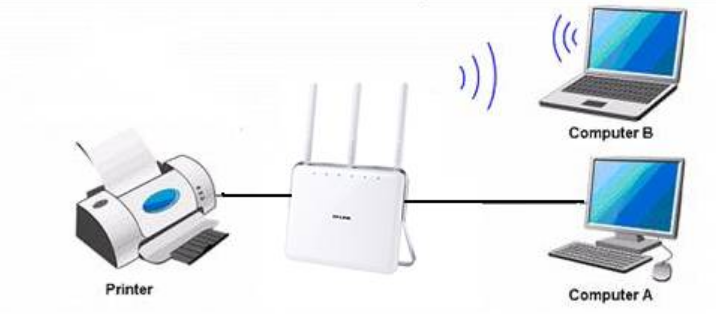
Modern printers are designed to work across multiple devices through a network, making printing more convenient for homes, offices, and businesses. Whether you’re using Wi-Fi, Ethernet, or a shared printer, having reliable printer network support helps ensure smooth printing without constant connection issues.
Unfortunately, network printers can sometimes be difficult to configure. Printers may appear offline, disconnect from Wi-Fi, fail to receive print jobs, or become invisible to computers on the network.
This guide explains how printer networking works, how to connect a printer correctly, common problems you may encounter, and practical solutions to restore reliable printing.
What Is Printer Network Support?
Printer network support refers to the setup, maintenance, and troubleshooting of printers connected through a local network instead of a direct USB cable.
A network printer allows multiple users to print from the following:
- Windows PCs
- Mac computers
- Android devices
- iPhones and iPads
- Chromebooks
- Office workstations
Instead of physically connecting every computer, all devices communicate with the printer over the same network.
Types of Printer Network Connections
Wi-Fi Printer
Wireless printers connect directly to your Wi-Fi router.
Advantages:
- No USB cable required
- Print from multiple devices
- Easy placement anywhere within Wi-Fi range
Ideal for:
- Homes
- Small offices
- Remote work
Ethernet Printer
An Ethernet printer connects using a network cable.
Advantages:
- Stable connection
- Faster communication
- Less interference
Ideal for:
- Businesses
- Schools
- Offices with many users
Shared Printer
A USB printer connected to one computer can be shared across the network.
Advantages:
- Uses existing printer
- Low cost
Limitations:
- Host computer must remain powered on.
How to Connect a Printer to Your Network
Method 1: Using the Printer Control Panel
Many modern printers include a display screen.
Steps:
- Open Settings.
- Select Network.
- Choose Wireless Setup Wizard.
- Select your Wi-Fi network.
- Enter the Wi-Fi password.
- Confirm the connection.
The printer should display a Connected status.
Method 2: WPS Setup
If your router supports WPS:
- Press the WPS button on the router.
- Activate WPS on the printer.
- Wait for pairing.
This method skips manually entering the Wi-Fi password.
Method 3: USB-Assisted Setup
Some manufacturers allow initial setup through USB.
Typical process:
- Install printer software.
- Connect via USB.
- Transfer wireless settings.
- Disconnect USB.
- Continue printing over Wi-Fi.
Installing the Printer on Windows
After connecting the printer to the network:
- Open Settings.
- Go to Bluetooth & Devices.
- Select Printers & Scanners.
- Click Add Device.
- Wait for Windows to detect the printer.
- Install recommended drivers.
Print a test page afterward.
Installing the Printer on macOS
- Open System Settings.
- Select Printers & Scanners.
- Click Add Printer.
- Select the detected printer.
- Install drivers if prompted.
macOS often installs compatible drivers automatically.
Printing from Mobile Devices
Most network printers support mobile printing.
Popular technologies include:
- Apple AirPrint
- Mopria Print Service
- Manufacturer apps
- Wi-Fi Direct
Ensure your mobile device is connected to the same network as the printer.
Common Printer Network Problems
Printer Offline
Possible causes:
- Wi-Fi disconnected
- Router restarted
- Incorrect IP address
- Driver communication failure
Solutions:
- Restart the printer.
- Restart the router.
- Reconnect Wi-Fi.
- Remove and reinstall the printer.
Printer Not Found
Your computer cannot locate the printer.
Possible causes:
- Different Wi-Fi networks
- Hidden network
- Firewall restrictions
- Disabled network discovery
Solutions:
- Verify both devices use the same network.
- Enable Network Discovery.
- Restart networking equipment.
Slow Printing
Slow network printing may result from the following:
- Weak Wi-Fi signal
- Large print jobs
- High-resolution graphics
- Network congestion
Try:
- Moving the printer closer to the router.
- Using Ethernet.
- Printing smaller documents.
Printer Disconnects Frequently
Possible reasons:
- Weak signal
- Router firmware issues
- Printer sleep mode
- IP conflicts
Solutions:
- Assign a static IP address.
- Update router firmware.
- Update printer firmware.
- Improve Wi-Fi coverage.
Assigning a Static IP Address
A changing IP address can cause communication problems.
Benefits of a static IP include:
- Faster printer detection
- Reliable office printing
- Easier troubleshooting
- Stable network configuration
Most printers allow static IP assignment through the following:
- Embedded web server
- Printer settings
- Manufacturer software
Updating Printer Firmware
Firmware updates often fix:
- Connectivity issues
- Security vulnerabilities
- Wireless stability
- Compatibility problems
Always download firmware from the printer manufacturer’s official support website.
Best Practices for Reliable Printer Networking
Follow these recommendations:
- Keep printer firmware updated.
- Restart networking equipment occasionally.
- Use WPA2 or WPA3 security.
- Avoid crowded Wi-Fi channels.
- Place the printer within strong Wi-Fi coverage.
- Use Ethernet for business environments.
- Install the latest printer drivers.
- Keep operating systems updated.
When to Use Ethernet Instead of Wi-Fi
Ethernet is recommended if:
- Many employees print daily.
- Large files are common.
- The printer is stationary.
- Maximum reliability is required.
Wireless printing offers flexibility, while Ethernet prioritizes stability.
Security Tips for Network Printers
Because network printers are connected to your local network, security is important.
Recommendations:
- Change default administrator passwords.
- Disable unused network services.
- Enable encrypted printing when available.
- Update firmware regularly.
- Restrict printer access to authorized users.
These measures help protect sensitive documents and reduce security risks.
Frequently Asked Questions (FAQ)
Why does my printer keep going offline?
This is usually caused by Wi-Fi interruptions, outdated drivers, changing IP addresses, or power-saving features. Restarting the printer and router often resolves the issue.
Can multiple computers use one network printer?
Yes. Any device connected to the same network can access the printer once it has been added and configured.
Do I need internet to use a network printer?
No. Printing over a local network only requires that your devices and printer be connected to the same router or local network.
Should I use Wi-Fi or Ethernet?
Wi-Fi is convenient and flexible for home use, while Ethernet provides a more stable and reliable connection for offices or environments with frequent printing.
How do I find my printer’s IP address?
You can usually view the IP address from the printer’s network settings menu, print a network configuration page, or check your router’s list of connected devices.
Conclusion
Reliable printer network support is essential for smooth printing in both home and office environments. By understanding how network printers connect, keeping firmware and drivers updated, and following best practices for setup and maintenance, you can minimize downtime and improve overall printing performance.
Whether you’re using a wireless printer, an Ethernet-connected device, or a shared printer, proper configuration and regular maintenance ensure consistent, secure, and hassle-free printing for every user.