
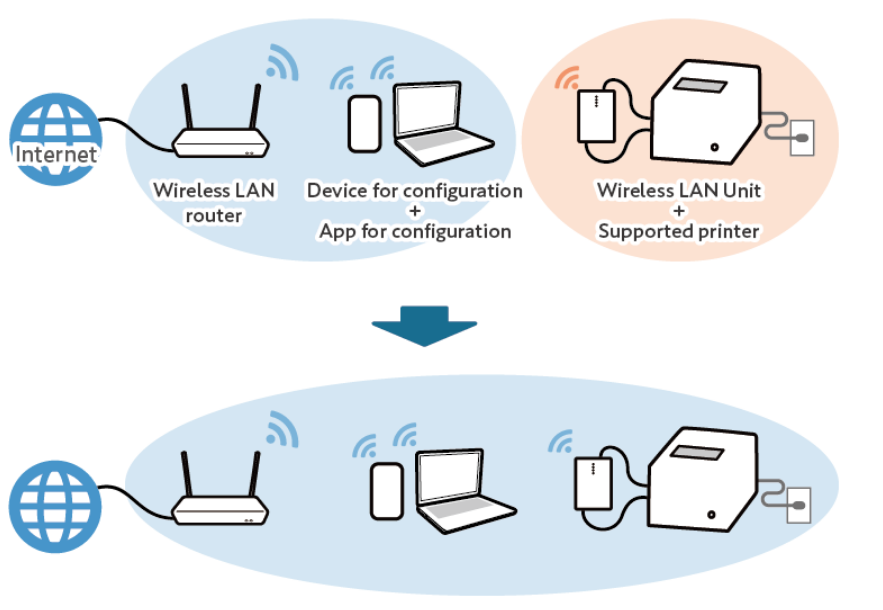
Wireless printing has become an essential feature for homes, offices, and schools. Instead of relying on USB cables, modern printers allow you to print documents from laptops, desktops, smartphones, and tablets over a WiFi network.
Whether you own an HP, Canon, Epson, Brother, Samsung, or Xerox printer, this Printer WiFi Guide explains everything you need to know—from initial setup to solving common connection problems.
What Is a WiFi Printer?
A WiFi printer connects to your wireless network instead of using a USB cable. Once connected, every authorized device on the same network can send print jobs to the printer.
Benefits include:
- Wireless printing from multiple devices
- Reduced cable clutter
- Easy printer sharing
- Mobile printing support
- Remote printing options
- Convenient placement anywhere within WiFi range
Requirements Before Connecting a Printer to WiFi
Before starting, make sure you have:
- A working wireless router
- Stable internet connection
- WiFi network name (SSID)
- WiFi password
- Printer powered on
- Computer or smartphone
- Latest printer drivers (if required)
How to Connect a Printer to WiFi
Method 1: Using the Printer Touchscreen
Many modern printers include a touchscreen display.
Steps:
- Turn on the printer.
- Open Settings.
- Select Network.
- Tap Wireless Settings.
- Choose WiFi Setup Wizard.
- Select your WiFi network.
- Enter your WiFi password.
- Confirm the connection.
Once connected, the WiFi icon should appear on the printer display.
Method 2: Using WPS
If your router supports WPS:
- Press the WPS button on the router.
- Within two minutes, press the Wireless or WPS button on the printer.
- Wait for the connection to complete.
This method does not require entering your WiFi password manually.
Method 3: Using Printer Software
Manufacturers provide setup software for Windows and macOS.
Typical steps:
- Download the printer software.
- Install the application.
- Select Wireless Setup.
- Follow the on-screen instructions.
- Choose your WiFi network.
- Finish the installation.
Method 4: Using a Mobile App
Most major brands offer mobile apps.
Examples include:
- HP Smart
- Canon PRINT
- Epson Smart Panel
- Brother Mobile Connect
These apps simplify wireless setup directly from your smartphone.
How to Add a WiFi Printer in Windows
- Open Settings.
- Go to Bluetooth & devices.
- Select Printers & Scanners.
- Click Add device.
- Wait for Windows to detect the printer.
- Select your printer.
- Complete installation.
Windows usually installs drivers automatically.
How to Add a WiFi Printer on Mac
- Open System Settings.
- Select Printers & Scanners.
- Click Add Printer.
- Choose your wireless printer.
- Install recommended drivers.
- Print a test page.
How to Print from an iPhone
Apple devices support AirPrint.
Steps:
- Connect your iPhone to WiFi.
- Ensure the printer uses the same network.
- Open the document.
- Tap Share.
- Select Print.
- Choose your printer.
- Tap Print.
How to Print from Android
Most Android phones support wireless printing.
You can:
- Use the manufacturer’s app
- Use the default Print Service
- Use Mopria Print Service
Common WiFi Printer Problems
Printer Not Found
Possible causes:
- Printer is offline
- Wrong WiFi network
- Weak wireless signal
- Driver issues
Solutions:
- Restart printer
- Restart router
- Move printer closer
- Reinstall drivers
Printer Shows Offline
Try these steps:
- Set printer as default.
- Disable “Use Printer Offline.”
- Restart the Print Spooler service.
- Remove and re-add the printer.
Slow Wireless Printing
Slow printing may result from:
- Weak WiFi signal
- Large files
- Network congestion
- Outdated firmware
Improve performance by:
- Moving the printer closer to the router
- Updating firmware
- Printing smaller jobs
- Using a 5 GHz network if supported
Printer Keeps Disconnecting
Common reasons include:
- Router instability
- Sleep mode
- IP address conflicts
- Old firmware
Solutions:
- Assign a static IP address.
- Update firmware.
- Disable aggressive power-saving settings.
- Restart networking equipment.
Tips for Better WiFi Printing
To maintain a reliable wireless connection:
- Place the printer near the router.
- Keep firmware updated.
- Use strong WiFi security.
- Avoid physical obstructions.
- Restart the printer occasionally.
- Use quality printer drivers.
- Maintain a stable internet connection.
Security Tips
Protect your wireless printer by:
- Changing the default administrator password.
- Updating firmware regularly.
- Using WPA2 or WPA3 encryption.
- Disabling unused wireless features.
- Restricting guest network access.
Compatible Printer Brands
This guide applies to many popular manufacturers, including:
- HP
- Canon
- Epson
- Brother
- Samsung
- Xerox
- Lexmark
- Ricoh
- Kyocera
- Pantum
Although menus differ slightly, the setup process is generally similar across brands.
Frequently Asked Questions
Why won’t my printer connect to WiFi?
Common reasons include an incorrect WiFi password, weak signal, outdated firmware, or connecting to a different network than your computer or phone.
Can I print without the internet?
Yes. If your printer and device are connected to the same local WiFi network, you can print without an active internet connection.
Does every wireless printer support mobile printing?
Most modern WiFi printers support mobile printing through AirPrint, Mopria, or the manufacturer’s mobile app.
Should I use 2.4 GHz or 5 GHz WiFi?
Many printers work best on 2.4 GHz because it offers better range and compatibility. Check your printer’s specifications to see if it also supports 5 GHz.
How do I reconnect my printer after changing my WiFi password?
Open the printer’s wireless settings, remove the old network if necessary, and reconnect using the new WiFi password.
Final Thoughts
A wireless printer offers convenience, flexibility, and the ability to print from virtually any device on your network. By following the steps in this Printer WiFi Guide, you can quickly set up your printer, keep it securely connected, and troubleshoot the most common wireless issues.
Whether you’re printing from a Windows PC, Mac, Android phone, or iPhone, maintaining a stable WiFi connection and keeping your printer’s software up to date will help ensure smooth and reliable printing every day.