
A network printer allows multiple users to print from different computers, smartphones, and tablets without connecting directly to the printer. Whether you’re setting up a home office or managing printers in a business environment, understanding network printing can improve efficiency, reduce cable clutter, and simplify printer management.
This Print Network Guide provides step-by-step instructions for setting up network printers, configuring wireless and wired connections, sharing printers, and solving common connectivity issues.
What Is a Network Printer?
A network printer is a printer connected to a local network instead of a single computer. It communicates through Wi-Fi or Ethernet, allowing authorized devices on the same network to send print jobs.
Common environments that use network printers include:
- Home offices
- Small businesses
- Schools
- Libraries
- Corporate offices
Unlike USB printers, network printers can serve multiple users simultaneously.
Benefits of Network Printing
Using a network printer offers several advantages:
- Wireless printing from multiple devices
- Centralized printer management
- Reduced cable clutter
- Easy printer sharing
- Better workplace productivity
- Remote printing support (for compatible models)
- Flexible printer placement
Types of Network Printer Connections
1. Wi-Fi Connection
Wireless printers connect directly to your Wi-Fi router.
Advantages include:
- No USB cables
- Easy access from laptops and mobile devices
- Flexible placement anywhere within Wi-Fi coverage
Best for:
- Homes
- Small offices
- Remote workspaces
2. Ethernet Connection
Ethernet uses a wired network connection.
Benefits include:
- Stable communication
- Faster data transfer
- Lower risk of connection drops
- Ideal for busy office environments
3. Wi-Fi Direct
Wi-Fi Direct enables devices to connect directly to the printer without using a wireless router.
Ideal for:
- Temporary printing
- Guest users
- Travel environments
4. Shared Printer
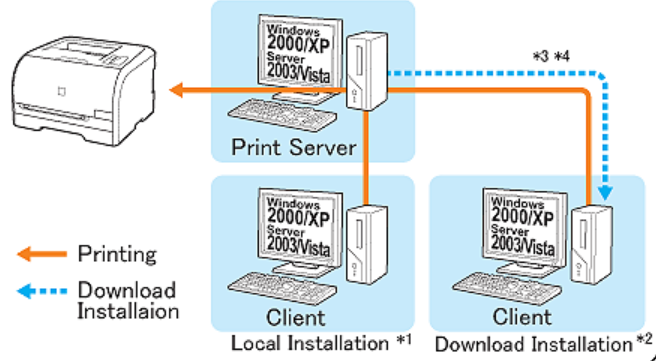
A USB printer connected to one computer can be shared with other devices over the local network.
This option works well when a dedicated network printer isn’t available.
How to Set Up a Wi-Fi Network Printer
Follow these steps to connect your printer to your wireless network.
Step 1
Turn on the printer.
Step 2
Open the printer’s Network or Wireless Settings menu.
Step 3
Select Wireless Setup Wizard.
Step 4
Choose your Wi-Fi network (SSID).
Step 5
Enter your Wi-Fi password.
Step 6
Wait until the printer confirms the connection.
Once connected, install the printer on each computer or mobile device that needs access.
Connecting a Network Printer to Windows
To add a printer in Windows:
- Open Settings.
- Select Bluetooth & Devices.
- Click Printers & Scanners.
- Choose Add Device.
- Select your network printer.
- Install the recommended driver if prompted.
- Print a test page.
If Windows cannot detect the printer, ensure both devices are connected to the same network.
Connecting a Network Printer to macOS
On macOS:
- Open System Settings.
- Select Printers & Scanners.
- Click Add Printer.
- Choose your printer from the available devices.
- Install any required software.
- Print a test page.
Most modern printers are automatically detected by macOS.
Printing from Smartphones and Tablets
Many printers support mobile printing through:
- Apple AirPrint
- Mopria Print Service
- Manufacturer mobile apps
- Wi-Fi Direct
- Cloud printing services (where supported)
Ensure your mobile device and printer are connected to the same network unless using Wi-Fi Direct.
How to Share a Printer on Windows
If your printer uses USB, you can share it with other computers.
- Open Control Panel.
- Go to Devices and Printers.
- Right-click your printer.
- Select Printer Properties.
- Open the Sharing tab.
- Enable sharing this printer.
- Save the settings.
Other computers on the same network can now access the shared printer.
Assigning a Static IP Address
For offices or businesses, assigning a static IP address can improve reliability.
Benefits include:
- Consistent printer detection
- Easier network management
- Reduced connection errors
- Simplified troubleshooting
Most routers allow you to reserve an IP address for the printer using its MAC address.
Common Network Printer Problems
Printer Not Found
Possible causes:
- Printer disconnected from Wi-Fi
- Different network
- Disabled network discovery
- Router issues
Solutions:
- Restart the printer.
- Restart the router.
- Verify the printer is connected to the correct network.
- Enable Network Discovery on Windows.
Printer Appears Offline
This usually occurs because:
- The printer entered sleep mode.
- The IP address changed.
- Communication with the computer was interrupted.
Try restarting both the printer and computer, then reconnect the printer if necessary.
Slow Printing
Common reasons include:
- Weak Wi-Fi signal
- Large print files
- Network congestion
- Outdated drivers
Moving the printer closer to the router or using an Ethernet connection can improve performance.
Print Jobs Stuck in Queue
Clear the print queue and restart the Print Spooler service if print jobs fail to process.
Driver Compatibility Issues
Always install the latest printer driver from the manufacturer’s support website to ensure compatibility with your operating system.
Best Practices for Reliable Network Printing
To maintain a stable printing environment:
- Keep printer firmware updated.
- Install the latest drivers.
- Use WPA2 or WPA3 Wi-Fi security.
- Assign a static IP address for shared printers.
- Place the printer within strong Wi-Fi coverage.
- Restart networking equipment periodically.
- Remove unused printers from connected devices.
Security Tips for Network Printers
Network printers can store sensitive information, making security an important consideration.
Follow these recommendations:
- Change the default administrator password.
- Keep firmware updated.
- Disable unused network services.
- Restrict printer access to trusted users.
- Use encrypted wireless networks.
- Regularly review printer activity if management tools are available.
Frequently Asked Questions (FAQ)
What is the difference between a USB printer and a network printer?
A USB printer connects directly to one computer, while a network printer is accessible by multiple devices over a Wi-Fi or Ethernet network.
Can multiple users print at the same time?
Yes. A network printer can accept print jobs from multiple users, which are processed in the order they are received.
Why does my printer keep disconnecting from Wi-Fi?
Frequent disconnections may result from weak signal strength, router settings, outdated firmware, or interference from nearby wireless devices.
Should I use Wi-Fi or Ethernet?
Wi-Fi is convenient and flexible, while Ethernet generally provides faster and more stable performance, especially in office environments.
How do I find my printer’s IP address?
You can usually view the IP address through the printer’s network settings menu or by printing a network configuration report.
Conclusion
Network printing makes it easy to share a single printer across multiple devices while reducing cable clutter and improving productivity. Whether you choose Wi-Fi, Ethernet, or a shared printer setup, understanding the basics of network configuration helps ensure reliable performance.
By following the setup instructions, security recommendations, and troubleshooting tips in this Print Network Guide, you’ll be well-equipped to maintain a stable and efficient printing environment for both home and business use.