
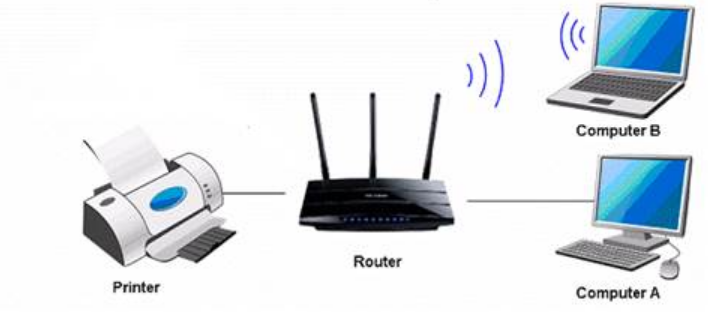
A wireless printer allows you to print from multiple devices without the need for USB cables. Whether you’re using a Windows PC, Mac, smartphone, or tablet, a stable printer Wi-Fi connection makes printing faster, more convenient, and accessible from anywhere within your network.
If you’re setting up a new printer or experiencing connection problems, this guide covers everything you need to know—from connecting your printer to Wi-Fi to fixing common wireless printing issues.
Benefits of a Wi-Fi Printer Connection
Connecting your printer to a wireless network offers several advantages:
- Print from multiple computers and mobile devices
- Eliminate the need for USB cables
- Share one printer across your home or office
- Support mobile printing services like AirPrint and Mopria
- Place the printer anywhere within Wi-Fi range
- Simplify printing from laptops, tablets, and smartphones
A properly configured wireless connection improves productivity and keeps your workspace organized.
Before Connecting Your Printer to Wi-Fi
Before beginning the setup process, ensure you have:
- A wireless printer with Wi-Fi capability
- A working Wi-Fi router
- Your Wi-Fi network name (SSID)
- The Wi-Fi password
- A computer or mobile device connected to the same network
- The latest printer drivers or mobile app (if required)
Having these items ready will make the installation process much smoother.
How to Connect a Printer to Wi-Fi
Most modern printers include a built-in wireless setup wizard.
Step 1: Turn On the Printer
Power on the printer and wait until it finishes initializing.
Step 2: Open Wireless Settings
Using the printer’s control panel:
- Open Settings
- Select Network
- Choose Wireless Settings
- Launch the Wireless Setup Wizard
Step 3: Select Your Wi-Fi Network
The printer will scan for available wireless networks.
Choose your home or office Wi-Fi network from the list.
Step 4: Enter the Wi-Fi Password
Use the printer’s keypad or touchscreen to enter your wireless password.
Double-check the password before confirming.
Step 5: Wait for Confirmation
The printer should display a message confirming that it has successfully connected to the wireless network.
Some printers also print a network configuration page showing the assigned IP address.
Connecting a Printer Using WPS
If your router supports Wi-Fi Protected Setup (WPS), connecting your printer is even easier.
- Press the WPS button on your router.
- Within two minutes, press the Wireless or WPS button on the printer.
- Wait for the printer to establish the connection automatically.
This method eliminates the need to manually enter the Wi-Fi password.
Install the Printer on Windows
After the printer joins your Wi-Fi network:
- Open Settings.
- Select Bluetooth & devices.
- Click Printers & Scanners.
- Choose Add device.
- Select your wireless printer.
- Follow the installation prompts.
Windows may automatically download the necessary drivers.
Install the Printer on macOS
For Mac users:
- Open System Settings.
- Select Printers & Scanners.
- Click the + button.
- Choose the wireless printer.
- Click Add.
macOS usually installs compatible drivers automatically.
Printing from Mobile Devices
Wireless printers support printing directly from smartphones and tablets.
Android
- Mopria Print Service
- Manufacturer printing apps
- Wi-Fi Direct (supported models)
iPhone and iPad
Apple AirPrint allows printing without installing additional drivers.
Simply:
- Connect both devices to the same Wi-Fi network.
- Open the document or photo.
- Tap Share.
- Select Print.
- Choose your printer.
- Tap Print.
Common Printer Wi-Fi Connection Problems
Printer Cannot Find the Wi-Fi Network
Possible causes include the following:
- Router is too far away
- Wi-Fi is disabled
- Hidden SSID
- Network interference
Solutions:
- Move the printer closer to the router.
- Restart the router.
- Enable Wi-Fi broadcasting.
- Try reconnecting after a few minutes.
Incorrect Wi-Fi Password
Entering the wrong password is one of the most common setup mistakes.
Verify:
- Uppercase and lowercase letters
- Special characters
- Numbers
- Spaces (if applicable)
Re-enter the password carefully.
Printer Keeps Disconnecting
Frequent disconnections may result from:
- Weak Wi-Fi signal
- Router overload
- Outdated printer firmware
- Power-saving settings
Try relocating the printer closer to the router or updating the printer firmware.
Computer Cannot Find the Printer
If the printer is connected but doesn’t appear on your computer:
- Ensure both devices are on the same Wi-Fi network.
- Restart the computer.
- Restart the printer.
- Reinstall the printer driver.
- Remove and re-add the printer.
Printer Shows Offline
An offline printer may indicate:
- Lost wireless connection
- Driver problems
- Print queue errors
Solutions include:
- Restart the printer.
- Restart the router.
- Clear pending print jobs.
- Set the printer as the default device.
- Disable the “Use Printer Offline” option in your operating system.
Tips for a Stable Wireless Printer Connection
To reduce connection problems:
- Keep the printer within range of the router.
- Avoid placing the printer near microwaves or cordless phones.
- Update printer firmware regularly.
- Install the latest printer drivers.
- Use a reliable 2.4 GHz or compatible Wi-Fi network if required by your printer.
- Restart your router occasionally to maintain network performance.
A strong and consistent wireless signal helps ensure reliable printing.
Frequently Asked Questions
Why won’t my printer connect to Wi-Fi?
Common causes include an incorrect Wi-Fi password, weak signal, incompatible network settings, or outdated firmware. Restarting the printer and router often resolves the issue.
Can I connect my printer without a USB cable?
Yes. Most modern printers support wireless setup directly through the printer’s control panel or using the WPS button on compatible routers.
Why is my wireless printer offline?
This can occur if the printer loses its Wi-Fi connection, the router restarts, or the printer’s IP address changes. Reconnecting the printer or re-adding it to your computer usually solves the problem.
Does my printer need to stay connected to Wi-Fi?
Yes. If you want to print wirelessly from multiple devices, the printer must remain connected to the same Wi-Fi network as those devices.
How can I improve my printer’s Wi-Fi signal?
Place the printer closer to the router, reduce interference from other electronic devices, update firmware, and ensure your router is functioning properly.
Conclusion
A reliable printer Wi-Fi connection makes printing from computers, smartphones, and tablets simple and convenient. By following the correct setup steps, installing updated drivers, and maintaining a strong wireless network, you can enjoy seamless printing without the clutter of cables.
If you encounter connection problems, most issues can be resolved by checking your network settings, restarting your devices, updating printer software, or reconnecting the printer to your Wi-Fi network. With proper setup and routine maintenance, your wireless printer will deliver dependable performance for both home and office use.