
Introduction
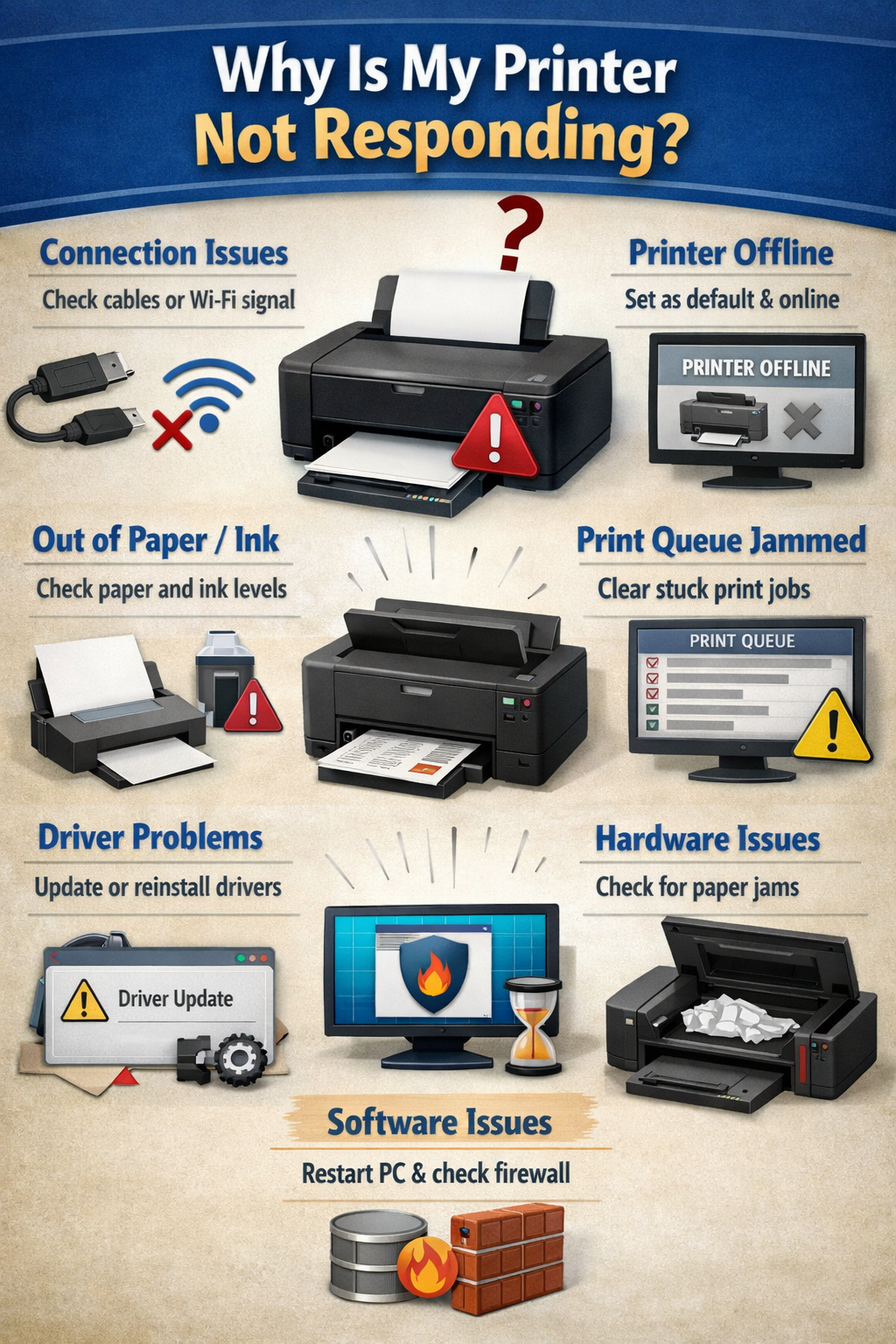
If your printer is not responding, it usually means your computer and printer are not communicating properly. This can happen due to connection issues, outdated drivers, print queue errors, or incorrect settings.
why is my printer not responding
The good news is that most printer problems can be fixed quickly with a few simple steps. This guide will walk you through exactly how to diagnose and fix the issue on both Windows and Mac.
H2: What Does “Printer Not Responding” Mean?
When you see this message, your device has sent a print command, but the printer doesn’t react. This could be due to:
- Broken or unstable connection
- Printer set to offline
- Driver or software issues
- Stuck print jobs
- Network problems
H2: Step-by-Step Fixes for Windows
H3: Step 1 – Check Physical Connections
- Make sure the printer is turned on
- Verify USB cable is securely connected
- If wireless, ensure Wi-Fi is active
H3: Step 2 – Restart Devices
- Turn off printer
- Restart your computer
- Turn printer back on
This clears temporary glitches.
H3: Step 3 – Set Printer as Default
- Open Control Panel
- Click Devices and Printers
- Right-click your printer
- Select Set as default printer
H3: Step 4 – Clear the Print Queue
- Open printer queue
- Cancel all pending jobs
- Try printing again
H3: Step 5 – Update or Reinstall Drivers
- Go to manufacturer website
- Download latest driver
- Install and restart system
H2: Step-by-Step Fixes for Mac
H3: Step 1 – Check Printer Status
- Go to System Settings > Printers & Scanners
- Make sure printer shows “Idle”
H3: Step 2 – Reset Printing System
- Right-click in printer list
- Select Reset printing system
- Re-add your printer
H3: Step 3 – Remove and Reinstall Printer
- Delete the printer
- Add it again using Wi-Fi or USB
H3: Step 4 – Update macOS
- Go to System Settings > Software Update
- Install updates
H2: Troubleshooting Printer Not Responding
If basic steps don’t work, try these:
H3: Check Wi-Fi Connection
- Ensure printer and computer are on same network
- Restart router
H3: Disable Firewall Temporarily
Sometimes firewall blocks printer communication.
H3: Use Printer Troubleshooter (Windows)
- Go to Settings → Troubleshoot → Printer
H3: Assign Static IP
Prevents printer from disconnecting on network.
H2: Common Mistakes Users Make
- Forgetting to set printer as default
- Printing while printer is offline
- Ignoring driver updates
- Using wrong Wi-Fi network
- Not clearing stuck print jobs
H2: Tips for Printing Slides with Notes
If you’re printing PowerPoint slides:
- Choose “Notes Pages” in print settings
- Select multiple slides per page to save paper
- Always preview before printing
This avoids wasting ink and paper.
H2: FAQ
Q1: Why does my printer say offline?
It usually means connection is lost or settings are incorrect.
Q2: Can outdated drivers cause this issue?
Yes, old drivers are one of the most common causes.
Q3: Why does my printer respond sometimes only?
This often indicates unstable Wi-Fi or network issues.
Q4: Should I reinstall my printer?
Yes, if basic fixes don’t work, reinstalling often solves the problem.
Conclusion
A printer that is not responding is usually caused by connection issues, driver problems, or print queue errors. By following the steps above for Windows or Mac, you can quickly restore functionality and get back to printing.
 zul vani