
Introduction
If your printer is not printing properly—whether it’s producing blank pages, faded text, streaks, or nothing at all—you’re not alone. This is one of the most common printer issues users face. The good news is that most printing problems are caused by simple issues like low ink, connection errors, outdated drivers, or incorrect settings.
Why Is MY Printer Not Printing Properly
In this guide, you’ll learn exactly why your printer isn’t printing correctly and how to fix it step by step on both Windows and Mac.
Common Reasons Your Printer Is Not Printing Properly
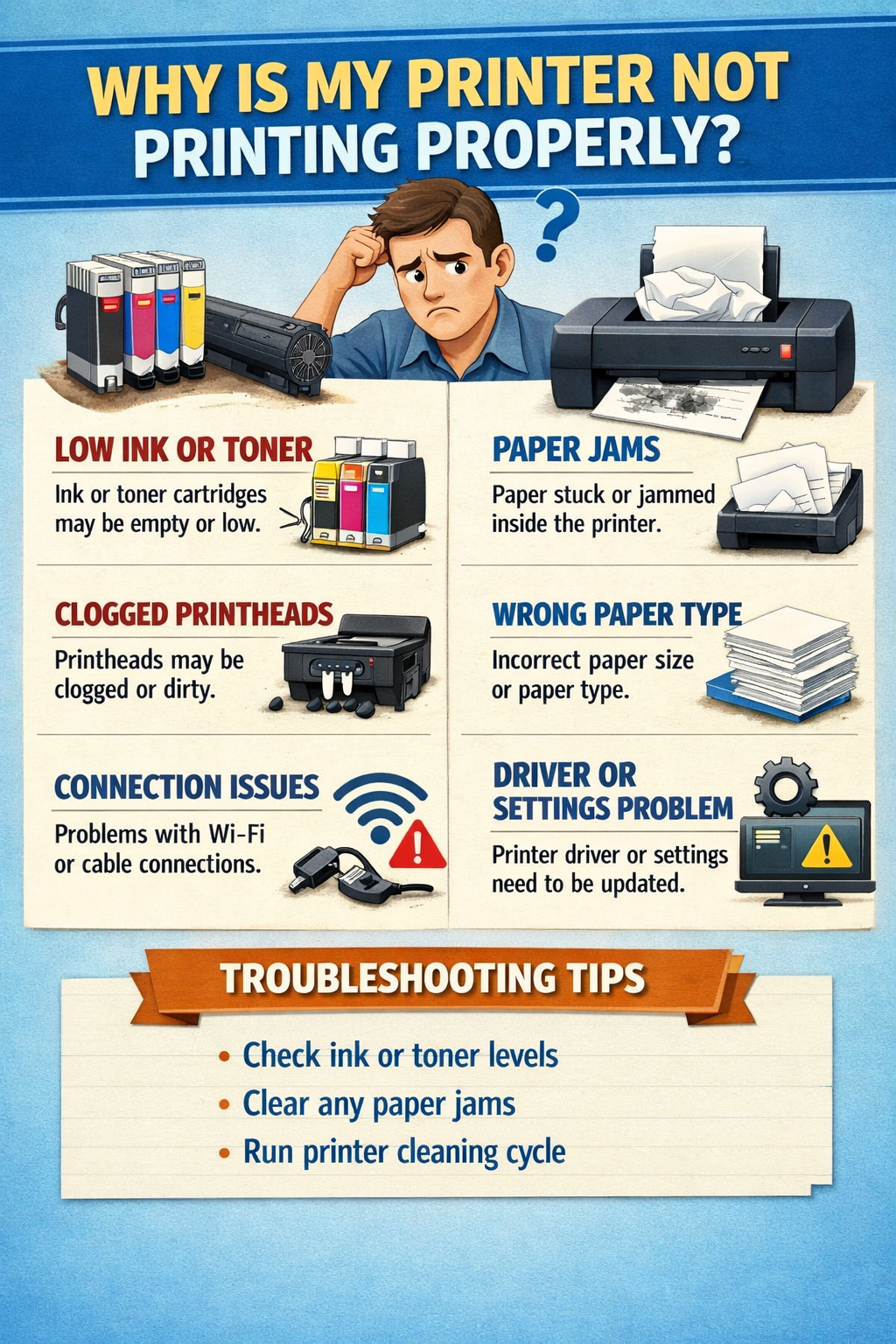
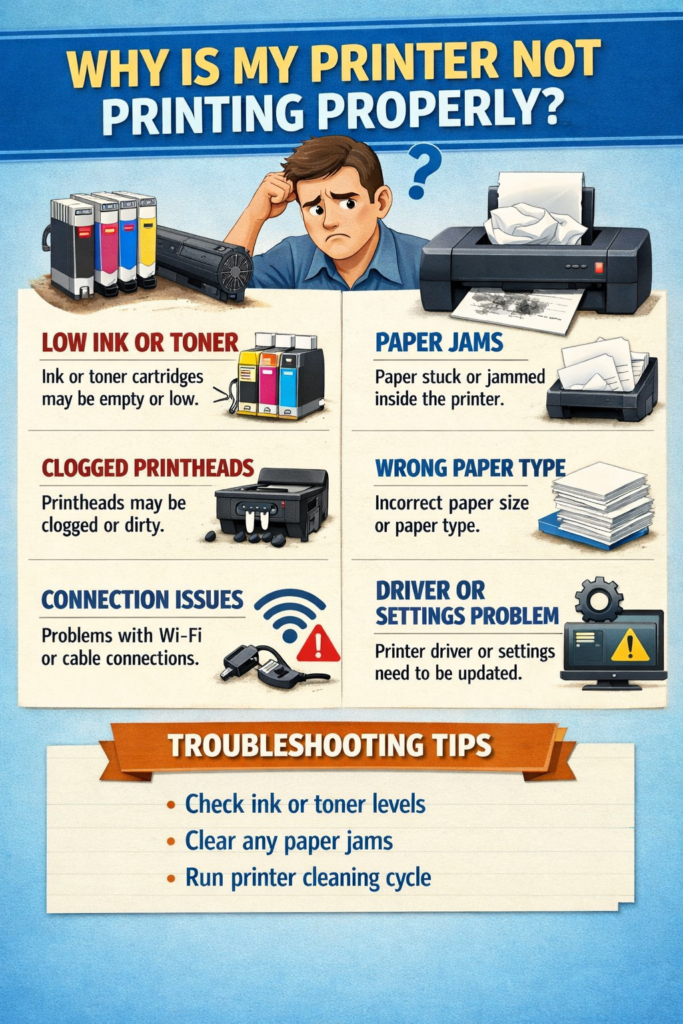
1. Low or Empty Ink/Toner
One of the most frequent causes is insufficient ink or toner. Even if only one cartridge is empty, many printers will stop printing entirely.
2. Clogged Printhead
Inkjet printers can develop clogged nozzles, leading to streaky or faded prints.
3. Incorrect Printer Settings
Wrong paper size, print quality settings, or selecting the wrong printer can cause printing issues.
4. Connection Problems
If your printer isn’t properly connected via WiFi or USB, print jobs won’t go through.
5. Outdated or Corrupt Drivers
Drivers allow your computer to communicate with the printer. If they’re outdated, printing may fail.
How to Fix Printer Not Printing Properly (Step-by-Step)
For Windows Users
Step 1: Check Printer Status
- Go to Control Panel
- Click Devices and Printers
- Ensure your printer is set as Default
- Right-click → Select See what’s printing
- Clear any stuck print jobs
Step 2: Restart Printer Spooler
- Press Windows + R
- Type
services.msc - Find Print Spooler
- Click Restart
Step 3: Update Printer Driver
- Open Device Manager
- Expand Printers
- Right-click your printer → Update driver
Step 4: Run Printer Troubleshooter
- Go to Settings
- Click Update & Security
- Select Troubleshoot → Printer
For Mac Users
Step 1: Check Printer Queue
- Open System Settings
- Go to Printers & Scanners
- Select your printer
- Click Open Print Queue
- Cancel stuck jobs
Step 2: Reset Printing System
- Go to Printers & Scanners
- Right-click in the printer list
- Select Reset printing system
Step 3: Reinstall Printer
- Remove the printer
- Click Add Printer
- Re-add it from the list
Step 4: Update macOS
Ensure your system is up to date to maintain compatibility with drivers.
Troubleshooting Printing Problems
Fix Faded or Streaky Prints
- Run printhead cleaning from printer settings
- Replace low cartridges
- Use high-quality paper
Fix Blank Pages
- Check ink levels
- Remove protective tape from cartridges
- Clean printhead
Fix Slow Printing
- Switch to draft mode
- Reduce print quality settings
- Check network speed (for WiFi printers)
Tips for Printing Slides with Notes
If you’re printing presentations:
- Select “Notes Pages” in PowerPoint print settings
- Choose grayscale mode to save ink
- Print multiple slides per page if notes are short
- Use preview before printing to avoid formatting issues
Common Mistakes to Avoid
- Ignoring low ink warnings
- Selecting the wrong printer
- Forgetting to clear print queues
- Using incompatible paper types
- Not updating printer drivers
FAQ
1. Why is my printer printing blank pages?
This usually happens due to empty cartridges or clogged printheads.
2. Why does my printer say it’s printing but nothing comes out?
A stuck print queue or connection issue is often the cause.
3. How do I fix streaky prints?
Run a printhead cleaning cycle and check ink levels.
4. Why is my wireless printer not responding?
Check WiFi connection and ensure both devices are on the same network.
5. Do I need to reinstall my printer?
Yes, if drivers are corrupted or the printer isn’t detected.
Conclusion
Printer issues can be frustrating, but most problems are easy to fix once you identify the cause. Whether it’s low ink, a connection issue, or outdated drivers, following the steps above will help you restore proper printing quickly. Regular maintenance and correct settings can also prevent future problems.
 zul vani