
Introduction
If you need to print your PowerPoint slides along with speaker notes, the process is simple once you know where to look. PowerPoint includes a built-in “Notes Pages” layout that allows you to print each slide with its notes underneath.
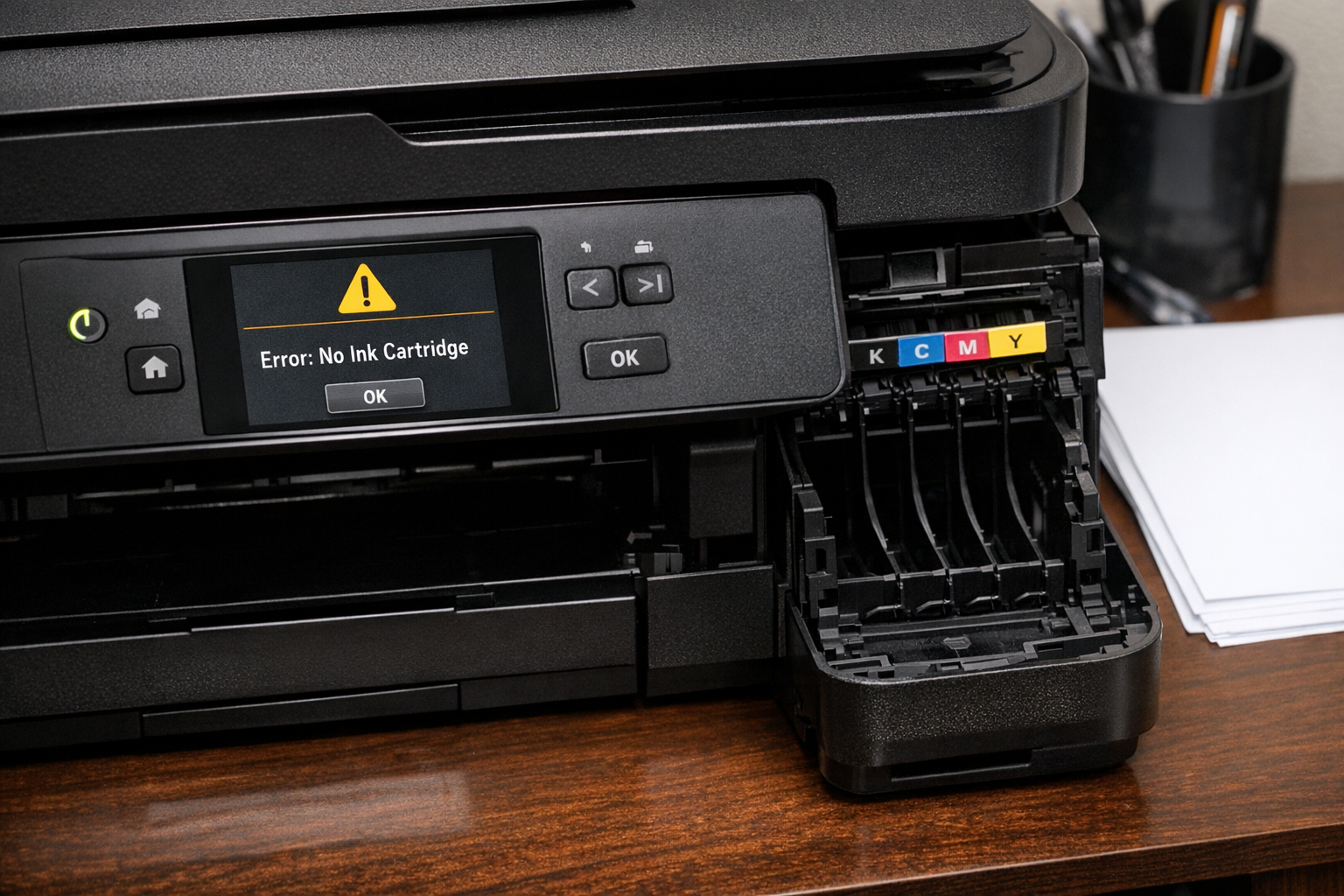
why is my printer not printing anything
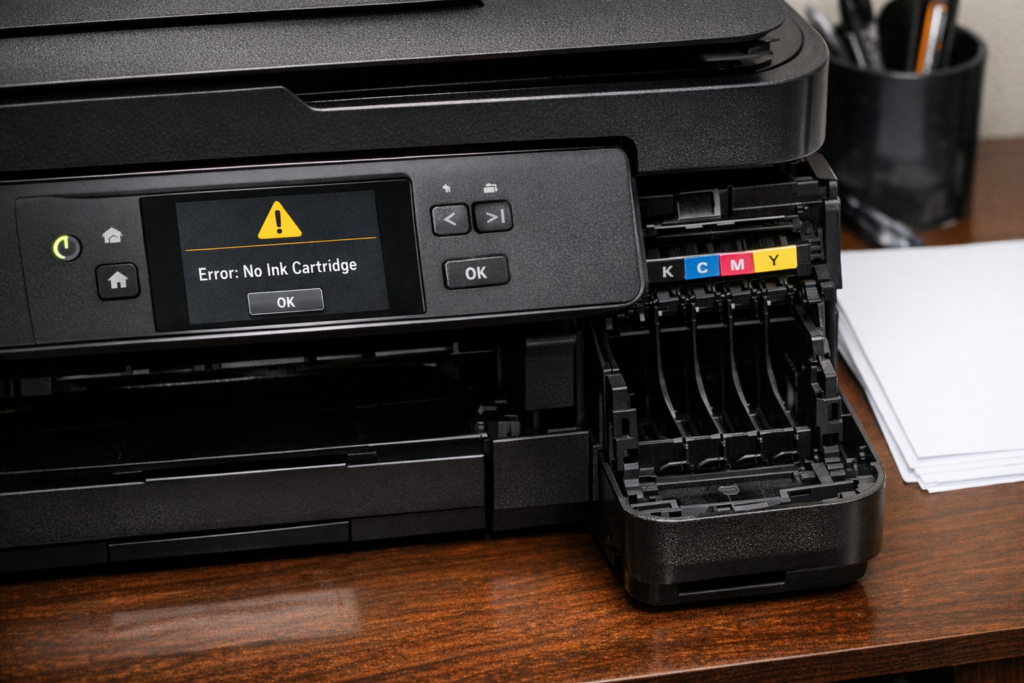
This guide walks you through exactly how to print PowerPoint with notes on both Windows and Mac, along with troubleshooting tips if your printer is not printing anything.
Understanding PowerPoint Notes Printing
What Are Notes Pages?
Notes pages display:
- One slide per page
- Speaker notes below the slide
This format is perfect for:
- Presenters
- Training materials
- Study guides
How to Print PowerPoint with Notes on Windows
Step 1: Open Your Presentation
Launch Microsoft PowerPoint and open your file.
Step 2: Go to the Print Menu
- Click File
- Select Print
Step 3: Change Layout to Notes Pages
- Under Settings, click the layout dropdown
- Select Notes Pages
Step 4: Adjust Printer Settings
- Choose your printer
- Set copies, color, and orientation
Step 5: Print
Click Print to start printing.
How to Print PowerPoint with Notes on Mac
Step 1: Open the File
Open your presentation in PowerPoint.
Step 2: Open Print Settings
- Click File
- Choose Print
Step 3: Enable Notes Layout
- In the layout dropdown, select Notes
- If needed, click Show Details
Step 4: Configure Options
- Choose printer
- Set page range and copies
Step 5: Print Slides with Notes
Click Print
Tips for Printing Multiple Slides with Notes
Optimize Paper Usage
- Print in grayscale to save ink
- Use double-sided printing if supported
Reduce Size for Bulk Printing
- Export to PDF first, then adjust scaling
- Consider printing 2 notes pages per sheet via printer settings
Preview Before Printing
Always check the preview to ensure notes are visible and not cut off.
Troubleshooting: Why Is My Printer Not Printing Anything?
If your printer is not printing your PowerPoint file, try these fixes:
Check Printer Connection
- Ensure USB or Wi-Fi is connected
- Restart printer and computer
Verify Printer Is Selected
- Go to Print settings
- Confirm correct printer is chosen
Clear Print Queue
- Cancel stuck print jobs
- Restart spooler service (Windows)
Update or Reinstall Drivers
- Download latest drivers from manufacturer
Try Printing a PDF
- Export PowerPoint to PDF
- Print the PDF version
Common Mistakes to Avoid
Choosing the Wrong Layout
Many users forget to select Notes Pages, resulting in slides without notes.
Ignoring Print Preview
Skipping preview can lead to missing or cut-off notes.
Using Incorrect Paper Size
Mismatched paper size can distort formatting.
Printing Without Checking Notes
Sometimes notes are empty or incomplete—always verify first.
FAQ
1. Can I print multiple slides with notes on one page?
PowerPoint doesn’t natively support multiple notes pages per sheet, but you can adjust this through printer settings or PDF tools.
2. Why are my notes not showing when printing?
You likely selected the wrong layout. Choose Notes Pages instead of full slides.
3. Can I print notes only without slides?
Not directly in PowerPoint. You would need to copy notes into another document.
4. How do I save slides with notes as a PDF?
Go to File > Export > Create PDF, and select Notes Pages.
5. Why is my printer connected but not printing?
This could be due to driver issues, a stuck print queue, or incorrect printer selection.
Conclusion
Printing PowerPoint slides with notes is straightforward once you use the correct layout. Whether you’re on Windows or Mac, selecting Notes Pages ensures your speaker notes appear correctly.
If your printer isn’t printing anything, focus on connection, drivers, and print settings. With the steps above, you should be able to print your slides with notes quickly and without issues.
 zul vani