
Setting up a new printer doesn’t have to be difficult. Whether you’ve purchased an inkjet, laser, or all-in-one printer, following the correct setup process ensures smooth installation and reliable performance.
This comprehensive printer setup guide walks you through everything from unboxing your printer to installing drivers, connecting it to your network, and troubleshooting common setup problems.
Before You Begin
Before setting up your printer, make sure you have:
- The printer and power cable
- Ink cartridges or toner
- Printer paper
- Computer, laptop, or mobile device
- Stable Wi-Fi network (for wireless printers)
- Internet connection for downloading the latest drivers
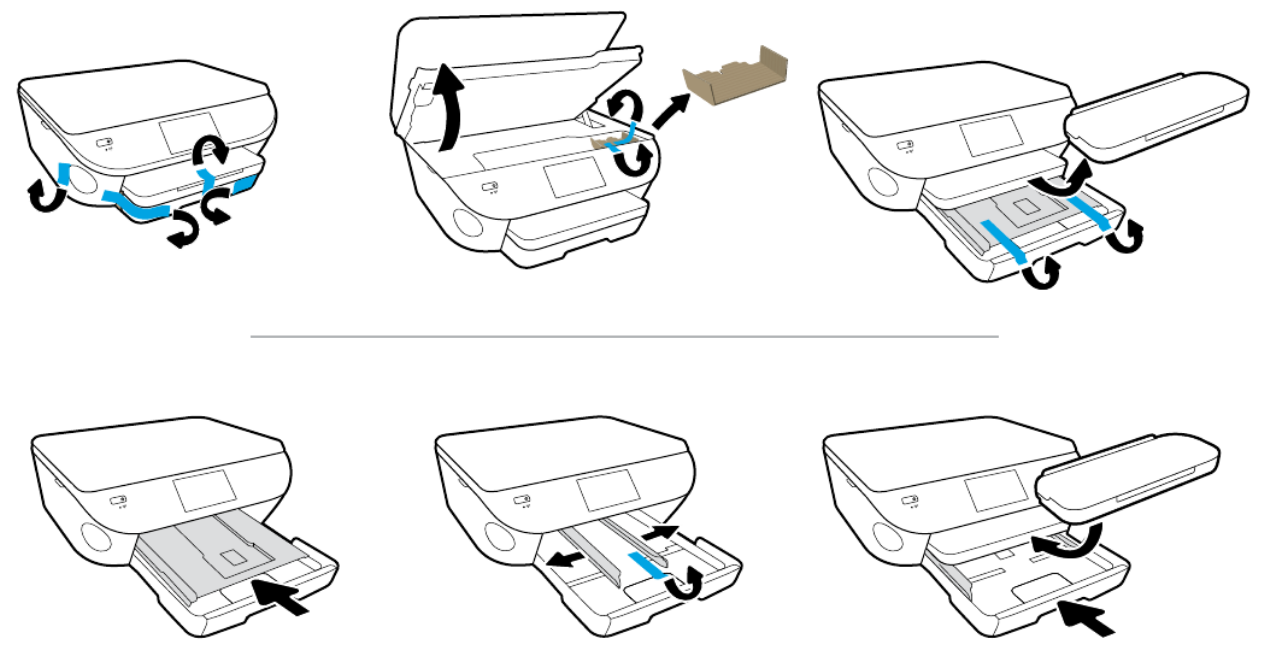
Step 1: Unbox the printer.
Carefully remove the printer from its packaging.
Be sure to:
- Remove all protective tape
- Remove foam inserts
- Remove plastic packaging
- Check inside the printer for shipping locks
Refer to the setup sheet included by the manufacturer if needed.
Step 2: Connect the Power
- Plug the power cable into the printer.
- Connect it to a wall outlet.
- Press the Power button.
- Wait for the printer to complete its startup process.
Many printers will perform an automatic initialization during first startup.
Step 3: Install Ink or Toner
Open the cartridge access door.
Then:
- Insert each ink cartridge into the matching color slot.
- For laser printers, install the toner cartridge.
- Close the printer cover.
Most printers will automatically recognize newly installed cartridges.
Step 4: Load Paper
Open the paper tray.
Adjust the paper guides and insert the following:
- Letter paper
- A4 paper
- Legal paper (if supported)
Avoid overloading the tray.
Step 5: Choose Your Connection Type
Most printers support one or more connection methods.
USB Connection
Best for:
- Desktop computers
- Single-user setups
- Reliable connections
Simply connect the USB cable after installing the printer software.
Wi-Fi Connection
Ideal for:
- Home networks
- Multiple users
- Mobile printing
Use the printer’s display panel to:
- Open Settings.
- Select Network.
- Choose Wireless Setup Wizard.
- Select your Wi-Fi network.
- Enter the Wi-Fi password.
The printer should connect within a minute.
Ethernet Connection
Perfect for offices.
Simply connect an Ethernet cable from the printer to your router.
Step 6: Install Printer Drivers
Printer drivers allow your computer to communicate with the printer.
Always download the latest drivers from the printer manufacturer’s official website.
During installation:
- Accept the license agreement
- Select your connection type
- Allow the installer to detect the printer
- Complete installation
Restart your computer if prompted.
Setting Up a Printer on Windows
Windows 11
- Open Settings.
- Select Bluetooth & devices.
- Click Printers & Scanners.
- Choose Add device.
- Select your printer.
- Follow the installation wizard.
Windows 10
- Open Control Panel.
- Select Devices and Printers.
- Click Add a Printer.
- Choose your printer.
- Finish installation.
Windows often installs drivers automatically.
Setting Up a Printer on macOS
- Open System Settings.
- Select Printers & Scanners.
- Click the + button.
- Choose your printer.
- Click Add.
macOS usually downloads the required software automatically.
Setting Up a Printer on Android
Most Android devices support:
- Mopria Print Service
- Manufacturer printing apps
Simply:
- Connect to the same Wi-Fi.
- Open the document.
- Tap Print.
- Select your printer.
Setting Up a Printer on iPhone or iPad
Apple devices support AirPrint.
Steps:
- Connect both devices to the same Wi-Fi.
- Open a document.
- Tap Share.
- Select Print.
- Choose your printer.
- Tap Print.
No additional drivers are required for AirPrint-compatible printers.
Print a Test Page
Printing a test page confirms the setup was successful.
On Windows:
- Open Printer Properties.
- Click Print Test Page.
On macOS:
- Open Printers & Scanners.
- Select your printer.
- Choose Print Test Page (if available).
Common Printer Setup Problems
Printer Not Detected
Possible causes:
- Loose USB cable
- Incorrect Wi-Fi network
- Disabled printer
- Missing driver
Solutions:
- Restart the printer.
- Restart your computer.
- Reinstall the driver.
- Try another USB port.
Printer Won’t Connect to Wi-Fi
Check:
- Wi-Fi password
- Router signal strength
- Router frequency (2.4 GHz vs. 5 GHz)
- Wireless settings
Restart both the router and printer if needed.
Driver Installation Failed
Try these fixes:
- Download the latest driver.
- Disable antivirus temporarily.
- Run the installer as administrator.
- Remove previous printer drivers.
Printer Appears Offline
Possible fixes:
- Set the printer as default.
- Disable “Use Printer Offline.”
- Restart the Print Spooler service.
- Reconnect to Wi-Fi.
Poor Print Quality After Setup
If print quality is poor:
- Run printhead cleaning.
- Align printheads.
- Replace low ink cartridges.
- Use recommended paper.
Tips for a Successful Printer Setup
- Always install the latest firmware.
- Keep printer drivers updated.
- Use genuine ink or toner when possible.
- Connect to a stable Wi-Fi network.
- Print regularly to prevent clogged printheads.
- Clean the printer periodically.
- Enable automatic updates if available.
Frequently Asked Questions
Why won’t my computer find my printer?
This is usually caused by outdated drivers, network issues, or an incorrect connection. Ensure both the printer and computer are connected to the same network and install the latest driver.
Do I need to install printer software?
Many modern operating systems install basic drivers automatically, but using the manufacturer’s software provides access to advanced features like scanning, maintenance, and firmware updates.
Can I set up a printer without a CD?
Yes. Most manufacturers provide the latest drivers and software on their official support websites, making installation without the included CD simple.
Why is my wireless printer offline?
A wireless printer may appear offline if it loses its Wi-Fi connection, receives a new IP address, or encounters a temporary network issue. Restarting both the printer and router often resolves the problem.
How do I know if my printer is connected?
You can verify the connection by printing a test page or checking the printer’s status in your computer’s printer settings. A successful test print confirms the setup is complete.
Conclusion
A proper printer installation helps ensure reliable performance from the start. By following this Printer Setup Guide, you can connect your printer via USB, Wi-Fi, or Ethernet, install the correct drivers, and resolve common setup issues quickly.
Whether you’re setting up a printer for your home, office, or school, taking a few extra minutes to configure it correctly will save time and reduce future printing problems. Keep your printer software updated, maintain a stable connection, and perform regular maintenance for the best long-term results.
 rafiyandi0006@gmail.com