
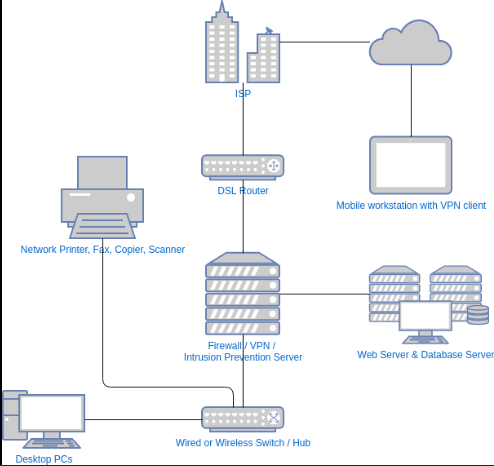
A reliable printer connection is essential whether you’re printing documents at home, in the office, or for school. Unfortunately, many users experience problems such as printers appearing offline, failing to connect to Wi-Fi, or not being detected by their computer.
Welcome to Printer Connection Academy, your complete learning resource for printer setup, wireless connectivity, and troubleshooting. This guide covers everything from basic installation to advanced network solutions so you can keep your printer working smoothly.
Why Printer Connections Matter
A stable printer connection offers several benefits:
- Faster printing
- Wireless convenience
- Multi-device accessibility
- Secure network printing
- Improved productivity
- Reduced troubleshooting time
Modern printers support multiple connection methods, allowing users to choose the setup that best fits their environment.
Types of Printer Connections
1. USB Connection
USB is the simplest and most reliable connection method.
Advantages:
- Easy setup
- Stable connection
- Fast communication
- No network configuration required
Best for:
- Personal computers
- Home offices
- Single-user environments
2. Wi-Fi Connection
Wireless printing eliminates cables and allows multiple devices to access the same printer.
Benefits include:
- Flexible placement
- Shared access
- Mobile printing
- Remote management
Ideal for:
- Homes
- Small businesses
- Shared workspaces
3. Ethernet Connection
Ethernet provides a wired network connection.
Advantages:
- Maximum stability
- Faster data transfer
- Excellent for high-volume printing
- Better reliability than Wi-Fi
Commonly used in:
- Offices
- Schools
- Large organizations
4. Bluetooth Connection
Bluetooth works well for nearby mobile printing.
Best for:
- Smartphones
- Tablets
- Quick printing jobs
Range is usually limited compared to Wi-Fi.
How to Connect a Printer to Wi-Fi
Most modern printers include a wireless setup wizard.
Step 1
Turn on the printer.
Step 2
Open the printer’s Settings menu.
Step 3
Navigate to:
Network → Wireless Setup Wizard
Step 4
Select your Wi-Fi network.
Step 5
Enter your Wi-Fi password.
Step 6
Wait until the printer confirms the connection.
Connecting a Printer to Windows
Windows makes adding printers straightforward.
Open:
Settings → Bluetooth & Devices → Printers & Scanners
Select:
Add Device
Windows will search for available printers automatically.
If your printer doesn’t appear:
- Restart the printer
- Ensure it’s connected to the same Wi-Fi network
- Restart the computer
- Install the latest printer driver
Connecting a Printer to macOS
On Mac:
Open:
System Settings → Printers & Scanners
Click:
Add Printer
Choose your printer from the list.
macOS often downloads drivers automatically.
Mobile Printing
Modern printers support printing directly from mobile devices.
Popular options include:
- Apple AirPrint
- Mopria Print Service
- Manufacturer mobile apps
- Wi-Fi Direct
These technologies allow printing without connecting to a computer.
How to Connect Using Wi-Fi Direct
Wi-Fi Direct lets your device connect directly to the printer.
Steps
- Enable Wi-Fi Direct on the printer.
- Open Wi-Fi settings on your phone or laptop.
- Connect to the printer’s network.
- Enter the provided password.
- Print your document.
No router is required.
USB Printer Setup
USB installation is simple.
Connect the cable.
Windows usually installs drivers automatically.
If not:
- Visit the manufacturer’s support website.
- Download the latest driver.
- Install it.
- Restart the computer.
Ethernet Printer Setup
For offices:
- Connect the Ethernet cable.
- Power on the printer.
- Allow it to obtain an IP address.
- Add the printer from Windows or macOS.
- Print a test page.
Common Printer Connection Problems
Printer Offline
Possible causes:
- Network interruption
- Sleep mode
- Incorrect default printer
- Driver issues
Solutions:
- Restart the printer.
- Restart the router.
- Disable “Use Printer Offline.”
- Update drivers.
Printer Not Found
Check:
- Wi-Fi connection
- Router status
- Printer power
- Network compatibility
Incorrect Wi-Fi Password
Reconnect the printer using the wireless setup wizard and carefully enter the correct password.
Weak Wireless Signal
Move the printer:
- Closer to the router
- Away from thick walls
- Away from microwaves
- Away from cordless phones
Driver Problems
Symptoms include:
- Printer missing
- Print queue errors
- Failed installation
- Blank pages
Updating the driver usually resolves these issues.
Tips for a Stable Printer Connection
For reliable performance:
- Keep firmware updated.
- Install the latest drivers.
- Restart your router regularly.
- Use a strong Wi-Fi signal.
- Avoid network congestion.
- Use quality USB or Ethernet cables.
- Remove unused printers from your device.
Advanced Network Tips
If you manage multiple printers:
- Assign static IP addresses.
- Enable automatic firmware updates.
- Secure your wireless network with WPA2 or WPA3 encryption.
- Monitor printer status through the printer’s web interface.
- Back up printer configuration settings when possible.
These practices help reduce connectivity issues in larger environments.
Security Best Practices
Protect your printer and network by:
- Changing the default administrator password.
- Keeping firmware up to date.
- Disabling unused network services.
- Using secure Wi-Fi encryption.
- Restricting printer access to trusted users.
- Reviewing print logs if available.
A secure printer is less vulnerable to unauthorized access.
When Should You Reset the Printer?
A factory reset may help if:
- The printer won’t connect after multiple attempts.
- Network settings are corrupted.
- You’re moving the printer to a new network.
- Previous Wi-Fi credentials need to be removed.
Be aware that resetting the printer will erase saved network settings, requiring you to complete the setup again.
Frequently Asked Questions (FAQ)
Why won’t my printer connect to Wi-Fi?
Common causes include incorrect passwords, weak signals, outdated firmware, or router compatibility issues.
Can I connect one printer to multiple devices?
Yes. A network-connected printer can usually be shared by several computers, smartphones, and tablets on the same network.
Is USB or Wi-Fi better?
USB provides the most stable connection for a single computer, while Wi-Fi offers greater flexibility and allows multiple devices to print wirelessly.
How do I reconnect my printer after changing my Wi-Fi password?
Open the printer’s wireless settings, select your new network, enter the updated password, and confirm the connection.
Do I need to install printer drivers?
Many modern operating systems install drivers automatically, but downloading the latest driver from the printer manufacturer’s website can provide improved performance and additional features.
Conclusion
Printer connectivity doesn’t have to be complicated. Whether you’re using USB, Wi-Fi, Ethernet, Bluetooth, or mobile printing, understanding the available connection methods makes setup and troubleshooting much easier.
Printer Connection Academy is designed to help users confidently install, manage, and maintain reliable printer connections. By following the best practices and troubleshooting steps in this guide, you can reduce downtime, improve printing performance, and keep your devices connected whenever you need them.