
Printers are essential for home offices, schools, and businesses, but they can also be frustrating when they stop working unexpectedly. Whether your printer refuses to print, keeps showing offline, produces blurry documents, or loses its Wi-Fi connection, most problems can be solved without calling technical support.
This printer troubleshooting hub provides practical, step-by-step solutions for the most common printer issues. The guide applies to popular printer brands, including HP, Canon, Epson, Brother, Lexmark, Samsung, Xerox, and many others.
Why Printers Stop Working
Printer issues generally fall into one of several categories:
- Connectivity problems
- Driver or software issues
- Hardware malfunctions
- Paper handling errors
- Ink or toner problems
- Print quality issues
- Configuration mistakes
Identifying the correct category makes troubleshooting much easier.
1. Printer Is Not Printing
If your printer doesn’t print anything, try these steps:
Check Power
- Make sure the printer is turned on.
- Verify the power cable is securely connected.
- Restart the printer.
Check Connections
For USB printers:
- Reconnect the USB cable.
- Try another USB port.
- Avoid using damaged cables.
For wireless printers:
- Ensure the printer is connected to Wi-Fi.
- Restart your router.
- Confirm your computer is on the same network.
Restart Your Computer
A simple restart often clears temporary communication issues.
2. Printer Shows Offline
One of the most common Windows printer errors is “Printer Offline.”
Windows
- Open Settings > Bluetooth & Devices > Printers & Scanners.
- Select your printer.
- Open the print queue.
- Disable Use Printer Offline if it’s enabled.
- Set the printer as the default device.
macOS
- Open System Settings.
- Go to Printers & Scanners.
- Remove and re-add the printer if necessary.
3. Paper Jam
Paper jams happen when paper feeds incorrectly.
How to Fix
- Turn off the printer.
- Open all access panels.
- Remove jammed paper slowly.
- Check for small paper scraps.
- Reload paper properly.
Never pull paper forcefully, as it may damage internal rollers.
4. Poor Print Quality
Common symptoms include:
- Faded printing
- Streaks
- Smudges
- Missing colors
- Blurry text
Solutions
- Run the printer’s cleaning cycle.
- Align print heads.
- Replace low ink cartridges.
- Use quality paper.
- Print a nozzle check.
5. Printer Won’t Connect to Wi-Fi
Wireless connectivity problems are extremely common.
Restart Everything
- Restart printer
- Restart router
- Restart computer
Verify Wi-Fi Settings
Ensure:
- Correct network selected
- Correct Wi-Fi password
- Strong signal
Avoid placing the printer too far from the router.
6. Driver Problems
Outdated or corrupted drivers often cause printing failures.
Update Drivers
Visit the official support page for your printer manufacturer and install the latest driver compatible with your operating system.
Avoid unofficial driver websites.
7. Slow Printing
Slow printing may result from:
- High-quality print settings
- Large image files
- Wireless interference
- Low printer memory
Speed Up Printing
- Use Draft mode.
- Reduce image resolution when appropriate.
- Connect via USB for large jobs.
- Clear the print queue.
8. Print Queue Stuck
A stuck queue prevents new documents from printing.
Windows
- Open the print queue.
- Cancel all pending jobs.
- Restart the Print Spooler service.
- Restart the printer.
9. Ink Cartridge Not Recognized
Possible causes include the following:
- Dirty cartridge contacts
- Incorrect installation
- Non-compatible cartridges
- Firmware issues
Fix
- Remove and reinstall cartridges.
- Clean electrical contacts gently.
- Confirm cartridge compatibility.
- Restart the printer.
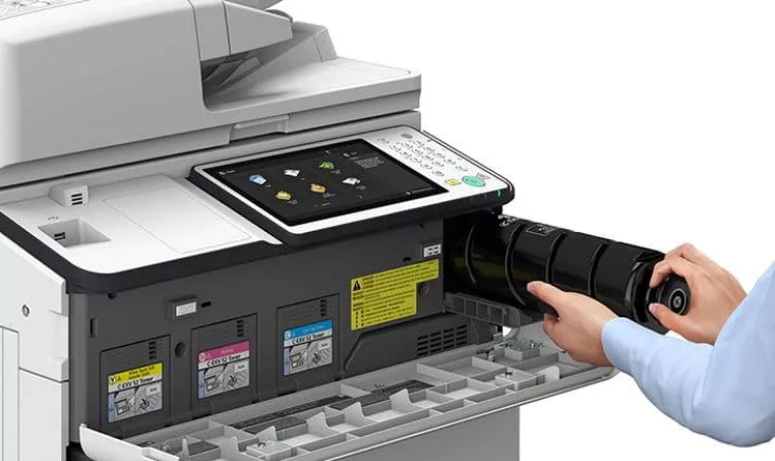
10. Toner Printer Issues
Laser printers may display:
- Toner low
- Toner missing
- Toner not detected
Troubleshooting
- Remove and shake the toner cartridge gently.
- Reinstall correctly.
- Replace empty cartridges.
- Clean internal contacts if recommended by the manufacturer.
11. Printer Prints Blank Pages
Blank pages usually indicate:
- Empty ink
- Clogged print heads
- Incorrect paper settings
- Driver issues
Run a nozzle check and print head cleaning before replacing cartridges.
12. Printer Keeps Going Offline
If your printer repeatedly disconnects:
- Assign a static IP address.
- Update firmware.
- Disable power-saving mode.
- Improve Wi-Fi signal strength.
13. Error Messages
Common printer errors include:
- Paper Out
- Door Open
- Ink System Failure
- Cartridge Error
- Service Required
- Communication Error
Read the printer’s display carefully and consult the user manual for model-specific codes.
Preventive Maintenance Tips
Regular maintenance helps avoid many printer issues.
Clean Regularly
- Remove dust.
- Clean rollers.
- Wipe scanner glass.
Use Genuine Supplies
Quality ink and toner reduce the risk of leaks, clogs, and poor print quality.
Update Firmware
Manufacturers release firmware updates that improve stability and compatibility.
Print Regularly
Inkjet printers benefit from occasional use, helping prevent clogged print heads.
Quick Troubleshooting Checklist
Before contacting support, verify the following:
- Printer has power
- Paper is loaded correctly
- Ink or toner is sufficient
- USB cable or Wi-Fi connection is working
- The printer is selected as the default device
- Driver is up to date
- No paper jam is present
- Print queue is clear
- Printer has been restarted
When to Contact Technical Support
Professional support may be necessary if:
- Hardware components are damaged.
- The printer displays persistent hardware error codes.
- Print heads fail after repeated cleaning.
- The printer makes unusual grinding noises.
- Internal parts require replacement.
Frequently Asked Questions
Why is my printer connected but not printing?
This is commonly caused by a stuck print queue, outdated drivers, incorrect printer settings, or low ink or toner levels.
How do I fix an offline printer?
Ensure the printer is powered on and connected to the correct network or USB port and that the “Use Printer Offline” option is disabled.
Why are my printed pages blurry?
Blurry prints are often caused by clogged print heads, low ink, incorrect paper settings, or poor-quality paper.
How often should I clean my printer?
For home use, cleaning every one to three months is generally sufficient. Printers used frequently may require more regular maintenance.
Should I reinstall my printer driver?
Yes. Reinstalling the latest driver is recommended if the printer suddenly stops communicating with your computer or displays persistent software-related errors.
Final Thoughts
Printer problems can interrupt your workflow, but many issues have simple solutions. By following the troubleshooting steps in this Printer Troubleshooting Hub, you can resolve common problems such as offline errors, Wi-Fi connectivity issues, paper jams, poor print quality, and driver conflicts without professional assistance.
Regular maintenance, updated software, and proper printer setup can significantly reduce future issues and keep your printer running efficiently for years to come.