
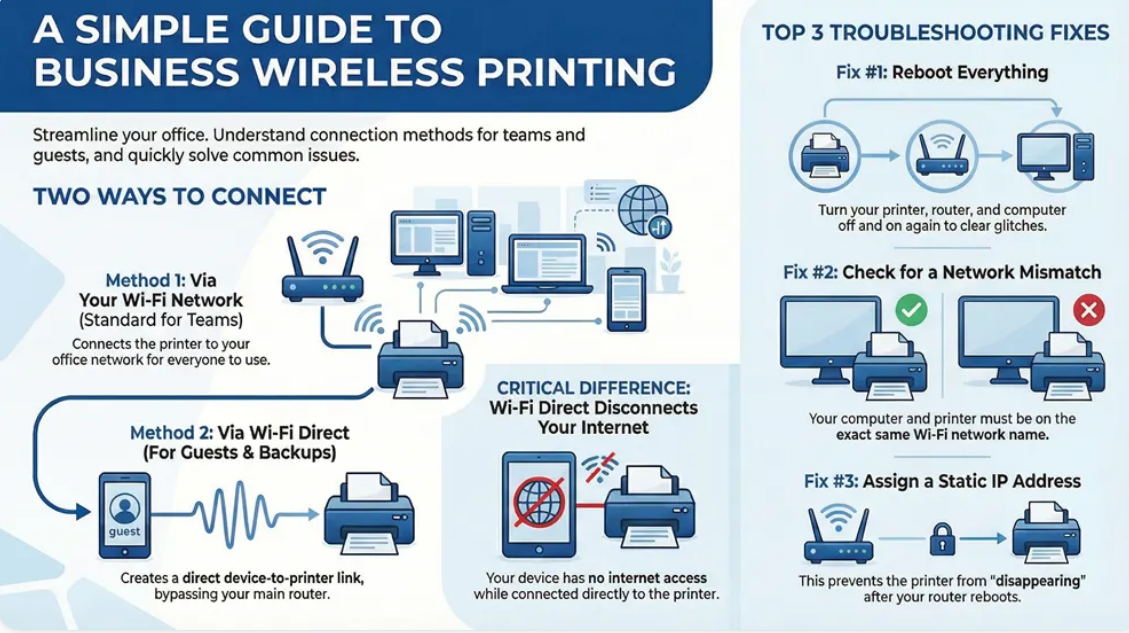
Whether you’re trying to connect a brand-new printer, fix a printer that suddenly went offline, or troubleshoot wireless printing problems, you’ve come to the right place. Printer Connection Hub is designed to help home users, students, remote workers, and businesses solve printer connection issues quickly and confidently.
From Wi-Fi setup to USB connections, network printing, driver installation, and mobile printing, this guide covers everything you need to keep your printer connected and working properly.
Why Printer Connection Problems Happen
Printer connection issues are among the most common technical problems users experience. Fortunately, most problems can be fixed without replacing the printer.
Common causes include:
- Weak or unstable Wi-Fi signals
- Incorrect printer settings
- Outdated printer drivers
- Router configuration issues
- USB cable problems
- Firewall or antivirus interference
- IP address conflicts
- Operating system updates
- Printer firmware needing updates
Understanding the cause makes troubleshooting much easier.
Types of Printer Connections
Modern printers support several connection methods.
1. Wireless (Wi-Fi)
Wireless printing allows multiple devices to print without cables.
Advantages:
- No USB cable required
- Print from multiple computers
- Works with smartphones and tablets
- Ideal for home and office use
Common issues:
- Printer not found
- Wrong Wi-Fi password
- Weak network signal
- Router compatibility problems
2. USB Connection
USB remains one of the most reliable connection methods.
Advantages:
- Stable connection
- Easy installation
- No network required
Common issues:
- Faulty cable
- Damaged USB port
- Driver installation failure
- Unsupported USB hubs
3. Ethernet Connection
Many office printers use Ethernet.
Benefits include:
- Stable network connection
- Faster communication
- Reliable for multiple users
4. Bluetooth Printing
Some compact printers support Bluetooth.
Commonly used for:
- Photo printing
- Label printing
- Portable printers
5. Cloud Printing
Modern printers support cloud services.
Examples include:
- Email printing
- Mobile cloud apps
- Remote printing
How to Connect a Printer to Wi-Fi
Most wireless printers follow similar steps.
Step 1
Turn on the printer.
Step 2
Open the printer’s network or wireless settings.
Step 3
Select your Wi-Fi network.
Step 4
Enter the wireless password.
Step 5
Wait until the printer confirms the connection.
Step 6
Install the printer software on your computer.
Connecting a Printer to Windows
Windows usually detects printers automatically.
Basic steps:
- Open Settings.
- Select Bluetooth & devices.
- Click Printers & Scanners.
- Choose Add device.
- Wait for Windows to find the printer.
- Install recommended drivers.
If Windows cannot detect the printer:
- Restart the printer.
- Restart your computer.
- Restart your router.
- Try adding the printer manually.
Connecting a Printer to macOS
Mac users can connect printers through System Settings.
Steps include:
- Open System Settings.
- Select Printers & Scanners.
- Click the + button.
- Select the printer.
- Install available drivers.
macOS often downloads compatible drivers automatically.
Connecting a Printer to Your Smartphone
Most manufacturers provide mobile apps.
Popular options include:
- HP Smart
- Canon PRINT
- Epson Smart Panel
- Brother Mobile Connect
Mobile printing also supports:
- Apple AirPrint
- Mopria Print Service
Common Printer Connection Problems
Printer Is Offline
Possible causes:
- Network interruption
- Sleep mode
- Incorrect default printer
- Driver issues
Solutions:
- Restart the printer.
- Restart the router.
- Set the printer online.
- Clear the print queue.
Printer Not Found
Possible reasons:
- Different Wi-Fi network
- Disabled wireless feature
- Firewall blocking detection
Fixes:
- Verify both devices use the same network.
- Reconnect Wi-Fi.
- Disable VPN temporarily.
- Run the printer setup utility.
Printer Keeps Disconnecting
This usually indicates network instability.
Try:
- Moving the printer closer to the router.
- Using the 2.4 GHz Wi-Fi band if supported.
- Updating printer firmware.
- Assigning a static IP address.
USB Printer Not Recognized
Possible fixes include the following:
- Try another USB port.
- Replace the USB cable.
- Reinstall printer drivers.
- Restart Windows.
Slow Printing Over Wi-Fi
Slow wireless printing may result from the following:
- Weak signal
- Large print jobs
- High-resolution images
- Busy network traffic
Improvement tips:
- Reduce print quality when appropriate.
- Move closer to the router.
- Update firmware.
- Use Ethernet for heavy workloads.
Keeping Printer Drivers Updated
Updated drivers improve the following:
- Compatibility
- Security
- Printing performance
- Network reliability
Always download drivers from your printer manufacturer’s official support website.
Router Settings That Affect Printing
Certain router settings may interfere with printer communication.
Check:
- Guest network restrictions
- Device isolation
- MAC filtering
- DHCP settings
- Firewall configuration
Restarting the router can often resolve temporary communication issues.
Tips for Reliable Printer Connections
To reduce future connection problems:
- Keep printer firmware updated.
- Install the latest drivers.
- Use a strong Wi-Fi signal.
- Avoid frequent IP address changes.
- Restart networking equipment occasionally.
- Place the printer in a well-ventilated location.
- Use high-quality USB cables.
- Avoid overloading the network with unnecessary traffic.
Frequently Asked Questions
Why won’t my printer connect to Wi-Fi?
Common reasons include an incorrect password, weak wireless signal, outdated firmware, or the printer being connected to a different network.
How do I reconnect my printer after changing my router?
Reconnect the printer to the new Wi-Fi network using its wireless setup menu, then update the printer settings on all connected devices if necessary.
Why does Windows say my printer is offline?
The printer may have lost its network connection, entered sleep mode, or experienced a driver issue. Restarting both the printer and computer often resolves the problem.
Is USB more reliable than Wi-Fi?
Yes. USB connections are generally more stable because they are not affected by wireless signal strength or network interruptions.
Should I update my printer firmware?
Yes. Firmware updates often improve connectivity, security, compatibility, and overall performance.
Final Thoughts
A stable printer connection is essential for efficient printing at home, school, or the office. Whether you’re using Wi-Fi, USB, Ethernet, or mobile printing, most connection problems can be solved with the right troubleshooting steps.
At Printer Connection Hub, our goal is to provide clear, practical, and up-to-date guides that help you connect your printer, resolve common issues, and keep your printing experience running smoothly.