
Imagine you’re at the office, staring at a massive report that needs to be printed. The pages seem endless, and the printer you rely on is grinding away, seemingly slower than molasses. You can feel the frustration building as you wonder if it will jam, run out of ink, or just take too long. It’s a common scenario that many of us face when dealing with large documents. By the end of this article, you’ll have a clear understanding of best practices for printing large documents efficiently, ensuring you avoid delays and mishaps that can turn a simple task into a headache.
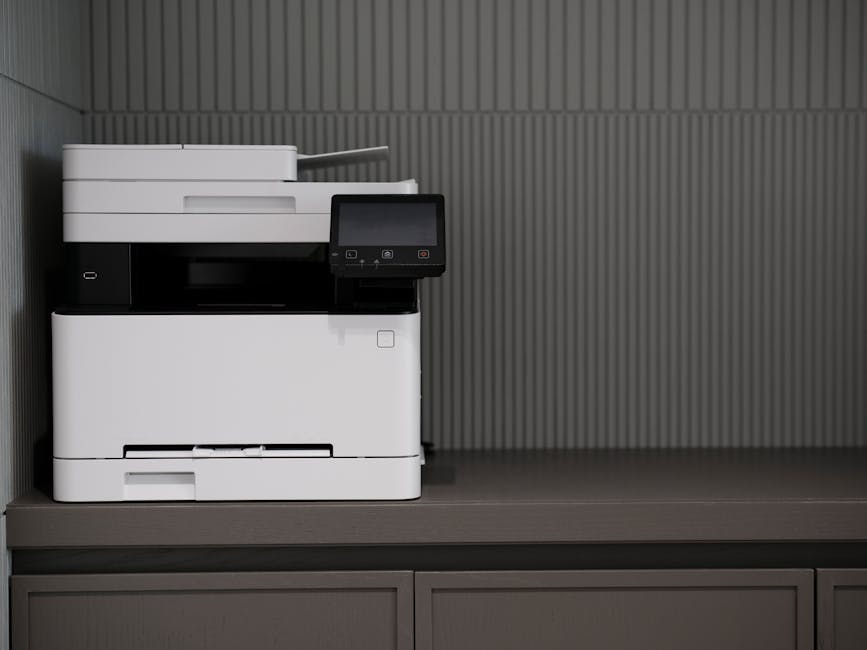
Table of Contents
- Understanding Document Size and Format
- Choosing the Right Printer for Large Prints
- Prepping Your Document for Printing
- Common Pitfalls to Avoid When Printing
- Tips for Efficient Large Document Printing
- Troubleshooting Printing Issues
Understanding Document Size and Format
Before you even send a document to print, understanding its size and format is crucial. Large documents often come in various formats like PDFs, Word documents, or even images. Each format has its own quirks, especially regarding how they handle text and images. For example, PDFs are generally more reliable for maintaining formatting across different devices and printers.
Think of document size as the weight of a suitcase; the larger it is, the more care you need to take. A hefty document can lead to longer processing times and higher chances of printer errors. Always check the dimensions and ensure your printer can handle the size you’re working with.
Choosing the Right Printer for Large Prints
The printer you choose can make or break your large document printing experience. Not all printers are created equal, especially when it comes to handling large jobs. Laser printers are generally faster and more efficient for bulk printing compared to inkjet printers, which may struggle with larger files and can be costlier in terms of ink usage.
If you frequently work with large documents, consider investing in a printer designed for such tasks. Look for features like high-capacity paper trays, duplex printing capabilities, and fast print speeds. These can save you time and frustration in the long run.
Prepping Your Document for Printing
Preparation is key when it comes to printing large documents. Start by reviewing your document’s layout and ensuring that all images are high resolution. Low-resolution images can lead to blurry prints, which is especially problematic for presentations or reports.
Another vital step is to check your margins. Large documents can easily exceed the printable area of your printer, leading to cut-off text or images. Adjusting your margins can save you from wasting paper and ink on misprints. Finally, always perform a print preview to catch any last-minute errors before hitting the print button.
- Review the document layout and images for resolution.
- Check and adjust margins to fit your printer’s specifications.
- Perform a print preview to catch errors.
Common Pitfalls to Avoid When Printing
Even with preparation, printing large documents can lead to common pitfalls. One of the most frequent issues is running out of ink mid-print. Always check ink levels before starting a large job, and consider having backup cartridges ready.
Another common mistake is not allowing enough time for printing. Large documents can take longer than expected, especially if your printer is older or not designed for high-volume tasks. Factor in extra time to avoid the stress of last-minute printing.
Lastly, be wary of printer jams. Large stacks of paper can easily get stuck, particularly if the paper quality is poor or the printer is not well-maintained. Regular maintenance and using quality paper can significantly reduce this issue.
Tips for Efficient Large Document Printing
When printing large documents, efficiency matters. If you find yourself frequently needing to print big files, consider setting your printer to draft mode for initial runs. This saves ink and time, allowing you to check formatting and layout without wasting resources on high-quality prints.
If you’re printing multiple copies, use the collate function. This feature ensures that all sets of pages are printed in order, saving you from having to sort them manually afterward. It’s a small step that can save you considerable time, especially for lengthy documents.
Lastly, consider breaking your document into smaller sections or batches. This can reduce the load on your printer and help prevent jams, making the whole process smoother.
Troubleshooting Printing Issues
Having problems during the printing process can be incredibly frustrating. One common issue is the printer being offline, which usually happens when the connection to your computer is disrupted. Check your network settings, and ensure the printer is properly connected to your device.
Another issue might be related to the document itself. If your printer is producing blank pages, it may be due to an incompatible file format or corrupt document. Converting the file to a different format like PDF can often resolve this problem.
Lastly, if you experience frequent paper jams, this is often a sign of low-quality paper or a dirty printer. Regular maintenance, including cleaning the printer and using quality paper, can prevent this issue.
Tips
- If you frequently print large reports, invest in a high-capacity printer to handle the workload.
- When preparing documents, always check for high-resolution images to avoid pixelation in prints.
- Before printing, ensure that your paper quality matches the type of document to avoid jams.
- Consider printing a test page first to confirm settings and layout before committing to the entire document.
- Keep a maintenance schedule for your printer to ensure it’s always in top condition.
Troubleshooting
The printer is offline and won’t print.
The Cause: This usually happens when the printer is not properly connected to the network or your computer.
Bagaimana Cara Mengatasinya: Check your printer’s network connection and ensure it is set as the default printer on your device.
The printed pages are blank.
The Cause: This often occurs due to an incompatible file format or a corrupt document.
Bagaimana Cara Mengatasinya: Convert the document to a PDF format and try printing again to see if the issue resolves.
Frequent paper jams during printing.
The Cause: Low-quality paper or a dirty printer can lead to this problem.
Bagaimana Cara Mengatasinya: Ensure you are using good quality paper and clean your printer regularly to prevent jams.
FAQ
Why does my document print slowly?
Large documents often take longer to print due to the amount of data being processed. Check your printer settings and consider adjusting the quality for faster printing.
Can I print large documents in batches?
Yes, printing in batches can help manage printer load and reduce the risk of jams. This is especially useful for lengthy reports or presentations.
What is the best printer for large documents?
Laser printers are generally recommended for large document printing due to their speed and efficiency. Look for models that support high-capacity paper trays.
How can I avoid ink running out during large prints?
Always check your ink levels before starting a large print job. Keeping spare cartridges on hand can also save you from interruptions.
My printer is not responding — what do I do?
If your printer isn’t responding, check the connections and restart both your printer and computer. Ensure the printer is set as the default device in your settings.
Conclusion
Successfully printing large documents requires a balance of preparation, the right equipment, and an understanding of common pitfalls. By following best practices for printing large documents, you can streamline the entire process and avoid unnecessary frustrations. Remember to check your printer settings, use quality materials, and allow ample time for printing. With this knowledge, you’re now equipped to tackle your next big print job with confidence.
 Zulvani