
Introduction
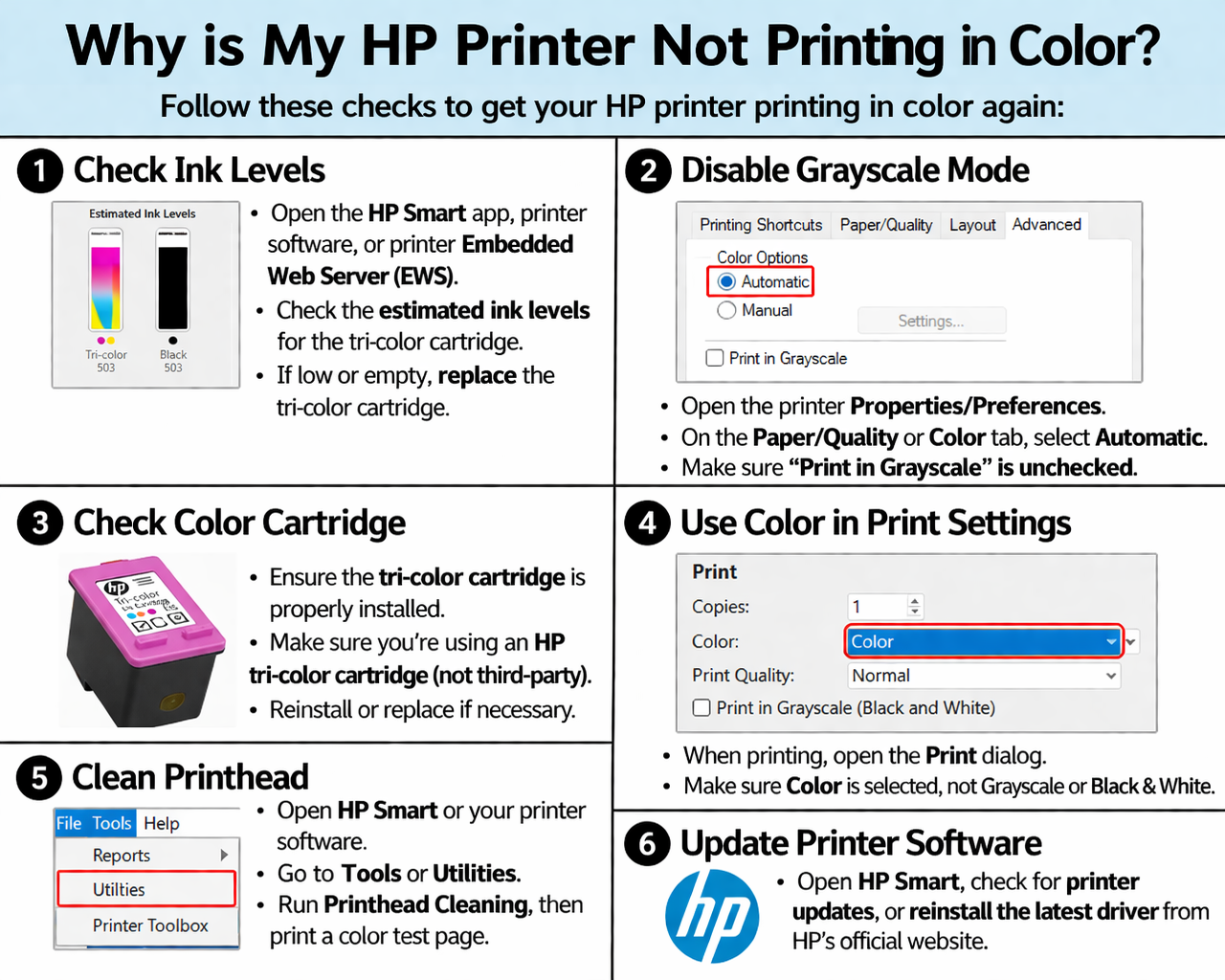
When your HP printer suddenly stops printing in color, it can be frustrating—especially when everything looks fine on screen. In most cases, the problem comes down to settings, ink supply, or minor software glitches.
why is my hp printer not printing in color
This guide walks you through practical solutions to get your HP printer printing color again, with clear instructions for both Windows and Mac users.
What Causes an HP Printer to Stop Printing Color?
Understanding the root cause helps you resolve the problem faster.
Printer Set to Black Ink Only
Many printers automatically switch to black-only mode to save ink.
Color Cartridge Issues
Even if cartridges aren’t empty, they may be dried out or improperly installed.
Software or Driver Problems
Incorrect or outdated drivers can limit printing options.
Application-Level Settings
Sometimes the app you’re printing from overrides printer settings.
Step-by-Step Fixes to Restore Color Printing
Windows Instructions
Step 1: Change Color Settings
- Open Settings
- Go to Bluetooth & Devices > Printers & Scanners
- Select your HP printer
- Click “Printing Preferences
- Choose Color instead of grayscale
Step 2: Run Printer Troubleshooter
- Go to Settings > System > Troubleshoot
- Select Printer
- Run the troubleshooter
Step 3: Check Default Printer Settings
- Open Devices and Printers
- Right-click printer
- Select Set as Default Printer
Step 4: Reinstall Printer Driver
- Download latest driver from HP
- Uninstall old driver
- Install new version
Mac Instructions
Step 1: Verify Color Options
- Open any file
- Click Print
- Expand settings menu
- Set Color Mode to color
Step 2: Remove and Re-add Printer
- Go to Printers & Scanners
- Remove HP printer
- Click Add Printer
- Reinstall device
Step 3: Update macOS Printer Support
- Go to Software Update
- Install any available updates
Fix Ink and Hardware Problems
Replace or Reinstall Cartridges
- Remove cartridges
- Reinsert properly
- Replace if expired or empty
Align the Printer
- Open HP software
- Select Align Printer
- Follow instructions
Print Diagnostic Page
This helps identify missing colors or streaks.
Troubleshooting Checklist
If color still doesn’t work, go through this list:
- Check if draft mode is enabled
- Make sure paper type matches settings
- Try printing from a different app
- Restart printer spooler (Windows)
- Reset printer to factory settings
Helpful Tip: Printing Slides with Notes in Color
When printing presentations:
- Choose Notes Pages layout
- Select Full Color mode
- Avoid draft settings (reduces color quality)
- Use proper margins for readability
Common User Errors
Here are mistakes that often cause color printing issues:
- Leaving “black ink only” enabled
- Using third-party cartridges that aren’t compatible
- Ignoring firmware updates
- Not checking print preview settings
- Printing from apps with limited color support
FAQ
Why does my HP printer ignore color settings?
Because the application or driver may override your preferences.
Can I print color with low black ink?
Some HP printers won’t allow it, depending on the model.
How do I reset my HP printer settings?
Use the printer menu or HP software to restore defaults.
Why is only one color missing?
That specific cartridge may be clogged or empty.
Is reinstalling the printer necessary?
Only if settings and basic fixes don’t work.
Conclusion
Fixing an HP printer that won’t print in color doesn’t have to be complicated. In most cases, adjusting settings, checking cartridges, or reinstalling drivers solves the issue quickly.
By following the steps in this guide, you can restore full-color printing and avoid common mistakes in the future.
 Zulvani