
Introduction
When preparing for a presentation, having printed slides with speaker notes can make a big difference. Instead of relying on memory or switching screens, you can keep everything you need on paper. Fortunately, most presentation software makes it easy to print slides along with notes—once you know the correct settings.
how to print presentation slides with notes
This tutorial walks you through the exact process for printing slides with notes on Windows and Mac, along with expert tips, mistakes to avoid, and solutions to common problems.
What You Need Before Printing
Check Your Notes First
Before printing, ensure:
- Notes are added to each slide
- Text is readable and complete
Open the Notes Pane
In PowerPoint:
- Look below the slide editor
- Add or edit your notes there
Step-by-Step: Print Slides with Notes on Windows
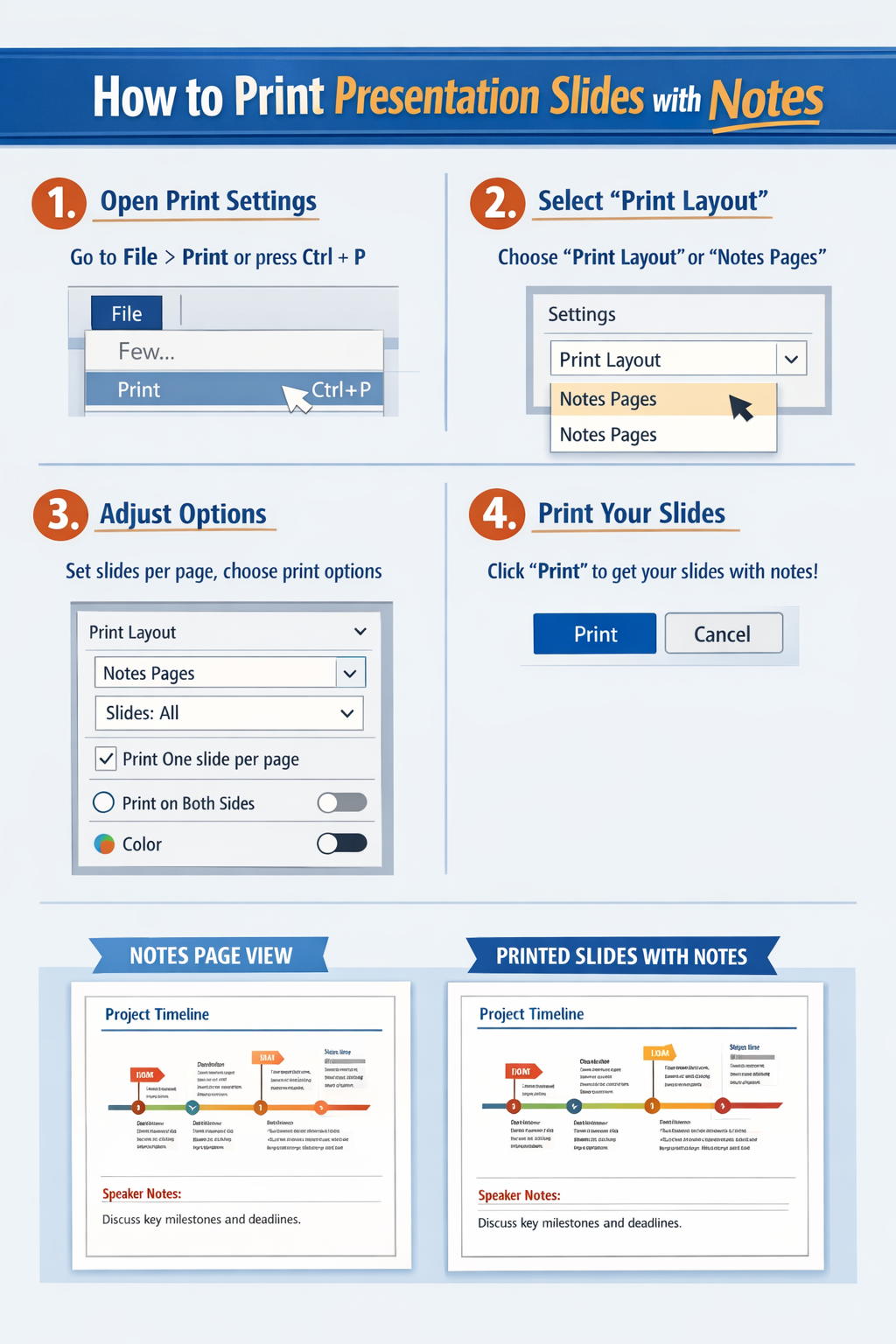
Method 1: Standard Print Process
- Launch your PowerPoint file
- Go to File > Print
- Locate the layout dropdown menu
- Select Notes Pages
- Choose your printer
- Click Print
Preview Before Printing
Always check the preview panel:
- Slide appears at the top
- Notes appear underneath
Step-by-Step: Print Slides with Notes on Mac
Method 2: macOS Print Menu
- Open your presentation
- Click File > Print
- Expand settings using Show Details
- Find layout options
- Choose Notes Pages
- Print your document
Extra Tip for Mac Users
If formatting looks off:
- Adjust scaling
- Switch orientation
Different Print Layout Options Explained
Full Page Slides
- Prints slides only
- No notes included
Notes Pages
- Best option for printing notes
- Includes one slide per page
Handouts
- Multiple slides per page
- Does NOT include notes
How to Print More Efficiently
Save Paper While Keeping Notes
Since PowerPoint limits notes to one slide per page, try:
Convert Slides to PDF
- Export presentation
- Print multiple pages per sheet using PDF viewer
Create a Custom Notes Handout
- Copy slides and notes into Word
- Arrange multiple entries per page
- Print as a document
Improving Print Quality
Use These Settings
- Switch to grayscale for text-heavy notes
- Increase note font size if needed
- Use portrait orientation for readability
Adjust Notes Layout
You can modify Notes Pages:
- Go to View > Notes Page
- Resize text boxes
- Save changes before printing
Troubleshooting Common Problems
Notes Are Missing in Print
- Confirm you selected Notes Pages
- Double-check notes exist
Formatting Looks Strange
- Check page orientation
- Adjust scaling settings
Text Is Too Small
- Increase font size in Notes view
- Avoid shrinking via printer scaling
Printer Doesn’t Print Entire Page
- Enable “Fit to Page”
- Check printer margins
Common Mistakes Users Make
Printing Without Notes Layout
Users often forget to switch layout from default slide mode.
Overcrowding Notes
Too much text makes printed pages hard to read.
Skipping Test Prints
Always print one page first to confirm layout.
Not Updating Notes
Outdated notes can lead to confusion during presentations.
FAQ
1. Can I print slides with notes in color?
Yes, but it’s optional. Grayscale is usually enough and saves ink.
2. Why does PowerPoint only print one slide with notes per page?
That’s the default Notes Pages format. It’s designed for readability.
3. Can I customize how notes appear?
Yes. Use Notes Page view to adjust layout and formatting.
4. Is there a way to print notes without slides?
No, PowerPoint requires the slide to be included.
5. What’s the best format for handouts?
Use Notes Pages for detailed reference or Handouts for compact slide-only prints.
Conclusion
Printing slides with speaker notes is an essential feature for anyone presenting or studying from PowerPoint files. By selecting the correct layout—Notes Pages—you can easily include helpful notes beneath each slide.
While PowerPoint has some limitations, such as one slide per page with notes, there are practical workarounds to improve efficiency. With the steps, tips, and troubleshooting advice in this guide, you can confidently print clean, organized presentation materials on both Windows and Mac.
 Zulvani