
Introduction
Speaker notes are one of the most helpful features in Google Slides. They allow presenters to include reminders, explanations, or scripts without placing too much text on the slides themselves.
how to print notes in google slides
But when preparing for a meeting or lecture, many users want a printed version of their slides with notes included. This makes it easier to follow the presentation without constantly looking at a screen.
Fortunately, Google Slides includes a built-in printing option that formats slides and notes together. In this guide, you’ll learn how to print notes in Google Slides on Windows and Mac, along with useful tips, troubleshooting solutions, and common printing mistakes to avoid.
What Happens When You Print Notes in Google Slides?
When you print speaker notes, Google Slides generates a Notes Page layout.
Each printed page contains:
- One slide image
- All speaker notes associated with that slide
This format is perfect for presenters because it keeps the visual slide and the speaking script on the same page.
Preparing Your Presentation Before Printing
Before opening the print settings, make sure your presentation is ready.
Check Your Notes Section
Look under each slide and confirm your notes are written clearly.
Keep Notes Concise
Long paragraphs may not fit well on a single page.
Try using:
- bullet points
- short sentences
- keywords
Review Formatting
Speaker notes should be easy to read when printed.
Step-by-Step Guide: Printing Google Slides Notes
Because Google Slides is browser-based, the steps are almost identical on Windows and Mac computers.
How to Print Notes in Google Slides on Windows
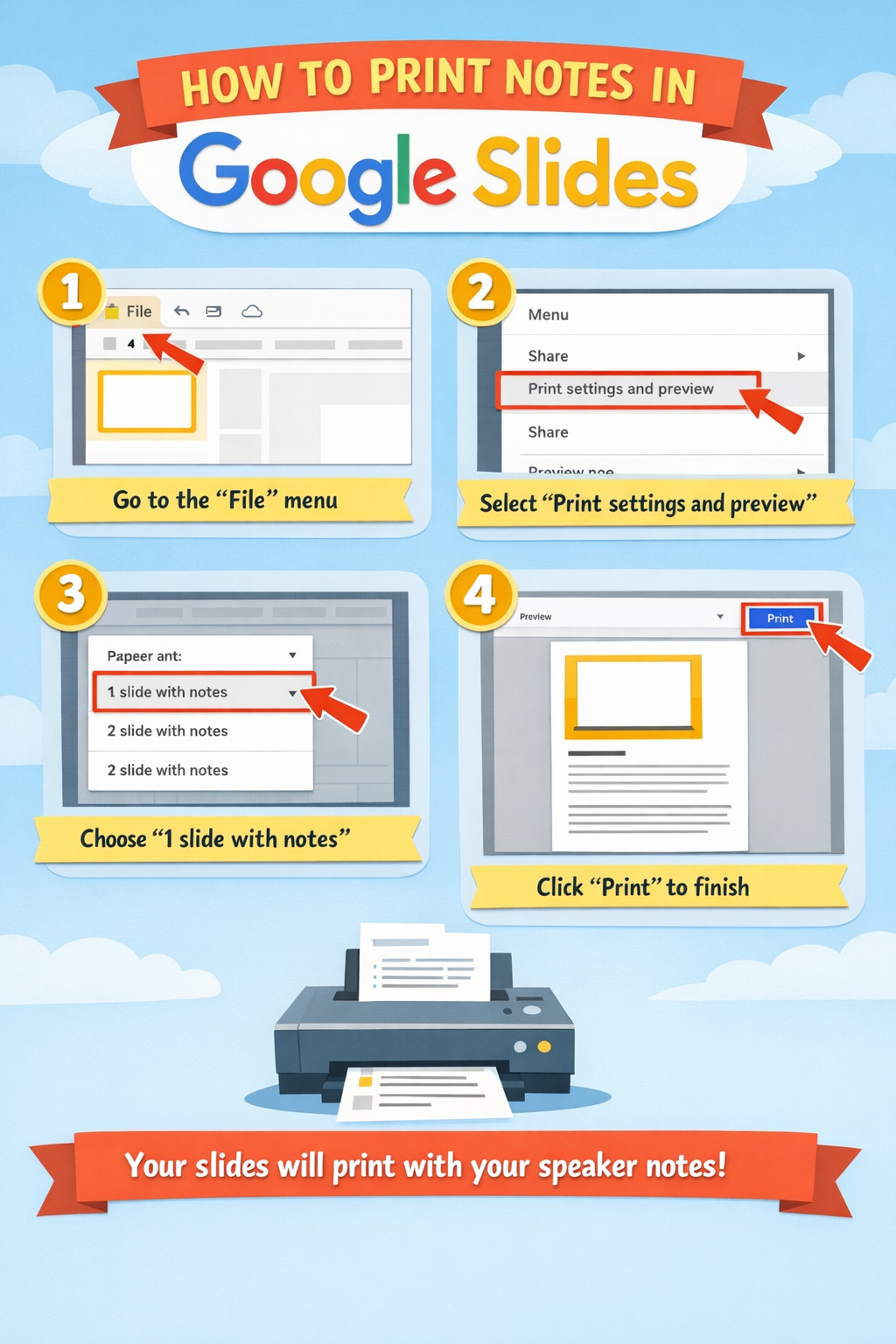
Step 1: Open the Google Slides File
Start by opening your presentation in your preferred browser.
Most users choose Google Chrome, but other browsers also work.
Step 2: Access the Print Preview Tool
At the top menu, click:
File → Print settings and preview
A preview page will appear.
Step 3: Change the Layout to Notes
Look for the layout menu near the top.
Select:
1 slide with notes
The preview will update immediately.
Step 4: Review the Page Layout
Check that:
- The slide appears at the top
- Notes appear underneath
- Text is readable
Step 5: Send the File to the Printer
Click Print.
In the browser print dialog:
- Choose your printer
- Select number of copies
- Confirm page size
Then click Print.
How to Print Google Slides Notes on Mac
Mac users follow a nearly identical process.
Step 1: Launch Google Slides
Open your browser and load the presentation.
Step 2: Open Print Preview
Select:
File → Print settings and preview
Step 3: Choose Notes Layout
Select the option labeled:
1 slide with notes
The preview will refresh.
Step 4: Open the Print Window
Click the Print button.
Step 5: Adjust Mac Print Options
In the macOS print dialog:
- Select printer
- Confirm page orientation
- Choose number of pages
Click Print to complete the process.
Helpful Tips for Better Note Printing
Printing slides with notes can be improved with a few adjustments.
Use Portrait Paper Orientation
Portrait orientation works best for the standard notes layout.
This gives enough space for both slide and text.
Print to PDF First
Instead of printing directly:
- Choose Save as PDF
- Review the document
- Print the PDF
This helps prevent formatting surprises.
Break Long Notes into Paragraphs
Large blocks of text can look cramped.
Short paragraphs improve readability.
Keep Slide Design Simple
Complex backgrounds or dark themes may reduce print clarity.
If needed, disable background graphics before printing.
Troubleshooting Google Slides Note Printing
Here are common problems users encounter and how to fix them.
Speaker Notes Are Missing
Cause:
Wrong print format selected.
Solution:
Open Print settings and preview and choose 1 slide with notes.
Notes Text Is Too Small
Cause:
Large slides reduce note space.
Solution:
Increase font size inside the notes section.
Extra Blank Pages Appear
Cause:
Very long notes.
Solution:
Shorten the notes or divide them into multiple slides.
Printer Produces Poor Quality Pages
Cause:
Low print settings.
Solution:
Switch to High Quality printing in the printer dialog.
Common Errors People Make
Printing notes seems simple, but many users make avoidable mistakes.
Using Ctrl + P Immediately
Pressing Ctrl + P without opening the preview can print slides without notes.
Always use Print settings and preview first.
Ignoring the Preview Page
The preview shows exactly how your notes will print.
Skipping this step can waste paper.
Writing Extremely Long Notes
Large notes may overflow onto additional pages.
Keep notes focused.
Forgetting Page Margins
Large margins can reduce space for notes.
Adjust margins in the print dialog if necessary.
FAQ: Printing Notes in Google Slides
Can I print notes and slides together in Google Slides?
Yes. Use Print settings and preview and select 1 slide with notes.
Can Google Slides print multiple slides with notes on one page?
No. The standard layout prints one slide with notes per page.
Is it possible to download notes pages as a PDF?
Yes. In the print dialog choose Save as PDF instead of a printer.
Why do my notes look different when printed?
Browsers and printers sometimes apply scaling. Check the preview and adjust scaling settings.
Can I print notes from the Google Slides mobile app?
The mobile app does not provide full printing options. Printing from a computer is recommended.
Conclusion
Printing speaker notes from Google Slides is a simple but powerful feature for presenters. By selecting Print settings and preview and choosing “1 slide with notes,” you can create a clear document that combines the slide visuals with your speaking notes.
Whether you’re using Windows or Mac, the process takes only a few steps. Checking the preview, formatting notes properly, and avoiding common mistakes will ensure your printed slides look professional and easy to read.
With these steps, you’ll be able to confidently print Google Slides notes for meetings, lectures, or presentations anytime.
If you’d like, I can also help you generate SEO meta titles, meta descriptions, schema FAQ markup, and internal link suggestions to make these articles rank faster on Google.
 Zulvani