
Introduction
The Notes app on the iPhone is widely used for writing reminders, saving ideas, and storing important information. But sometimes you need a printed copy of those notes for meetings, school, or documentation.
how to print iphone notes
Many users search for how to print iPhone notes, especially when using a Windows computer or a printer that does not support Apple’s AirPrint.
This tutorial explains several reliable ways to print notes from an iPhone, including methods for Mac and Windows computers, plus tips for avoiding common printing problems.
Understanding How iPhone Notes Printing Works
Unlike documents created on a computer, notes on an iPhone are stored inside the Notes app. To print them, you typically use one of these approaches:
- Print directly from the iPhone
- Sync notes to a Mac
- Send the note to a computer
- Convert the note to a printable format
Choosing the right method depends on the devices you have available.
Method 1: Print Notes Directly from an iPhone
If your printer supports AirPrint, you can print notes directly without using a computer.
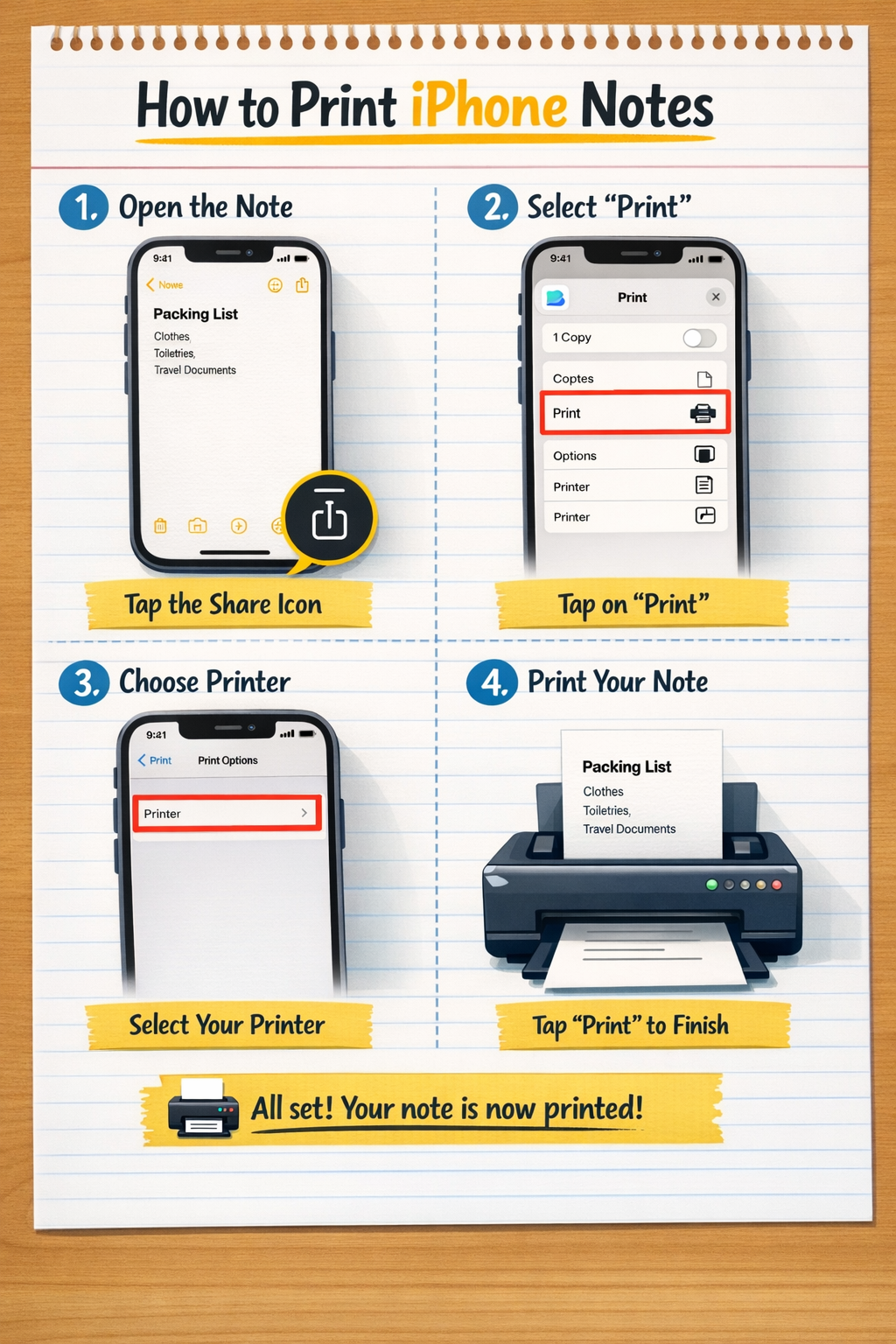
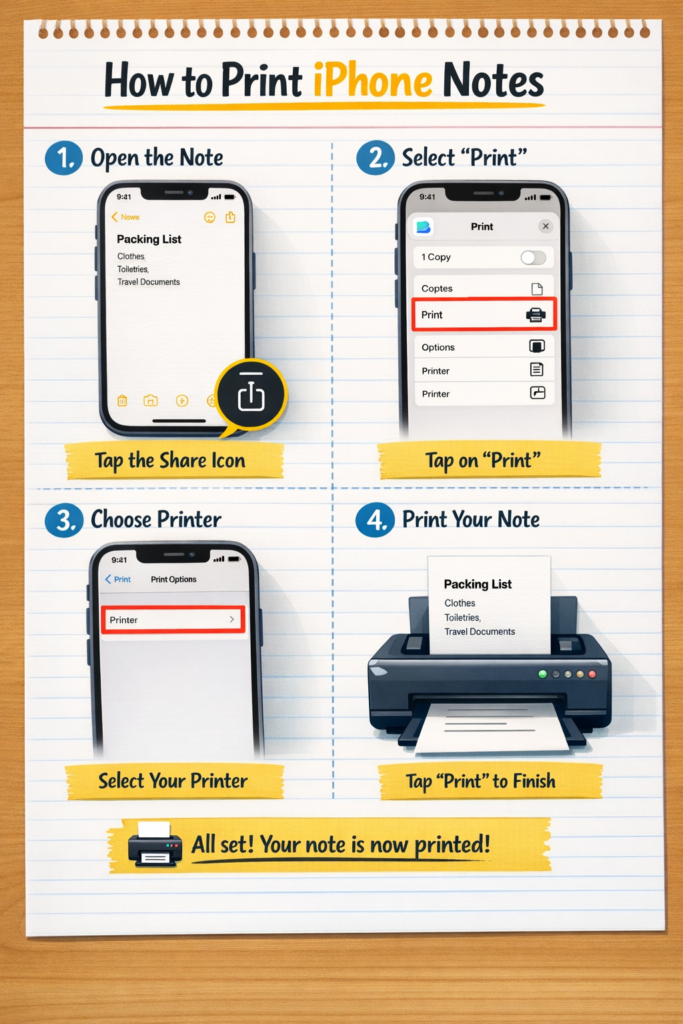
Steps to Print a Note
- Launch the Notes app on your iPhone.
- Select the note you want to print.
- Tap the Share button.
- Choose Print from the menu.
- Select your printer.
- Set the number of copies.
- Tap Print.
This method is the fastest because everything happens directly on the phone.
Method 2: Print iPhone Notes Using a Mac
Mac users can print notes easily because the Notes app is available on macOS.
Step 1: Enable Note Synchronization
- Open Settings on your iPhone.
- Tap your Apple ID profile.
- Select iCloud.
- Turn on Notes syncing.
This allows the notes to appear on your Mac automatically.
Step 2: Access the Notes on Your Mac
- Open the Notes application on your Mac.
- Locate the note you want to print.
- Click the note to view it.
Step 3: Send the Note to the Printer
- Click File in the menu bar.
- Select Print.
- Adjust the print settings.
- Click Print.
You can also change page orientation or scale if necessary.
Method 3: Print iPhone Notes from a Windows PC
Because Windows does not have the Apple Notes app, you need to transfer the note first.
Option A: Send the Note by Email
- Open the note on your iPhone.
- Tap the Share icon.
- Select Mail.
- Send the note to your own email address.
On your Windows computer:
- Open the email.
- Press Ctrl + P.
- Choose your printer.
- Print the message.
Option B: Use iCloud Notes
You can also access notes using a web browser.
Steps
- Visit iCloud.com on your Windows computer.
- Sign in with your Apple ID.
- Click Notes.
- Open the note.
- Press Ctrl + P.
- Print it from the browser.
This method works well if you need access to many notes.
How to Print Multiple Notes Efficiently
If you frequently print notes, you may want a faster workflow.
Combine Notes into One Document
Copy multiple notes into a document editor such as:
- Microsoft Word
- Google Docs
Then print the entire document in one job.
Export Notes as PDFs
Another useful approach:
- Open the note.
- Tap Print.
- Pinch the preview to create a PDF.
- Save it.
You can merge multiple PDFs and print them together.
Troubleshooting Printing Problems
Sometimes notes fail to print due to connection or configuration issues.
Printer Cannot Be Found
Check the following:
- Printer is powered on
- Printer connected to Wi-Fi
- iPhone connected to the same network
Restarting the router can also help.
Notes Not Appearing on Mac
If notes are missing:
- Confirm iCloud Notes is enabled
- Make sure both devices are signed into the same Apple ID
- Wait for syncing to complete
Text Formatting Looks Strange
When printing from email or web browsers, formatting may change.
To avoid this:
- Paste the note into a document editor
- Adjust spacing before printing
Common Mistakes When Printing iPhone Notes
Avoid these frequent issues.
Using Screenshots Instead of the Note
Printing screenshots results in:
- Low resolution text
- Cropped content
Always print the actual note.
Forgetting to Check Printer Compatibility
Older printers may not support AirPrint.
In that case, use a computer to print instead.
Not Reviewing the Print Layout
Before printing, preview the document to confirm:
- All text fits on the page
- No sections are cut off
Ignoring Page Size Settings
Some printers default to unusual paper sizes.
Verify the paper setting is Letter or A4 before printing.
FAQ
Is it possible to print iPhone notes without a printer that supports AirPrint?
Yes. Send the note to a computer through email or iCloud, then print it from the computer.
Can I access my iPhone notes on Windows?
Yes. You can log into iCloud.com and open the Notes section to view and print them.
How do I print a note as a PDF?
Open the print preview on your iPhone, pinch outward on the preview page, and save the note as a PDF.
Can I print several notes at the same time?
Yes. Copy them into a single document or convert them to PDFs and print them together.
Why is the print button missing from my iPhone?
If the print option is missing, scroll further down the share menu. It may be hidden among additional options.
Conclusion
Printing notes from an iPhone is straightforward once you choose the right method. You can print directly using AirPrint, access notes on a Mac, or transfer them to a Windows computer through email or iCloud.
By following the step-by-step instructions and troubleshooting tips in this guide, you can quickly create printed copies of your important notes for work, school, or personal use.
 zul vani