
Introduction
Many people ask, “Can you print on Post-it notes?” The answer is yes—and you can do it with a normal home printer.
Printing directly onto sticky notes allows you to create professional reminders, labels, and mini notes without writing them by hand. The process simply involves creating a layout, placing sticky notes on a guide sheet, and printing the text onto them.
In this tutorial, you’ll learn exactly how to print on Post-it notes using Windows or Mac, along with practical tips to ensure the notes print perfectly every time.
Understanding How Post-it Note Printing Works
Printers cannot directly detect sticky notes. Instead, you use a guide sheet to show the printer where to print.
The process looks like this:
- Print a blank template
- Attach sticky notes to the template
- Run the page through the printer again
When the printer prints the second time, the text lands directly on the sticky notes.
Supplies You Will Need
Before starting, make sure you have these items ready.
Basic Requirements
- Standard 3×3 sticky notes
- Blank letter-size paper
- A printer (laser or inkjet)
- Word processing software
Optional but helpful:
- Sticky note template
- Ruler for alignment
Preparing Your Post-it Template
A template ensures the text aligns correctly with your sticky notes.
Option 1: Use a Table Layout
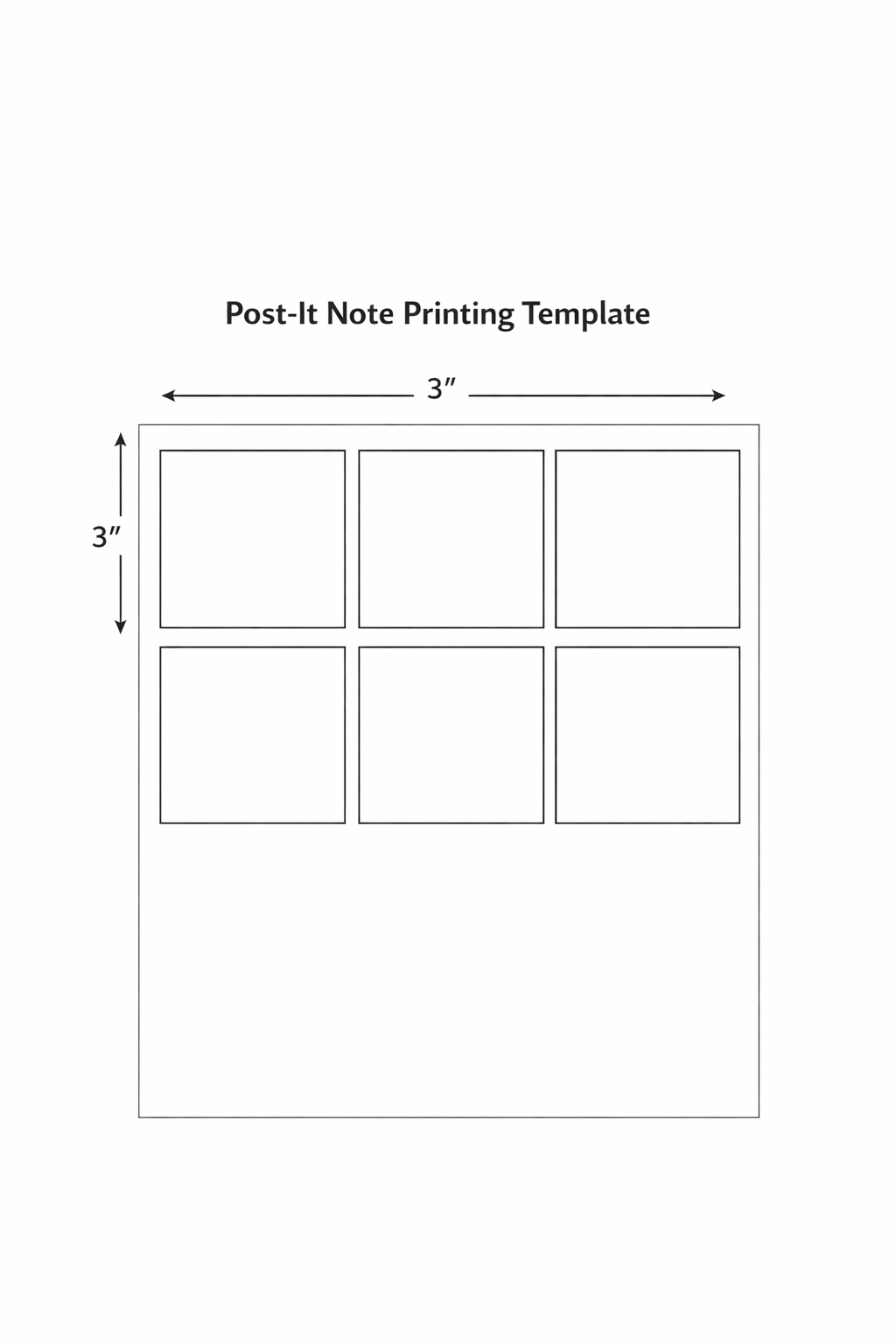
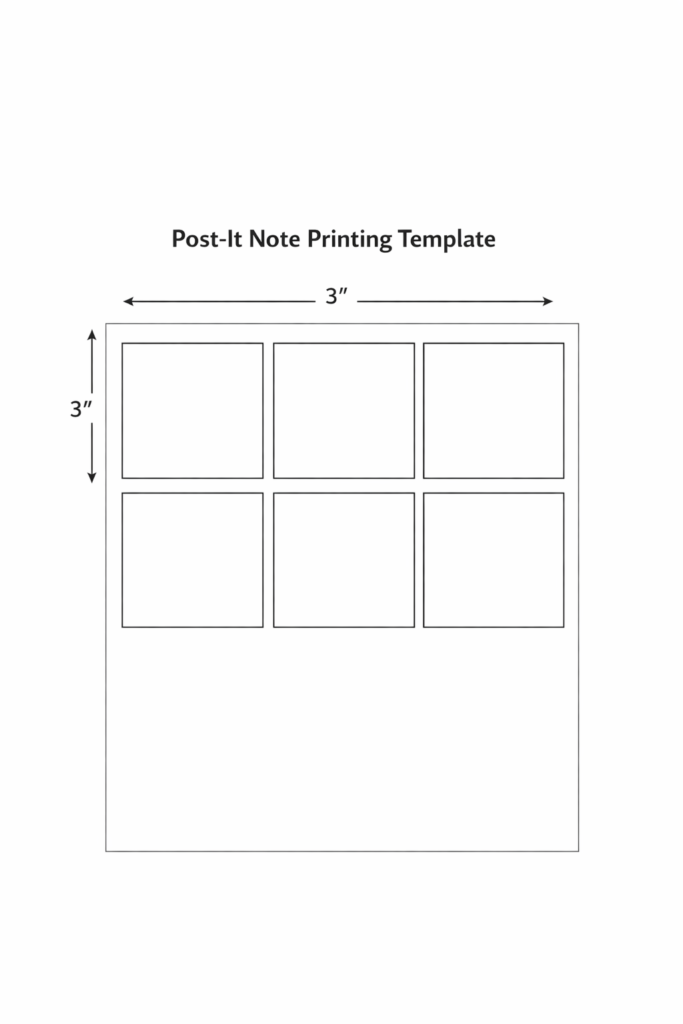
Open Microsoft Word and create a table with six 3×3 squares.
Each square will represent one sticky note.
Option 2: Download a Template
Many free templates are available online that already match standard sticky note sizes.
These templates save time and reduce alignment problems.
Step-by-Step: How to Print on Post-it Notes
Follow this process carefully for best results.
Step 1: Add Text to the Template
Write the messages you want printed.
Examples include:
- Reminder messages
- Contact numbers
- Study prompts
- Planner notes
Keep text inside the center of each square.
Step 2: Print the Template Sheet
Print the template on regular paper first.
This printed page shows where to place your sticky notes.
Step 3: Position the Sticky Notes
Place each sticky note over the printed boxes.
Make sure:
- All corners line up
- The adhesive strip is secure
- Notes lie completely flat
Step 4: Feed the Page Back Into the Printer
Insert the prepared sheet back into the printer.
Ensure the same side that previously printed is facing the correct direction.
Step 5: Print the Document Again
Print the template again.
The text should now appear directly on the sticky notes.
Printing Post-it Notes on Windows
If you’re using a Windows PC, follow these instructions.
Step 1: Open Your File
Open the template in Microsoft Word or Google Docs.
Step 2: Access Print Settings
Press:
Ctrl + P
Select your printer from the list.
Step 3: Configure the Print Layout
Recommended settings:
- Paper size: Letter
- Scale: 100%
- Orientation: Portrait
Step 4: Start Printing
Insert the prepared sticky note sheet and print the document.
Your sticky notes should now contain the printed text.
Printing Post-it Notes on Mac
Mac computers use a similar process.
Step 1: Open the Document
Use Pages, Word, or Google Docs.
Step 2: Open the Print Window
Press:
Command + P
Step 3: Check Page Settings
Verify the following options:
- Paper size: US Letter
- Scaling: 100%
- Layout: Portrait
Step 4: Print the Sticky Notes
Load the sheet with attached sticky notes and print the file.
Troubleshooting Sticky Note Printing Problems
If your notes do not print correctly, these fixes can help.
Problem: Printing is Off Center
Solution:
Adjust margins or move the sticky notes slightly on the guide sheet.
Problem: Sticky Notes Fall Off
Solution:
Press the adhesive edge firmly and avoid old sticky notes.
Problem: Printer Paper Jam
Solution:
Place the adhesive edge toward the printer feed rollers.
This prevents the corner from catching inside the printer.
Problem: Text Appears Cut Off
Solution:
Reduce font size or reposition the text within the template.
Common Mistakes to Avoid
Printing sticky notes is easy, but these errors can cause problems.
Skipping the Test Print
Always test your template first to verify alignment.
Placing Sticky Notes Crooked
Even a slight angle can cause the text to miss the note.
Using “Fit to Page”
This setting changes the document size and ruins alignment.
Always use 100% scale.
Using Thick Sticky Notes
Very thick notes can cause printer feeding issues.
Standard Post-it thickness works best.
Helpful Tips for Better Sticky Note Printing
These tips can improve your results.
Use Simple Fonts
Choose readable fonts such as:
- Arial
- Verdana
- Calibri
Avoid Text Near the Edges
Printers may not print perfectly to the edge of sticky notes.
Keep text centered.
Print Multiple Notes in One Sheet
A single template page can print six sticky notes at once, saving time and paper.
FAQ
Can laser printers print on sticky notes?
Yes. Laser printers can print sticky notes as long as they are attached to a guide sheet.
Do I need special Post-it templates?
No. You can create your own template using tables in Word or Google Docs.
Why are my sticky notes peeling inside the printer?
This usually happens when the adhesive edge faces the wrong direction.
Always place the sticky edge toward the printer feed side.
What is the best sticky note size for printing?
The most widely used size is 3×3 inches because it fits well on standard templates.
Can I print colorful designs on sticky notes?
Yes. However, light designs work best since sticky notes are usually yellow.
Conclusion
Printing on sticky notes is a simple technique that can make your reminders, labels, and notes look clean and professional. By using a guide template and placing the sticky notes correctly on the page, you can easily print them using a standard home printer.
Whether you’re using Windows or Mac, the process takes only a few minutes and requires no special tools. Once you set up your template and understand your printer’s paper feed direction, printing Post-it notes becomes quick, efficient, and reliable.
 zul vani