
How to Print PowerPoint with Notes (Step-by-Step Guide for Windows & Mac)
Introduction
If your printer suddenly stops working, you’re not alone. One of the most common questions users ask is, “Why will my printer not print?” The issue can come from simple causes like connectivity problems, low ink, or incorrect settings.
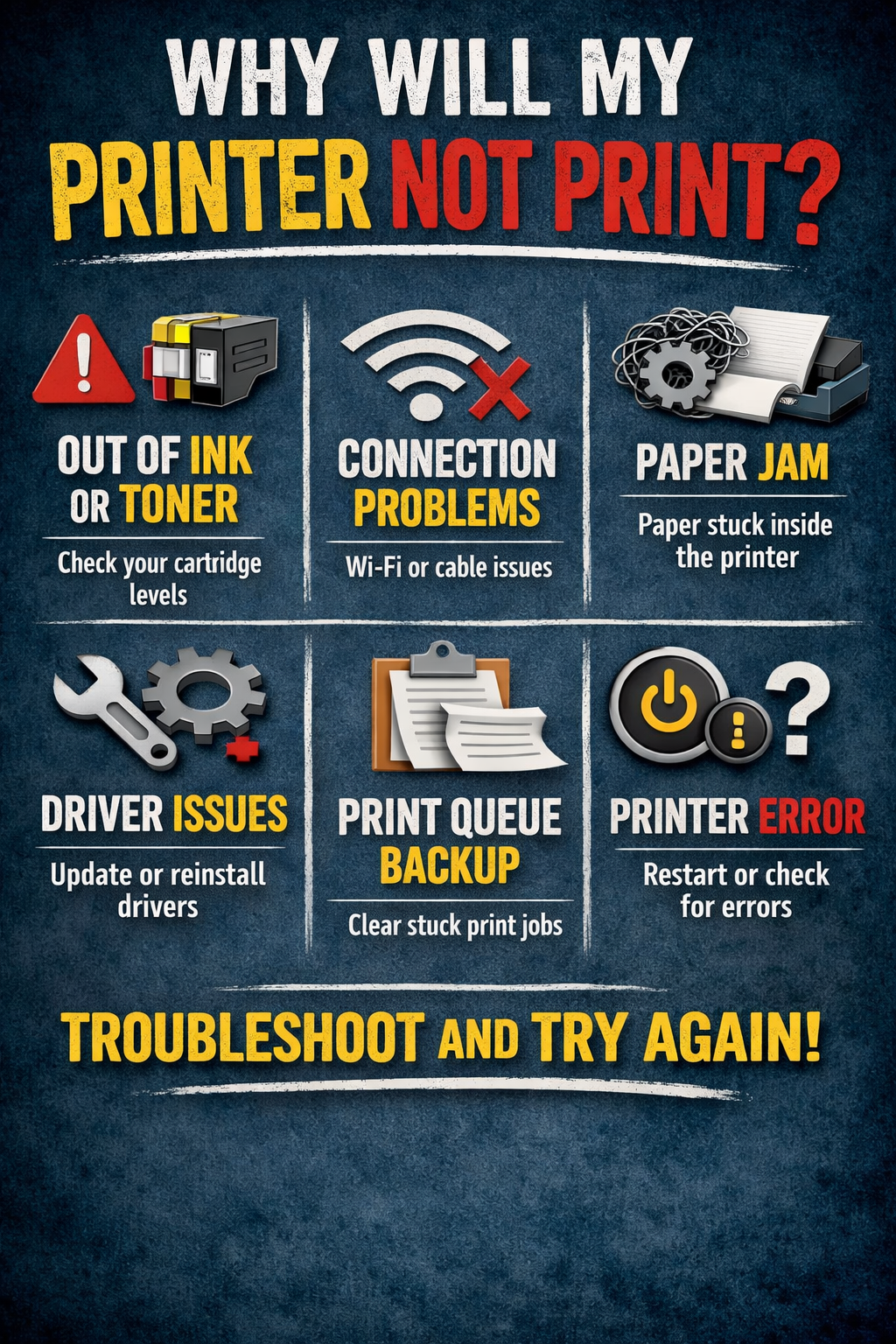
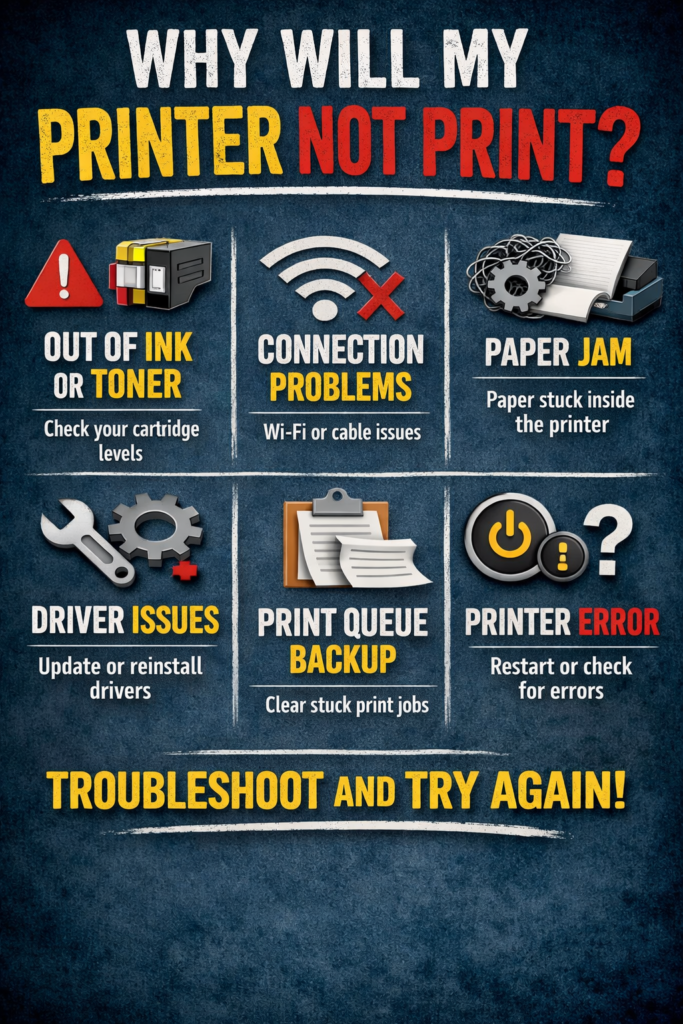
Why Will MY Printer Not Print
The good news? Most printer issues can be fixed quickly without calling a technician. In this guide, you’ll learn step-by-step solutions for both Windows and Mac, along with practical troubleshooting tips to get your printer working again.
Common Reasons Your Printer Is Not Printing
Connection Problems
A printer must be properly connected to your device. If the connection is weak or interrupted, printing won’t start.
- Loose USB cable
- Wi-Fi disconnected
- Wrong network selected
Printer Is Offline
Sometimes your printer shows as “offline” even when it’s turned on. This prevents print jobs from being sent.
Driver Issues
Outdated or corrupted drivers can block communication between your computer and printer.
Low Ink or Paper Problems
Printers will not print if:
- Ink or toner is empty
- Paper tray is empty
- Paper is jammed
Print Queue Errors
Stuck print jobs can block new ones from printing.
Step-by-Step Fix (Windows)
Check Printer Connection
- Make sure the printer is powered on
- Check USB cable or Wi-Fi connection
- Confirm both devices are on the same network
Set Printer as Default
- Open Control Panel
- Click Devices and Printers
- Right-click your printer
- Select Set as default printer
Clear Print Queue
- Go to Devices and Printers
- Double-click your printer
- Click Printer → Cancel All Documents
Restart Print Spooler
- Press Windows + R
- Type
services.msc - Find Print Spooler
- Click Restart
Update or Reinstall Drivers
- Open Device Manager
- Expand Printers
- Right-click your printer
- Choose Update driver
Step-by-Step Fix (Mac)
Check Printer Status
- Open System Settings
- Click Printers & Scanners
- Select your printer
Reset Print System
- Right-click inside printer list
- Select Reset printing system
- Re-add your printer
Clear Print Queue
- Open printer settings
- Click Open Print Queue
- Cancel all pending jobs
Reinstall Printer
- Remove the printer
- Restart your Mac
- Add the printer again
How to Print Slides with Notes (Bonus Tip)
If your printer works but formatting is wrong:
On Windows (PowerPoint)
- Click File → Print
- Select Notes Pages
- Choose printer
- Click Print
On Mac
- Open PowerPoint
- Go to Print settings
- Select Layout → Notes
This ensures each slide includes speaker notes.
Troubleshooting Guide
Printer Shows Offline
- Disable “Use Printer Offline” in settings
- Restart printer and computer
Slow or No Response
- Check Wi-Fi signal
- Restart router
Blank Pages Printing
- Check ink levels
- Clean print heads
Printer Not Detected
- Try another USB port
- Reinstall drivers
Common Mistakes Users Make
- Forgetting to set the correct printer
- Ignoring error messages
- Not checking ink levels
- Leaving old print jobs in queue
- Using wrong paper size settings
Avoiding these mistakes can save time and frustration.
FAQ
Why is my printer connected but not printing?
This usually happens due to driver issues, offline status, or a stuck print queue.
How do I fix a printer that won’t respond?
Restart both the printer and computer, then clear the print queue.
Can low ink stop printing completely?
Yes. Many printers stop working when ink is critically low.
Why does my printer print blank pages?
Clogged print heads or empty cartridges are common causes.
Should I reinstall my printer?
Yes, if basic troubleshooting doesn’t work.
Conclusion
When you’re asking “why will my printer not print,” the answer is often something simple like a connection issue, outdated driver, or stuck print job. By following the steps above, you can quickly diagnose and fix the problem.
Start with basic checks, then move to deeper troubleshooting if needed. Most printing issues can be resolved in minutes with the right approach.