
How to Print PowerPoint with Notes (Step-by-Step Guide for Windows & Mac)
If your printer is not printing your PowerPoint slides with notes, the problem is usually one of three things: the wrong print layout is selected, printer settings are incorrect, or the notes section is empty or cut off. The solution is simple—choose the Notes Pages layout in PowerPoint, confirm your printer settings, and preview before printing.
This step-by-step guide shows you exactly how to print PowerPoint with notes on Windows and Mac, fix common printing problems, and avoid mistakes that waste paper and ink.
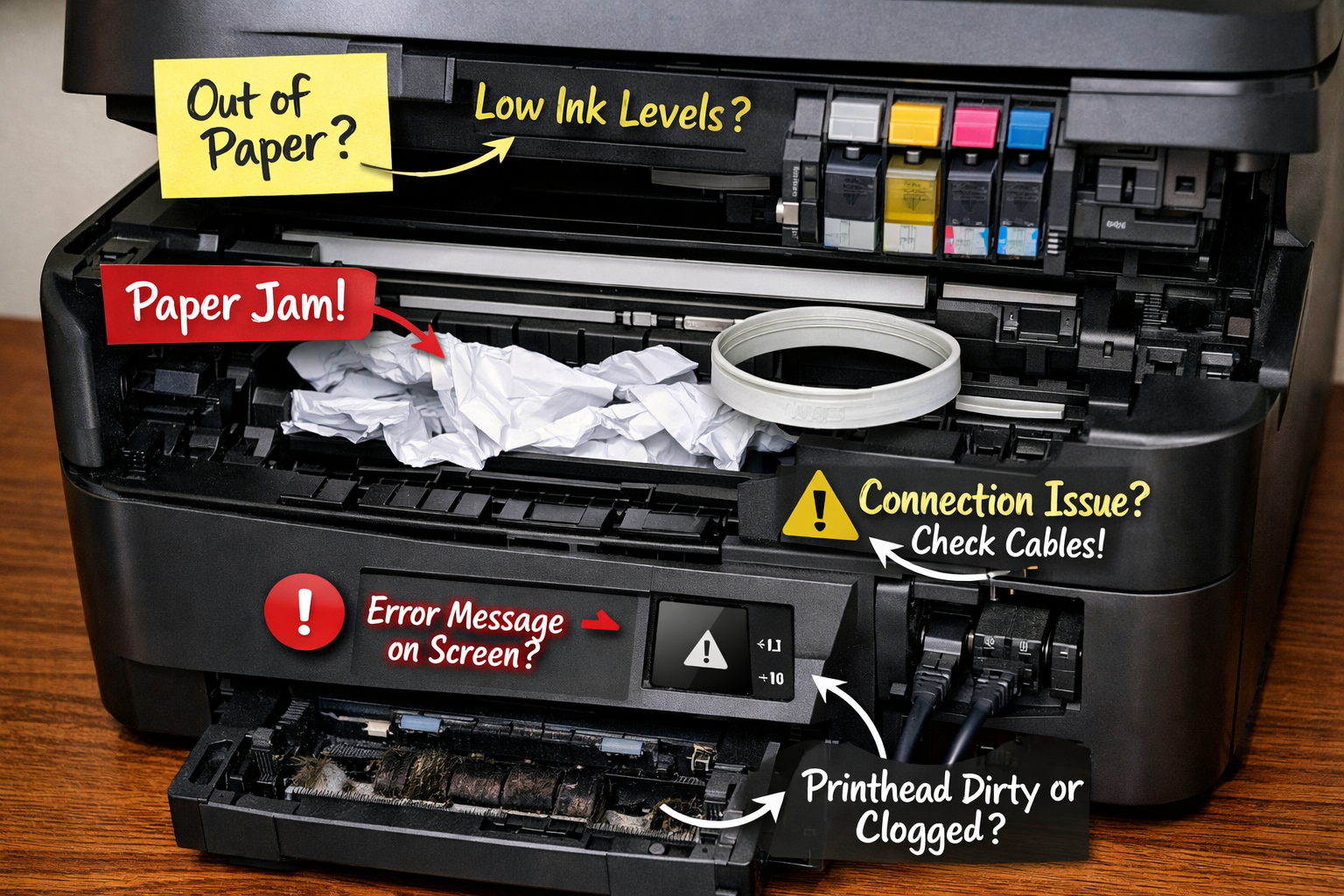
why is my printer not printing
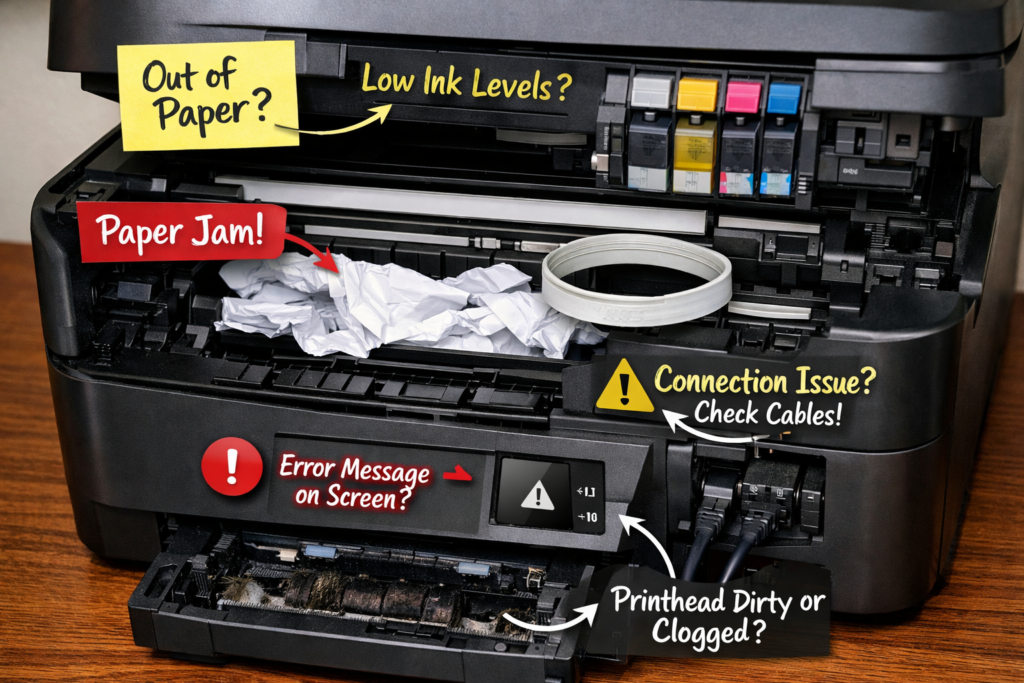
Why Your Printer Is Not Printing PowerPoint Notes
Before jumping into steps, here are the most common reasons your notes are not printing:
- You selected Full Page Slides instead of Notes Pages
- You printed from the wrong view (Slide view instead of Notes view)
- Notes are outside the printable area
- Printer is set to “Fit to Page” or incorrect paper size
- PowerPoint is sending slides only, not notes
- Printer driver is outdated
Now let’s fix it properly.
How to Print PowerPoint with Notes on Windows
These instructions apply to Microsoft PowerPoint for Microsoft 365, 2021, 2019, and similar Windows versions.
Step 1: Open the Print Menu
- Open your PowerPoint presentation.
- Click File in the top left.
- Select Print.
You will now see the Print settings panel.
Step 2: Select “Notes Pages” Layout
This is the most important step.
- Under Settings, click the dropdown that usually says:
- “Full Page Slides”
- Select Notes Pages.
This layout prints:
- One slide per page
- Your speaker notes below the slide
If you skip this step, your notes will not print.
Step 3: Check Printer Settings
Before clicking Print:
- Confirm the correct printer is selected.
- Set the correct Paper Size (Letter for US users).
- Check Orientation (usually Portrait).
- Make sure “Print All Slides” is selected unless you want specific slides.
Step 4: Preview Before Printing
Look at the right-side preview panel.
Make sure:
- Notes appear under each slide.
- Text is not cut off.
- Margins look correct.
If everything looks good, click Print.
How to Print PowerPoint with Notes on Mac
The process is similar but looks slightly different.
Step 1: Open the Print Window
- Open your PowerPoint file.
- Click File.
- Select Print.
Step 2: Choose Notes Layout
- In the print window, locate the layout dropdown.
- Change from Slides to Notes.
If you do not see layout options:
- Click Show Details at the bottom of the print dialog.
Step 3: Confirm Paper and Layout Settings
- Choose the correct printer.
- Set Paper Size to US Letter.
- Choose Portrait orientation.
- Make sure scaling is set to 100% (not “Fit to Page” unless necessary).
Step 4: Check Preview
Mac shows a preview panel on the left.
Confirm:
- Notes are visible.
- No text is cut off.
- Slide and notes are centered properly.
Click Print.
How to Print Multiple Slides with Notes (Best Methods)
PowerPoint only allows one slide per page when printing Notes Pages. However, you have options.
Option 1: Print Standard Notes Pages (Recommended)
- Each slide prints with its notes below.
- Best for presenters.
- Clear and easy to read.
Option 2: Convert to Word for More Control
If you want more formatting control:
- Click File
- Select Export
- Choose Create Handouts
- Send to Microsoft Word
- Choose layout with notes
In Word, you can:
- Resize slides
- Adjust note spacing
- Print multiple pages per sheet
Option 3: Print Multiple Pages per Sheet (Save Paper)
In your printer settings:
- Choose Pages per Sheet
- Select 2 pages per sheet
This prints two slides (each with notes) on one physical page.
Helpful for training sessions and workshops.
Troubleshooting: PowerPoint Notes Not Printing
If your printer still refuses to print notes, try these fixes.
1. Notes Section Is Empty
Go to View → Notes Page.
Make sure:
- There is actual text in the notes area.
- Text is not hidden or white-colored.
2. Notes Are Cut Off
This happens when:
- Notes are too long.
- Margins are too small.
Fix:
- Reduce note text size.
- Edit layout in View → Notes Master.
- Adjust margins.
3. Printer Is Printing Blank Pages
Possible causes:
- Printer driver issue
- Corrupt PowerPoint file
- Print spooler problem
Fix:
- Restart printer.
- Restart computer.
- Update printer driver.
- Save presentation as PDF and print from PDF.
4. Formatting Looks Different in Print
This can happen due to:
- Font substitution
- Scaling settings
- Printer margins
Fix:
- Embed fonts (File → Options → Save → Embed fonts).
- Turn off “Scale to Fit.”
- Confirm paper size matches printer tray.
5. Printing from PDF Still Doesn’t Show Notes
If you exported to PDF but notes are missing:
When exporting:
- Click File
- Select Export
- Choose Create PDF
- Under options, select Notes Pages
Then print the PDF.
Common Mistakes When Printing PowerPoint with Notes
Avoid these errors to save time and paper.
1. Forgetting to Change Layout to Notes Pages
This is the most common mistake.
Always check layout before printing.
2. Not Checking Print Preview
Preview shows exactly what will print. Never skip it.
3. Using the Wrong Paper Size
If PowerPoint is set to Letter but printer tray has A4, content may shrink or cut off.
Match:
- PowerPoint slide size
- Printer paper size
4. Overloading Notes with Too Much Text
PowerPoint does not auto-resize notes perfectly.
If notes are too long:
- They may spill to a second page.
- Or get cut off.
Keep notes concise.
5. Ignoring Notes Master Settings
You can customize how notes print:
Go to:
- View → Notes Master
Here you can adjust:
- Font size
- Layout
- Header/footer
- Margins
Pro Tips for Clean, Professional Printouts
Use Notes Master for Consistency
Modify fonts and layout once instead of editing every slide.
Test Print One Slide First
Print slide 1 only to:
- Check margins
- Confirm alignment
- Avoid wasting ink
Use Grayscale for Draft Copies
Under printer settings:
- Select Grayscale
This saves ink for internal review copies.
Save as PDF Before Large Print Jobs
Exporting to PDF helps:
- Lock formatting
- Avoid font changes
- Prevent layout shifting
Frequently Asked Questions (FAQ)
1. Why are my PowerPoint notes not showing in print preview?
You likely selected “Full Page Slides” instead of “Notes Pages.” Change the layout in the Print settings.
2. Can I print multiple slides per page with notes?
PowerPoint only prints one slide per notes page. To print multiple per sheet, use your printer’s “Pages per Sheet” setting or export to Word for custom formatting.
3. Why are my notes printing on separate pages?
This happens when notes are too long. Reduce text length or adjust formatting in Notes Master.
4. How do I print PowerPoint with notes and slide thumbnails?
Use:
File → Export → Create Handouts → Send to Word
Then choose a layout that includes slide images and notes side by side.
5. Why does formatting change when I print?
Formatting may change due to:
- Missing fonts
- Incorrect scaling
- Paper size mismatch
Embed fonts and confirm printer settings before printing.
Conclusion
If your printer is not printing PowerPoint notes, the fix is usually simple: select Notes Pages in the Print layout settings and confirm your printer configuration. Always preview before printing, check paper size, and adjust formatting in Notes Master if needed.
For best results, test one slide first, export to PDF for large jobs, and use printer settings to print multiple pages per sheet when needed.
Follow the steps in this guide, and you’ll get clean, professional PowerPoint printouts with notes every time.
 zul vani