
How to Print PowerPoint with Notes (Step-by-Step Guide for Windows & Mac)
Introduction
If your Print Screen key isn’t working, you’re not alone. Many users experience this issue when trying to capture screenshots for work, school, or troubleshooting. The problem usually comes from incorrect keyboard settings, disabled shortcuts, outdated drivers, or software conflicts.
why is my print screen not working
The good news is that most Print Screen problems can be fixed in just a few minutes. In this guide, you’ll learn exactly why your print screen isn’t working and how to fix it step by step on both Windows and Mac.
Common Reasons Your Print Screen Key Isn’t Working
Before jumping into fixes, it’s important to understand what might be causing the issue.
Keyboard Shortcut Issues
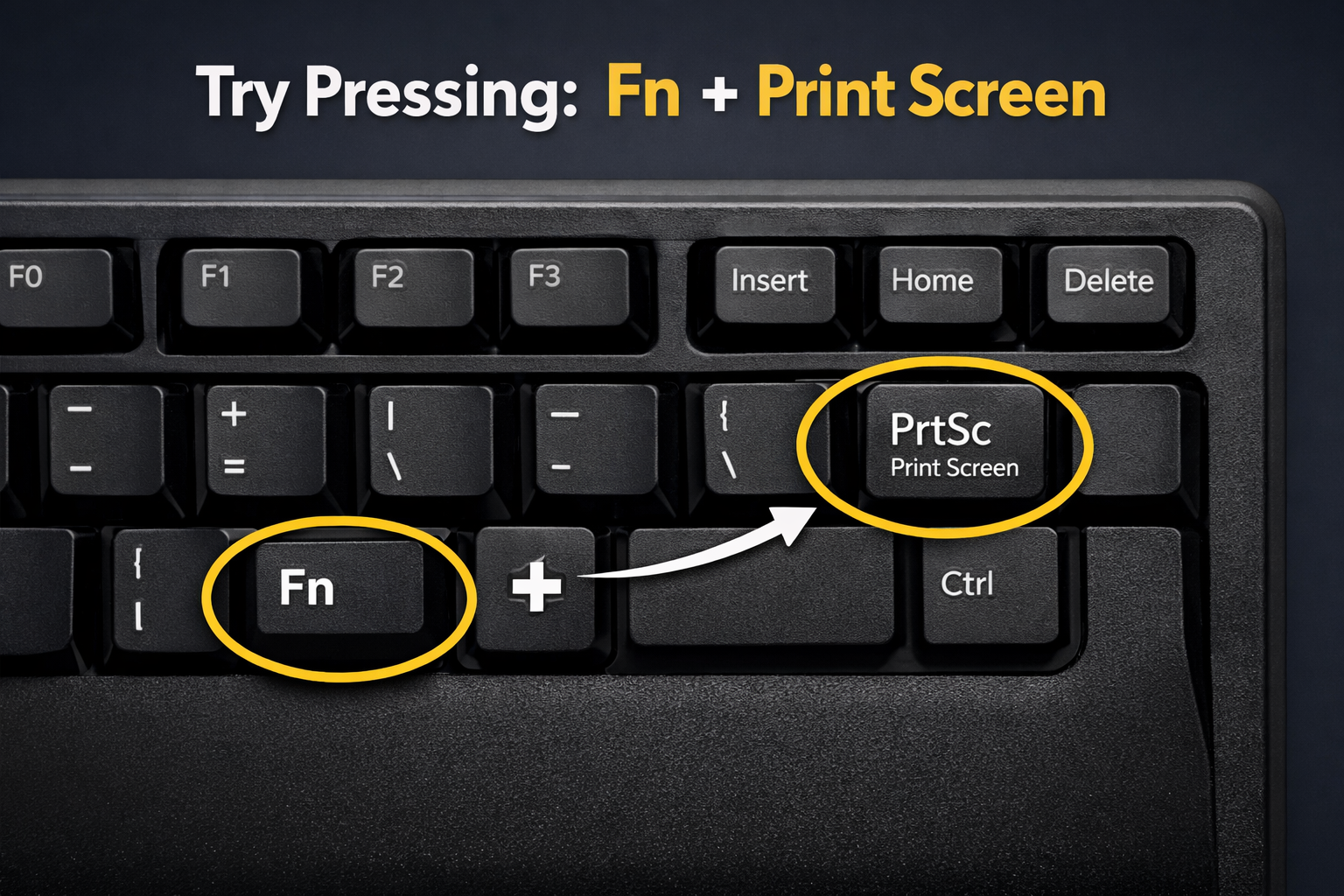
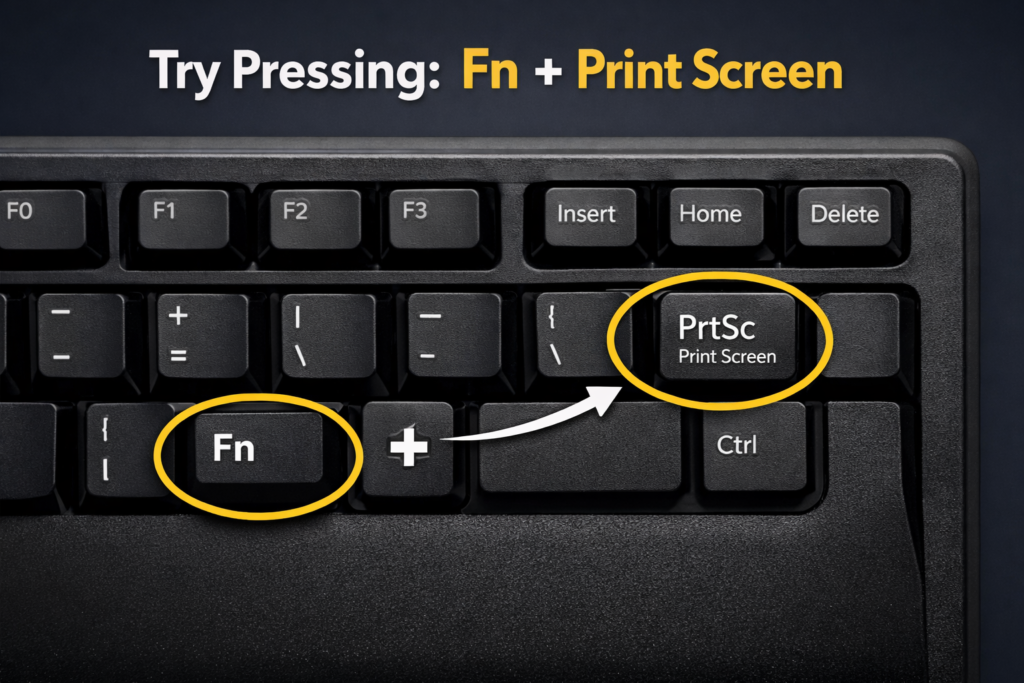
Sometimes the Print Screen key requires a combination like Fn + PrtScn, especially on laptops.
Clipboard Problems
The screenshot may actually be taken, but not saved automatically—it goes to the clipboard instead.
Background Apps Interference
Apps like OneDrive, Dropbox, or screenshot tools can override default screenshot behavior.
Outdated Drivers or OS
Old keyboard drivers or operating systems can prevent proper functionality.
How to Fix Print Screen Not Working on Windows
Follow these steps in order:
Step 1: Check Key Combinations
Try different combinations depending on your keyboard:
- PrtScn → Copies entire screen
- Alt + PrtScn → Captures active window
- Windows + PrtScn → Saves screenshot automatically
- Fn + PrtScn → For laptops
Step 2: Check Clipboard
After pressing Print Screen:
- Open Paint
- Press Ctrl + V
- Save the image
If it appears, your key is working fine.
Step 3: Enable Screenshot Saving
- Press Windows + I
- Go to System > Storage
- Ensure screenshot saving isn’t restricted
Step 4: Disable Background Apps
Temporarily turn off:
- OneDrive auto-save
- Third-party screenshot tools
Then test again.
Step 5: Update Keyboard Drivers
- Right-click Start
- Open Device Manager
- Expand Keyboards
- Right-click your keyboard → Update driver
Step 6: Use Snipping Tool as Alternative
If the key still fails:
- Press Windows + Shift + S
- Select the area to capture
How to Fix Print Screen Not Working on Mac
Mac doesn’t use a “Print Screen” key, but screenshot shortcuts may fail.
Step 1: Use Correct Shortcuts
- Command + Shift + 3 → Full screen
- Command + Shift + 4 → Selected area
- Command + Shift + 5 → Screenshot menu
Step 2: Check Keyboard Settings
- Go to System Settings
- Select Keyboard
- Ensure shortcuts are enabled
Step 3: Check Save Location
Screenshots are saved to Desktop by default. If you don’t see them:
- Press Command + Shift + 5
- Click Options
- Verify save location
Step 4: Restart Your Mac
A simple restart often resolves shortcut glitches.
Troubleshooting Print Screen Problems
If none of the above works, try these deeper fixes:
Run Windows Troubleshooter
- Go to Settings
- Select Update & Security
- Run Troubleshoot
Check for Windows Updates
Outdated systems can cause shortcut failures.
Test Another Keyboard
This helps determine if the issue is hardware-related.
Scan for Malware
Malicious programs can interfere with keyboard input.
Common Mistakes Users Make
- Not pressing the Fn key on laptops
- Expecting screenshots to save automatically without using Windows + PrtScn
- Forgetting screenshots go to clipboard
- Using third-party tools that override shortcuts
- Ignoring keyboard driver updates
Tips for Printing Slides with Notes
If you’re taking screenshots for presentations:
- Use PowerPoint’s Print with Notes option instead of screenshots
- Go to File > Print > Notes Pages
- Choose multiple slides per page if needed
- This gives cleaner results than screenshots
FAQ
1. Why does Print Screen copy nothing?
Because it saves to the clipboard. Paste it into Paint or Word to see it.
2. Why do I need to press Fn with Print Screen?
Many laptops assign Print Screen as a secondary key.
3. Where are screenshots saved in Windows?
In Pictures > Screenshots when using Windows + PrtScn.
4. Why is my Print Screen key disabled?
It could be blocked by software or disabled in keyboard settings.
5. What is the best alternative to Print Screen?
Use Snipping Tool or Windows + Shift + S.
Conclusion
If your Print Screen key isn’t working, the issue is usually simple—incorrect key combinations, clipboard confusion, or software interference. By following the steps above, you can quickly restore screenshot functionality on both Windows and Mac.
If all else fails, built-in tools like Snipping Tool or Mac shortcuts provide reliable alternatives.
 rafiyandi0006@gmail.com