
Introduction
Presenting from slides is common in classrooms, meetings, and conferences. However, relying only on the slides can make it easy to forget important talking points. That is why most presentation tools include speaker notes, which act as a private script for the presenter.
If you want those notes available during a presentation, printing them alongside the slides is the best option.
In this tutorial, you will learn how to print out slides with notes using popular presentation software. The guide includes instructions for Windows and Mac users, practical tips for better printouts, troubleshooting solutions, and answers to frequently asked questions.
What Does “Printing Slides With Notes” Mean?
When you print slides with notes, each page typically includes:
- A miniature version of the slide
- The text from the speaker notes section
- Space for reviewing presentation details
This layout is commonly called Notes Pages.
People often use it for:
- Presentation scripts
- Teaching materials
- Study guides
- Meeting documentation
Printing Slides With Notes in Microsoft PowerPoint
Microsoft PowerPoint provides a built-in option for printing notes pages.
Windows Instructions
Step 1: Launch PowerPoint
Open the PowerPoint file that contains your presentation.
Step 2: Open the Print Menu
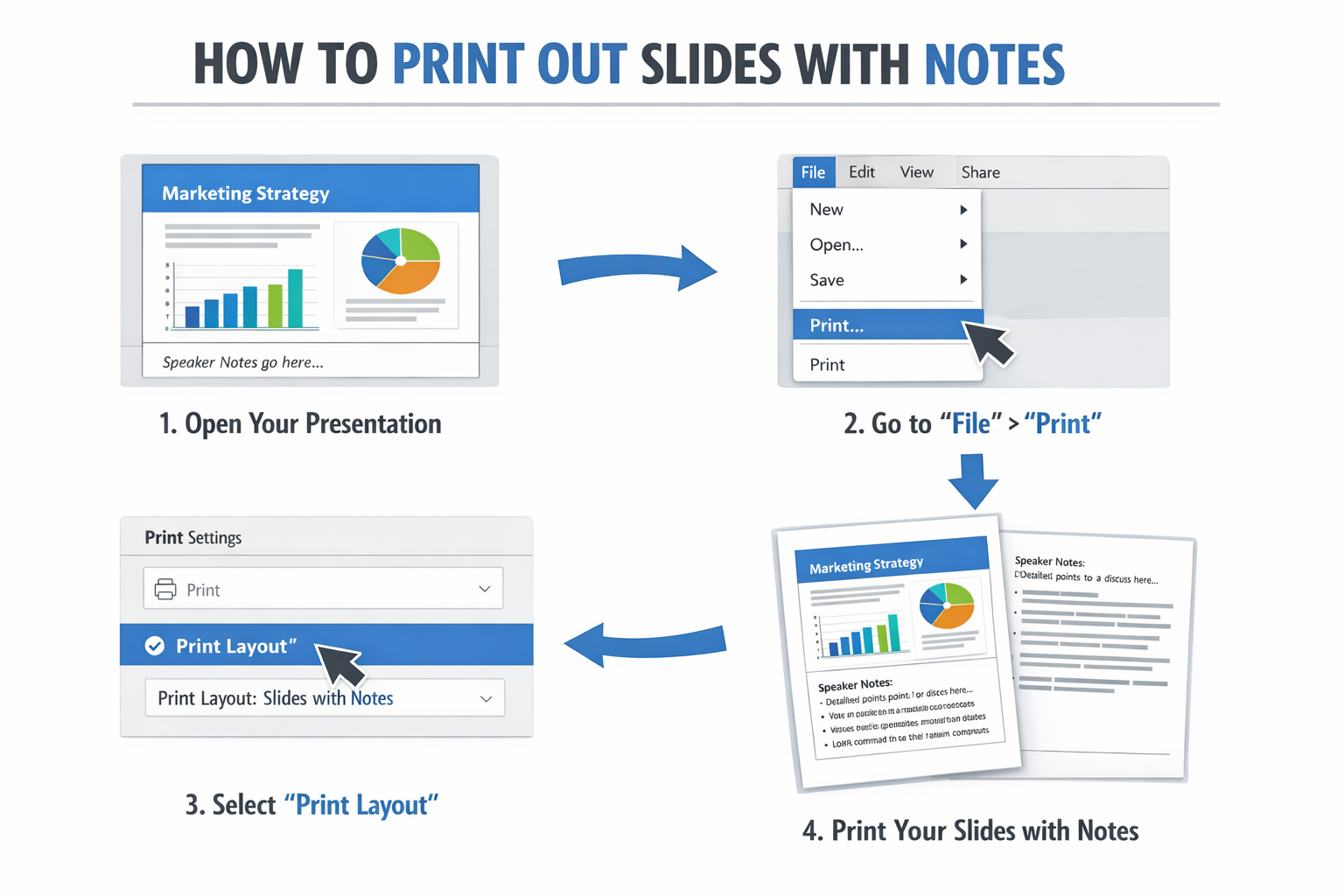
Click File and then select Print.
Step 3: Choose the Correct Layout
Under the Print Layout dropdown menu, select Notes Pages.
This setting ensures the printed page contains:
- One slide image
- Speaker notes underneath
Step 4: Configure Printer Settings
Choose your printer and modify preferences like:
- Color or black and white
- Paper size
- Number of copies
Step 5: Print the Document
Click Print to generate the notes pages.
Mac Instructions
Printing notes pages on a Mac works almost the same way.
Step 1: Open the Presentation
Start PowerPoint and load your slide deck.
Step 2: Go to File → Print
Step 3: Select Notes Layout
In the layout section, choose Notes or Notes Pages.
Step 4: Check Print Options
Adjust printer preferences as needed.
Step 5: Start Printing
Click Print to produce the document.
Printing Slides With Notes From Google Slides
If your presentation was created in Google Slides, you can also print notes easily.
Steps
- Open the presentation in Google Slides
- Click File
- Select Print settings and preview
- Open the layout options
- Choose 1 slide with notes
- Click Print
Your browser will display the standard print window where you can select your printer.
Best Practices for Printing Presentation Notes
Printing slides with notes can sometimes create long documents. These tips can help.
Use Clear Note Formatting
Keep notes concise and easy to read.
Avoid:
- Long paragraphs
- Excessive formatting
- Tiny fonts
Preview the Document First
The preview window shows exactly how slides and notes will appear on paper.
This helps prevent wasted pages.
Consider Printing Double-Sided
If your printer supports duplex printing, this can significantly reduce paper usage.
Save a Backup PDF
Creating a PDF version of the notes pages allows you to:
- Share them digitally
- Print later
- Store presentation records
Troubleshooting Common Printing Issues
Even simple print jobs can occasionally fail. Here are solutions for common problems.
Speaker Notes Do Not Appear
Cause:
The wrong layout was selected.
Fix:
Return to the print menu and choose Notes Pages instead of Full Page Slides.
The Notes Text Is Truncated
If notes are cut off:
- Reduce the text length
- Change font size
- Adjust page margins
Printing Is Slow or Freezing
Possible reasons include:
- Large presentation files
- Printer driver issues
Solutions:
- Restart the printer
- Export slides to PDF and print the PDF
Layout Looks Incorrect
Sometimes formatting changes when printing.
To fix this:
- Check the print preview
- Use standard fonts
- Update the presentation software
Common Errors When Printing Slides With Notes
Avoid these frequent mistakes.
Printing the Wrong View
Users sometimes select Handouts instead of Notes Pages, which removes the notes section.
Forgetting to Enter Notes
If the notes area is empty, the printed page will show blank space.
Skipping Print Preview
Previewing the document helps confirm the layout before sending it to the printer.
Using Very Long Notes
Large blocks of text can push notes onto extra pages or cause formatting issues.
FAQ
Is it possible to print slides with notes in color?
Yes. In the print settings, choose Color instead of grayscale if your printer supports color printing.
Can I edit notes after printing?
No. Once printed, the document cannot be edited. However, you can modify notes in the presentation and print again.
How do I share slides with notes digitally?
Export the presentation as a PDF with notes pages and send the file by email or cloud storage.
Can I print slides with notes from mobile devices?
Yes, but the layout options are limited. Using a computer usually provides better control over print settings.
Why are my slides printing without notes?
This usually happens when the Full Page Slides layout is selected instead of Notes Pages.
Conclusion
Printing slides with notes is one of the easiest ways to prepare for a presentation. It allows you to keep your talking points directly beneath each slide, making it easier to stay on track while speaking.
Whether you are using PowerPoint on Windows, PowerPoint on Mac, or Google Slides, the key step is selecting the Notes Pages layout in the print settings. Once selected, the program automatically formats each page with the slide and its speaker notes.
By following the instructions, avoiding common mistakes, and checking print previews, you can quickly produce professional presentation notes ready for meetings, lectures, or conferences.
 Zulvani