
Introduction
The iPhone Notes app is a powerful tool for storing ideas, reminders, and important information. However, there are times when you may need a printed copy of your notes, such as for meetings, schoolwork, or personal records.
how to print notes from iphone
Fortunately, printing notes from an iPhone is possible in several ways. You can print wirelessly using AirPrint, or send the notes to a Mac or Windows computer for printing.
This guide explains how to print notes from iPhone step-by-step, including the best methods, troubleshooting tips, and common issues users face.
Method 1: Print Notes from iPhone Using AirPrint
AirPrint allows iPhones to communicate directly with compatible printers over Wi-Fi.
Requirements
Before starting, make sure:
- Your printer supports AirPrint
- Both devices are connected to the same Wi-Fi network
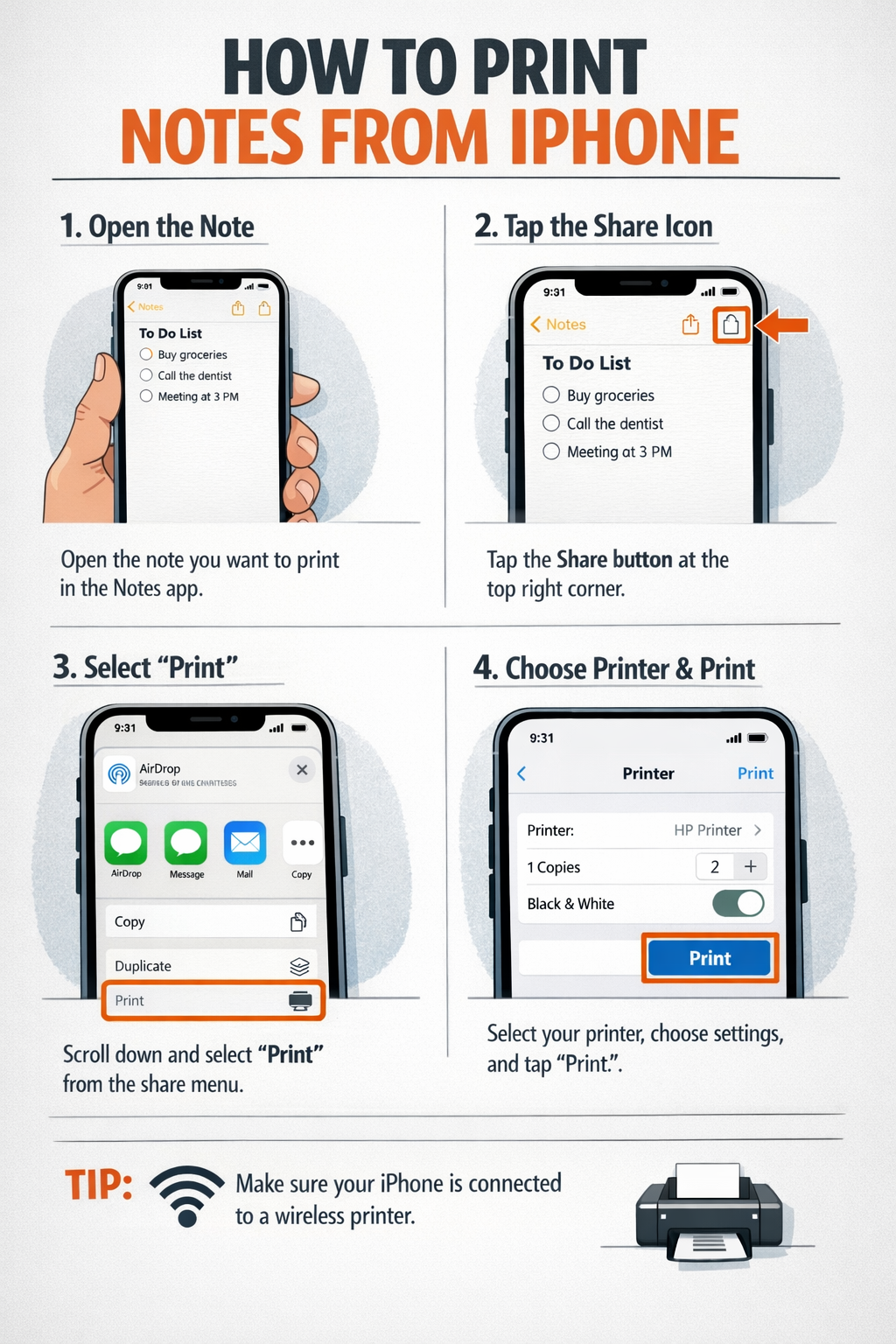
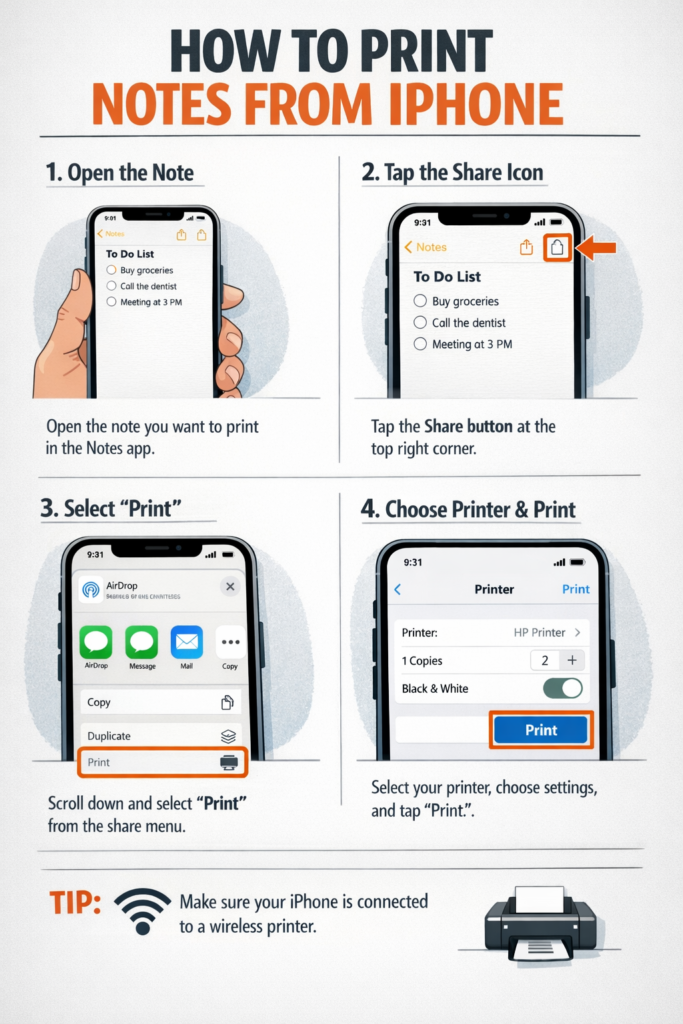
Steps to Print a Note
- Launch the Notes app.
- Open the note you want to print.
- Tap the three-dot menu in the corner.
- Select Send a Copy.
- Tap Print.
- Choose your printer.
- Set the number of copies.
- Tap Print.
Your iPhone will send the document to the printer immediately.
Method 2: Print Notes Through a Mac Computer
If you regularly use Apple devices, printing through a Mac is a convenient option.
Sync Notes Between iPhone and Mac
Enable iCloud Sync
- Go to Settings on the iPhone.
- Tap Apple ID.
- Open iCloud.
- Enable Notes syncing.
After a moment, your notes will appear on your Mac.
Print from the Mac Notes App
- Open Notes on the Mac.
- Locate the synced note.
- Click File.
- Choose Print.
- Select a printer.
- Adjust print preferences.
- Confirm by clicking Print.
This method gives more control over formatting.
Method 3: Print iPhone Notes Using Windows
Windows users can print iPhone notes even without Apple devices.
Option 1: Copy the Note to a Document
- Open the note on your iPhone.
- Select and copy the text.
- Send it via email or messaging to your computer.
- Paste it into Microsoft Word or Google Docs.
- Print the document.
Option 2: Use iCloud Notes in a Browser
- Open a browser on your PC.
- Visit iCloud.com.
- Log in with your Apple account.
- Click Notes.
- Open the note you want.
- Copy the content into a document.
- Print it.
Formatting Tips for Printing iPhone Notes
Some notes may not look perfect when printed. Use these tips to improve readability.
Break Long Notes into Sections
Large blocks of text can be difficult to read on paper.
Use Headings and Lists
Bullet points print more cleanly than long paragraphs.
Check Print Preview
Always preview the document before printing to avoid formatting surprises.
Troubleshooting Printing Problems
Even simple printing tasks can sometimes fail. Here are quick fixes.
Printer Not Detected
Try these steps:
- Restart the printer
- Reconnect Wi-Fi
- Restart the iPhone
AirPrint Option Missing
Possible reasons:
- Printer doesn’t support AirPrint
- Network connection issues
Use a computer as an alternative printing method.
Notes Print with Strange Formatting
Solution:
- Copy the text to a document editor
- Adjust margins and spacing
- Print from the computer
Common Mistakes Users Make
Many printing issues happen because of small mistakes.
Forgetting to Update iOS
Older iOS versions sometimes cause printing errors.
Using Mobile Data Instead of Wi-Fi
AirPrint only works over Wi-Fi networks.
Printing Without Previewing the Page
This often leads to cut-off text or extra blank pages.
Trying to Print Multiple Notes at Once
The Notes app doesn’t support batch printing.
To print multiple notes:
- Combine them into one document.
- Print the document.
FAQ
Is there a print button inside the Notes app?
Yes. The print option appears in the Share or Send a Copy menu.
Can I print notes without AirPrint?
Yes. You can send notes to a computer and print them there.
How do I print a note as a PDF?
Open the print preview screen and expand the preview to save the note as a PDF.
Can attachments in notes be printed?
Images and attachments usually print, but formatting may vary depending on the printer.
Why does my printer appear offline?
The printer may be disconnected from Wi-Fi or powered off.
Conclusion
Printing notes from an iPhone is easy once you understand the available options. The fastest approach is using AirPrint, but sending notes to a Mac or Windows computer also works well when direct printing isn’t possible.
By following the methods in this guide and avoiding common mistakes, you can reliably print important notes whenever you need them.