
Introduction
Excel notes are useful for explaining formulas, adding reminders, or providing context inside a spreadsheet. However, when you print the worksheet, these notes usually do not appear unless you enable them manually.
how to print notes in excel
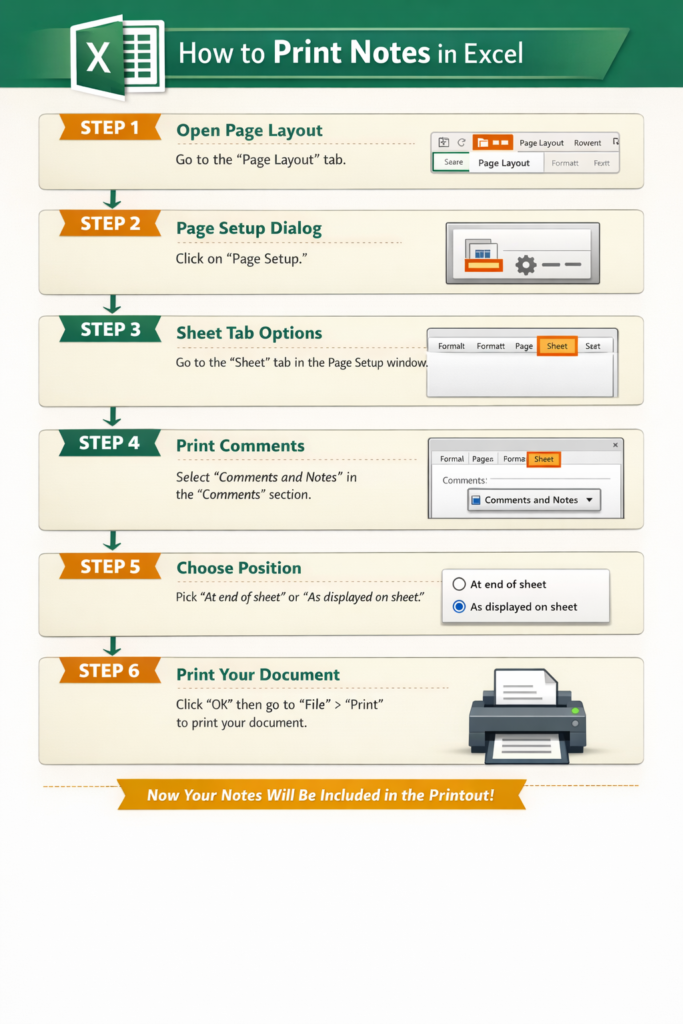
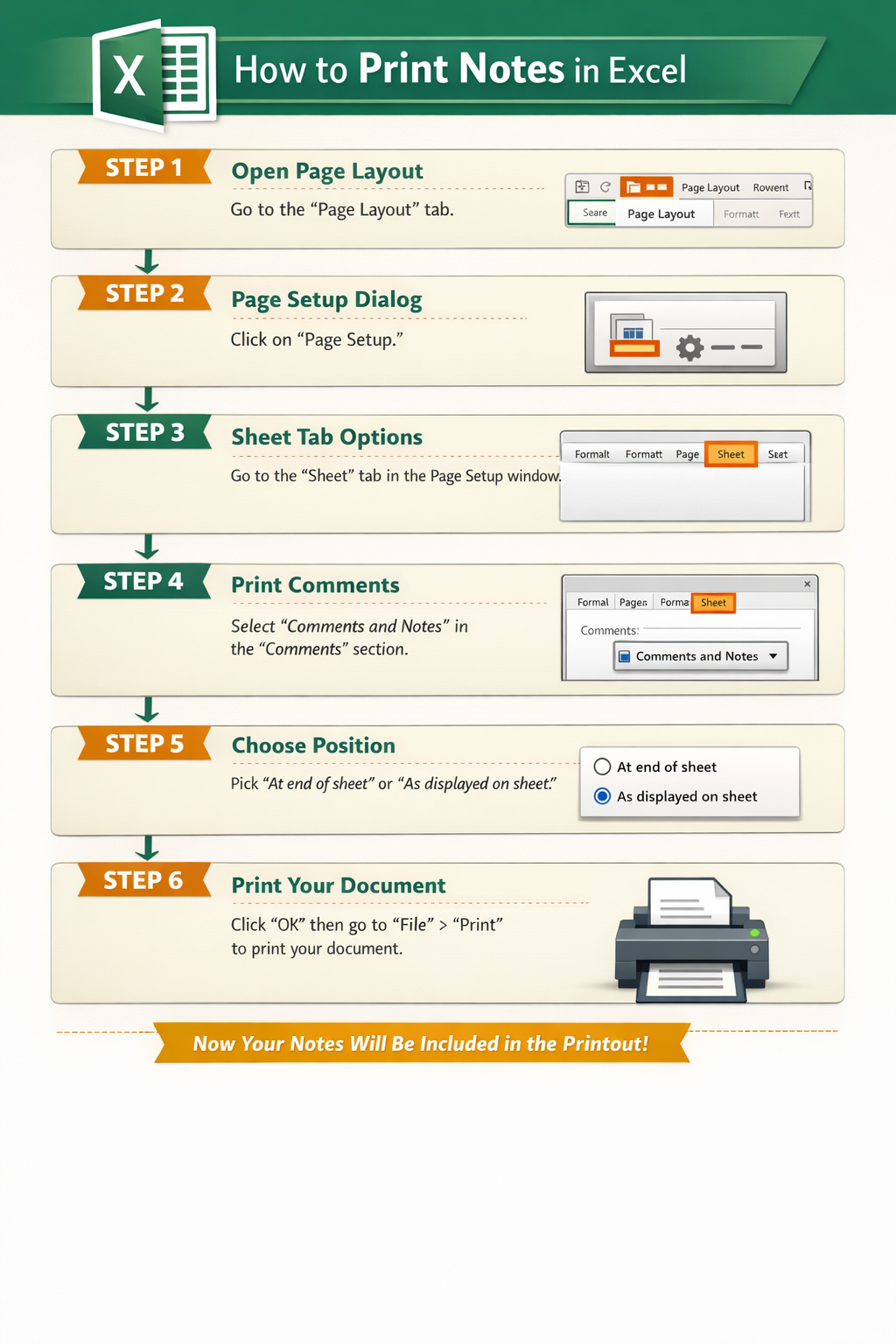
If you are wondering how to print notes in Excel, the process involves adjusting the worksheet’s print settings so Excel knows where and how to include them.
This guide explains how to print Excel notes on Windows and Mac, along with helpful tips, common mistakes, and solutions if notes are missing from your printout.
Why Print Notes in Excel?
Notes provide extra information that may be important for people reading a printed spreadsheet.
Common reasons to print notes include:
- Explaining formulas to colleagues
- Adding instructions to financial sheets
- Sharing analysis comments
- Including documentation with reports
Printing notes ensures the reader understands the spreadsheet without needing the original file.
Ways Excel Can Print Notes
Excel provides two primary display options.
Option 1: Notes at the End of the Worksheet
Excel prints a separate page listing each note, along with the cell reference.
Example:
- Cell B5 – Budget updated for Q2
- Cell D10 – Verify formula accuracy
This method keeps the worksheet layout clean.
Option 2: Notes Shown on the Worksheet
Excel prints notes exactly as they appear on the sheet.
However, this option can sometimes cause layout issues if there are many notes.
Step-by-Step: Print Notes in Excel on Windows
Step 1: Open the Spreadsheet
Start by opening the workbook that contains the notes.
Hover your mouse over cells with notes to confirm they exist.
Step 2: Navigate to Page Setup
In Excel’s ribbon:
- Click Page Layout
- Find the Page Setup group
- Click the dialog launcher icon
This opens advanced printing settings.
Step 3: Access the Sheet Settings
Inside the Page Setup window:
- Select the Sheet tab
- Locate Comments and Notes
This option controls how notes are printed.
Step 4: Select the Printing Method
Choose one of the following:
- At end of sheet
- As displayed on sheet
Click OK to save the settings.
Step 5: Preview the Print Layout
Before printing:
- Click File
- Select Print
Scroll through the preview pages to confirm notes appear correctly.
Step 6: Print Your Worksheet
Select the printer and press Print.
Excel will include notes based on the selected layout.
Step-by-Step: Print Notes in Excel on Mac
Excel for Mac uses similar tools but places them in different menus.
Step 1: Open Your Workbook
Launch Excel and open the spreadsheet containing notes.
Step 2: Open Page Setup
From the top menu:
- Click File
- Choose Page Setup
Step 3: Enable Notes Printing
In the Page Setup window:
- Click the Sheet tab
- Find Comments and Notes
- Select how notes should appear
Confirm by clicking OK.
Step 4: Print the Worksheet
To print:
- Click File
- Select Print
- Review the preview
- Click Print
Your Excel notes will now appear in the printed document.
Best Practices for Printing Excel Notes
These techniques can improve readability and formatting.
Show All Notes Before Printing
To print notes directly on the worksheet, make them visible:
- Go to Review
- Select Show All Notes
This ensures Excel prints them in their displayed positions.
Use Print Preview
Always check the preview screen to confirm that notes appear correctly.
This avoids wasting paper.
Adjust Scaling
Large spreadsheets may shrink when printed.
Use Scaling options to fit the sheet onto fewer pages.
Consider Exporting to PDF
Sometimes exporting to PDF provides a clearer view of notes before printing.
Troubleshooting Missing Excel Notes
If your notes do not appear on paper, try these solutions.
Confirm the Notes Option Is Enabled
Return to Page Setup → Sheet and verify the Comments and Notes option is not set to “None.”
Notes Are Not Visible
When using As displayed on sheet, hidden notes may not print.
Make sure they are visible before printing.
Incorrect Print Area
If the cell containing the note is outside the print area, the note may not appear.
Update the print area to include those cells.
Excel Version Limitations
Older Excel versions handle comments and notes differently. Updating Excel can solve compatibility issues.
Common Errors Users Make
Here are mistakes that frequently cause problems when printing Excel notes.
Not Checking the Print Preview
Skipping preview often results in missing notes or incorrect formatting.
Selecting the Wrong Notes Option
Users sometimes select None without realizing it disables notes printing.
Overcrowded Worksheets
Too many notes printed on the sheet can overlap important data.
Using At end of sheet is usually clearer.
Ignoring Page Orientation
Portrait orientation may cut off wide worksheets.
Switch to landscape if necessary.
Frequently Asked Questions
How do I show notes before printing in Excel?
Go to the Review tab and click Show All Notes. This displays every note on the worksheet.
Can Excel print notes automatically?
No. You must manually enable notes printing in the Page Setup → Sheet settings.
Why are my notes printing on a separate page?
Excel is configured to print them at the end of the sheet, which is the default layout.
Can I print comments instead of notes?
Yes, but threaded comments behave differently. Converting them to notes may provide better print results.
Does Excel mobile support printing notes?
The mobile version has limited printing controls. For full functionality, use Excel on desktop.
Conclusion
Printing notes in Excel is straightforward once you know where to find the right settings. By enabling Comments and Notes in the Page Setup menu, you can include important annotations in your printed spreadsheets.
Whether you choose to print notes on the worksheet or on a separate page, reviewing the print preview and adjusting layout settings will help ensure your documents look professional and easy to understand.