
Introduction
If your printer suddenly stops working, it can quickly become frustrating—especially when you need to print an important document. The most common reasons a printer is not printing include connection issues, outdated drivers, paper jams, low ink, or incorrect print settings.
why printer not printing
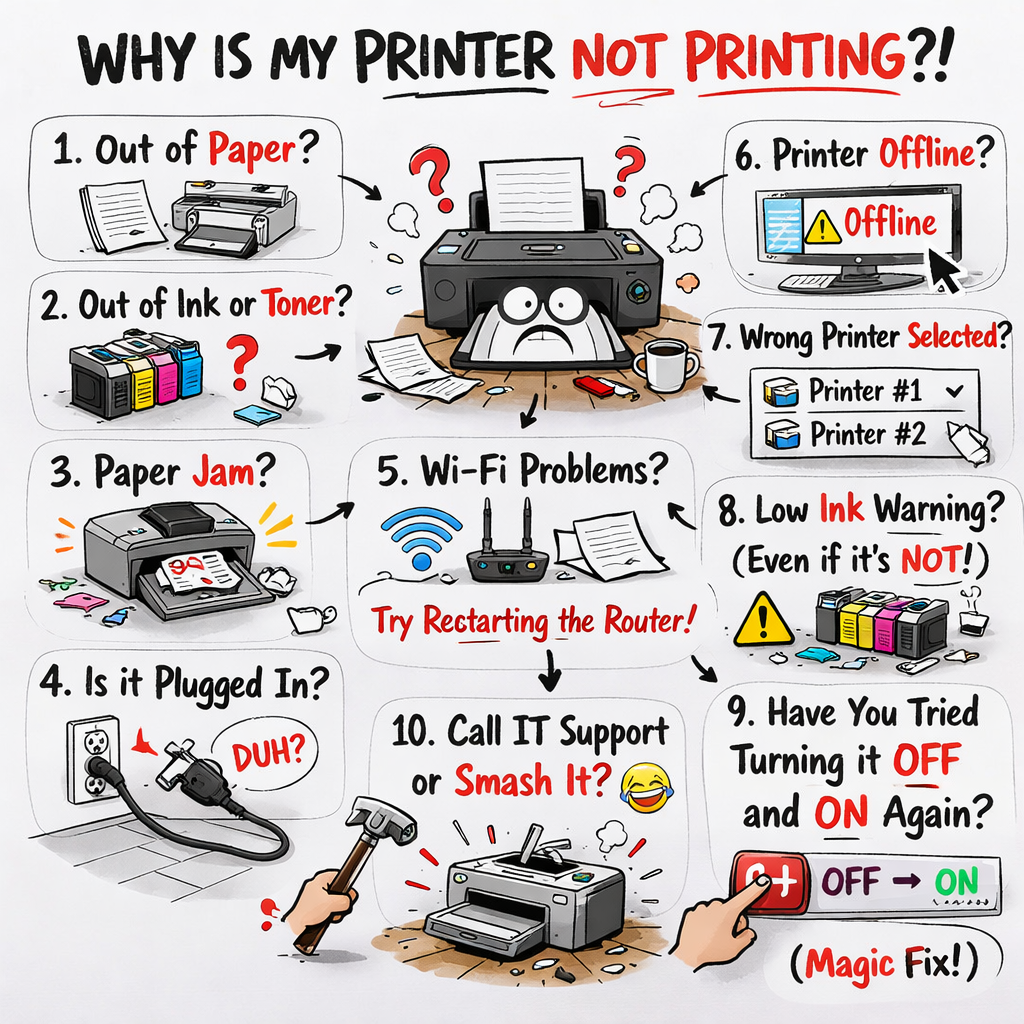
The good news is that most printer problems can be fixed in just a few minutes. In this guide, you’ll learn why your printer is not printing and how to fix it step by step on both Windows and Mac computers. We’ll also cover troubleshooting tips, common mistakes, and frequently asked questions.
Common Reasons Why a Printer Is Not Printing
Before jumping into solutions, it helps to understand the most frequent causes of printing problems.
1. Printer Is Offline
Your computer may not be communicating with the printer correctly.
2. Connection Problems
Loose USB cables or unstable Wi-Fi connections can interrupt printing.
3. Paper Jam
Even a small piece of paper stuck inside the printer can prevent printing.
4. Low or Empty Ink Cartridges
Many printers stop printing when ink levels are too low.
5. Outdated Printer Driver
An outdated or corrupted driver can stop the printer from responding.
6. Stuck Print Queue
Sometimes print jobs get stuck and block new documents from printing.
How to Fix a Printer That Is Not Printing
Below are practical solutions you can follow to get your printer working again.
Step-by-Step Fix on Windows
Step 1: Check Printer Connection
- Make sure the printer is powered on.
- Verify the USB cable or Wi-Fi connection.
- Restart both the printer and computer.
Step 2: Set the Printer as Default
- Open Settings.
- Go to Devices.
- Click Printers & Scanners.
- Select your printer.
- Click Set as Default.
Setting the correct printer ensures documents are sent to the right device.
Step 3: Clear the Print Queue
- Open Printers & Scanners.
- Select your printer.
- Click Open Queue.
- Cancel all pending print jobs.
A stuck queue often prevents new documents from printing.
Step 4: Update the Printer Driver
- Press Windows + X.
- Select Device Manager.
- Expand Printers.
- Right-click your printer.
- Select Update Driver.
Updating drivers can fix compatibility issues.
Step-by-Step Fix on Mac
Step 1: Check Printer Status
- Click the Apple Menu.
- Open System Settings.
- Select Printers & Scanners.
- Verify the printer is online.
Step 2: Reset the Print Queue
- Open Printers & Scanners.
- Select your printer.
- Click Open Print Queue.
- Delete pending print jobs.
Step 3: Remove and Re-Add the Printer
- Open Printers & Scanners.
- Select the printer.
- Click Remove Printer.
- Click Add Printer to reinstall it.
This often resolves connection issues.
Basic Printer Checks You Should Always Do
Before assuming something is broken, check these simple things.
Check Ink or Toner Levels
Low ink can prevent printing entirely.
Ensure Paper Is Loaded Correctly
Printers will stop if paper is missing or inserted incorrectly.
Restart the Printer
Turning the printer off and on can clear internal errors.
Troubleshooting When the Printer Still Won’t Print
If the basic fixes didn’t solve the problem, try these advanced steps.
Restart the Print Spooler (Windows)
- Press Windows + R.
- Type services.msc.
- Locate Print Spooler.
- Restart the service.
Update Your Operating System
Sometimes printer compatibility issues occur after system updates.
Try Printing a Test Page
This helps determine whether the problem is with the printer or the document.
Common Mistakes Users Make
Many printer issues happen because of small mistakes.
Printing to the Wrong Printer
If you have multiple printers installed, documents may go to the wrong device.
Ignoring Printer Notifications
Most printers display error messages on the screen.
Using Incompatible Drivers
Drivers from another printer model may cause problems.
Not Clearing the Print Queue
Old print jobs can block new ones.
Printing Tips for Documents with Notes or Multiple Pages
If you are printing presentations or documents with notes, adjust the layout settings before printing.
Helpful Tips
- Select “Multiple pages per sheet” to save paper.
- Choose “Print with notes” if printing presentations.
- Use draft mode to print faster and use less ink.
These settings are available in most printer dialog boxes.
FAQ
Why does my printer say it’s printing but nothing comes out?
This usually happens when the print queue is stuck or the printer driver is outdated.
How do I fix a printer that is offline?
Open printer settings and disable “Use Printer Offline.”
Why does my printer respond but not print?
The issue could be low ink, a paper jam, or incorrect print settings.
Do I need to reinstall my printer driver?
Reinstalling the driver can help if the printer suddenly stops responding.
Why does my printer print blank pages?
This is often caused by empty ink cartridges or clogged print heads.
Conclusion
When your printer is not printing, the problem is usually related to connection issues, print queues, drivers, or ink levels. Fortunately, most of these problems can be fixed quickly by checking the printer status, clearing the queue, updating drivers, or reconnecting the device.
By following the steps in this guide for Windows and Mac, you should be able to diagnose and fix the issue in just a few minutes. If problems continue, reinstalling the printer or updating the system software often resolves the issue completely.
ARTICLE 2
Printer Not Printing? Here’s How to Fix It Quickly on Windows and Mac
Introduction
A printer that refuses to print can interrupt your work and waste valuable time. Whether you’re printing documents, reports, or presentations, this issue often happens due to simple problems like incorrect settings, connectivity errors, or blocked print jobs.
Understanding why a printer is not printing can help you fix the issue much faster. In this guide, we’ll walk through the most common causes and provide clear step-by-step solutions for Windows and Mac users so you can get your printer working again.
What Causes a Printer to Stop Printing?
Several issues can prevent a printer from completing a print job.
Network or USB Connection Issues
Your computer may not detect the printer correctly.
Printer Queue Errors
Pending documents can freeze the printing process.
Incorrect Printer Settings
Your document might be sent to the wrong printer.
Hardware Problems
Paper jams or empty cartridges can stop printing.
Software or Driver Issues
Old drivers can prevent communication between the computer and printer.
How to Fix Printer Not Printing on Windows
Follow these steps to diagnose and resolve the problem.
Step 1: Confirm the Printer Is Ready
- Turn on the printer.
- Check that paper is loaded.
- Make sure there are no warning lights.
Printers often display errors on the control panel.
Step 2: Check Printer Settings
- Open Control Panel.
- Click Devices and Printers.
- Right-click your printer.
- Choose See what’s printing.
Make sure Pause Printing and Use Printer Offline are not enabled.
Step 3: Cancel Stuck Print Jobs
- Open the printer queue.
- Right-click each job.
- Select Cancel.
After clearing the queue, try printing again.
Step 4: Reinstall the Printer
- Go to Devices and Printers.
- Right-click the printer.
- Select Remove Device.
- Click Add Printer to reinstall it.
This refreshes the printer configuration.
How to Fix Printer Not Printing on Mac
Mac users can follow a similar process.
Step 1: Verify Printer Connection
- Click the Apple icon.
- Open System Settings.
- Select Printers & Scanners.
- Check that the printer shows Ready.
Step 2: Reset the Printing System
- Open Printers & Scanners.
- Right-click inside the printer list.
- Choose Reset Printing System.
- Re-add the printer.
This removes corrupted printer settings.
Step 3: Update the Printer Driver
macOS usually installs drivers automatically, but checking for updates can fix compatibility issues.
- Open System Settings.
- Select Software Update.
- Install available updates.
Extra Checks That Solve Many Printing Problems
These simple checks often resolve printer issues quickly.
Restart All Devices
Turn off:
- Printer
- Computer
- Wi-Fi router
Then restart them in that order.
Print a Test Page
A test page confirms whether the printer hardware works correctly.
Check Ink and Toner
Low ink levels can prevent printing or cause blank pages.
Troubleshooting Advanced Printing Problems
If the printer still refuses to print, try the following methods.
Update the Printer Firmware
Manufacturers release updates to fix bugs and improve compatibility.
Switch USB Ports or Wi-Fi Network
Connection errors may occur due to unstable ports or networks.
Use Another Application
Sometimes the issue is related to the program you’re printing from.
Common Printing Mistakes to Avoid
Many printing issues occur because of simple user mistakes.
Forgetting to Select the Correct Printer
Always check the selected printer before clicking Print.
Ignoring Error Messages
Printers usually display warnings for jams or low ink.
Sending Too Many Print Jobs
Large queues can slow down or freeze the printer.
Using Incorrect Paper Size
Wrong paper settings may stop the printer from printing.
Helpful Printing Tips for Presentations and Documents
If you print presentations or documents frequently, these tips can improve efficiency.
Print Multiple Pages per Sheet
Use the layout option in print settings to save paper.
Print Slides with Notes
Select Notes Pages if printing presentations that include speaker notes.
Use Draft Mode
Draft mode speeds up printing and reduces ink usage.
Frequently Asked Questions
Why is my printer connected but not printing?
This usually means the printer queue is blocked or the driver needs updating.
How do I restart a printer properly?
Turn off the printer, unplug it for about 30 seconds, then power it back on.
Why does my printer show no errors but still won’t print?
The problem could be a stuck print job or incorrect printer selection.
Should I uninstall my printer to fix printing problems?
Reinstalling the printer often resolves driver or configuration errors.
What should I do if my printer prints very slowly?
Check print quality settings and switch to draft mode if speed is important.
Conclusion
When a printer stops printing, the issue is usually related to printer settings, driver problems, or connection errors. Fortunately, most printing problems can be fixed by checking the printer status, clearing the print queue, or reinstalling the printer.
By following the troubleshooting steps for Windows and Mac, you can quickly diagnose the problem and restore normal printing. Keeping your printer drivers updated and regularly checking printer settings can also prevent future printing issues.