
Introduction
Nothing is more frustrating than sending a document to print and getting no response. If you’re asking, “Why does my printer not print?” the answer usually comes down to communication errors, incorrect settings, or minor hardware issues.
why does my printer not print
This guide takes a practical approach to diagnosing the problem and fixing it step by step, even if you’re not tech-savvy.
What Stops a Printer from Printing?
Communication Failure
Your computer and printer must communicate correctly. Any interruption can stop printing.
Incorrect Printer Settings
Wrong settings can send jobs to the wrong device or block printing entirely.
Software Conflicts
Applications or operating system glitches may interfere with printing.
Hardware Limitations
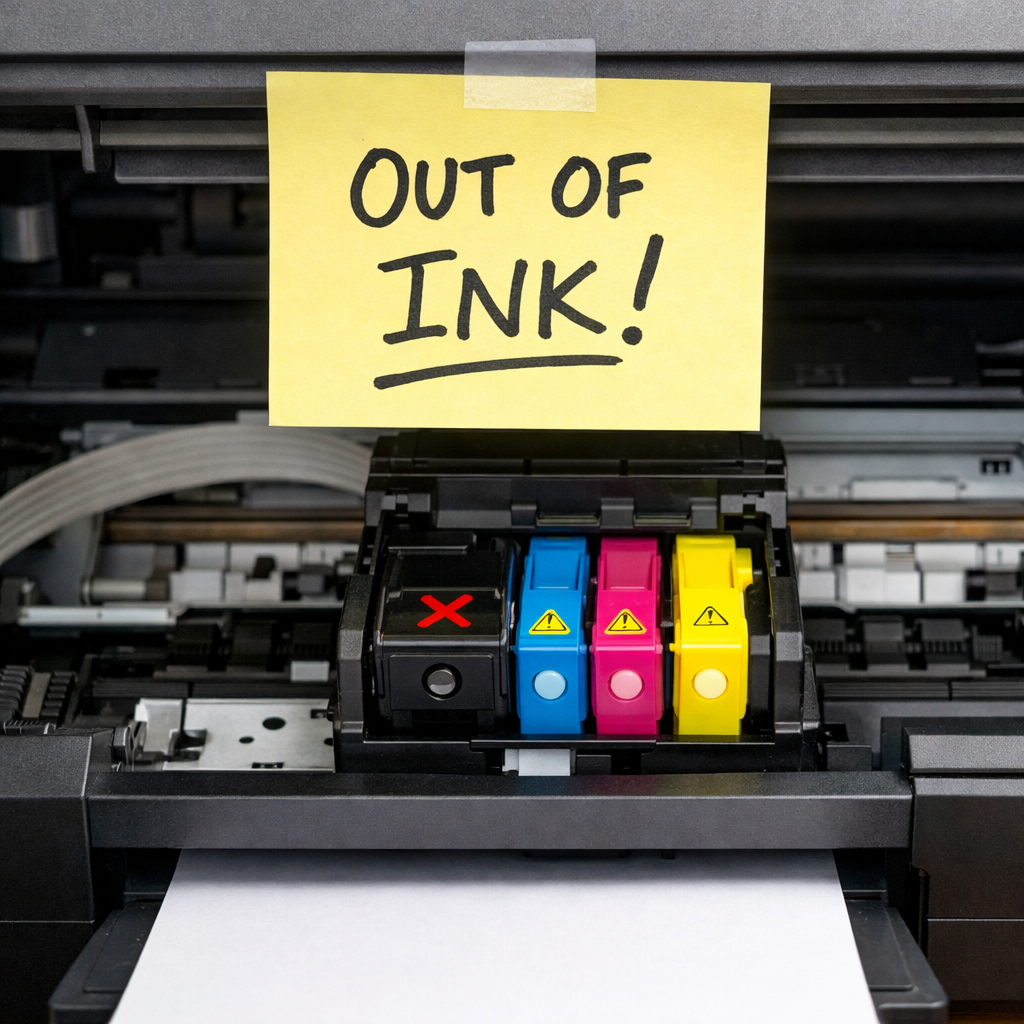
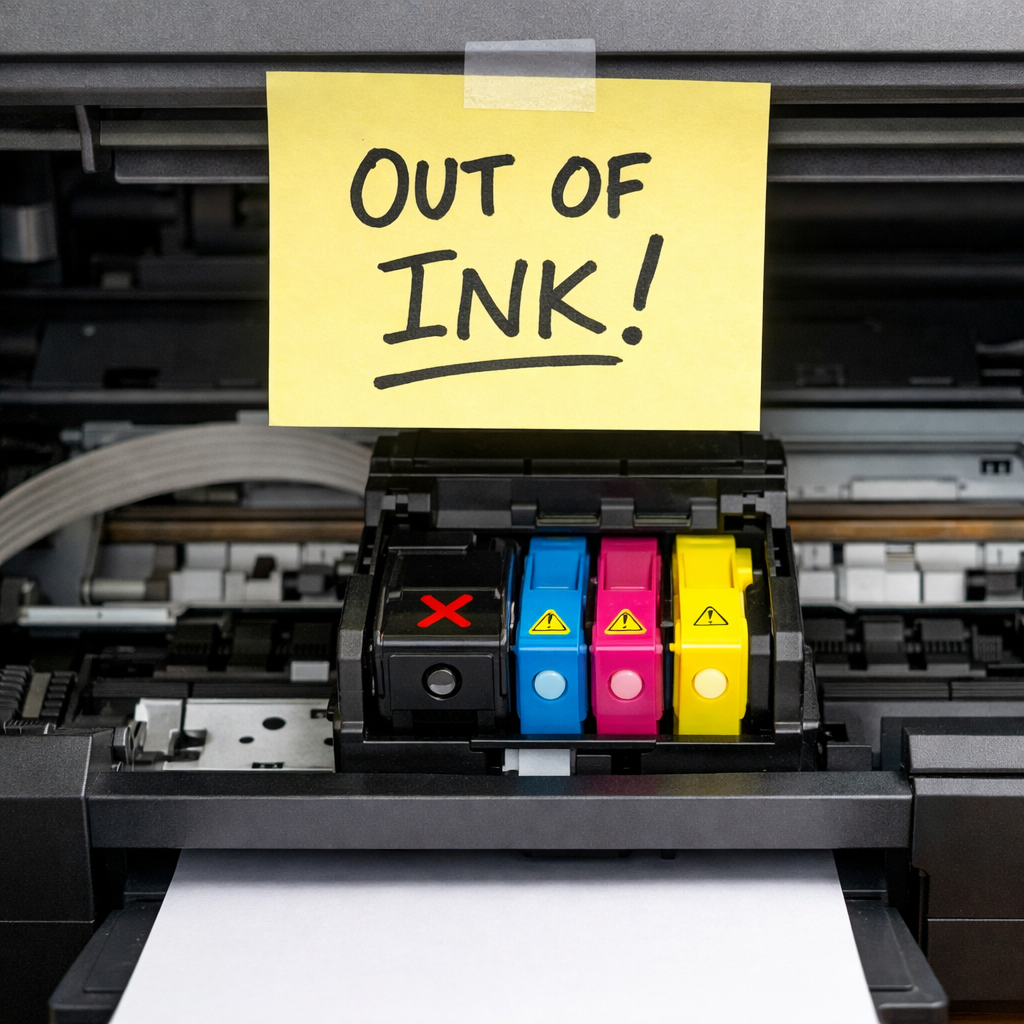
Paper jams, empty cartridges, or internal faults can halt operations.
How to Fix Printer Issues on Windows
Check Basic Setup
- Make sure the printer is turned on
- Verify cables or Wi-Fi connection
- Ensure no warning lights are flashing
Confirm Correct Printer Selection
- Open your document
- Click Print
- Select the correct printer from the list
Remove Stuck Jobs
- Open Printers & Scanners
- Click your printer
- Open queue
- Cancel all jobs
Disable “Use Printer Offline”
- Go to Devices and Printers
- Right-click your printer
- Uncheck Use Printer Offline
Reinstall Printer
- Remove the printer from settings
- Restart your PC
- Add the printer again
How to Fix Printer Issues on Mac
Verify Connection
- Ensure Wi-Fi is active
- Confirm printer is connected to the same network
Select the Right Printer
- Open the print dialog
- Choose your printer manually
Delete and Re-add Printer
- Go to Printers & Scanners
- Select printer → click Remove (-)
- Add it again using +
Reset Printing System
- Right-click printer list
- Choose Reset printing system
Check Permissions
- Ensure apps have permission to print
Advanced Troubleshooting Steps
Restart All Devices
Turn off:
- Printer
- Computer
- Router
Wait 1–2 minutes, then turn them back on.
Update Printer Firmware
Visit the manufacturer’s website and install updates.
Try Another Device
Print from a different computer or phone to isolate the issue.
Use a Different File
Sometimes the document itself is corrupted.
Printing Presentations with Notes (Helpful Tip)
If your printer fails when printing slides:
- Choose “Print Layout: Notes Pages”
- Avoid printing too many slides per sheet
- Reduce file size before printing
- Use PDF export for more stable printing
Common User Errors
- Sending print jobs to a virtual printer (like PDF instead of real printer)
- Ignoring printer status messages
- Overloading the print queue
- Using incorrect paper size settings
- Not restarting devices after changes
FAQ
1. Why is my printer not printing anything at all?
It could be offline, disconnected, or blocked by a print queue error.
2. How do I know if my printer driver is broken?
If the printer is detected but doesn’t respond, the driver may need reinstalling.
3. Why does my printer print blank pages?
This is usually caused by empty ink cartridges or clogged print heads.
4. Can Wi-Fi issues stop printing?
Yes, unstable or incorrect network connections can prevent printing.
5. Is resetting the printer helpful?
Yes, resetting often clears temporary errors and restores functionality.
Conclusion
A printer that won’t print is usually dealing with a small issue rather than a major failure. By checking connections, fixing settings, and clearing errors, you can resolve most problems in minutes. Follow the steps for your system, and your printer should be back to normal quickly.
 Zulvani