
Printer Not Printing Black Ink (Step-by-Step Guide for Windows & Mac)
A printer that refuses to print black ink can quickly turn a simple task into a frustrating experience. You might see blank spaces where text should be, faint gray lines, or documents printing only in color.
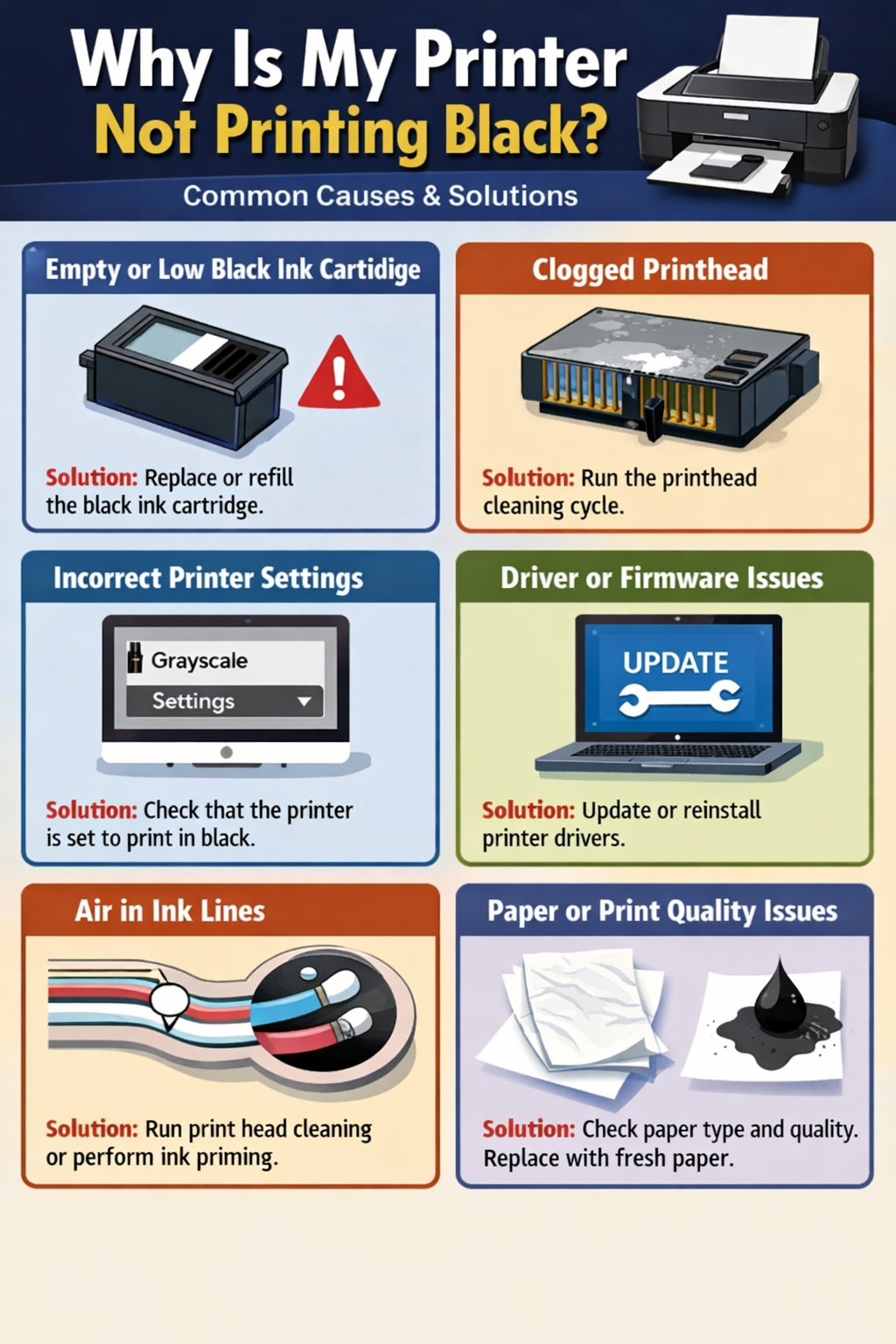
This problem happens for several reasons. The most common ones include blocked printhead nozzles, incorrect printing settings, cartridge problems, or software issues between your computer and printer.
Why Is My Printer Not Printing Black
This guide explains what causes a printer to stop printing black and how to fix it using simple troubleshooting steps for Windows and Mac computers.
What Causes Black Ink Printing Problems?
Understanding the cause helps you fix the issue faster.
Ink Cartridge Problems
A damaged or empty cartridge is the most frequent cause.
Possible cartridge issues
- Completely empty cartridge
- Air bubbles in the cartridge
- Protective tape not removed
Installing a new cartridge often resolves the problem immediately.
Printhead Blockage
Inkjet printers use a printhead to spray ink onto paper. If the nozzles become blocked, the black ink cannot pass through.
Signs of clogged nozzles
- Horizontal streaks
- Missing lines in text
- Faded characters
Regular cleaning cycles help maintain proper ink flow.
Software or Driver Errors
Your operating system relies on drivers to communicate with the printer. If the driver becomes outdated or corrupted, printing errors may occur.
Updating the driver ensures compatibility with your system.
How to Restore Black Ink Printing
Follow these steps in order to identify and fix the issue.
Check Ink Levels
Start with the simplest solution.
- Open the printer cover.
- Locate the black cartridge.
- Check the ink indicator.
- Replace the cartridge if it’s empty or nearly empty.
After replacing it, print a test document.
Perform a Nozzle Check
Many printers offer a nozzle test pattern.
Steps:
- Open the printer software.
- Navigate to Maintenance.
- Select Nozzle Check.
- Print the pattern.
If black lines are missing, a cleaning cycle is required.
Run a Printhead Cleaning Cycle
Once you confirm nozzle blockage, run the cleaning tool.
Steps:
- Open printer utilities.
- Select Printhead Cleaning.
- Start the cleaning process.
- Wait until it finishes.
- Print another test page.
Sometimes two cleaning cycles are necessary.
Fixing the Problem on Windows
Windows users can check printer settings through the control panel.
Steps
- Press Windows + R
- Type control printers
- Open Devices and Printers
- Right-click your printer
- Select Printer Properties
- Click Printing Preferences
- Make sure Black Ink or Grayscale is enabled
If color-only printing is selected, black ink may not be used.
Fixing the Problem on Mac
Mac computers use the Printers & Scanners panel for printer management.
Steps
- Open System Settings
- Click Printers & Scanners
- Select your printer
- Click Printer Options
- Open Utility
- Run Clean Printhead
After cleaning, print a sample page to check results.
Advanced Troubleshooting Methods
If basic solutions fail, try these additional methods.
Reinstall the Printer Driver
Driver problems can prevent correct printing.
Steps:
- Remove the printer from your computer.
- Download the newest driver from the manufacturer.
- Install the driver again.
- Add the printer back to the system.
Update Printer Firmware
Firmware updates sometimes fix printing bugs.
Check the manufacturer’s support website to see if an update is available.
Reset the Printer
Resetting restores default settings.
Steps:
- Turn off the printer.
- Unplug the power cable.
- Wait about one minute.
- Plug it back in and restart.
Common Mistakes That Prevent Black Ink Printing
Avoid these mistakes to reduce printer problems.
Ignoring Low Ink Warnings
Many users continue printing even when ink levels are very low. This can cause air to enter the system and block ink flow.
Skipping Maintenance
Running occasional maintenance tasks keeps the printer functioning properly.
Examples include:
- nozzle checks
- alignment tests
- cleaning cycles
Removing Cartridges Too Often
Frequent removal can introduce air bubbles into the ink system.
Install cartridges carefully and avoid unnecessary handling.
Frequently Asked Questions
Why is my printer skipping black ink when printing?
This usually indicates clogged printhead nozzles or low ink levels. Running a cleaning cycle often resolves the issue.
Why does my printer print gray instead of black?
If the black cartridge is empty, the printer may mix color inks to create gray.
Replacing the black cartridge fixes this.
How do I know if my printhead is clogged?
Printing a nozzle test page will show missing lines or broken patterns if the nozzles are clogged.
Can outdated drivers affect printing?
Yes. Old drivers may cause communication errors between your computer and printer.
Updating the driver can restore normal printing.
How can I prevent this problem in the future?
- Print at least once a week
- Keep cartridges properly installed
- Perform occasional maintenance checks
Conclusion
When a printer stops printing black ink, the cause is usually low ink, clogged printheads, incorrect settings, or outdated drivers. Fortunately, most of these issues can be fixed quickly without professional repair.
Start by checking your cartridge and ink levels, then run a nozzle check and cleaning cycle. If the issue continues, review your printer settings on Windows or Mac and update your drivers.
With proper maintenance and regular printing, you can prevent black ink problems and keep your printer running smoothly.