
How to Print PowerPoint with Notes (Step-by-Step Guide for Windows & Mac)
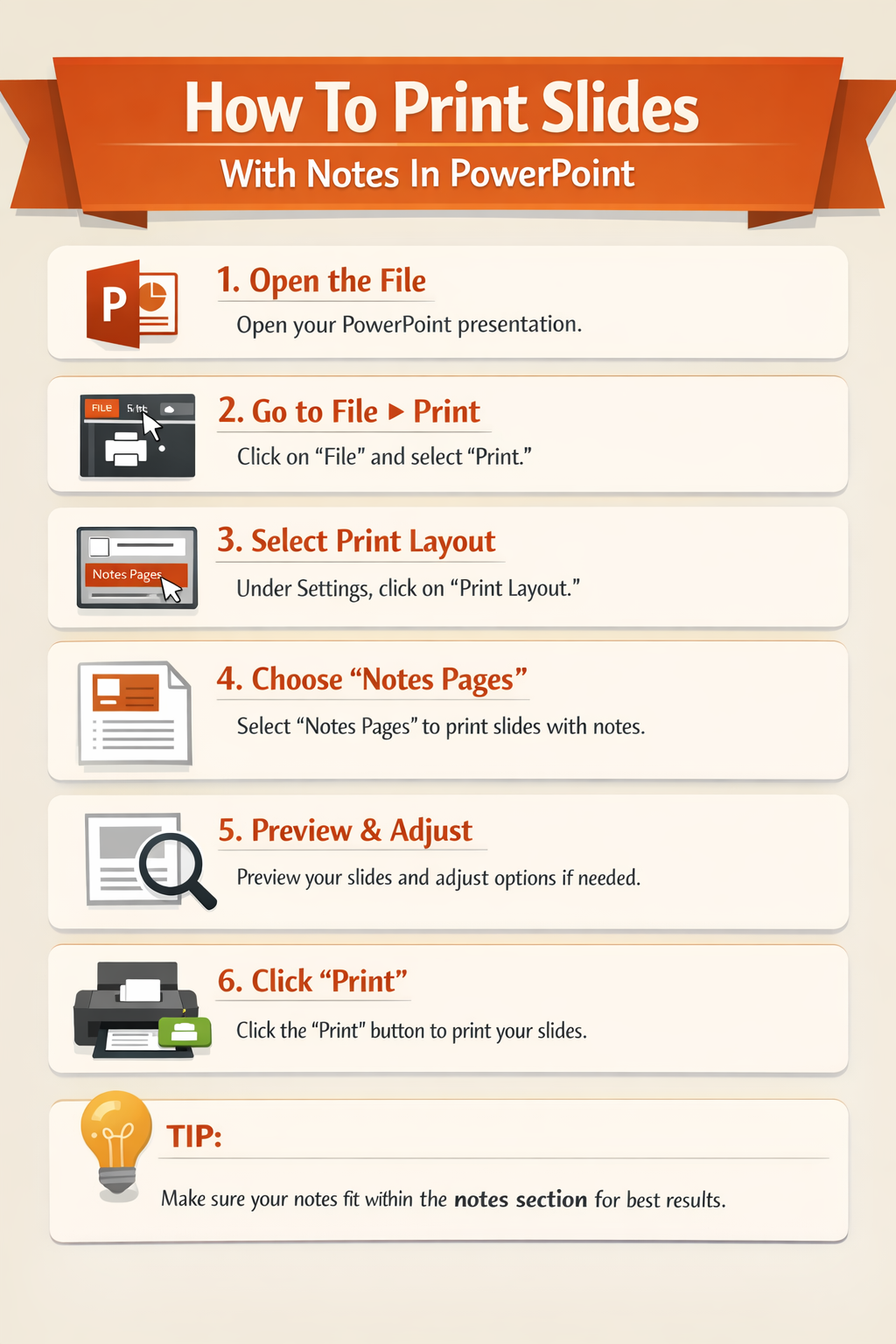
Printing slides with notes in PowerPoint is useful when you want a physical copy of your presentation along with your speaker notes. Instead of printing only the slides, PowerPoint allows you to print Notes Pages, which include the slide image at the top and the speaker notes underneath.
How To Print Slides With Notes In Powerpoint
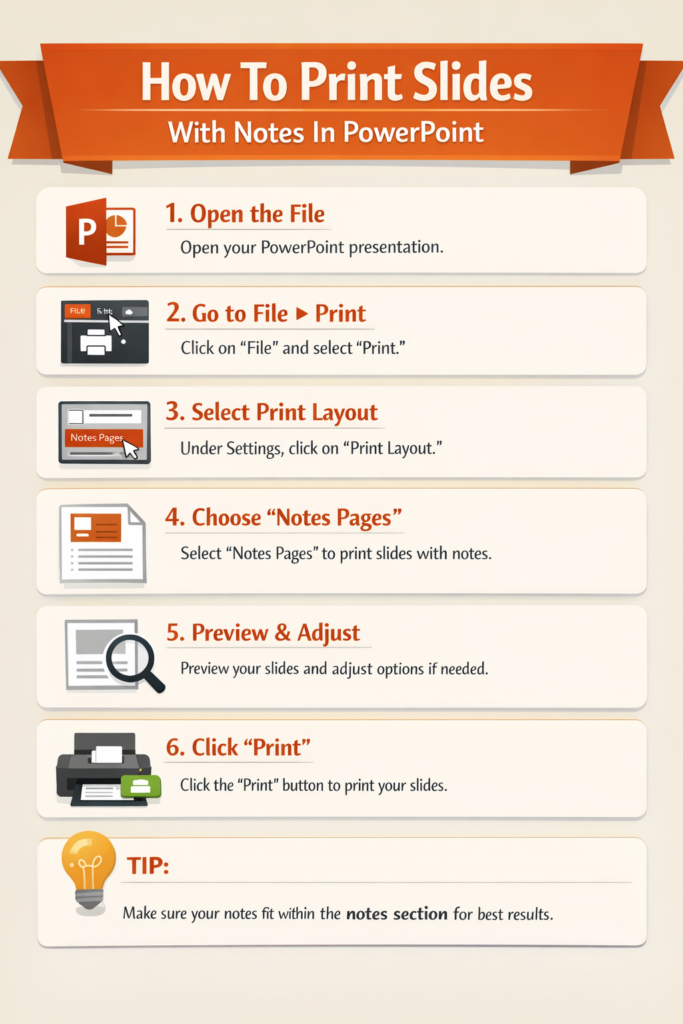
In simple terms, to print PowerPoint slides with notes, you need to open the Print settings, change the layout to Notes Pages, and then print or save the file as a PDF. This guide walks you through the exact steps for both Windows and Mac, along with troubleshooting tips, common mistakes to avoid, and helpful printing tips.
What Does Printing PowerPoint with Notes Mean?
When you add notes in PowerPoint using the Notes Pane, those notes are meant to help you during a presentation. However, sometimes you may want to print them so you can:
- Practice your presentation offline
- Share detailed explanations with your audience
- Keep a printed reference during meetings or lectures
- Create presentation handouts with additional information
When you print using Notes Pages, each printed page contains:
- A single slide
- The speaker notes below the slide
This format makes it easy to read your notes while viewing the slide content.
How to Print PowerPoint with Notes on Windows
If you are using PowerPoint on a Windows computer, follow these steps.
Step 1: Open Your PowerPoint Presentation
Open the PowerPoint file that contains the slides and notes you want to print.
Step 2: Click the File Tab
In the top-left corner of the screen, click File to open the PowerPoint backstage view.
Step 3: Select Print
From the menu on the left side, click Print. This will open the printing settings.
Step 4: Open the Layout Dropdown
Under the Settings section, locate the dropdown menu that usually says:
- Full Page Slides
Click this dropdown to see different print layout options.
Step 5: Choose Notes Pages
From the list of layouts, select Notes Pages.
This option prints:
- One slide per page
- Speaker notes below the slide
Step 6: Choose Printer and Settings
Before printing, confirm the following:
- Correct printer is selected
- Number of copies
- Color or grayscale printing
- Slide range if needed
Step 7: Click Print
Once everything looks correct, click Print.
PowerPoint will print each slide with its associated notes.
How to Print PowerPoint with Notes on Mac
The process on Mac is very similar but the print menu looks slightly different.
Step 1: Open Your PowerPoint File
Launch PowerPoint and open the presentation you want to print.
Step 2: Click File
From the top menu bar, select File.
Step 3: Click Print
Choose Print from the dropdown menu.
You can also press:
Command + P
to open the print dialog quickly.
Step 4: Open the Layout Options
In the print window, find the layout section labeled Layout or Print What depending on your PowerPoint version.
Step 5: Select Notes
Choose Notes or Notes Pages from the available options.
This ensures the notes are included in the printed document.
Step 6: Adjust Print Settings
Before printing, check:
- Number of copies
- Page orientation
- Color or black and white
- Slide range
Step 7: Click Print
Click Print to print the slides along with their speaker notes.
How to Print PowerPoint Notes as a PDF
Sometimes you may want to save the slides with notes as a PDF file instead of printing them.
This is helpful when:
- Sharing presentations digitally
- Sending notes to team members
- Keeping a backup copy
Steps to Save Notes as PDF
- Open the Print menu
- Choose Notes Pages as the layout
- Select Save as PDF instead of a printer
- Choose the file location
- Click Save
Your PDF will contain slides with notes on each page.
Tips for Printing Multiple Slides with Notes
PowerPoint normally prints one slide per page when using Notes Pages. However, there are ways to manage large presentations more efficiently.
Tip 1: Print Only Selected Slides
If you only need certain slides:
- Go to Print settings
- Enter the slide numbers in Custom Range
Example:
1-5, 8, 10-12
This prevents unnecessary printing.
Tip 2: Export Notes Pages to Word
You can export notes to a Word document for easier editing.
Steps:
- Click File
- Select Export
- Choose Create Handouts
- Send to Microsoft Word
This allows you to print multiple slides with notes in different layouts.
Tip 3: Print in Grayscale
Printing presentations with color slides can use a lot of ink.
To reduce costs:
- Choose Grayscale or Black and White in the print settings.
Tip 4: Check Print Preview
Always review the print preview before printing. This ensures:
- Notes appear correctly
- Slide images are clear
- Text is not cut off
Troubleshooting: PowerPoint Notes Not Printing
If your notes are not printing, here are common issues and solutions.
Notes Pane Is Empty
If the Notes section is blank, nothing will print under the slide.
Solution:
Scroll to the Notes Pane below the slide and confirm that notes are written there.
Wrong Print Layout Selected
The most common mistake is leaving the layout set to Full Page Slides.
Solution:
Change the layout to Notes Pages in the print settings.
Notes Are Cut Off
Sometimes long notes may not fully appear.
Solution:
- Edit the Notes Page layout in View → Notes Page
- Reduce text size if necessary.
Printer Formatting Issues
If formatting looks strange after printing, it may be a printer driver issue.
Solutions include:
- Updating the printer driver
- Printing to PDF first
- Trying grayscale printing
Common Mistakes When Printing PowerPoint with Notes
Many users struggle with printing notes because of small configuration errors.
Here are the most common mistakes.
1. Printing Full Page Slides Instead of Notes Pages
This results in slides without any notes.
Always select Notes Pages before printing.
2. Forgetting to Check Print Preview
Skipping preview may lead to:
- Missing notes
- Cropped slides
- Incorrect orientation
3. Using Very Long Notes
Extremely long notes may not fit on one page.
To fix this:
- Keep notes concise
- Edit the Notes Page layout
4. Printing Entire Presentations Unnecessarily
Large presentations can waste paper and ink.
Instead, print only the slides you actually need.
FAQ
How do I print PowerPoint slides with notes on one page?
To print slides with notes on one page, select Notes Pages in the PowerPoint print settings. Each page will contain one slide and its speaker notes underneath.
Can I print multiple slides with notes on one page?
PowerPoint does not allow multiple slides with notes on the same page by default. Each Notes Page contains only one slide. However, you can export the presentation to Word and customize the layout there.
Why are my notes not showing when I print PowerPoint?
This usually happens when the print layout is set to Full Page Slides instead of Notes Pages, or when the Notes Pane does not contain any text.
Can I save PowerPoint slides with notes as a PDF?
Yes. In the Print menu, select Notes Pages, then choose Save as PDF instead of a printer.
Where are PowerPoint speaker notes located?
Speaker notes are written in the Notes Pane, located below the slide editing area in PowerPoint.
Conclusion
Printing PowerPoint slides with notes is simple once you know the correct setting. By selecting Notes Pages in the print menu, you can print each slide along with its speaker notes for easy reference during presentations or meetings.
Whether you use Windows or Mac, the process is nearly identical: open the print menu, choose the Notes Pages layout, review the preview, and print. You can also save the slides with notes as a PDF for digital sharing.
By following the steps and tips in this guide, you can avoid common printing mistakes, manage large presentations efficiently, and ensure your slides and notes appear exactly the way you need them.