
How to Print PowerPoint with Notes (Step-by-Step Guide for Windows & Mac)
Printing PowerPoint slides with notes is useful when you want a physical copy of your presentation along with speaker notes. Instead of printing slides alone, you can print Notes Pages, which place the slide at the top of the page and the notes underneath it.
how to print slides with notes in powerpoint
This feature is helpful for presenters, teachers, and students who want reminders, explanations, or talking points printed alongside each slide.
In this guide, you’ll learn how to print PowerPoint with notes step-by-step on Windows and Mac, along with troubleshooting tips, common mistakes to avoid, and practical printing tips.
Why Print PowerPoint Slides with Notes?
Before jumping into the steps, it helps to understand why printing notes can be useful.
Printing slides with notes allows you to:
- Keep speaker reminders during presentations
- Study from slides and explanations together
- Share detailed presentation material with an audience
- Review your talking points without opening the file
Instead of switching between slides and separate notes, everything appears on one printed page per slide.
How to Print PowerPoint with Notes on Windows
If you are using PowerPoint on Windows, you can print notes directly from the Print menu by selecting the correct layout.
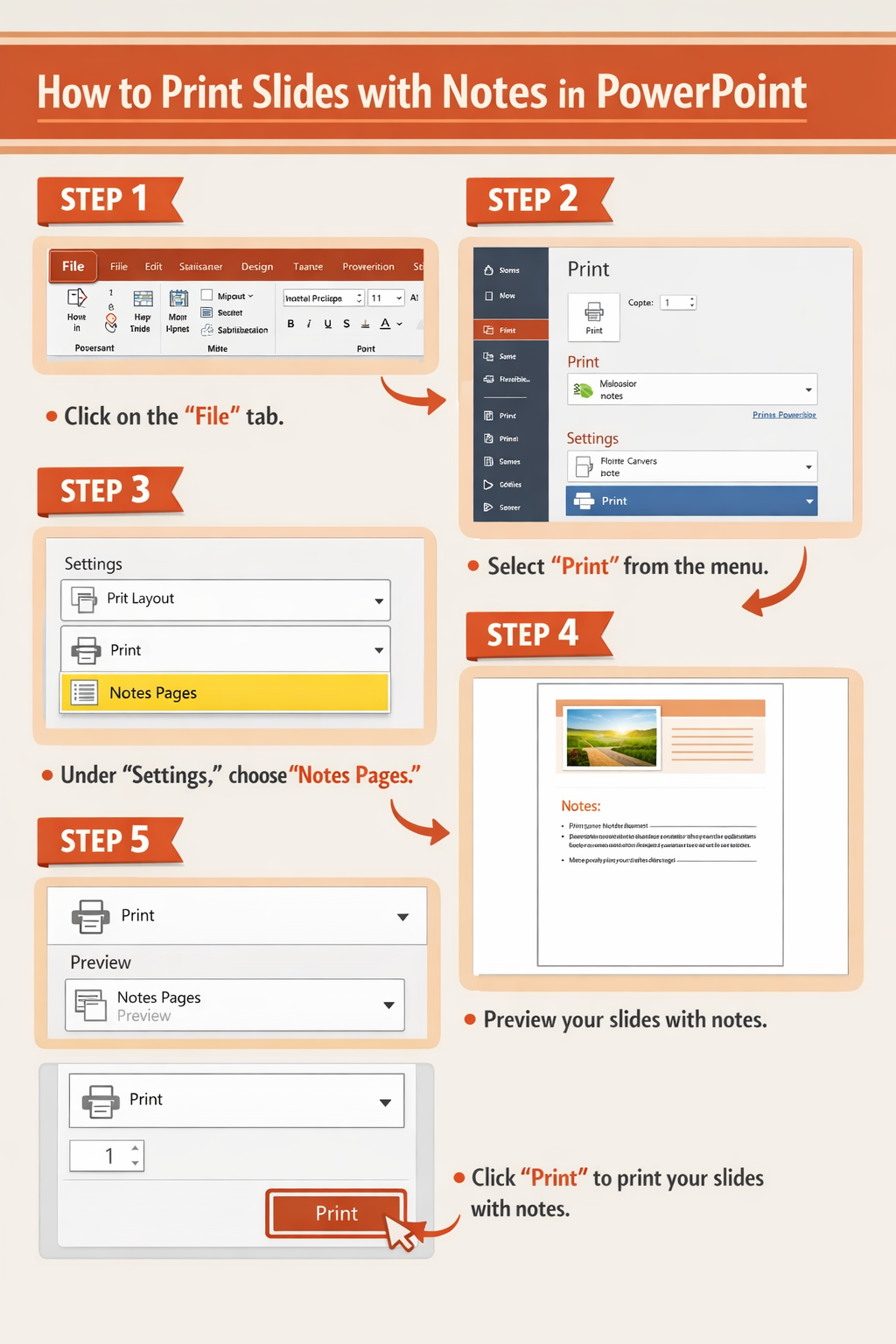
Step 1: Open Your PowerPoint Presentation
Launch Microsoft PowerPoint and open the presentation file that contains your slides and notes.
Step 2: Go to the File Menu
Click File in the top-left corner of the screen.
This opens the backstage view where printing options are located.
Step 3: Select Print
Click Print from the menu on the left side.
You will now see the print settings and preview.
Step 4: Open the Layout Menu
Under Settings, find the dropdown that usually says Full Page Slides.
Click this dropdown to view different printing layouts.
Step 5: Choose Notes Pages
From the list of layouts, select Notes Pages.
This option prints:
- One slide per page
- Speaker notes below the slide
The print preview will update to show how the pages will look.
Step 6: Select Printer and Copies
Choose your printer and adjust the number of copies if needed.
You can also adjust:
- Orientation
- Color settings
- Paper size
Step 7: Click Print
Once everything looks correct in the preview, click Print.
PowerPoint will print each slide with its notes on a separate page.
How to Print PowerPoint with Notes on Mac
Printing slides with notes on a Mac is very similar, but the menu layout is slightly different.
Step 1: Open the Presentation
Open your PowerPoint file using Microsoft PowerPoint on macOS.
Step 2: Click File
At the top of the screen, click File in the menu bar.
Step 3: Select Print
Click Print from the dropdown menu.
A print dialog window will appear.
Step 4: Open the Layout Options
Look for the Layout or Print What dropdown menu.
By default, it may be set to Slides.
Step 5: Choose Notes
Change the option to Notes or Notes Pages.
This tells PowerPoint to print slides with the notes section underneath.
Step 6: Adjust Settings
You can adjust additional settings such as:
- Number of copies
- Paper size
- Orientation
- Color or grayscale
Step 7: Print the Presentation
Click Print to start printing slides with notes.
Each slide will appear at the top of the page with notes below it.
How Notes Pages Look When Printed
When you print PowerPoint notes pages, each sheet typically includes:
- The slide image at the top
- Speaker notes below the slide
- The slide number
- The presentation title (depending on settings)
This layout makes it easier to read your talking points while reviewing the slide content.
Tips for Printing Multiple Slides with Notes
Printing notes pages is simple, but there are ways to make it more efficient.
Print Only Specific Slides
If you do not need the entire presentation printed:
- Go to the Print menu
- Find the Slides box
- Enter specific slide numbers
Example:
1–5, 8, 10
This prints only those slides with notes.
Print in Grayscale to Save Ink
If color is not important, choose Grayscale in the print settings.
This reduces ink usage significantly.
Check Notes Before Printing
Sometimes notes are cut off because the text is too long.
To check:
- Go to View
- Select Notes Page
This lets you review how the printed page will look.
Export to PDF First
If you want to share notes digitally, you can:
- Print to PDF
- Save the notes pages as a document
This keeps the formatting exactly the same.
Troubleshooting Printing Notes in PowerPoint
Sometimes PowerPoint does not print notes correctly. Here are common problems and how to fix them.
Notes Are Not Printing
Cause: The print layout is set to Full Page Slides.
Solution:
- Open Print settings
- Change layout to Notes Pages
Notes Are Cut Off
Cause: Notes text is too long.
Solution:
- Go to View
- Select Notes Page
- Resize or shorten the notes
Slides Print Without Notes
Cause: The wrong print option is selected.
Solution:
- Reopen the print menu
- Choose Notes Pages instead of Slides
Print Preview Looks Different
Cause: Printer settings or page size mismatch.
Solution:
- Check paper size
- Ensure orientation matches preview
- Update printer drivers if necessary
Printer Not Responding
Cause: Printer connection or queue issue.
Solution:
- Restart the printer
- Clear the print queue
- Check USB or Wi-Fi connection
Common Mistakes When Printing PowerPoint Notes
Many users run into problems because of small but common mistakes.
Selecting the Wrong Print Layout
The most frequent mistake is leaving the layout set to Full Page Slides.
This prints slides without notes.
Always select Notes Pages.
Forgetting to Check Print Preview
Skipping preview can result in:
- Cut-off notes
- Wrong orientation
- Incorrect slide range
Always check preview before printing.
Printing Too Many Pages
Notes pages print one slide per page, so a large presentation can quickly create many pages.
To avoid waste:
- Print only needed slides
- Review notes beforehand
Ignoring Paper Orientation
Some slides look better in landscape orientation.
Check orientation settings if the layout looks awkward.
FAQ
Can I print multiple slides with notes on one page?
No. PowerPoint’s Notes Pages layout prints one slide with notes per page. If you want multiple slides per page, you must use Handouts, but notes will not appear.
How do I print PowerPoint notes without slides?
PowerPoint does not offer a direct option to print notes only. However, you can copy notes into another document or export the notes pages to PDF and remove slides manually.
Can I save PowerPoint slides with notes as a PDF?
Yes. In the Print menu, choose Notes Pages, then select Save as PDF instead of printing. This creates a PDF containing slides and notes.
Why are my PowerPoint notes missing?
Notes may not appear if:
- The notes section is empty
- The layout is set to slides instead of notes pages
- The notes text is hidden or too large
Check the Notes pane in PowerPoint to confirm the notes exist.
Do PowerPoint notes print in color?
Yes. If your slides include color, the printed notes pages will also show color unless you select Grayscale or Black and White in the print settings.
Conclusion
Printing PowerPoint slides with notes is a simple but powerful feature that helps presenters keep their talking points organized. By selecting Notes Pages in the print settings, PowerPoint automatically formats each page with the slide at the top and notes underneath.
The process is quick on both Windows and Mac:
- Open File
- Select Print
- Choose Notes Pages
- Review preview
- Click Print
Before printing, always check the preview, confirm the layout, and review your notes to avoid common mistakes like missing notes or cut-off text.
Using the tips in this guide will help you print clean, organized PowerPoint notes that are easy to read during presentations or study sessions.