
How to Print PowerPoint with Notes (Step-by-Step Guide for Windows & Mac)
Introduction
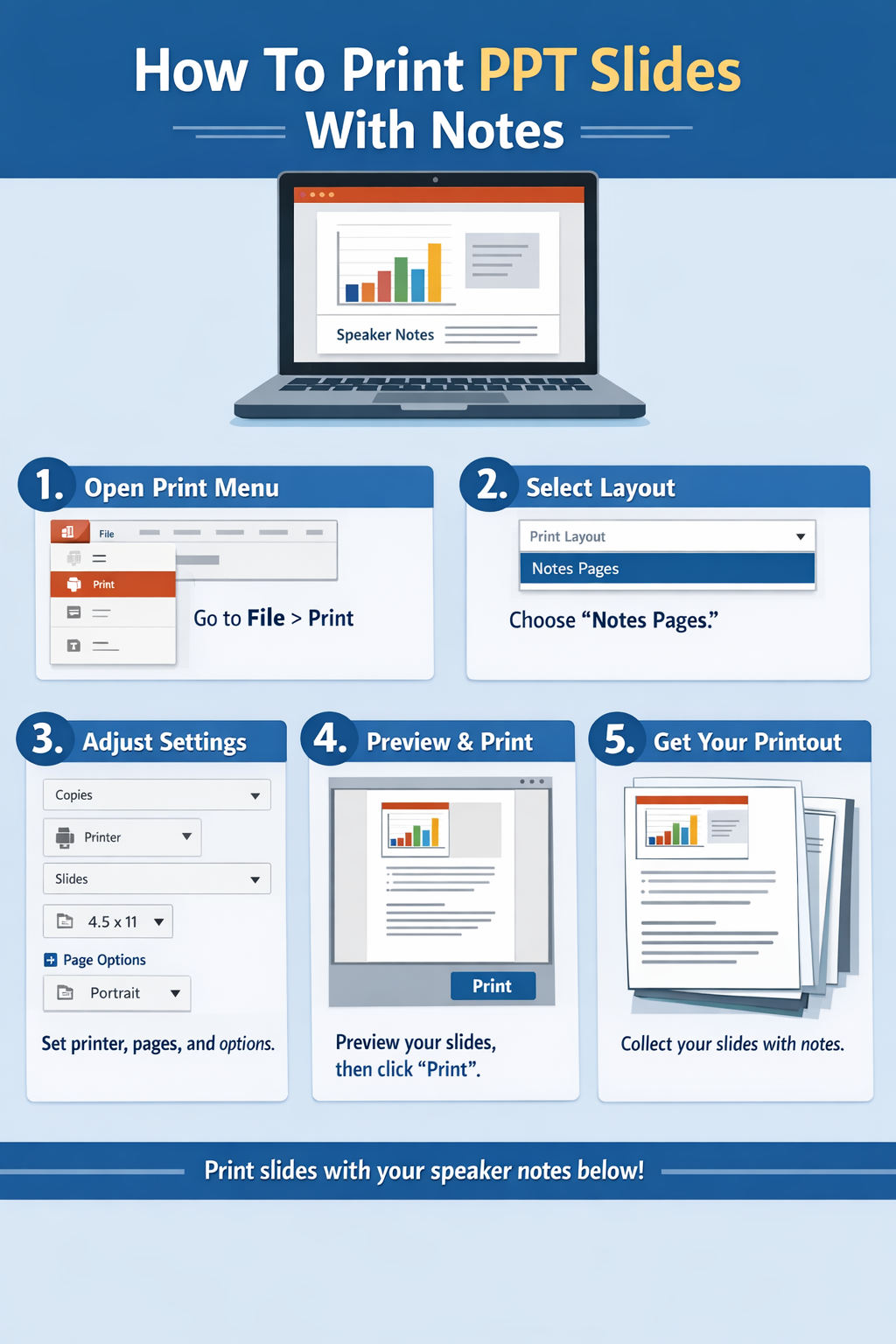
If you need to print PowerPoint slides along with your speaker notes, the process is simple once you know where to look. PowerPoint includes a built-in “Notes Pages” layout that allows you to print each slide with its accompanying notes underneath. This is useful for presentations, study materials, or handouts.
How To Print Ppt Slides With Notes
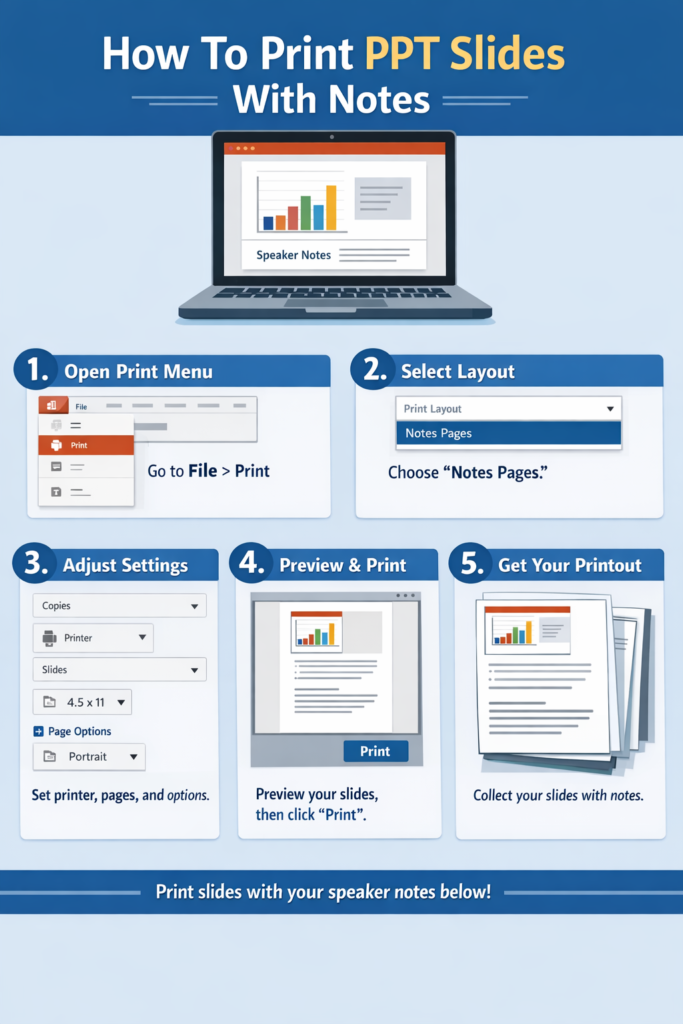
In this guide, you’ll learn exactly how to print PPT slides with notes on both Windows and Mac, along with helpful tips and troubleshooting advice.
Understanding Notes Pages in PowerPoint
What Are Notes Pages?
Notes pages display:
- One slide per page
- Speaker notes below the slide
This format is ideal for:
- Presenters who need prompts
- Printed reference materials
- Teaching and training sessions
When to Use Notes Layout
Use this option when:
- Your notes contain key talking points
- You want a clean, readable print format
- You need detailed explanations alongside slides
How to Print PPT Slides with Notes on Windows
Step-by-Step Instructions
- Open your PowerPoint file
- Click File in the top-left corner
- Select Print
- Under Settings, find the layout dropdown
- Click it and choose Notes Pages
- Select your printer
- Adjust settings like:
- Number of copies
- Color (Color, Grayscale, Black & White)
- Click Print
Preview Before Printing
Always check the preview panel on the right side. This shows exactly how your notes and slides will appear on paper.
How to Print PPT Slides with Notes on Mac
Step-by-Step Instructions
- Open your presentation in PowerPoint
- Click File → Print
- In the print dialog, locate Layout
- Choose Notes or Notes Pages
- Select your printer
- Adjust print settings:
- Orientation
- Copies
- Color mode
- Click Print
Tip for Mac Users
If you don’t see layout options, click Show Details in the print dialog.
Tips for Printing Multiple Slides with Notes
1. Adjust Notes Size
- Go to View → Notes Page
- Resize text to fit better on printed pages
2. Keep Notes Concise
Long notes may get cut off. Break content into short paragraphs.
3. Use PDF Export
Instead of printing directly:
- Save as PDF first
- Review formatting before printing
4. Print Double-Sided
Save paper by enabling duplex printing in printer settings.
Troubleshooting Printing Issues
Notes Not Showing
- Ensure Notes Pages is selected, not “Full Page Slides”
- Check if notes actually exist under slides
Text Cut Off
- Reduce font size in Notes view
- Adjust margins in printer settings
Blank Notes Section
- Verify notes are entered in the notes pane
- Try exporting to PDF and printing from there
Printer Not Responding
- Restart printer and computer
- Check connection (USB/Wi-Fi)
- Update printer drivers
Common Mistakes to Avoid
1. Selecting the Wrong Layout
Many users accidentally choose:
- Full Page Slides (no notes)
- Handouts (multiple slides, no notes)
2. Ignoring Print Preview
Skipping preview can result in:
- Cut-off notes
- Incorrect layout
3. Overloading Notes
Too much text makes printed pages hard to read.
4. Not Checking Page Orientation
Portrait works best for notes pages.
FAQ
1. Can I print multiple slides with notes on one page?
No, PowerPoint only supports one slide with notes per page in Notes layout.
2. Why are my notes missing when printing?
You likely selected the wrong layout. Choose Notes Pages.
3. Can I customize the notes layout?
Yes, use View → Notes Master to adjust formatting.
4. How do I save slides with notes as PDF?
Go to File → Save As → PDF, then select Notes Pages in settings.
5. Can I print notes only without slides?
Not directly. You would need to copy notes into another document.
Conclusion
Printing PowerPoint slides with notes is straightforward once you select the correct layout. Whether you’re using Windows or Mac, the key is choosing Notes Pages in the print settings.
By previewing your document, adjusting formatting, and avoiding common mistakes, you can produce clean, professional printouts every time. If you run into issues, simple fixes like resizing text or exporting to PDF usually solve the problem.
 Zulvani