
Introduction
Printing PowerPoint slides with notes multiple per page is not as straightforward as it sounds. By default, Microsoft PowerPoint prints one slide with notes per page, which can waste paper. However, with a few adjustments, you can print multiple slides per page and still include your speaker notes—either by formatting layouts or exporting cleverly.
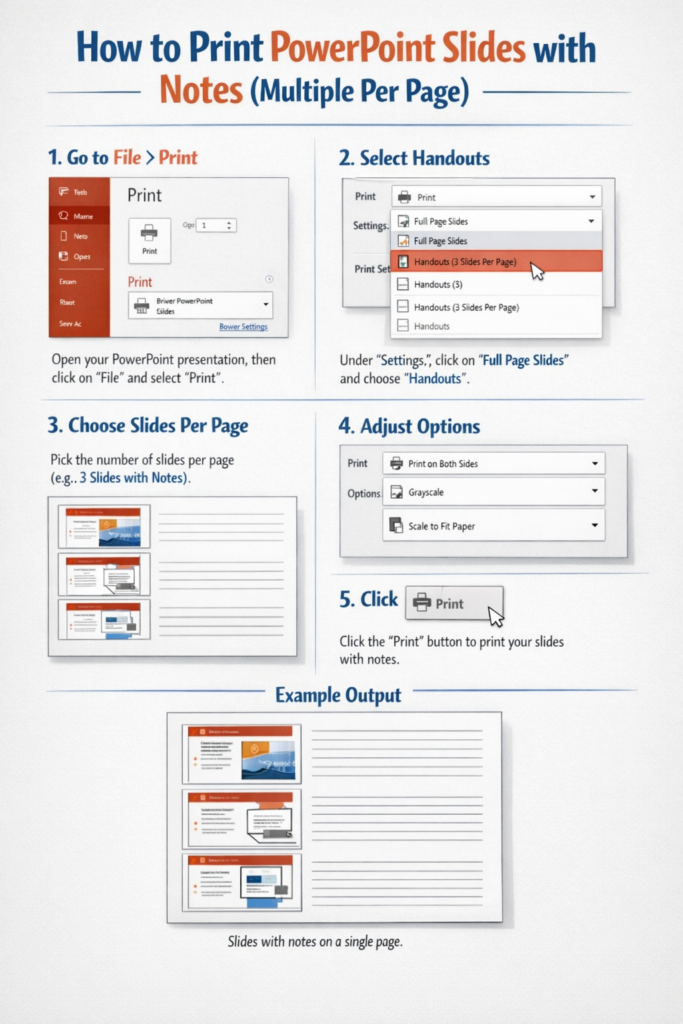
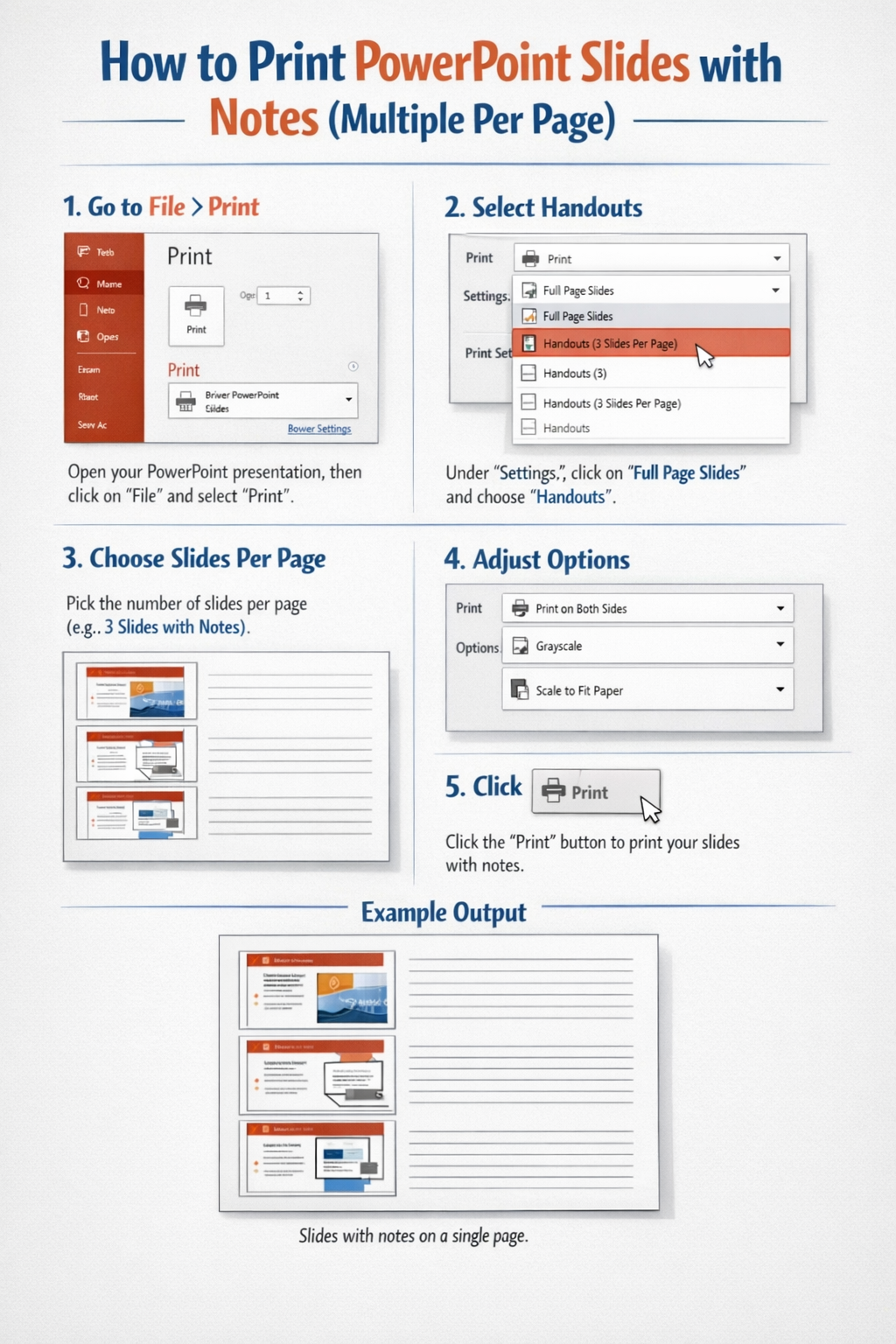
This guide walks you through exactly how to do it on both Windows and Mac, plus practical tips to save paper while keeping your notes readable.
Understanding PowerPoint Print Layouts
Why “Multiple Slides with Notes” Isn’t Built-In
PowerPoint offers two main print styles:
- Slides with Notes (Notes Pages) → 1 slide per page
- Handouts (Multiple slides per page) → No notes included
There is no default option combining both. So we use workarounds.
Best Workaround Methods
You can:
- Convert slides into a notes-friendly format
- Print using handouts with manual note insertion
- Export and reformat before printing
Method 1: Print Multiple Slides with Notes Using Notes Pages (Best Quality)
Step-by-Step on Windows
- Open your PowerPoint file
- Click File → Print
- Under “Settings,” open the layout dropdown
- Select Notes Pages
- Click Printer Properties (or Preferences)
- Choose Multiple pages per sheet (2 or 4)
- Adjust scaling if needed
- Click Print
Step-by-Step on Mac
- Open your presentation
- Go to File → Print
- In the layout dropdown, choose Notes
- Click Show Details
- Under “Layout,” select:
- Pages per sheet (2, 4, or more)
- Adjust orientation for readability
- Click Print
When to Use This Method
- Best for readability
- Keeps notes formatted correctly
- Ideal for study or presentation prep
Method 2: Convert Slides to Handouts with Notes
Step-by-Step on Windows
- Go to View → Notes Page
- Copy your notes manually
- Paste them into slide content or text boxes
- Return to File → Print
- Choose Handouts (2, 3, or 6 slides per page)
Step-by-Step on Mac
- Click View → Notes Page
- Copy notes content
- Insert text boxes into slides
- Paste notes below or beside slides
- Go to File → Print → Handouts
- Select slides per page
When This Works Best
- When you want custom layout control
- When notes don’t need to look like standard notes pages
Method 3: Export to PDF and Print Multiple Notes Pages
Step-by-Step (Windows & Mac)
- Click File → Export (or Save As)
- Choose PDF
- Under options, select Notes Pages
- Save the file
- Open the PDF
- Use your PDF viewer’s print settings:
- Select Multiple pages per sheet
Advantages
- More flexible printing control
- Better scaling options
- Works consistently across printers
Tips for Printing Multiple Slides with Notes
Keep Text Readable
- Avoid more than 4 slides per page
- Use larger fonts in notes
Use Landscape Orientation
- Fits more content horizontally
- Improves readability
Adjust Margins
- Reduce margins to maximize space
- Prevent clipping
Print in Grayscale
- Saves ink without affecting readability
Troubleshooting
Notes Are Too Small
- Reduce number of slides per page
- Increase zoom or scaling before printing
Notes Are Missing
- Make sure Notes Pages is selected
- Double-check notes are added in PowerPoint
Layout Looks Cut Off
- Change paper size (A4 vs Letter)
- Adjust printer margins
Printer Ignores Settings
- Update printer drivers
- Use PDF method instead
Common Mistakes to Avoid
Using Handouts Expecting Notes
Handouts do not include notes unless you manually add them.
Printing Too Many Slides Per Page
Trying to fit 6+ slides with notes usually makes text unreadable.
Ignoring Print Preview
Always check preview before printing to avoid wasted paper.
Not Testing One Page First
Print a single test page before printing the full document.
FAQ
Can I print 3 slides with notes per page directly?
No, PowerPoint does not support this natively. You need to use printer settings or PDF export.
What is the best number of slides per page?
2–4 slides per page is ideal for readability.
Why are my notes cut off when printing?
This usually happens due to margin or scaling issues. Adjust printer settings or use PDF export.
Can I customize note layout?
Yes, using Notes Master in PowerPoint allows layout adjustments.
Is printing from PDF better?
Yes, it often gives better control over layout and scaling.
Conclusion
Printing PowerPoint slides with notes multiple per page requires a workaround, but it’s easy once you know the right method. The most reliable approach is printing Notes Pages combined with multiple pages per sheet settings or exporting to PDF for better control. With proper formatting and preview checks, you can save paper without sacrificing readability.
ARTICLE 2
The Smart Way to Print PowerPoint Slides with Notes on One Page (Windows & Mac Guide)
Introduction
If you’ve ever tried to print PowerPoint slides with notes multiple per page, you’ve likely noticed a limitation: PowerPoint doesn’t offer this option directly. You either get full notes pages (one slide per page) or handouts without notes.
The good news? There are simple techniques to combine both—letting you print efficiently while still keeping your speaker notes visible. This guide explains practical solutions you can use right away on Windows and Mac.
Why PowerPoint Limits Notes Printing
Built-In Layout Options Explained
PowerPoint separates printing into:
- Notes Pages → includes notes, but only one slide
- Handouts → multiple slides, but no notes
This design forces users to use alternative methods.
What You’re Trying to Achieve
You want:
- Multiple slides per sheet
- Notes included
- Clean, readable formatting
Option 1: Use Printer Settings with Notes Pages
Windows Instructions
- Open your presentation
- Click File → Print
- Under layout, select Notes Pages
- Open Printer Properties
- Look for:
- “Pages per sheet”
- “Multi-page printing”
- Select 2 or 4 pages per sheet
- Confirm settings
Mac Instructions
- Open PowerPoint
- Go to File → Print
- Select Notes layout
- Click Show Details
- Under layout:
- Choose pages per sheet
- Adjust orientation if needed
Key Benefit
You keep the original notes formatting while reducing paper usage.
Option 2: Rearrange Slides to Include Notes Manually
Windows Steps
- Open View → Notes Page
- Copy notes text
- Return to normal view
- Insert a text box below each slide
- Paste notes
- Go to File → Print → Handouts
- Choose slides per page
Mac Steps
- Go to View → Notes Page
- Copy notes content
- Add text boxes to slides
- Paste notes
- Print using Handouts layout
When This Helps
- You want custom formatting
- You don’t need traditional notes page layout
Option 3: Use PDF for Better Control
Steps for Both Systems
- Go to File → Save As or Export
- Select PDF format
- Choose Notes Pages
- Save the file
- Open the PDF
- In print settings:
- Choose multiple pages per sheet
Why This Method Works Well
- More reliable scaling
- Consistent results across printers
- Easier preview and adjustments
Best Practices for Multi-Slide Notes Printing
Limit Slides Per Page
- 2 slides: best clarity
- 4 slides: balanced option
- More than 4: often too small
Adjust Font Size in Notes
- Increase font size before printing
- Prevents tiny, unreadable text
Use Landscape Mode
- Fits notes better horizontally
- Reduces line breaks
Test Before Bulk Printing
Always print one sample page to confirm layout.
Troubleshooting Guide
Problem: Notes Not Showing
- Ensure “Notes Pages” is selected
- Check if notes exist in slides
Problem: Content Too Small
- Reduce slides per page
- Increase scaling percentage
Problem: Layout Looks Misaligned
- Switch between portrait and landscape
- Adjust printer margins
Problem: Printer Settings Missing
- Some printers don’t support multi-page printing
- Use the PDF method instead
Common Errors People Make
Choosing the Wrong Layout
Selecting “Handouts” and expecting notes is a common mistake.
Printing Without Preview
Skipping preview often leads to wasted paper.
Overloading One Page
Trying to fit too many slides reduces usability.
Ignoring Paper Size
Mismatch between A4 and Letter can cause clipping.
FAQ
Is there a direct way to print multiple slides with notes?
No, PowerPoint doesn’t offer this directly. You must use printer settings or export to PDF.
What’s the easiest method?
Using Notes Pages + multiple pages per sheet is the quickest.
Can I edit how notes appear?
Yes, use the Notes Master to customize layout.
Why does my print look different from preview?
Printer drivers or scaling settings may override PowerPoint.
Should I use PDF or PowerPoint printing?
PDF is more reliable for consistent results.
Conclusion
While PowerPoint doesn’t natively support printing multiple slides with notes per page, you can still achieve it with simple workarounds. Whether you use printer settings, adjust slides manually, or export to PDF, each method offers a practical solution. For most users, combining Notes Pages with multi-page printing settings is the easiest and most effective approach.
 Zulvani