
How to Print PowerPoint with Notes (Step-by-Step Guide for Windows & Mac)
Printing a PowerPoint presentation with notes allows you to see both the slide and the speaker notes on the same page. This is useful for presenters, teachers, and professionals who want a printed reference while presenting or reviewing slides.
How To Print Powerpoint Presentation With Notes
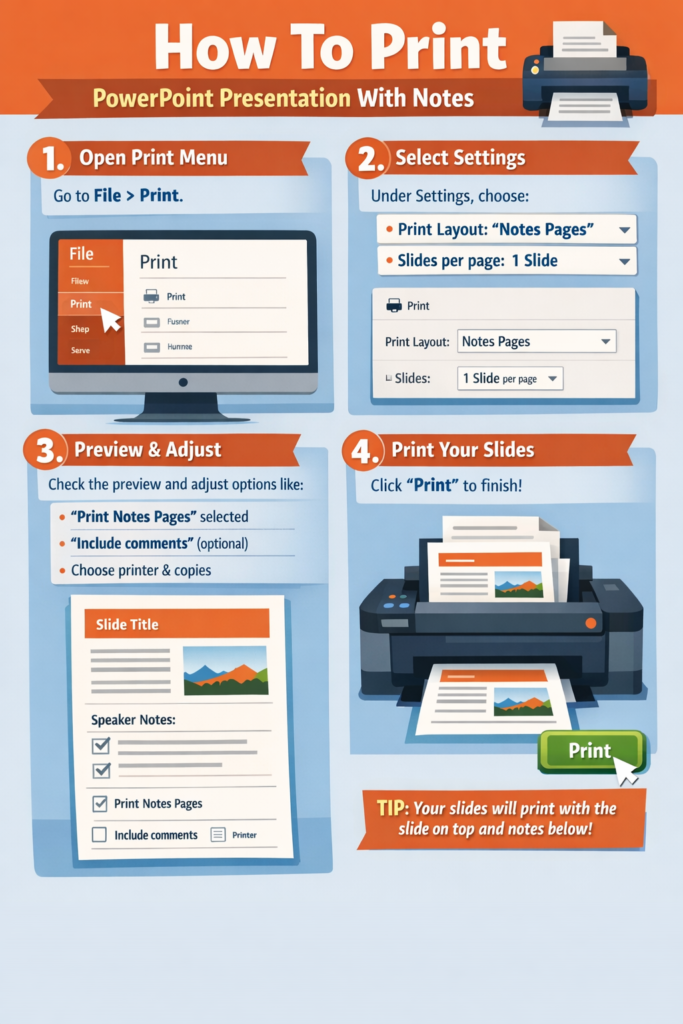
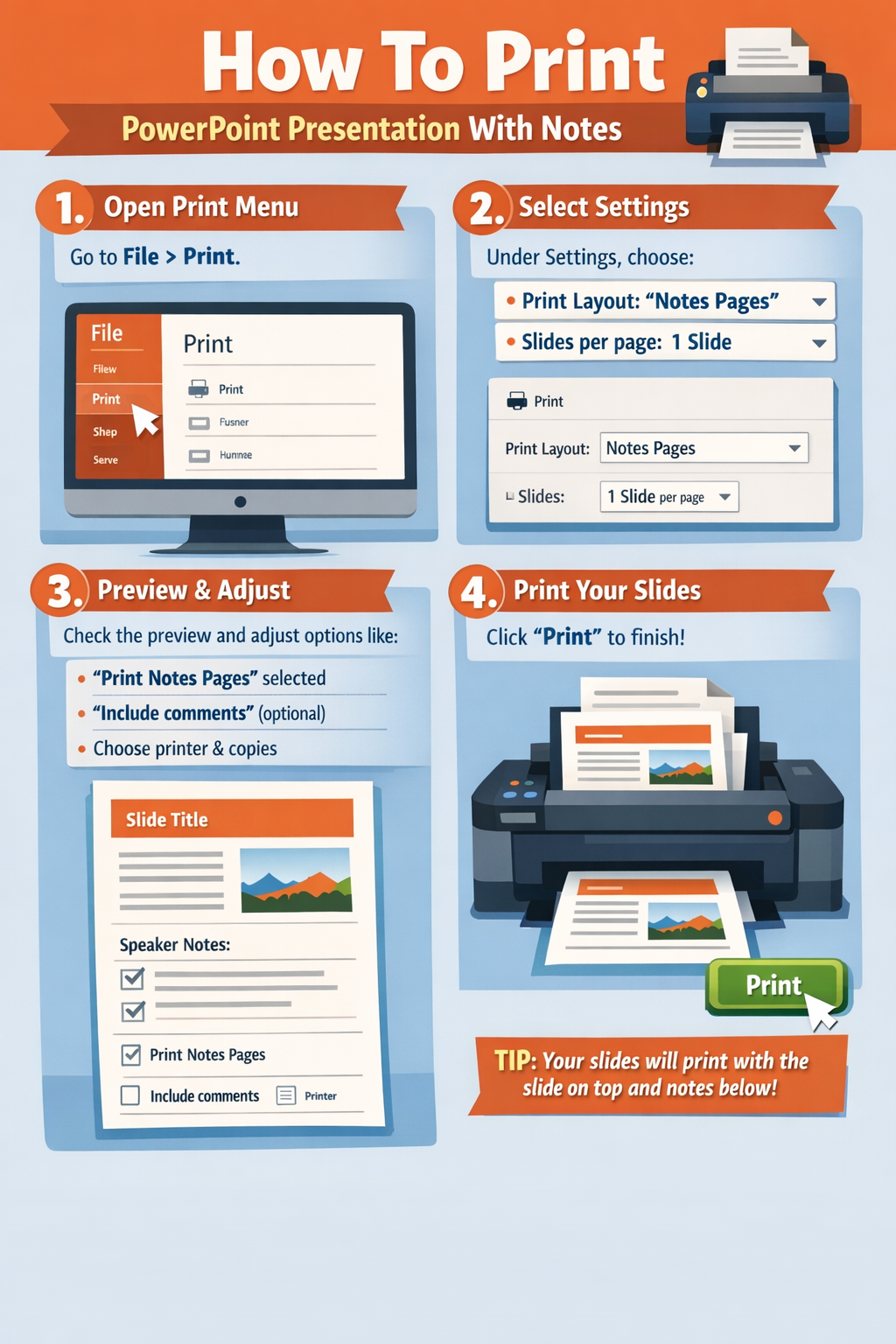
In Microsoft PowerPoint, you can print slides with notes by selecting the “Notes Pages” layout in the print settings. This format places the slide at the top of the page and the speaker notes underneath it.
This guide explains exactly how to print PowerPoint with notes on Windows and Mac, along with troubleshooting tips, common mistakes to avoid, and practical tips for printing multiple slides efficiently.
Why Print PowerPoint with Notes?
Before jumping into the steps, it helps to understand why printing notes can be useful.
Speaker notes are designed to help the presenter remember key talking points without overcrowding the slide itself. When printed properly, each page includes:
- The slide image
- The speaker notes
- A clean layout for reviewing or presenting
Common situations where this is helpful include:
- Giving presentations without relying on a laptop
- Teaching or lecturing
- Studying presentation material
- Reviewing slides during meetings
- Sharing printed notes with team members
How to Print PowerPoint with Notes on Windows
If you are using PowerPoint on Windows, follow these steps.
Step 1: Open Your PowerPoint Presentation
Start by opening your presentation in PowerPoint.
Make sure your speaker notes are already added in the Notes pane beneath each slide.
To check this:
- Open a slide.
- Look at the bottom of the screen.
- Confirm the Notes section contains your notes.
If it is not visible, click Notes in the bottom toolbar.
Step 2: Open the Print Menu
Next, open the print settings.
- Click File in the top-left corner.
- Select Print.
This opens the print preview and settings panel.
Step 3: Select the “Notes Pages” Layout
This step is the most important.
In the Settings section:
- Click the dropdown that usually says Full Page Slides.
- Choose Notes Pages.
When selected, PowerPoint will display:
- Slide at the top
- Speaker notes below it
You should see this layout in the print preview window.
Step 4: Choose Your Printer and Settings
Adjust the rest of the settings before printing.
Common options include:
- Printer selection
- Number of copies
- Color or grayscale
- Page orientation
- Paper size
If you want to save it digitally instead, choose Print to PDF.
Step 5: Print the Presentation
Once everything looks correct:
- Click Print
- Wait for the pages to print.
Each slide will appear on its own page with the notes underneath.
How to Print PowerPoint with Notes on Mac
The process on macOS is similar but the menu layout is slightly different.
Follow these steps.
Step 1: Open the Presentation
Launch PowerPoint and open your presentation file.
Verify your speaker notes are included:
- Select a slide
- Check the Notes pane at the bottom
- Confirm your notes appear there
If not visible, click View → Notes.
Step 2: Open the Print Window
Next:
- Click File
- Select Print
Alternatively, use the shortcut:
Command + P
Step 3: Change the Layout to Notes
In the print dialog:
- Locate the Layout or Copies and Pages dropdown.
- Select Notes or Notes Pages.
The preview should immediately update.
Each page will show:
- Slide preview
- Speaker notes underneath
Step 4: Adjust Print Options
Before printing, review the settings:
- Number of copies
- Orientation
- Color options
- Paper size
- Printer selection
If you want a digital copy, select Save as PDF.
Step 5: Print the Notes Pages
Click Print to start printing.
Your presentation will now print with notes included.
Tips for Printing Multiple Slides with Notes
Sometimes users want to save paper while still printing notes. Here are some practical tips.
Print Selected Slides Only
If you do not need the entire presentation:
- Go to File → Print
- Under Slides, enter specific slide numbers.
Example:
1-5, 8, 10
This prints only those slides with notes.
Export to PDF First
Printing to PDF first allows you to review the layout.
Steps:
- File → Print
- Choose Microsoft Print to PDF
- Save the file
This lets you confirm notes are visible before printing.
Use Two-Sided Printing
If your printer supports duplex printing, enable it.
Benefits include:
- Saves paper
- Keeps notes organized
- Easier to carry during presentations
Adjust Notes Length
If your notes are too long, they may be cut off.
To avoid this:
- Keep notes concise
- Avoid very long paragraphs
- Use bullet points
Troubleshooting: PowerPoint Notes Not Printing
Sometimes notes do not appear in the printed output. Here are common solutions.
Problem: Notes Are Missing
Cause: Wrong print layout selected.
Solution:
- Go to File → Print
- Select Notes Pages instead of Full Page Slides.
Problem: Notes Are Cut Off
Cause: Notes are too long for the page layout.
Solution:
- Shorten the notes
- Split long notes across slides
- Export to PDF to preview layout.
Problem: Blank Notes Section
Cause: Notes pane may be empty.
Solution:
Check each slide and confirm notes exist in the Notes section.
Problem: Printer Not Responding
If the printer does not print:
Try these fixes:
- Restart the printer
- Check the printer queue
- Ensure the correct printer is selected
- Update printer drivers
Common Mistakes When Printing PowerPoint with Notes
Many users struggle because of small mistakes. Avoid these common issues.
Selecting the Wrong Print Layout
The most frequent mistake is leaving the default Full Page Slides layout selected.
Always switch to Notes Pages.
Not Checking Print Preview
Always review the preview before printing.
This helps confirm:
- Notes appear correctly
- Layout looks clean
- Slides are not cropped
Using Slides Instead of Notes Pages
Some users mistakenly print Handouts instead of Notes.
Handouts do not include speaker notes.
Notes Pane Hidden
If notes are not visible in editing mode, users assume they do not exist.
Click Notes at the bottom of PowerPoint to reveal the section.
FAQ: Printing PowerPoint with Notes
Can I print multiple slides with notes on one page?
No. The Notes Pages layout prints one slide per page. This ensures there is enough space for the notes.
If you need multiple slides per page, you must use Handouts, but this will remove the notes.
How do I save PowerPoint notes as a PDF?
Follow these steps:
- Go to File → Print
- Choose Notes Pages
- Select Print to PDF
- Save the file
This creates a PDF that includes slides and notes.
Why are my PowerPoint notes not showing when printing?
The most common reason is the wrong print layout.
Make sure Notes Pages is selected in the print settings.
Can I edit notes before printing?
Yes.
To edit notes:
- Open a slide
- Click inside the Notes pane
- Update or format the text
Changes will appear in the printed notes.
Can I print only the notes without the slides?
PowerPoint does not provide a built-in option for printing notes only.
However, you can:
- Export Notes Pages to Word
- Delete slide images
- Print the document.
Conclusion
Printing PowerPoint slides with speaker notes is simple once you know the correct setting to use. The key is selecting Notes Pages in the print layout.
On both Windows and Mac, the process follows the same basic steps:
- Open File → Print
- Change the layout to Notes Pages
- Review the preview
- Print the presentation
This layout ensures every slide appears with its corresponding notes, making it perfect for presentations, studying, or reviewing materials offline.
By following the steps, tips, and troubleshooting advice in this guide, you can print PowerPoint presentations with notes quickly and without formatting issues.