
How to Print PowerPoint with Notes (Step-by-Step Guide for Windows & Mac)
Printing a PowerPoint presentation with speaker notes is useful when you want a physical copy of your talking points during a presentation, training session, or meeting. Instead of printing slides alone, printing slides with notes places your presentation slide at the top of the page and the speaker notes underneath
how to print powerpoint notes
The process is simple in Microsoft PowerPoint: you just need to choose the Notes Pages layout in the print settings. This guide explains exactly how to print PowerPoint with notes on Windows and Mac, along with troubleshooting tips, common mistakes, and helpful printing tips.
Why Print PowerPoint with Notes?
Speaker notes are designed to help presenters remember key points without crowding slides with too much text. Printing slides with notes gives you:
- A reference sheet during presentations
- Handouts with explanations for students or team members
- A backup copy if your computer fails
- An easy way to review your presentation offline
When printed correctly, each page includes:
- The slide image at the top
- The speaker notes below the slide
How PowerPoint Notes Printing Works
In Microsoft PowerPoint, speaker notes appear in the Notes Pane below each slide in Normal view. When printing, you must select Notes Pages instead of standard slide layouts.
If you choose Full Page Slides or Handouts, the notes will not appear.
How to Print PowerPoint with Notes on Windows
Follow these steps if you are using PowerPoint on a Windows computer.
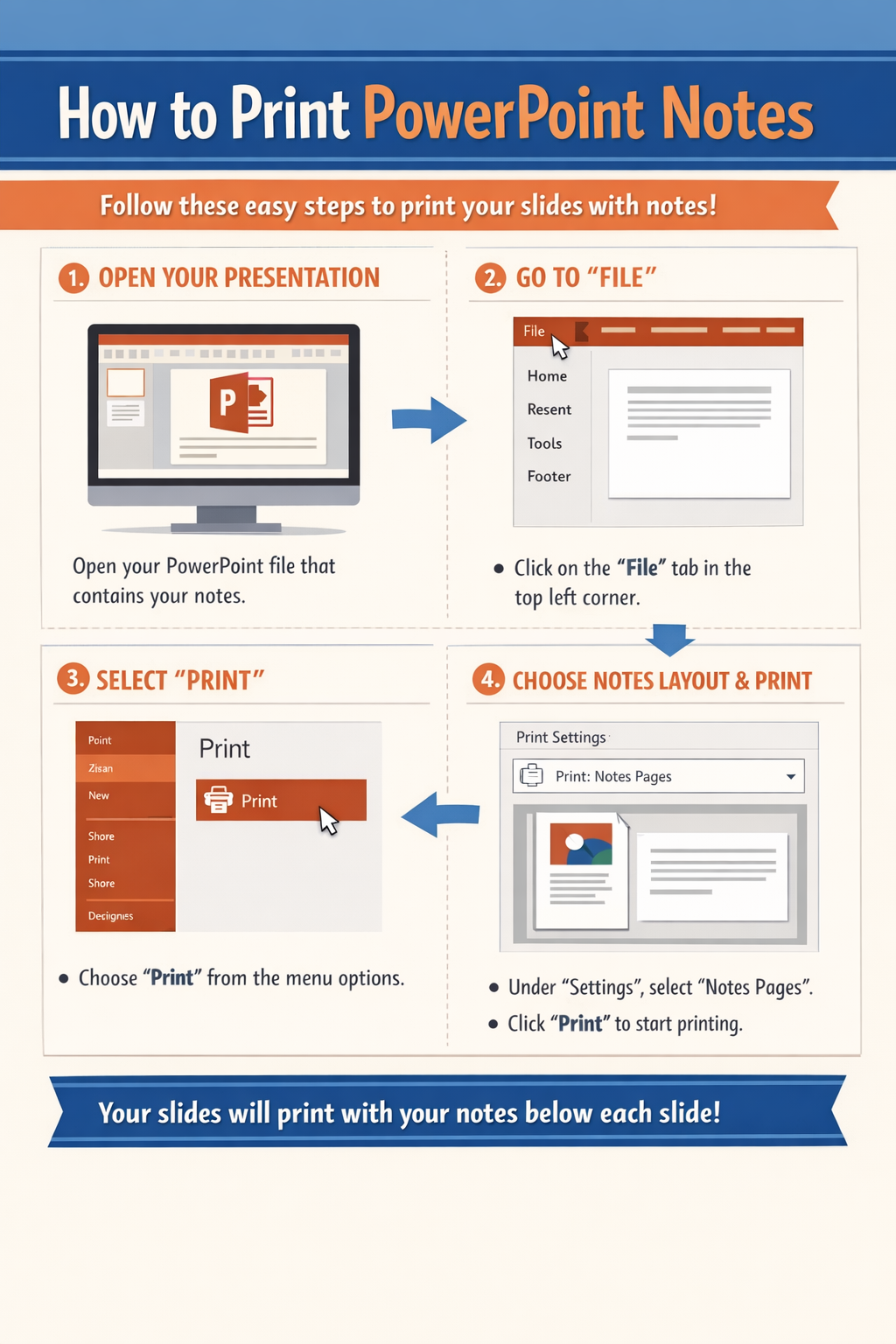
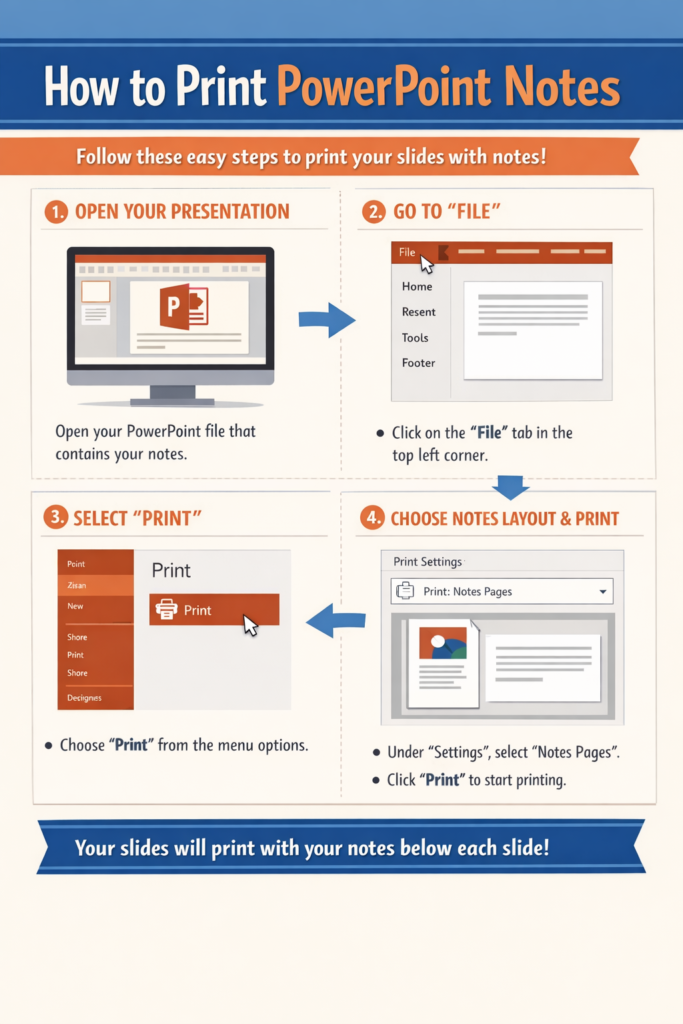
Step 1: Open Your Presentation
- Launch Microsoft PowerPoint
- Open the presentation file you want to print.
Make sure your speaker notes are already added in the Notes Pane under each slide.
Step 2: Open the Print Menu
- Click File in the top-left corner.
- Select Print.
You will now see the print settings and preview window.
Step 3: Change the Print Layout
In the Settings section:
- Click the dropdown under Full Page Slides
- Select Notes Pages
PowerPoint will now show each slide with its notes in the preview window.
Step 4: Adjust Printer Settings
Before printing, review these options:
- Printer selection
- Color or grayscale
- Double-sided printing
- Number of copies
Adjust them according to your needs.
Step 5: Print the Presentation
- Click Print
- Wait for the printer to complete the job.
Each page will contain:
- The slide at the top
- Your speaker notes below
How to Print PowerPoint with Notes on Mac
The process is slightly different on macOS, but still very simple.
Step 1: Open the PowerPoint File
Launch Microsoft PowerPoint and open your presentation.
Confirm that speaker notes are added to each slide.
Step 2: Open the Print Dialog
- Click File
- Select Print
- A print window will appear.
Step 3: Select the Notes Layout
Inside the print settings:
- Look for Layout or Print What
- Select Notes
This ensures each printed page includes your speaker notes.
Step 4: Check Preview
Look at the preview panel to confirm:
- Slide appears at the top
- Notes appear underneath
If you only see slides, the wrong layout is selected.
Step 5: Print
Click Print to send the presentation to your printer.
How to Print Multiple Slides with Notes
PowerPoint normally prints one slide with notes per page. However, if you want to optimize paper usage, here are some practical approaches.
Option 1: Print Notes Pages as PDF
- Go to File → Print
- Choose Notes Pages
- Select Print to PDF
You can then combine or scale pages in a PDF editor.
Option 2: Print Two Notes Pages Per Sheet
Some printer drivers allow multiple pages per sheet.
Steps:
- Open Print Settings
- Look for Pages Per Sheet
- Select 2 pages per sheet
This prints two slides with notes on one page.
Option 3: Convert Notes Pages to Handouts
Another option is:
- Go to File
- Select Export
- Choose Create Handouts
- Export to Word
You can then adjust layout and print multiple slides per page.
Tips for Better PowerPoint Notes Printing
These practical tips help you get better results.
1. Use Short Speaker Notes
Avoid writing paragraphs. Instead use:
- bullet points
- short reminders
- keywords
This keeps printed notes easy to read.
2. Increase Notes Font Size
Small fonts can be hard to read in print.
To adjust:
- Go to View
- Select Notes Page
- Increase text size.
3. Use Grayscale to Save Ink
Color printing can be expensive.
Choose:
Print → Grayscale
This reduces ink usage significantly.
4. Print a Test Page First
Always print one page before printing the entire presentation. This helps check:
- layout
- margins
- text visibility
Troubleshooting: PowerPoint Notes Not Printing
Sometimes notes fail to appear in print. Here are common fixes.
Problem: Notes Are Missing
Cause: Wrong print layout selected.
Solution:
- Open File → Print
- Change layout to Notes Pages
Problem: Notes Are Cut Off
Cause: Notes text is too long.
Solution:
- Edit notes to reduce length
- Increase margins
- Adjust font size
Problem: Print Preview Looks Wrong
Cause: Incorrect page layout.
Solution:
Switch to Notes Pages and check preview again.
Problem: Printer Not Printing Notes Pages
If your printer is not responding:
- Check printer connection
- Restart the printer
- Update printer drivers
- Print as PDF first
Common Mistakes When Printing PowerPoint Notes
Avoid these common errors.
Selecting the Wrong Layout
Many users accidentally choose:
- Full Page Slides
- Handouts
These do not include notes.
Writing Too Much in Speaker Notes
If notes are too long:
- text may get cut off
- pages become cluttered
Keep notes concise.
Not Checking Print Preview
Skipping preview can result in:
- missing notes
- formatting issues
- wasted paper
Always review preview first.
Printing the Entire Presentation Unnecessarily
If you only need a few slides:
- Choose Custom Range
- Enter slide numbers
Example: 1-5
FAQ: Printing PowerPoint with Notes
How do I print PowerPoint notes only?
PowerPoint cannot print notes alone directly. You must print Notes Pages, which include the slide and notes together.
Can I print PowerPoint notes without the slide?
Yes, but it requires a workaround:
- Export notes to Word
- Delete slide images
- Print only the text.
How do I save PowerPoint with notes as a PDF?
Steps:
- Click File
- Select Print
- Choose Notes Pages
- Select Save as PDF
The PDF will include slides with speaker notes.
Why are my notes not showing in print preview?
This usually happens because Full Page Slides is selected. Change the layout to Notes Pages.
Can I print PowerPoint notes in Google Slides?
Yes. In Google Slides, choose:
File → Print settings and preview → 1 slide with notes
Conclusion
Printing PowerPoint with notes is straightforward once you know where to find the correct layout option. By selecting Notes Pages in the print settings, you can print slides with speaker notes underneath, giving you a clear reference during presentations.
Whether you use Windows or Mac, the process only takes a few steps: open the print menu, select the notes layout, preview the output, and print. Remember to check your preview, keep notes concise, and consider printing multiple pages per sheet to save paper.
Using these steps and tips will help you produce clear, useful presentation notes every time.