
How to Print PowerPoint with Notes (Step-by-Step Guide for Windows & Mac)
If you want to print your PowerPoint slides with speaker notes included, you need to use the Notes Pages print layout in Microsoft PowerPoint. This option prints one slide per page with its notes displayed underneath.
How To Print Powerpoint Notes
In this complete guide, you’ll learn exactly how to print PowerPoint with notes on both Windows and Mac, how to print multiple slides with notes, and how to fix common printing problems.
Why Print PowerPoint with Notes?
Printing slides with notes is useful when:
- You need speaker notes during a presentation
- You want detailed handouts for meetings
- You’re teaching a class
- You need a reference copy for yourself
Instead of printing slides alone, the Notes Pages layout includes:
- The slide at the top
- Your speaker notes below the slide
How to Print PowerPoint with Notes on Windows
These steps apply to the Windows version of Microsoft PowerPoint.
Step-by-Step Instructions (Windows)
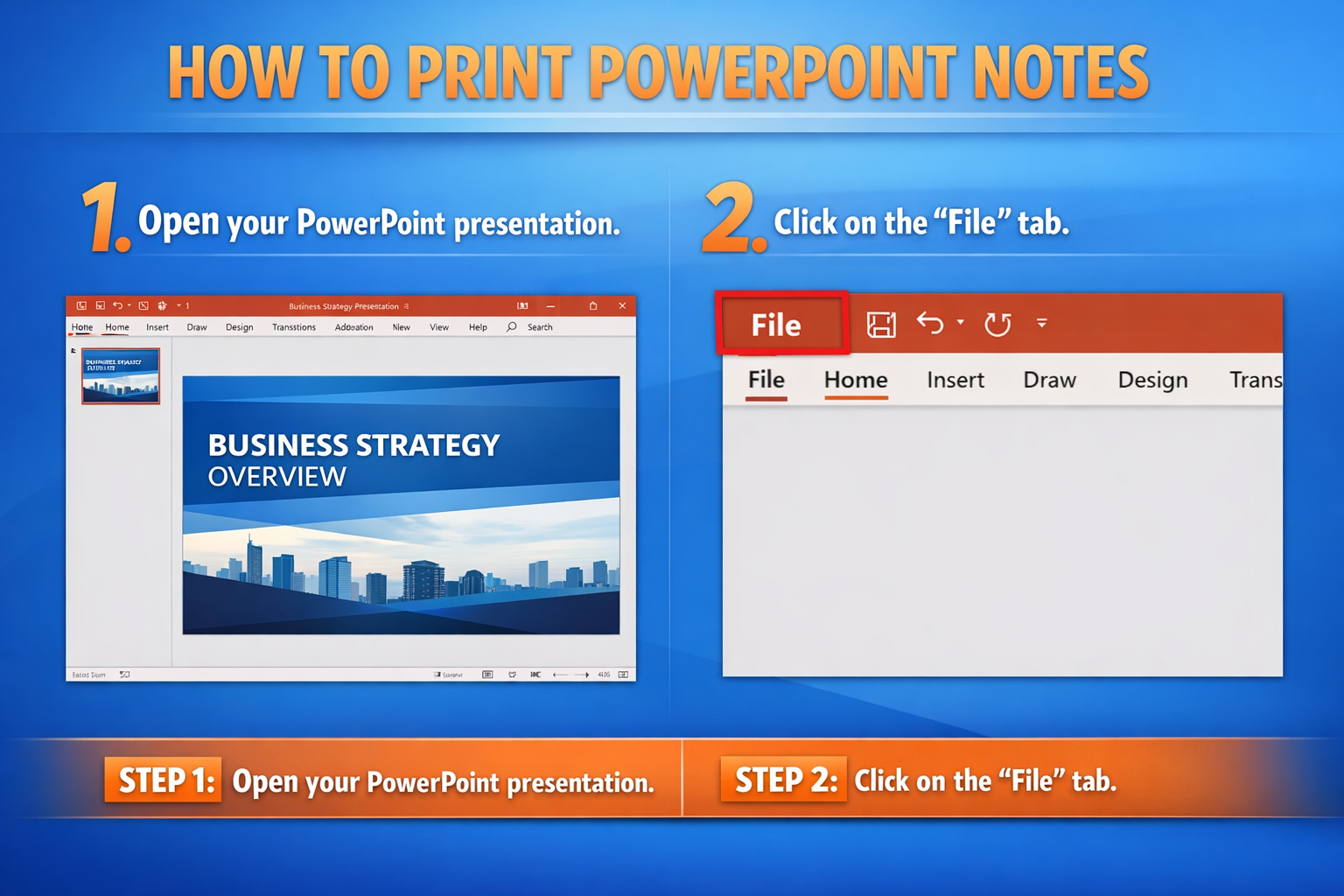
Step 1: Open Your Presentation
Open your PowerPoint file.
Step 2: Click File
Click File in the top-left corner.
Step 3: Select Print
Click Print from the menu.
Step 4: Change the Print Layout
Under Settings, click the dropdown that usually says:
Full Page Slides
Select:
Notes Pages
This is the most important step.
Step 5: Choose Printer and Settings
Select your printer and adjust:
- Number of copies
- Color or grayscale
- Paper size
- Orientation
Step 6: Click Print
Click Print to print slides with notes.
How to Print PowerPoint with Notes on Mac
The process is similar but looks slightly different.
Step-by-Step Instructions (Mac)
Step 1: Open Your File
Open your PowerPoint presentation.
Step 2: Click File > Print
Go to File and choose Print.
Step 3: Open Layout Options
In the print dialog box, look for a dropdown menu labeled:
Layout
Or click Show Details if you don’t see all options.
Step 4: Select Notes
Choose:
Notes
This tells PowerPoint to print one slide with notes below it.
Step 5: Adjust Printer Settings
Choose:
- Printer
- Copies
- Color
- Double-sided (if needed)
Step 6: Click Print
Click Print to complete the process.
How to Print Multiple Slides with Notes
By default, PowerPoint prints one slide per page when using Notes Pages. However, there are ways to print multiple slides with notes efficiently.
Option 1: Print Multiple Copies
If you need multiple copies of the same presentation:
- Go to File > Print
- Select Notes Pages
- Increase the number of copies
Option 2: Print a Specific Slide Range
If you don’t need every slide:
- Go to File > Print
- In the Slides box, type:
1-5(for slides 1 through 5)1,3,7(for specific slides)
- Select Notes Pages
- Click Print
This saves paper and ink.
Option 3: Save as PDF First (Recommended)
If formatting looks incorrect:
- Go to File > Print
- Choose Notes Pages
- Select Microsoft Print to PDF (Windows) or Save as PDF (Mac)
- Open the PDF and review layout
- Print from the PDF
This prevents formatting issues.
How to Adjust Notes Before Printing
Before printing, make sure your notes look good.
View Notes in Normal Mode
- Click View
- Select Normal
- Expand the notes pane at the bottom
Edit and format your notes here.
Use Notes Page View for Better Formatting
- Click View
- Select Notes Page
Here you can:
- Resize the slide image
- Change font size
- Adjust note layout
- Add a header or footer
Changes here will appear when printed.
Troubleshooting: PowerPoint Notes Not Printing
If your notes are not printing correctly, try these fixes.
Problem 1: Notes Are Missing
Cause: Wrong layout selected.
Fix:
Go to File > Print and select Notes Pages, not Full Page Slides.
Problem 2: Notes Are Cut Off
Cause: Notes text is too long.
Fix:
- Reduce font size
- Shorten notes
- Check layout in Notes Page view
Problem 3: Formatting Looks Wrong
Fix:
- Switch to Notes Page view
- Adjust spacing
- Print to PDF first
Problem 4: Printer Not Printing
If your printer isn’t responding:
- Restart the printer
- Check printer connection
- Make sure it’s selected as default
- Update printer drivers
Common Mistakes When Printing PowerPoint with Notes
Avoid these common errors:
1. Printing “Full Page Slides” Instead of Notes Pages
This prints slides only — no notes included.
2. Not Previewing Before Printing
Always check Print Preview to avoid wasted paper.
3. Notes Too Long
Very long notes may shrink or cut off.
4. Forgetting Slide Range
Printing the entire presentation when you only need a few slides wastes ink.
5. Not Adjusting Margins in Notes Page View
Margins can cause text to shift or cut off.
Tips for Better Printing Results
Here are practical tips to improve your print quality:
✔ Use Grayscale for Internal Copies
Saves ink.
✔ Use Double-Sided Printing
Great for long presentations.
✔ Increase Font Size in Notes
If you plan to read from printed notes, increase to 12–14 pt minimum.
✔ Remove Unnecessary Text
Short bullet notes print cleaner than long paragraphs.
✔ Print to PDF First
This helps prevent layout issues.
How to Export PowerPoint Notes to Word
If you need more flexible formatting:
- Click File
- Select Export
- Choose Create Handouts
- Select layout option
- Open in Microsoft Word
You can then adjust spacing and print.
FAQ: Printing PowerPoint with Notes
1. Can I print multiple slides per page with notes?
No. PowerPoint prints one slide per page when using Notes Pages. If you need multiple slides with notes on one page, you must export to Word and format manually.
2. Why are my notes not showing in Print Preview?
You likely selected Full Page Slides instead of Notes Pages.
Go back to File > Print and change the layout.
3. Can I print notes only without slides?
PowerPoint does not directly support printing notes alone. However, you can:
- Copy notes into Word
- Or edit layout in Notes Page view and reduce slide size
4. How do I print only certain slides with notes?
In the Print window, enter the slide numbers in the Slides box (example: 2-6).
5. Can I email slides with notes instead of printing?
Yes. Save as PDF using Notes Pages layout and email the PDF file.
Final Thoughts
Printing PowerPoint with notes is simple once you select the correct layout — Notes Pages.
To summarize:
- Go to File > Print
- Change layout to Notes Pages
- Preview your document
- Print or save as PDF
Always review formatting before printing, especially for long notes. If needed, adjust in Notes Page view or export to Word for better control.
By following the steps in this guide, you can confidently print professional slides with speaker notes on both Windows and Mac — without wasting time, paper, or ink.