
How to Print PowerPoint with Notes (Step-by-Step Guide for Windows & Mac)
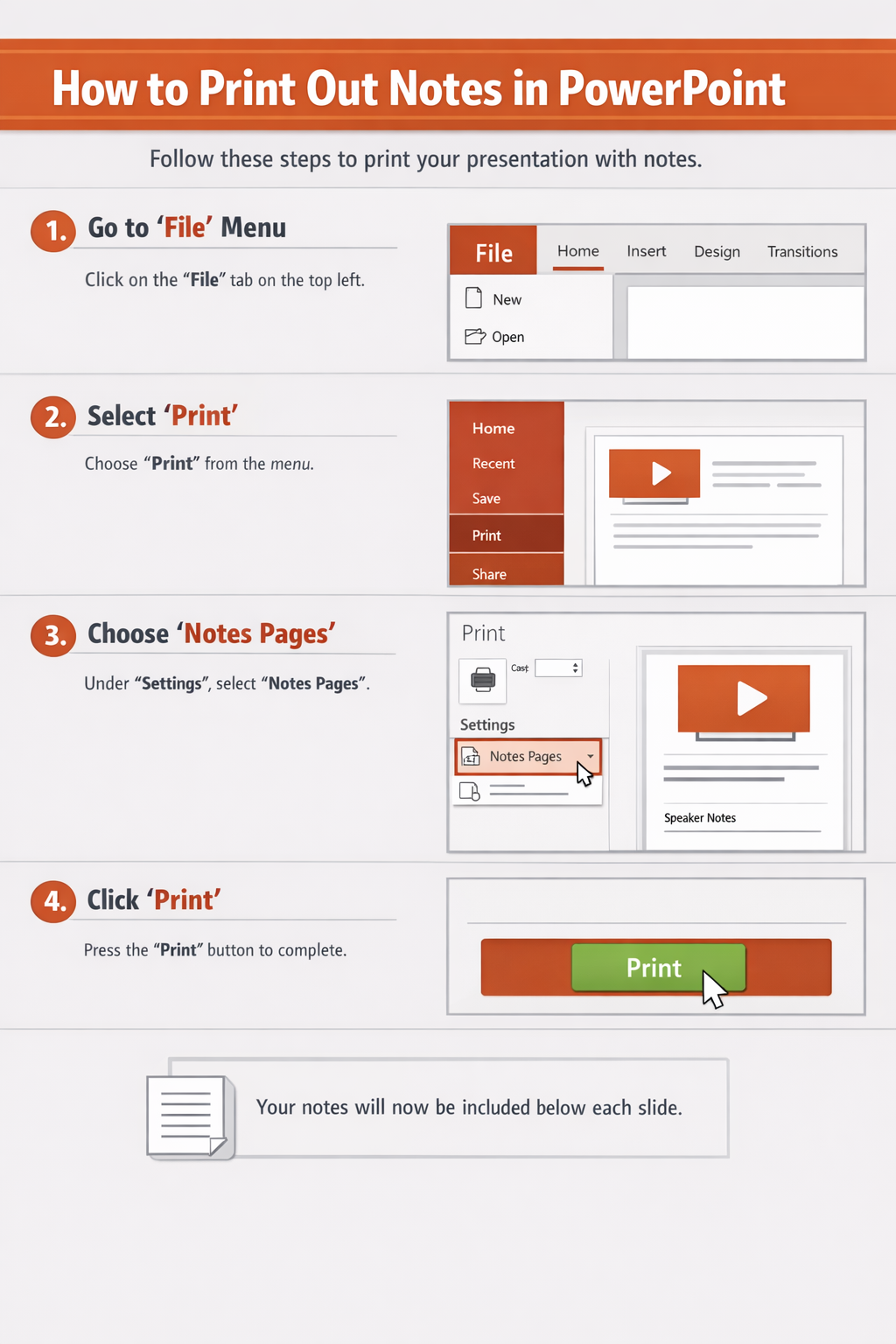
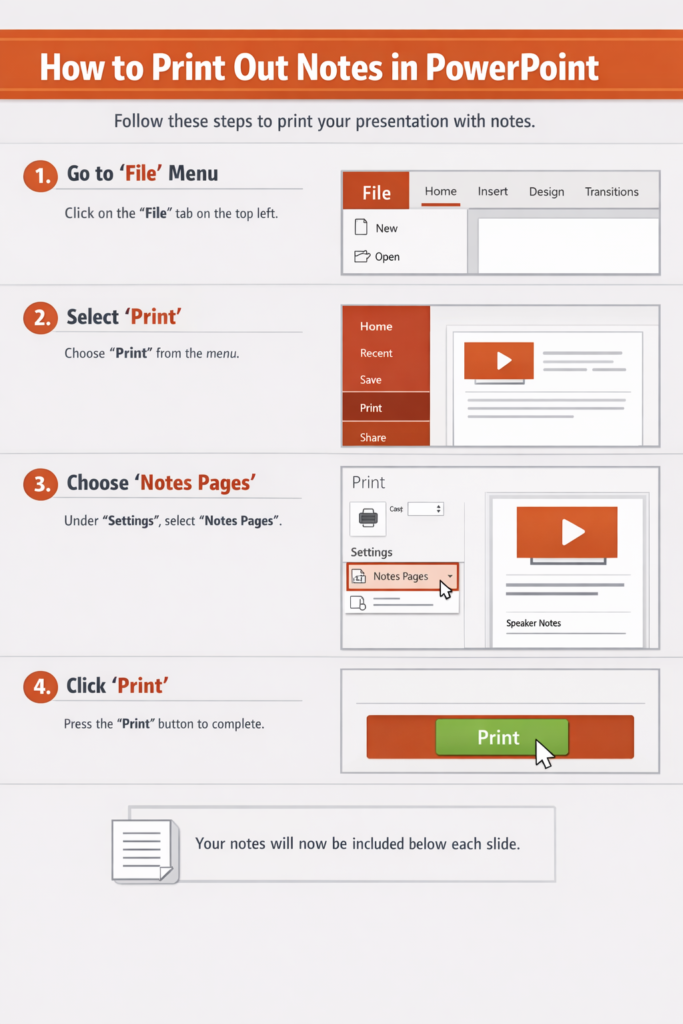
If you want to print PowerPoint slides with notes, you need to select the Notes Pages layout in the Print settings. This allows each slide to print with its speaker notes underneath. You can do this in just a few clicks on both Windows and Mac.
This guide walks you step-by-step through printing PowerPoint with notes, explains common mistakes, and includes troubleshooting tips so your slides print correctly the first time.
how to print out notes in powerpoint
Why Print PowerPoint with Notes?
Printing slides with notes is useful when:
- You are presenting and need speaker notes on paper
- You want a script version of your presentation
- You are sharing detailed content with attendees
- You are studying or reviewing material
Instead of printing slides only, the Notes Pages option prints one slide per page with its notes below it.
How to Print PowerPoint with Notes on Windows
Follow these steps if you’re using Microsoft PowerPoint on Windows:
Step 1: Open Your Presentation
Open your presentation in Microsoft PowerPoint.
Make sure your notes are already added:
- Click View
- Select Notes Page
- Confirm your notes appear under each slide
If notes are missing, they won’t print.
Step 2: Open the Print Menu
- Click File
- Select Print
You’ll see the print preview screen.
Step 3: Choose “Notes Pages”
This is the most important step.
- Under Settings, click the dropdown that usually says:
- Full Page Slides
- Select Notes Pages
The preview on the right will now show:
- One slide per page
- Speaker notes below the slide
If you still see slides only, double-check you selected Notes Pages.
Step 4: Adjust Printer Settings
Before printing, review:
- Printer selection
- Number of copies
- Orientation (Portrait is usually best)
- Color (Color or Grayscale)
If your notes are long, portrait orientation works better.
Step 5: Click Print
Once everything looks correct in the preview, click Print.
Your slides will print with notes underneath each slide.
How to Print PowerPoint with Notes on Mac
The steps are similar on macOS but the layout looks slightly different.
Step 1: Open Your Presentation
Open your file in Microsoft PowerPoint for Mac.
Confirm your notes are entered:
- Click View
- Choose Notes Page
- Check that notes appear under slides
Step 2: Open Print Settings
- Click File
- Select Print
A print dialog box will appear.
Step 3: Select “Notes” Layout
In the print dialog:
- Find the dropdown menu that may say Layout
- Choose Notes
If you don’t see layout options:
- Click Show Details (bottom of the dialog box)
After selecting Notes, the preview should display one slide with notes below it.
Step 4: Adjust Settings
Review:
- Paper size
- Orientation (Portrait recommended)
- Color settings
- Copies
Make sure the preview looks correct before continuing.
Step 5: Print
Click Print to print your PowerPoint slides with notes.
How to Print Multiple Slides with Notes
By default, PowerPoint prints one slide per page with notes.
But if you want to print multiple slides with notes, here are your options:
Option 1: Print Selected Slides Only
If you want to print notes for specific slides:
- Go to File > Print
- In the Slides box, type slide numbers
- Example: 1–5, 8, 10
- Keep Notes Pages selected
- Click Print
This prints notes only for selected slides.
Option 2: Create a Custom Handout (Advanced Tip)
PowerPoint does not support printing multiple slides with notes on the same page by default.
If you need this:
- Export to Word
- Click File > Export
- Choose Create Handouts
- Select a layout with notes
- Adjust formatting in Word
- Print from Word
This gives you more layout control.
Common Mistakes When Printing PowerPoint with Notes
Avoid these frequent errors:
1. Forgetting to Select “Notes Pages”
Many users leave the default setting on Full Page Slides, which prints slides without notes.
Always switch to Notes Pages.
2. Notes Are Blank
If nothing prints under the slide:
- Check that notes are actually typed in the Notes pane.
- Switch to View > Notes Page to confirm.
3. Wrong Orientation
If notes get cut off:
- Use Portrait orientation
- Avoid Landscape unless notes are short
4. Printing Handouts Instead of Notes
Handouts do NOT include speaker notes.
Make sure you choose Notes Pages, not:
- 2 Slides
- 3 Slides
- 6 Slides
5. Printing in Grayscale by Accident
If colors look faded:
- Check printer color settings
- Make sure it’s not set to Grayscale or Black & White
Troubleshooting: PowerPoint Notes Not Printing Correctly
If your notes aren’t printing properly, try these solutions.
Problem: Notes Are Cut Off
Solution:
- Switch to Portrait orientation
- Reduce note font size
- Shorten long notes
You can edit the Notes Master:
- Click View
- Select Notes Master
- Adjust layout or font size
Problem: Formatting Looks Strange
Solution:
- Go to View > Notes Master
- Adjust margins and formatting
- Check that nothing overlaps
Problem: Print Preview Doesn’t Match Output
This may be caused by:
- Printer driver issues
- PDF export settings
- Paper size mismatch
Try:
- Saving as PDF first
- Printing the PDF file instead
Problem: Notes Missing in Print Preview
If preview shows no notes:
- Make sure you selected Notes Pages
- Confirm notes are entered
- Restart PowerPoint
Problem: Can’t Find Notes Option on Mac
Click Show Details in the print dialog to reveal layout settings.
Tips for Better Printing Results
Use these professional tips to improve output quality:
- Keep notes concise (3–5 short paragraphs per slide)
- Use 10–12 pt font minimum
- Use Portrait orientation
- Print a single test page first
- Save a PDF copy before printing
If presenting live, consider printing:
- Slides with notes for yourself
- Slides only for the audience
FAQ: Printing PowerPoint with Notes
1. Can I print multiple slides with notes on one page?
Not directly in PowerPoint. It prints one slide per page with notes. To customize, export to Word and adjust formatting there.
2. Why are my notes not showing when I print?
You likely selected Full Page Slides instead of Notes Pages, or your notes section is empty.
3. Can I print PowerPoint notes without the slide?
Yes. Go to Notes Page view, copy the notes into Word, and print from there. PowerPoint always includes the slide image by default.
4. Can I print notes in black and white?
Yes. In Print settings, choose:
- Grayscale
- Black & White
This saves ink.
5. Does printing notes change the presentation file?
No. Printing does not modify your PowerPoint file.
Final Thoughts
Printing PowerPoint with notes is simple once you know where to look. The key step is selecting Notes Pages in the Print settings. Whether you’re using Windows or Mac, the process only takes a few clicks.
Always check the print preview before printing, use portrait orientation for long notes, and run a test page to avoid wasting paper.
With these steps and troubleshooting tips, you can confidently print your slides with speaker notes whenever you need them.
 zul vani