
How to Print PowerPoint with Notes (Step-by-Step Guide for Windows & Mac)
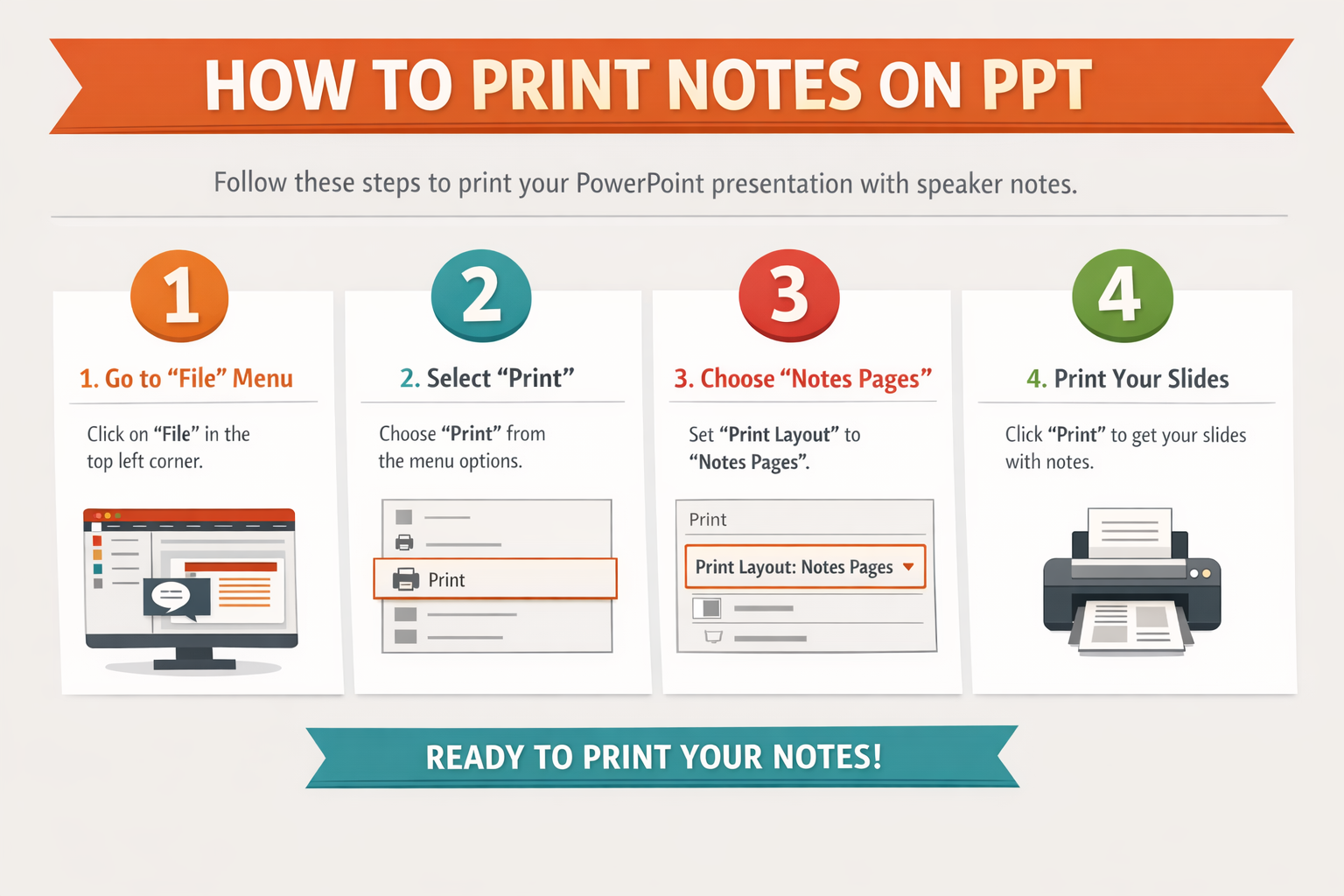
If you want to print your PowerPoint slides with speaker notes included, you need to use the Notes Pages print layout inside Microsoft PowerPoint. This layout prints one slide per page with its notes displayed underneath.
how to print notes on ppt
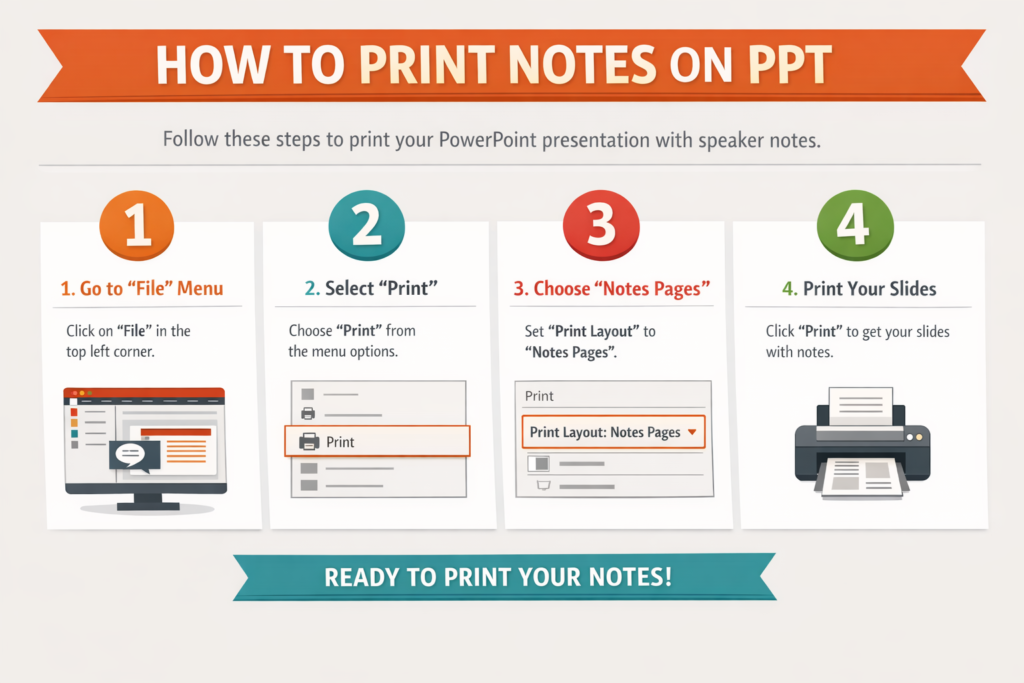
how to print notes on ppt
In this guide, you’ll learn exactly how to print PowerPoint with notes on Windows and Mac, how to print multiple slides with notes, common mistakes to avoid, and how to fix problems if printing doesn’t work correctly.
Why Print PowerPoint with Notes?
Printing slides with notes is useful when:
- You’re giving a presentation and want a script
- You’re teaching a class
- You need detailed handouts
- You want a printed backup of your talking points
Instead of printing slides only, Notes Pages show:
- The slide at the top
- Speaker notes below it
This keeps your presentation organized and easy to follow.
How to Print PowerPoint with Notes on Windows
These steps apply to most modern versions of Microsoft PowerPoint, including PowerPoint 2016, 2019, 2021, and Microsoft 365.
Step 1: Open Your PowerPoint File
Open your presentation in PowerPoint.
Make sure your speaker notes are already added:
- Click a slide.
- At the bottom of the screen, click in the Notes pane.
- Type your notes.
If you don’t see the Notes pane, click View → Notes.
Step 2: Go to the Print Menu
- Click File
- Click Print
You’ll now see the print preview screen.
Step 3: Choose “Notes Pages”
This is the most important step.
Under Settings, click the dropdown that usually says:
Full Page Slides
From the menu, select:
Notes Pages
The preview will change to show:
- Slide on top
- Notes underneath
Step 4: Adjust Printer Settings
Before printing, check:
- Printer selected correctly
- Number of copies
- Color or grayscale
- Paper size (Letter is standard in the US)
- Orientation (Portrait works best for Notes Pages)
Step 5: Click Print
Once everything looks correct in Preview, click Print.
You’re done.
How to Print PowerPoint with Notes on Mac
The process on macOS is similar, but the print interface looks slightly different.
Step 1: Open the Presentation
Open your file in Microsoft PowerPoint for Mac.
Make sure your notes are added under each slide.
Step 2: Open Print Settings
- Click File
- Click Print
(Or press Command + P)
A print dialog box will appear.
Step 3: Select Layout – Notes
In the print window:
- Find the dropdown labeled Layout
- Select Notes
On some Mac versions:
- Click Show Details
- Then choose Notes from the Layout options
The preview will update to show notes below slides.
Step 4: Adjust Settings
Confirm:
- Correct printer selected
- Paper size (Letter recommended in the US)
- Orientation set to Portrait
- Scale at 100%
Step 5: Click Print
Click Print to finish.
How to Print Multiple Slides with Notes
PowerPoint normally prints one slide per page in Notes layout. But you can still manage multiple slides efficiently.
Option 1: Print Multiple Copies
If you need multiple printed sets:
- Adjust the Copies field in Print settings.
Option 2: Print to PDF First
Instead of printing directly:
- Select Notes Pages
- Choose Save as PDF
- Open the PDF
- Print double-sided
This helps:
- Save ink
- Review formatting
- Share digitally
Option 3: Resize Notes Pages (Advanced)
If you want smaller slides with notes:
- Go to View
- Click Notes Master
- Resize slide and text boxes
- Close Notes Master
Now when you print Notes Pages, layout is adjusted.
Option 4: Print Handouts Instead (Alternative)
If your goal is to print multiple slides per page (but without full notes), you can:
- Select Handouts
- Choose 2, 3, 4, or 6 slides per page
However, note:
Handouts do NOT include full speaker notes.
Troubleshooting: PowerPoint Not Printing Notes Correctly
If your notes are not printing, here’s how to fix it.
Problem 1: Notes Are Not Showing in Print Preview
Cause: Wrong layout selected.
Fix:
Go back to Print → Select Notes Pages instead of Full Page Slides.
Problem 2: Notes Text Is Cut Off
Cause: Notes area too large or wrong paper size.
Fix:
- Check paper size (Letter)
- Go to Notes Master
- Resize text boxes
- Reduce font size in notes
Problem 3: Blank Notes Page Prints
Cause: Notes pane is empty.
Fix:
Check each slide to confirm notes are typed in the Notes section, not inside the slide itself.
Problem 4: Printer Prints Only Slides
Cause: Printer settings override layout.
Fix:
Double-check PowerPoint layout settings before clicking Print.
Problem 5: Formatting Looks Different in Print
Fix:
- Print to PDF first
- Make sure scale is 100%
- Turn off “Fit to page” if needed
Common Mistakes When Printing PowerPoint with Notes
Avoid these common errors:
1. Selecting “Full Page Slides”
This prints slides only, without notes.
Always choose Notes Pages.
2. Typing Notes Inside the Slide
Speaker notes must go in the Notes pane, not inside a text box on the slide.
3. Ignoring Print Preview
Always check preview before printing large batches.
4. Forgetting Paper Orientation
Notes layout works best in Portrait mode.
5. Printing Without Checking Font Size
Small fonts may look fine on screen but unreadable on paper.
Tips to Save Ink When Printing Notes
Printing slides with notes can use a lot of ink. Try these tips:
- Print in Grayscale
- Turn off background graphics
- Reduce slide size in Notes Master
- Print double-sided
- Export to PDF first and review
FAQ: Printing PowerPoint with Notes
1. Can I print multiple slides with notes on one page?
No. PowerPoint’s Notes layout prints one slide per page.
To fit more content per page, you must modify the Notes Master or print smaller PDF pages.
2. Why are my notes not showing in print preview?
You likely selected Full Page Slides instead of Notes Pages.
3. Can I print notes without the slide?
PowerPoint does not allow printing notes alone.
Workaround:
- Export to Word
- Remove slides
- Print notes text only
4. How do I print PowerPoint with notes in black and white?
In Print settings:
- Choose Grayscale
- Or select Black & White
This reduces ink usage.
5. Can I email slides with notes instead of printing?
Yes.
Go to:
File → Export → Create PDF → Select Notes Pages
Then send the PDF.
Final Checklist Before Printing
Before clicking Print, confirm:
- Notes are typed in the Notes pane
- “Notes Pages” is selected
- Paper size is correct
- Orientation is Portrait
- Print preview looks correct
Conclusion
To print PowerPoint with notes, simply go to File → Print → Select “Notes Pages” in Microsoft PowerPoint. This works on both Windows and Mac.
Always review print preview, check paper size and orientation, and consider exporting to PDF first for best results.
By following the step-by-step instructions in this guide, you can print clean, organized slides with speaker notes — whether for meetings, teaching, or personal reference.
 zul vani