
Introduction
Speaker notes are one of the most helpful features in Google Slides. They allow presenters to include detailed talking points that remain hidden from the audience during the presentation.
However, many users wonder how to print Google Slides with speaker notes so they can use them as a reference during meetings, lectures, or training sessions.
how do you print speaker notes in google slides
Fortunately, Google Slides includes a built-in print layout that places the slide at the top of the page and the speaker notes below it. By choosing the correct print layout, you can quickly create handouts containing both slides and notes.
This tutorial explains exactly how to print speaker notes in Google Slides on both Windows and Mac, plus troubleshooting solutions and practical tips.
Preparing Your Google Slides for Printing
Before you print anything, it’s important to verify that the speaker notes are properly added.
Where Speaker Notes Appear
Speaker notes are located beneath each slide in the editing interface.
If you don’t see them:
- Click View
- Select Show Speaker Notes
A text area will appear where you can type or edit your notes.
Why Printing Speaker Notes Is Useful
Printing slides with notes can help in several situations:
- Giving presentations without relying on a screen
- Reviewing talking points during meetings
- Practicing speeches
- Creating study materials for lectures
Each printed page contains one slide and its associated notes, making it easy to follow along.
How to Print Speaker Notes in Google Slides
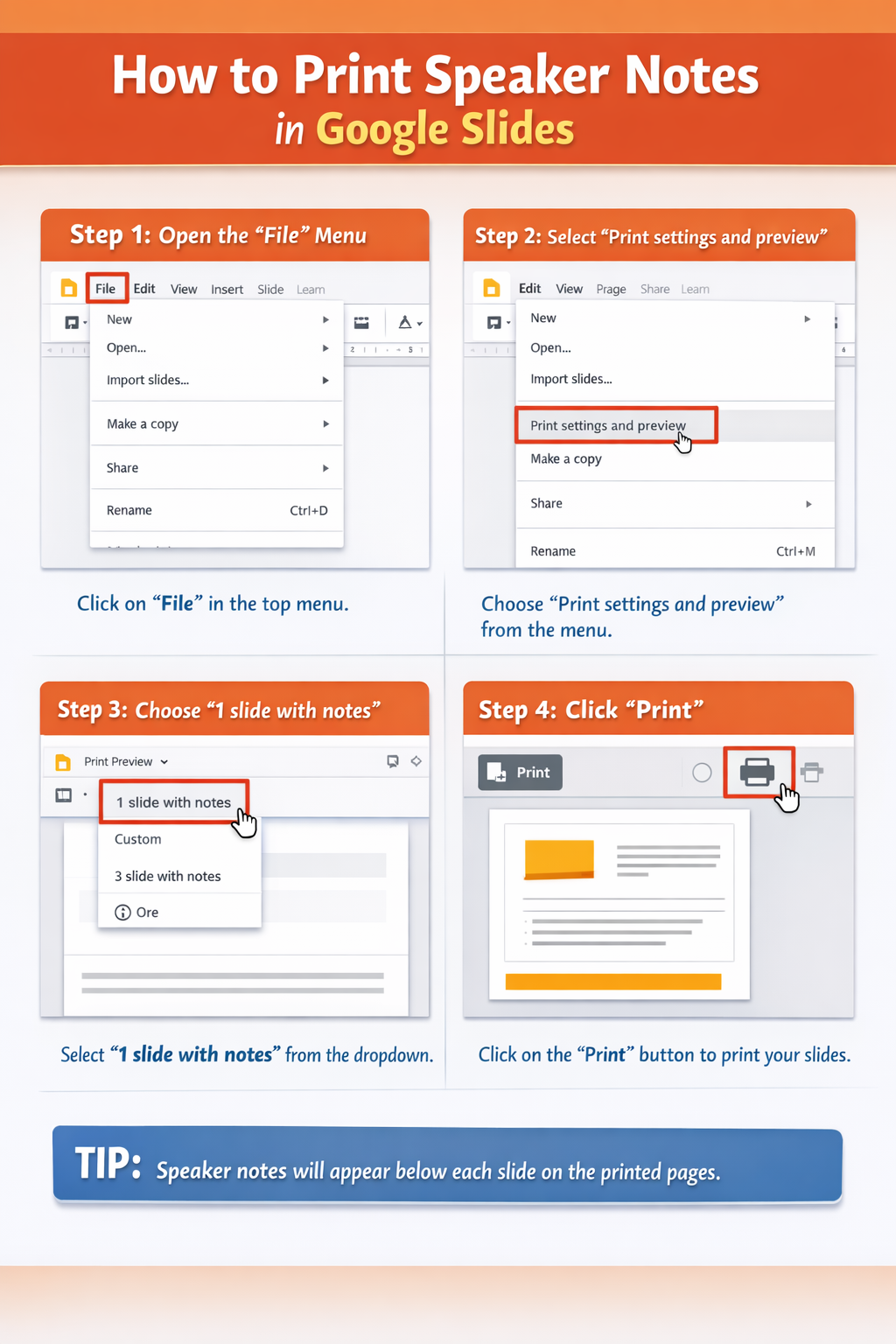
Below are the exact steps required to print slides with speaker notes.
Method for Windows
Step 1: Open the Google Slides File
Start by opening your presentation in your browser.
Confirm that every slide has the speaker notes you want printed.
Step 2: Access Print Settings
Click:
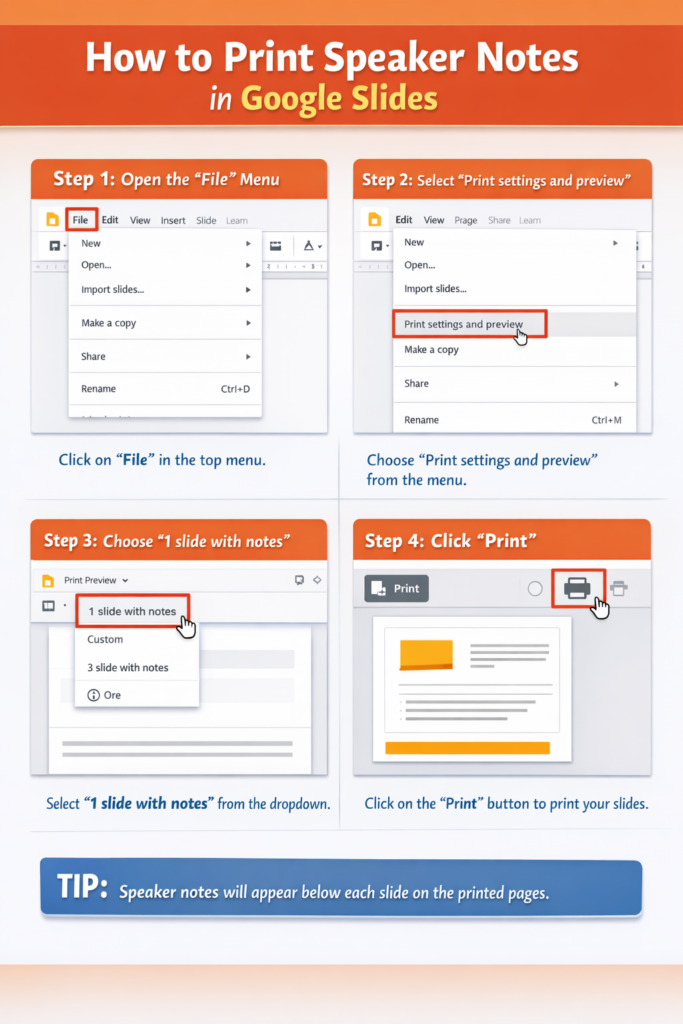
File → Print settings and preview
Alternatively, press:
Ctrl + P
A preview screen will appear showing how the pages will look when printed.
Step 3: Change the Layout to Include Notes
Look for the Layout menu.
From the available options, select:
1 Slide with Notes
This option places the slide image at the top and the speaker notes beneath it.
Step 4: Review the Preview
Scroll through the preview pages to confirm:
- Notes are visible
- Text is readable
- Nothing is cut off
Make adjustments if necessary.
Step 5: Print the Document
Click Print, choose your printer, and confirm the final settings.
The slides will now print with speaker notes.
Method for Mac
The process is almost identical for Mac users.
Step 1: Open the Presentation
Launch your presentation in Google Slides using your browser.
Step 2: Open the Print Menu
Click:
File → Print settings and preview
Or press:
Command + P
Step 3: Choose the Notes Layout
In the layout dropdown menu, choose:
1 Slide with Notes
Step 4: Start Printing
Click Print, choose your printer, and confirm the settings.
Your presentation will be printed with notes below each slide.
Tips for Managing Large Presentations
Printing slides with notes can quickly create a large stack of paper. These tips can help.
Export Slides With Notes as a PDF
If you want to review your notes before printing:
- Open Print settings and preview
- Select 1 slide with notes
- Choose Download PDF
You can then print the PDF when ready.
Print a Specific Slide Range
Instead of printing every slide:
- Enter slide numbers in the print dialog
- Example: Slides 5–15
This helps reduce unnecessary pages.
Simplify Long Speaker Notes
Extremely long notes may shrink during printing.
Best practice:
- Use short bullet points
- Avoid paragraphs
This keeps printed notes easy to read.
Troubleshooting Printing Problems
Sometimes printing notes doesn’t work as expected. Here are common fixes.
Notes Are Not Appearing
If your printed pages only show slides, the wrong layout is selected.
Return to the preview settings and choose:
1 slide with notes
Notes Are Cut Off on the Page
This issue is usually caused by scaling problems.
Solution:
Enable Fit to page in the printer settings.
Printer Outputs Blank Pages
This may happen if:
- The browser has a printing error
- The preview didn’t load correctly
Try these fixes:
- Refresh the page
- Download the PDF version and print it
Text Is Too Small to Read
Large blocks of notes can shrink significantly.
Edit the notes by:
- Shortening sentences
- Removing unnecessary details
Common Mistakes Users Make
Avoiding these mistakes will save time and paper.
Printing Without Using Print Preview
Some users immediately print without checking the preview.
This can result in:
- Missing notes
- Incorrect layout
Always review the preview first.
Forgetting to Add Notes to Every Slide
If some slides don’t contain notes, the printed pages may look inconsistent.
Review all slides before printing.
Using the Wrong Layout
Google Slides includes multiple layouts such as:
- Full page slides
- Grid layouts
- Outline view
Only 1 slide with notes prints speaker notes.
Ignoring Printer Settings
Incorrect printer settings can affect formatting.
Check:
- Orientation
- Paper size
- Scaling options
FAQ
How do I print Google Slides with speaker notes?
Open Print settings and preview, select 1 slide with notes, then print the presentation.
Can I download slides with speaker notes?
Yes. In the print preview window, choose Download PDF after selecting the notes layout.
Do speaker notes appear during a presentation?
No. Speaker notes are hidden from the audience and only visible to the presenter.
Can I print only the notes from Google Slides?
Google Slides does not offer a built-in feature to print notes without slides. Each printed page includes both the slide and its notes.
Why do my notes look different when printed?
Formatting differences may occur due to scaling or page size settings. Checking the preview or printing from a PDF usually resolves this issue.
Conclusion
Printing speaker notes in Google Slides is straightforward once you know where to find the correct layout. By opening Print settings and preview and selecting 1 slide with notes, you can quickly generate printed pages that include both your slides and presentation notes.
This feature is especially helpful for presenters, teachers, and students who want a reliable reference while speaking.
Always review the print preview, simplify long notes, and consider exporting a PDF before printing to ensure everything looks exactly the way you want.
With these steps, you’ll be able to print Google Slides with speaker notes quickly and efficiently.