
How to Print PowerPoint with Notes (Step-by-Step Guide for Windows & Mac)
Presenting slides often requires more than just the visuals on the screen. Many presenters rely on speaker notes to guide their explanations, remember key points, or include additional information that doesn’t appear on the slide itself. Printing your PowerPoint presentation with notes allows you to have those reminders on paper during meetings, lectures, or training sessions.
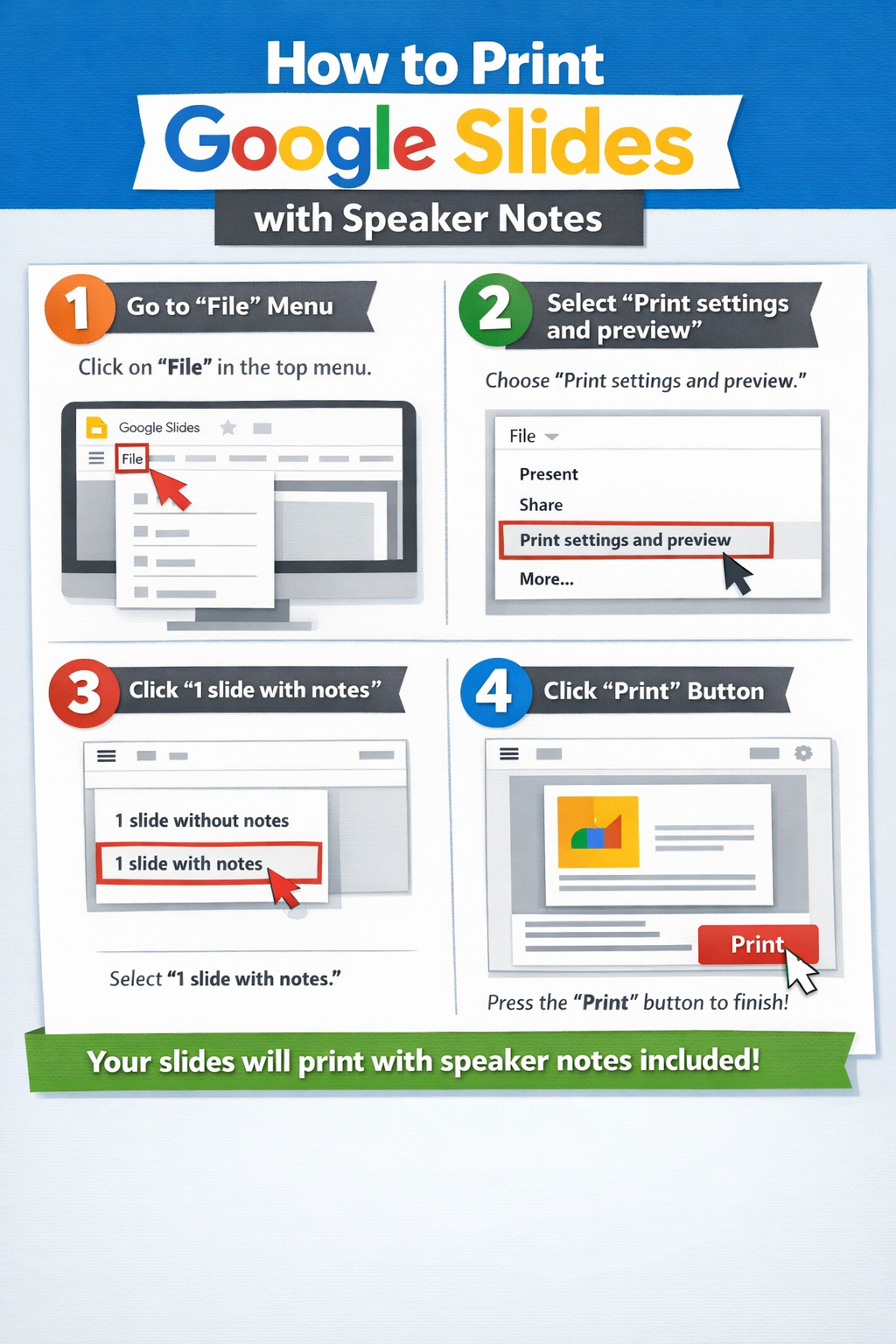
how to print google slides with speaker notes
In Microsoft PowerPoint, you can easily print slides together with speaker notes using the Notes Pages layout. This guide explains exactly how to print PowerPoint with notes on Windows and Mac, along with troubleshooting tips, common mistakes, and useful tips for printing multiple slides with notes.
Why Print PowerPoint with Speaker Notes?
Speaker notes are helpful because they allow you to:
- Add detailed explanations that don’t fit on slides
- Keep track of talking points during a presentation
- Share additional context with colleagues or students
- Prepare printed presenter guides for meetings or workshops
When you print PowerPoint with notes, each printed page usually includes:
- The slide at the top
- The speaker notes underneath
This layout makes it easier to follow your presentation while speaking.
How to Print PowerPoint with Notes on Windows
If you are using PowerPoint on a Windows computer, the process is straightforward.
Step-by-Step Instructions
1. Open Your PowerPoint Presentation
Launch Microsoft PowerPoint and open the presentation that contains the speaker notes you want to print.
2. Click File
In the top-left corner of the screen, click File to open the main menu.
3. Select Print
From the menu on the left side, click Print. This opens the PowerPoint print settings.
4. Open the Layout Dropdown
Under Settings, find the dropdown menu that usually says Full Page Slides.
Click the dropdown to view different printing layouts.
5. Choose Notes Pages
Select Notes Pages from the list.
This layout prints:
- One slide per page
- The speaker notes below the slide
6. Select Your Printer
Choose the printer you want to use from the printer list.
You can also adjust settings such as:
- Number of copies
- Color or grayscale
- Page orientation
7. Click Print
After confirming your settings, click Print to print the slides with speaker notes.
How to Print PowerPoint with Notes on Mac
The process on macOS is similar, but the print menu layout is slightly different.
Step-by-Step Instructions
1. Open the Presentation
Start Microsoft PowerPoint on your Mac and open the presentation.
2. Click File
In the top menu bar, click File.
3. Select Print
Choose Print from the dropdown menu.
You can also use the shortcut:
Command + P
4. Expand the Print Options
When the print window opens, look for Show Details if the settings are collapsed.
Click it to see the full print options.
5. Choose Notes
Find the Layout dropdown menu and select Notes.
This option prints each slide with the speaker notes underneath.
6. Select Printer and Settings
Choose your printer and adjust options such as:
- Copies
- Color or black and white
- Paper size
7. Click Print
Click Print to print your PowerPoint presentation with notes.
How to Print Multiple Slides with Notes
PowerPoint’s Notes Pages layout prints one slide per page by default. However, there are ways to print multiple slides with notes depending on your needs.
Option 1: Print Notes Pages (Standard Method)
This is the easiest method and prints:
- One slide
- Notes underneath
Although it uses more paper, it provides the clearest layout for presenters.
Option 2: Export to Word for Flexible Layout
If you want multiple slides with notes on one page, exporting to Word gives more formatting control.
Steps
- Open your presentation
- Click File
- Select Export
- Choose Create Handouts
- Select Send to Microsoft Word
- Choose a layout like:
- Notes next to slides
- Blank lines next to slides
Once the slides appear in Word, you can:
- Resize slides
- Adjust spacing
- Print multiple slides per page
This method works well for creating presentation handouts or training materials.
Option 3: Save as PDF First
Another useful option is:
- Export PowerPoint as a PDF
- Open the PDF
- Print multiple pages per sheet in your PDF viewer
This helps reduce paper usage.
Troubleshooting: Printing Notes in PowerPoint
Sometimes notes don’t appear when printing. Here are common fixes.
Notes Are Not Showing
Possible reasons include:
- The Full Page Slides layout is selected
- Notes were never added to the slides
- The wrong print layout is selected
Fix:
Select Notes Pages in the print settings.
Notes Are Cut Off
If your notes are too long, they may not fully appear on the page.
Fixes:
- Shorten the speaker notes
- Adjust font size in Notes Page view
- Print using landscape orientation
Printer Is Not Responding
If nothing prints:
Try these steps:
- Check the printer connection
- Restart the printer
- Clear the print queue
- Restart PowerPoint
Print Preview Looks Different
Sometimes the preview may not match the printed page.
Fix:
- Check margins
- Confirm paper size (Letter or A4)
- Update the printer driver
Common Mistakes When Printing PowerPoint with Notes
Avoid these common errors.
1. Choosing the Wrong Print Layout
Many users forget to change Full Page Slides to Notes Pages, which results in slides printing without notes.
2. Writing Notes That Are Too Long
Very long notes may be cut off during printing.
Keep notes short and clear so they fit within the page layout.
3. Not Checking Print Preview
Always review the print preview before printing.
This helps confirm:
- Notes are visible
- Slides are positioned correctly
- Margins look correct
4. Using Small Fonts in Notes
If your notes font is too small, it can be difficult to read when printed.
Use at least 12–14 point font for printed notes.
5. Printing Too Many Pages
Since Notes Pages prints one slide per page, large presentations can consume a lot of paper.
Consider:
- Exporting to Word
- Printing as a PDF
- Printing only key slides
Tips for Better Printed Speaker Notes
Here are a few practical tips to make your printed notes more useful.
Keep Notes Short and Structured
Use:
- Bullet points
- Short sentences
- Clear talking points
Avoid long paragraphs.
Highlight Important Points
Use:
- Capitalization
- Bold text
- Symbols like ★ or → in your notes
This helps you quickly scan the page while presenting.
Print in Grayscale
If your slides contain heavy colors or backgrounds, printing in grayscale can:
- Save ink
- Improve readability
Use Notes Page View Before Printing
To preview exactly how the page will look:
- Click View
- Select Notes Page
This allows you to adjust the layout before printing.
FAQ: Printing PowerPoint with Notes
Can I print PowerPoint notes without the slides?
Yes. You can copy the notes into another document (such as Word) and print them separately. PowerPoint itself usually prints notes together with the slide.
Why are my speaker notes not printing?
This usually happens because the Notes Pages layout is not selected in the print settings. Change the layout from Full Page Slides to Notes Pages.
Can I print multiple slides with notes on one page?
PowerPoint does not directly support this layout. However, you can:
- Export slides to Microsoft Word
- Adjust the layout
- Print multiple slides with notes per page.
How do I save PowerPoint with notes as a PDF?
To save as PDF with notes:
- Click File
- Select Print
- Choose Notes Pages
- Select Save as PDF instead of a printer.
Can I edit notes before printing?
Yes. Open the Notes Pane below the slide in PowerPoint and edit the speaker notes before printing.
Conclusion
Printing PowerPoint with speaker notes is a simple but valuable feature for presenters, educators, and professionals. By selecting the Notes Pages layout, you can print each slide along with its speaker notes, giving you a clear guide during your presentation.
The process is quick on both Windows and Mac: open the Print menu, choose Notes Pages, select your printer, and print. If you need more flexibility—such as printing multiple slides with notes—exporting your presentation to Microsoft Word or PDF can help.
Before printing, always check print preview, keep notes concise, and ensure the correct layout is selected. With these steps and tips, you can create clear, organized printed notes that make your presentations easier to deliver and follow.