
How to Print PowerPoint with Notes (Step-by-Step Guide for Windows & Mac)
Printing PowerPoint slides with notes is a useful way to prepare for presentations, meetings, or lectures. PowerPoint includes a Notes Page feature that lets you print each slide along with the speaker notes written beneath it. This allows presenters to keep important talking points on paper while displaying only the slide to the audience.
The process is simple once you know where to find the right settings. In most cases, you only need to change the print layout to “Notes Pages.” This guide explains exactly how to print PowerPoint with notes on both Windows and Mac, along with troubleshooting tips, common mistakes, and practical advice for better print results.
Why Print PowerPoint with Notes?
Printing slides with notes can make presentations much easier to deliver. Instead of trying to memorize every detail, you can keep your speaker notes available on paper.
Common reasons people print PowerPoint notes include:
- Presenters want reference notes during a speech
- Teachers print lecture notes for class
- Teams distribute meeting materials
- Students create study guides
Printing notes pages combines the slide and its notes on one page, making it easy to review the content and explanations together.
Understanding PowerPoint Notes Pages
Before printing, it helps to understand how PowerPoint organizes notes.
Each slide in PowerPoint has a Notes Pane, located below the slide editor. This section is where presenters write explanations, reminders, or additional information that does not appear on the slide itself.
When you print using Notes Pages, PowerPoint formats the page like this:
- The slide appears at the top
- The speaker notes appear underneath
- One slide prints per page by default
This layout is designed specifically for presenters who want a printed version of their talking points.
How to Print PowerPoint with Notes on Windows
If you are using PowerPoint on Windows, the print process only takes a few steps.
Step 1: Open Your PowerPoint Presentation
Start by opening the presentation file you want to print in Microsoft PowerPoint.
Check that your notes are visible under each slide in the Notes Pane. If you don’t see it, click:
View → Notes
This will display the notes section under your slides.
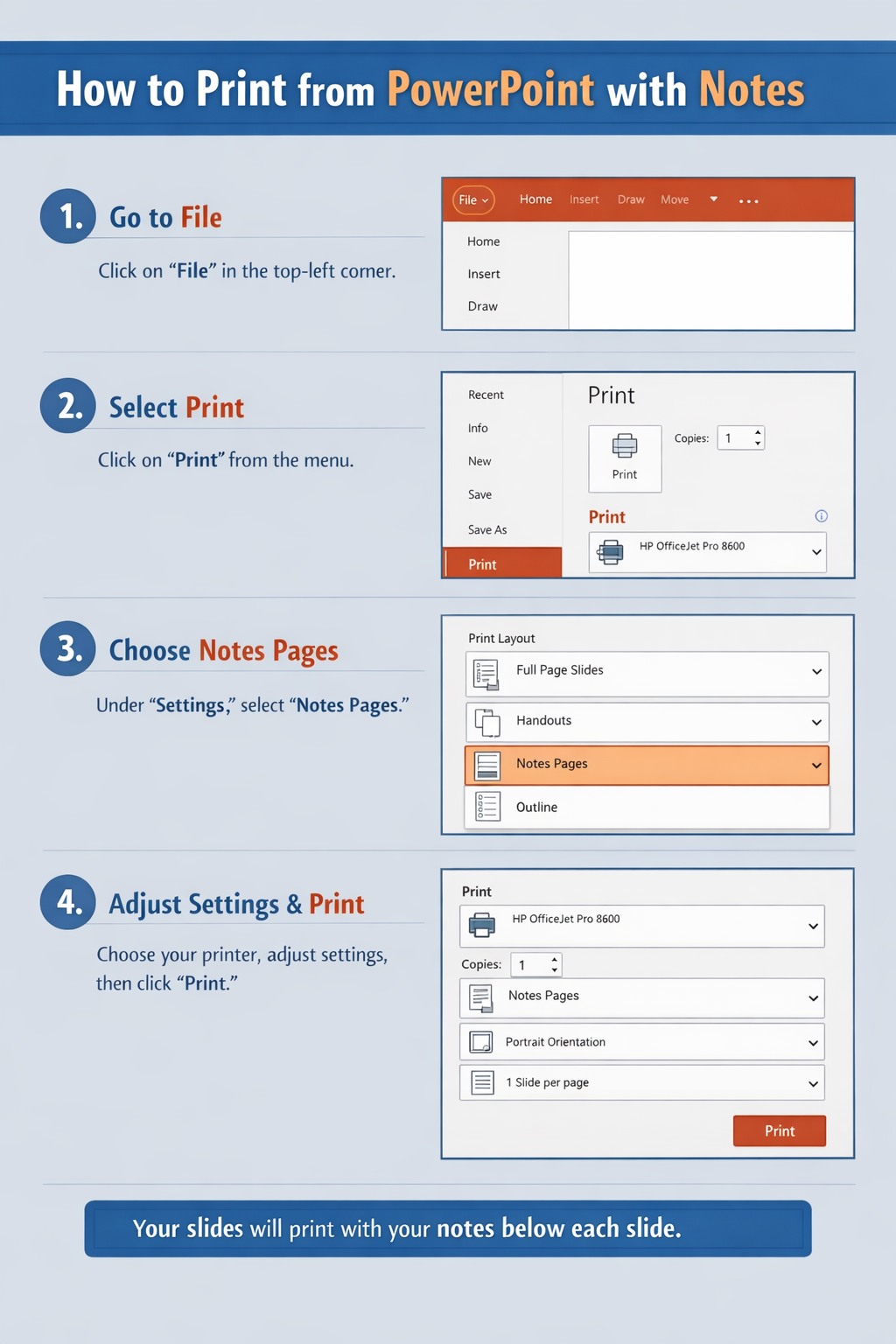
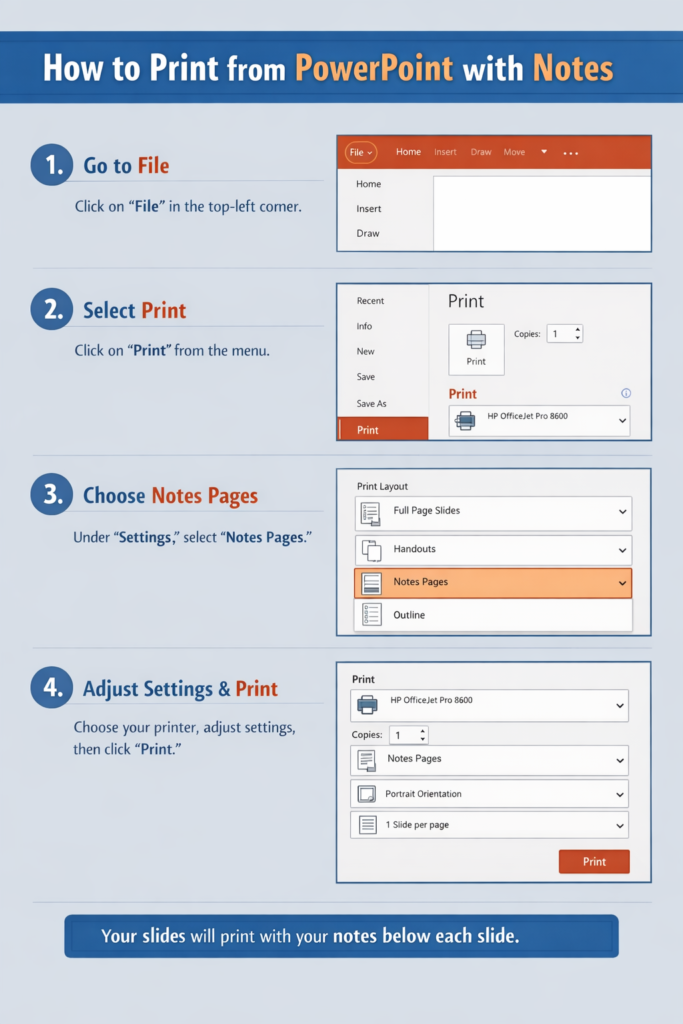
Step 2: Click the File Menu
In the top left corner of PowerPoint:
- Click File
- Select Print
This opens the PowerPoint print settings.
Step 3: Change the Print Layout to Notes Pages
Under the Settings section in the print menu:
- Click the Full Page Slides dropdown
- Select Notes Pages
PowerPoint will now prepare each page with the slide and its notes.
Step 4: Choose Your Printer
Select the printer you want to use from the Printer dropdown.
You can also adjust options such as:
- Number of copies
- Color or grayscale
- Single-sided or double-sided printing
Step 5: Preview the Print Layout
Always check the Print Preview window on the right side.
Make sure:
- The slide appears at the top
- The notes appear clearly below it
- Nothing is cut off
Step 6: Click Print
Once everything looks correct, click Print.
PowerPoint will print each slide with its notes on separate pages.
How to Print PowerPoint with Notes on Mac
The process on Mac is similar but uses slightly different menu options.
Step 1: Open Your PowerPoint File
Open your presentation in PowerPoint for Mac.
Confirm that your notes appear in the Notes section below each slide.
Step 2: Open the Print Window
In the menu bar:
- Click File
- Select Print
You can also use the shortcut:
Command + P
Step 3: Select the Notes Layout
In the print settings:
- Find the Layout or Print What option
- Choose Notes
This tells PowerPoint to print slides with their speaker notes.
Step 4: Adjust Print Settings
Before printing, you can customize:
- Paper size
- Orientation
- Color options
- Number of copies
Step 5: Check Print Preview
Look at the preview window to confirm that:
- The slide is displayed
- Notes appear underneath
- The formatting looks correct
Step 6: Print the Presentation
Click Print to send the document to your printer.
Each slide will print with its notes on a separate page.
Tips for Printing Multiple Slides with Notes
PowerPoint normally prints one slide per page when using Notes Pages. However, there are ways to make your notes easier to review or distribute.
Convert Notes Pages to PDF First
One useful method is:
- Go to File → Print
- Select Notes Pages
- Choose Save as PDF
Once saved, you can edit or reorganize the PDF before printing.
Print Double-Sided
If your printer supports duplex printing, choose Print on Both Sides.
This reduces paper usage and keeps your notes organized.
Adjust Notes Font Size
If your notes are too small when printed:
- Go to View
- Select Notes Page
- Increase the font size of the notes text
This ensures the printed notes are readable.
Use Grayscale Printing
If slides contain heavy colors, printing in grayscale can:
- Save ink
- Improve text clarity
You can enable this in the Print settings.
Troubleshooting: PowerPoint Notes Not Printing
Sometimes users try to print notes but only the slides appear. This usually happens because of incorrect print settings.
Here are common issues and how to fix them.
Notes Option Not Selected
Problem: Only slides print without notes.
Solution:
Go back to Print Settings and make sure Notes Pages is selected instead of Full Page Slides.
Notes Pane Is Empty
Problem: The notes section prints blank.
Solution:
Check the Notes Pane under each slide and confirm that notes are actually written there.
Notes Are Cut Off
Problem: Some notes disappear or get cut off.
Solution:
- Increase margins
- Reduce notes font size
- Check print preview before printing
Printer Formatting Issues
Problem: Layout looks different from preview.
Solution:
- Update your printer driver
- Print to PDF first to check formatting
Common Mistakes When Printing PowerPoint with Notes
Many users encounter issues simply because of small setup errors.
Here are some mistakes to avoid.
Printing the Wrong Layout
The most common mistake is leaving the default setting Full Page Slides selected.
Always switch the layout to Notes Pages.
Forgetting to Check Print Preview
Skipping preview can lead to:
- Cropped slides
- Missing notes
- Incorrect orientation
Always review the preview before printing.
Using Very Long Notes
Large blocks of text can overflow the page.
Try to keep notes concise and structured using bullet points.
Ignoring Page Setup
If slides appear too small or misaligned, adjust:
- Paper size
- Orientation
- Margins
FAQ: Printing PowerPoint with Notes
Can I print multiple slides with notes on one page?
PowerPoint’s Notes Pages layout prints one slide per page. If you want multiple slides with notes, you usually need to export to PDF and reformat the pages manually.
Why are my notes not showing when I print?
This usually happens when Full Page Slides is selected instead of Notes Pages in the print layout settings.
Can I edit the layout of notes pages?
Yes. Go to:
View → Notes Master
From there, you can adjust the layout, add headers, or change formatting before printing.
Can I print notes without the slides?
PowerPoint does not offer a direct option for this. However, you can copy the notes into another document if you want to print them separately.
Is it better to print notes or presenter view?
It depends on your needs. Presenter View is useful during live presentations, while printed notes are helpful for offline reference or meetings.
Conclusion
Printing PowerPoint with notes is a simple but powerful feature that helps presenters stay organized and prepared. By selecting the Notes Pages layout in the print settings, you can easily print each slide with its speaker notes beneath it.
The process is nearly identical on Windows and Mac: open the print menu, change the layout to Notes Pages, review the preview, and print. Taking a moment to check formatting, margins, and note length ensures that your printed pages are clear and readable.
Whether you’re preparing for a presentation, teaching a class, or sharing materials with a team, printing slides with notes can make your content easier to follow and more effective to deliver.