
How to Print PowerPoint with Notes (Step-by-Step Guide for Windows & Mac)
Printing PowerPoint slides with notes is useful when you need speaker notes while presenting or when sharing presentations with colleagues, students, or clients. Instead of printing slides alone, you can print each slide together with the notes you wrote in the Notes pane.
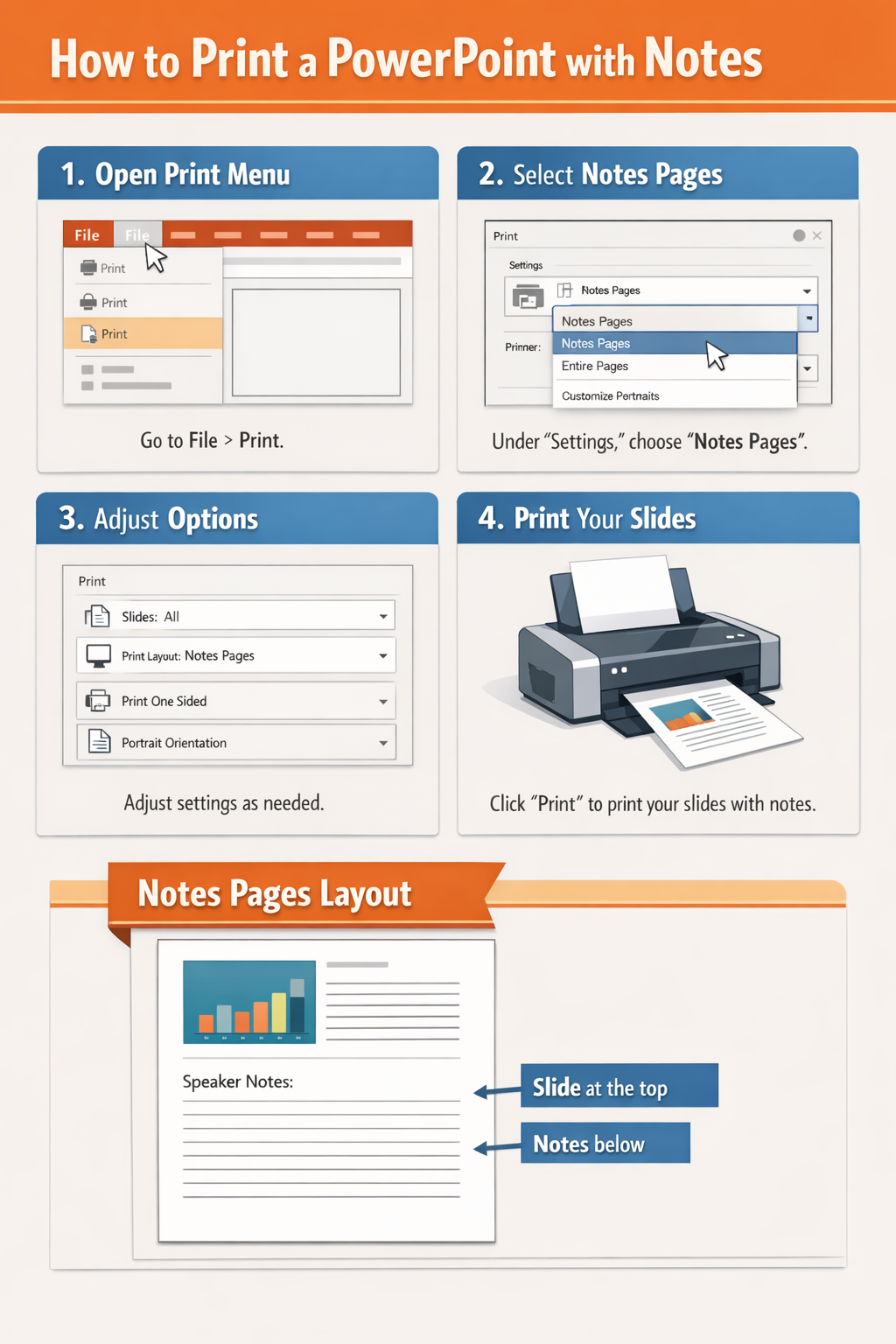
The easiest way to print PowerPoint with notes is by using the Notes Pages print layout. This format prints one slide per page with the speaker notes displayed underneath.
how to print a powerpoint with notes
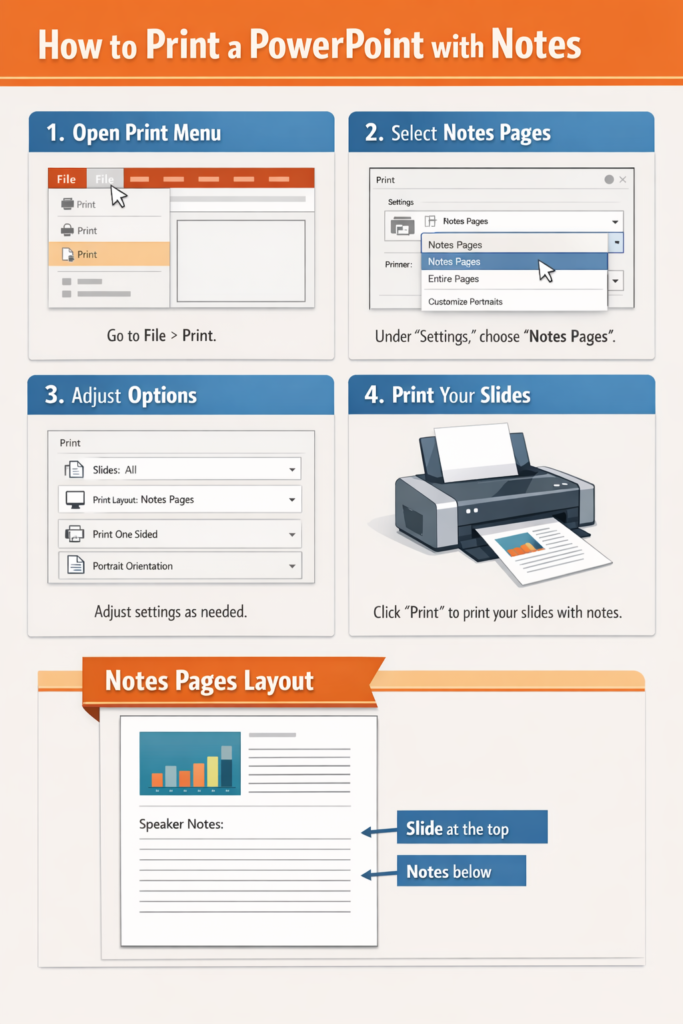
In this guide, you’ll learn exactly how to print PowerPoint with notes on both Windows and Mac, how to troubleshoot common issues, and tips for printing multiple slides efficiently.
Why Print PowerPoint with Notes?
Speaker notes help presenters remember key points without putting too much text on the slides. Printing slides with notes allows you to:
- Keep a physical copy of your presentation script
- Share detailed explanations with your audience
- Review presentations offline
- Use slides as study or teaching materials
- Practice presentations more easily
Instead of switching between slides and notes digitally, printed notes make it easier to follow along during meetings or lectures.
How to Print PowerPoint with Notes on Windows
If you are using PowerPoint on Windows, you can print slides with notes in just a few steps.
Step 1: Open Your PowerPoint Presentation
- Launch Microsoft PowerPoint.
- Open the presentation you want to print.
Make sure your speaker notes are already written in the Notes pane below each slide.
Step 2: Open the Print Menu
- Click File in the top left corner.
- Select Print.
This opens the PowerPoint printing settings page.
Step 3: Choose “Notes Pages”
Under Settings, locate the layout dropdown menu that usually says:
Full Page Slides
Click the dropdown and choose:
Notes Pages
This layout prints:
- One slide per page
- Speaker notes underneath the slide
Step 4: Select Your Printer
Choose the printer you want to use from the Printer dropdown menu.
If you want to save the presentation instead of printing it, you can select:
Microsoft Print to PDF
This creates a printable PDF file with slides and notes.
Step 5: Adjust Print Settings
You can customize several settings before printing:
- Number of copies
- Color or grayscale
- Paper size
- Orientation
Always check the Print Preview on the right side to confirm that notes appear correctly.
Step 6: Print the Slides
Once everything looks correct:
- Click Print
- Your slides with notes will begin printing.
Each page will contain one slide and the corresponding notes beneath it.
How to Print PowerPoint with Notes on Mac
Printing notes in PowerPoint on Mac is very similar to Windows, but the menu layout is slightly different.
Step 1: Open Your Presentation
- Open Microsoft PowerPoint for Mac
- Load the presentation you want to print.
Make sure your notes are written in the Notes section under each slide.
Step 2: Open the Print Window
- Click File in the top menu bar.
- Select Print.
Alternatively, you can use the shortcut:
Command + P
Step 3: Select “Notes”
In the print window:
- Look for the Layout or Print What dropdown menu.
- Select Notes.
This tells PowerPoint to print each slide with its notes.
Step 4: Adjust Printer Settings
Before printing, you can configure:
- Printer selection
- Page range
- Paper size
- Orientation
- Color settings
Use the preview window to ensure the notes appear correctly under the slide.
Step 5: Print Your Slides
Click Print to start printing your PowerPoint slides with notes.
Each printed page will contain:
- One slide
- The notes written for that slide
Tips for Printing Multiple Slides with Notes
Sometimes you may want to print large presentations with notes more efficiently. Here are some useful tips.
1. Convert to PDF First
Before printing a large presentation, export it as a PDF with notes.
Steps:
- Go to File
- Click Print
- Choose Microsoft Print to PDF
This lets you review formatting before using paper.
2. Print Specific Slides Only
If you only need certain slides:
- Go to Print
- Enter slide numbers under Slides
- Example:
2-5, 8, 10
This saves paper and ink.
3. Use Double-Sided Printing
For long presentations, enable:
Print on Both Sides
This reduces paper usage significantly.
4. Adjust Notes Length
If notes are very long, they may get cut off. Consider:
- Shortening notes
- Using bullet points
- Increasing page margins
5. Use Handouts if Notes Aren’t Necessary
If the audience doesn’t need notes, switch to:
Handouts (3 slides per page)
This prints slides with lines for writing notes.
Troubleshooting: PowerPoint Notes Not Printing
Sometimes PowerPoint may not print notes correctly. Here are common fixes.
Notes Are Missing from Print
If notes do not appear on printed pages:
Solution
- Open Print Settings
- Ensure Notes Pages is selected
- Do not select Full Page Slides
Notes Are Cut Off
If text is missing or truncated:
Fix
- Shorten long notes
- Reduce font size
- Increase page margins
Printer Prints Blank Pages
Possible causes include:
- Printer driver issues
- Incorrect page settings
- Outdated PowerPoint version
Try these fixes
- Restart the printer
- Update printer drivers
- Save the file as PDF and print from the PDF
Print Preview Doesn’t Match Output
If the printed result looks different from preview:
Possible fixes
- Update PowerPoint
- Change printer scaling settings
- Export to PDF and print from the PDF
Common Mistakes When Printing PowerPoint with Notes
Many users encounter problems because of simple mistakes.
Selecting the Wrong Layout
The most common mistake is leaving the layout set to:
Full Page Slides
This prints slides without notes.
Always select:
Notes Pages
Forgetting to Check Print Preview
Print preview helps catch formatting problems before wasting paper.
Always review:
- Slide position
- Notes visibility
- Page orientation
Writing Notes That Are Too Long
PowerPoint notes pages have limited space. Long paragraphs may not print properly.
Use:
- Short bullet points
- Key phrases
- Presentation cues
Printing the Entire Presentation by Accident
Large presentations may contain dozens of slides.
Always check:
Slides → Custom Range
FAQ: Printing PowerPoint with Notes
Can I print multiple slides with notes on one page?
No. PowerPoint’s Notes Pages format prints one slide per page with notes. If you need multiple slides per page, you must use Handouts, but those do not include speaker notes.
Can I print PowerPoint notes without slides?
Yes. You can copy the notes into a document (such as Word) and print them separately, but PowerPoint itself always prints notes with slides.
Why are my notes not showing in print preview?
This usually happens because Full Page Slides is selected. Change the layout to Notes Pages to display notes.
Can I export PowerPoint with notes to PDF?
Yes. In the print menu, choose Print to PDF while using the Notes Pages layout. This creates a PDF with slides and notes included.
How do I make notes larger when printing?
You can increase note readability by:
- Enlarging the Notes font size
- Reducing slide size in the Notes Master
- Editing the Notes Master layout
Conclusion
Printing PowerPoint with notes is a simple but powerful feature that helps presenters, teachers, and professionals keep track of important talking points. By selecting the Notes Pages layout in the print settings, you can easily print one slide per page with the corresponding speaker notes underneath.
Whether you are using Windows or Mac, the process only takes a few steps: open the print menu, choose Notes Pages, review the preview, and print. For the best results, always check formatting, keep notes concise, and consider exporting the presentation to PDF before printing.
With the steps and tips in this guide, you can confidently print PowerPoint slides with notes and avoid the most common printing mistakes.