
How to Print PowerPoint with Notes (Step-by-Step Guide for Windows & Mac)
Printing PowerPoint slides with notes is useful when you want speaker notes on paper for presentations, meetings, or study materials. The notes section contains the extra explanations that appear below each slide in Microsoft PowerPoint, and printing them allows you to follow your talking points while presenting.
how do you print powerpoint slides with notes
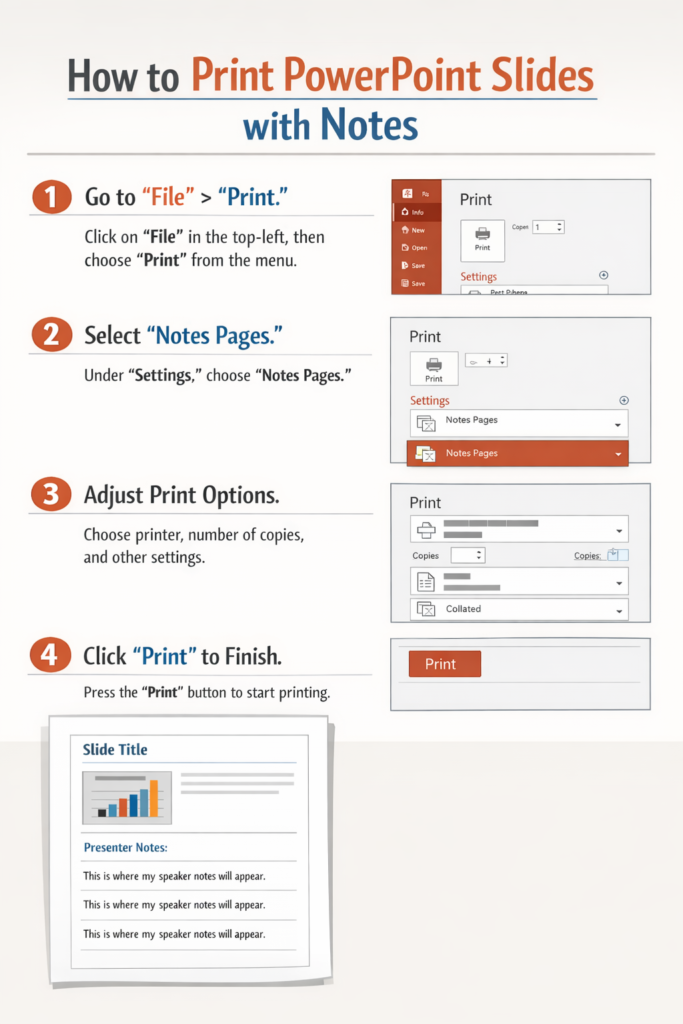
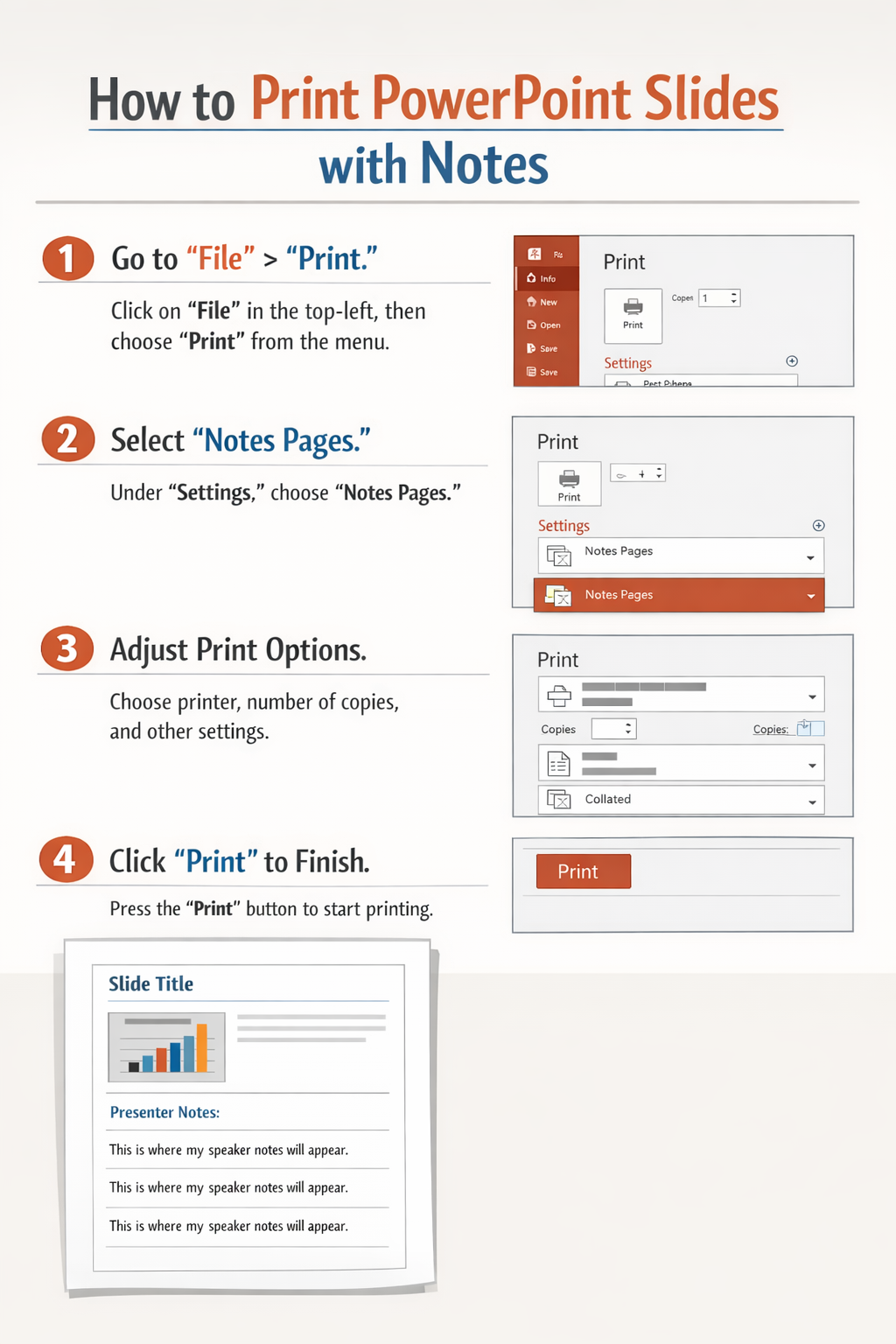
To print slides with notes, you simply choose the Notes Pages layout in the PowerPoint print settings. This option prints one slide per page with the notes directly underneath it.
This guide explains exactly how to print PowerPoint slides with notes on Windows and Mac, plus troubleshooting tips, common mistakes, and helpful printing tricks.
What Are PowerPoint Notes?
Speaker notes are the text you write in the Notes pane below each slide in PowerPoint. They help presenters remember key talking points without putting too much text on the slide itself.
When you print slides with notes:
- Each page shows one slide
- The notes appear below the slide
- The format is called Notes Pages
This format is ideal for:
- Presenters giving speeches
- Teachers printing lecture notes
- Students studying presentations
- Meeting handouts
How to Print PowerPoint with Notes on Windows
If you are using Microsoft PowerPoint on Windows, follow these simple steps.
Step-by-Step Instructions
1. Open Your PowerPoint Presentation
Launch PowerPoint and open the presentation file you want to print.
2. Click the File Menu
In the top left corner, click File.
3. Select Print
Click Print from the menu.
This opens the printing settings panel.
4. Open the Layout Menu
Under Settings, find the dropdown that usually says:
Full Page Slides
Click the dropdown menu.
5. Choose “Notes Pages”
From the list of layouts, select:
Notes Pages
This tells PowerPoint to print slides with the speaker notes underneath.
6. Choose Your Printer
Select the printer you want to use.
7. Adjust Print Settings
You can also choose:
- Color or grayscale
- Number of copies
- Page orientation
8. Click Print
Click Print to start printing your slides with notes.
How to Print PowerPoint with Notes on Mac
The process on macOS is slightly different but still very easy.
Step-by-Step Instructions
1. Open Your Presentation
Open your file in **Microsoft PowerPoint.
2. Click File
Select File in the menu bar.
3. Click Print
Choose Print from the dropdown menu.
4. Open the Layout Options
In the print window, look for Layout or Copies & Pages.
Click the dropdown.
5. Select Microsoft PowerPoint
Change the dropdown option to Microsoft PowerPoint if it isn’t already.
6. Choose Notes
Find the option called Print What.
Select:
Notes
7. Adjust Settings
You can also select:
- Paper size
- Orientation
- Color settings
8. Click Print
Click Print to print slides with notes.
Tips for Printing Multiple Slides with Notes
Normally, PowerPoint prints one slide per page when using Notes Pages. However, you can still manage large presentations efficiently.
Tip 1: Print Specific Slides
Instead of printing the entire presentation, enter the slide numbers.
Example:
1-5, 8, 10-12
This saves paper.
Tip 2: Export to PDF First
Exporting to PDF allows you to review formatting before printing.
Steps:
- Click File
- Choose Export
- Select Create PDF
- Choose Notes Pages
Tip 3: Print in Grayscale
If your slides contain colors or images, printing in grayscale can save ink.
Tip 4: Adjust Notes Size
If your notes are too small:
- Go to View
- Click Notes Page
- Increase the text size
Troubleshooting: PowerPoint Notes Not Printing
Sometimes notes don’t appear when printing. Here are the most common fixes.
Problem 1: Notes Pages Option Missing
Solution:
Make sure you selected the correct layout.
Steps:
- Open Print
- Click the layout dropdown
- Select Notes Pages
Problem 2: Notes Section Is Blank
If the printed page shows no notes, check that notes actually exist.
Fix:
- Open the slide
- Look at the Notes pane
- Add text if empty
Problem 3: Printer Not Printing Correct Layout
Sometimes printer drivers override settings.
Fix:
- Save presentation as PDF
- Print the PDF instead
Problem 4: Text Is Cut Off
If notes are cut off:
- Reduce font size
- Increase margins
- Check page orientation
Problem 5: Printer Shows Errors
If your printer won’t print at all:
- Check paper tray
- Check ink or toner
- Restart the printer
- Make sure it isn’t offline
Common Mistakes When Printing PowerPoint Notes
Avoid these common issues to save time and paper.
Printing the Wrong Layout
Many users accidentally print Full Page Slides instead of Notes Pages.
Always check the layout before printing.
Notes Are Too Long
Very long notes may not fit on the page.
Keep notes:
- Short
- Clear
- Structured
Printing Entire Presentations
Large presentations can waste paper.
Instead, print only the slides you need.
Forgetting to Preview
Always check the Print Preview before printing to avoid formatting problems.
Not Checking Printer Settings
Incorrect printer settings can cause:
- Cropped pages
- Black-and-white printing
- Paper size issues
FAQ: Printing PowerPoint Slides with Notes
Can you print multiple slides per page with notes?
No. In **Microsoft PowerPoint, the Notes Pages layout prints one slide per page with notes underneath. If you need multiple slides per page, you must use the Handouts layout, but notes will not appear.
How do I print slides with notes as a PDF?
Follow these steps:
- Click File
- Select Export
- Choose Create PDF
- Select Notes Pages
- Save the file
Then print the PDF.
Why are my notes not showing when I print?
This usually happens when the print layout is set to Full Page Slides instead of Notes Pages.
Change the layout in the print settings.
Can I edit notes before printing?
Yes. You can edit notes in the Notes pane below each slide before printing.
You can also adjust formatting in Notes Page view.
Can I print only notes without slides?
PowerPoint does not have a built-in option for printing notes alone. However, you can copy notes into a document editor and print them separately if needed.
Conclusion
Printing PowerPoint slides with notes is simple once you know where to find the Notes Pages option in Microsoft PowerPoint. This format prints each slide along with the speaker notes underneath, making it perfect for presentations, meetings, and study materials.
To print notes successfully:
- Select Notes Pages in the print layout
- Review the print preview
- Adjust notes formatting if needed
- Print only the slides you need
By following the steps in this guide for Windows and Mac, you can quickly print clear, organized presentation notes every time.