
How to Print PowerPoint with Notes (Step-by-Step Guide for Windows & Mac)
Printing slides with speaker notes in PowerPoint is useful when you need a reference while presenting or when sharing detailed handouts with your audience. PowerPoint includes a Notes Pages print layout that prints each slide along with the speaker notes written beneath it.
How Do You Print Notes In Powerpoint
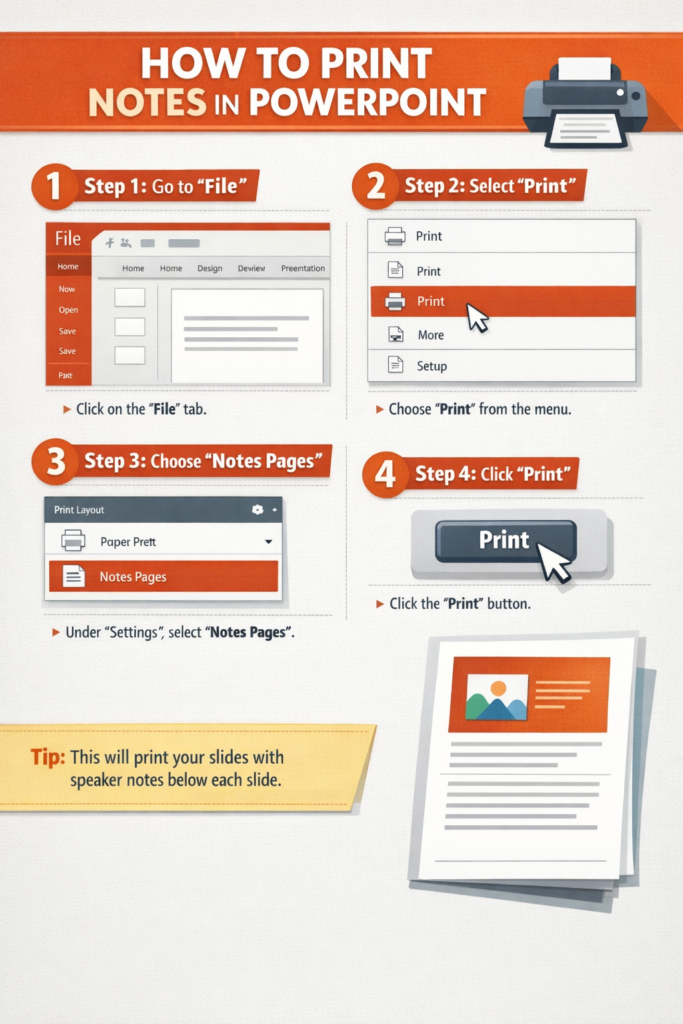
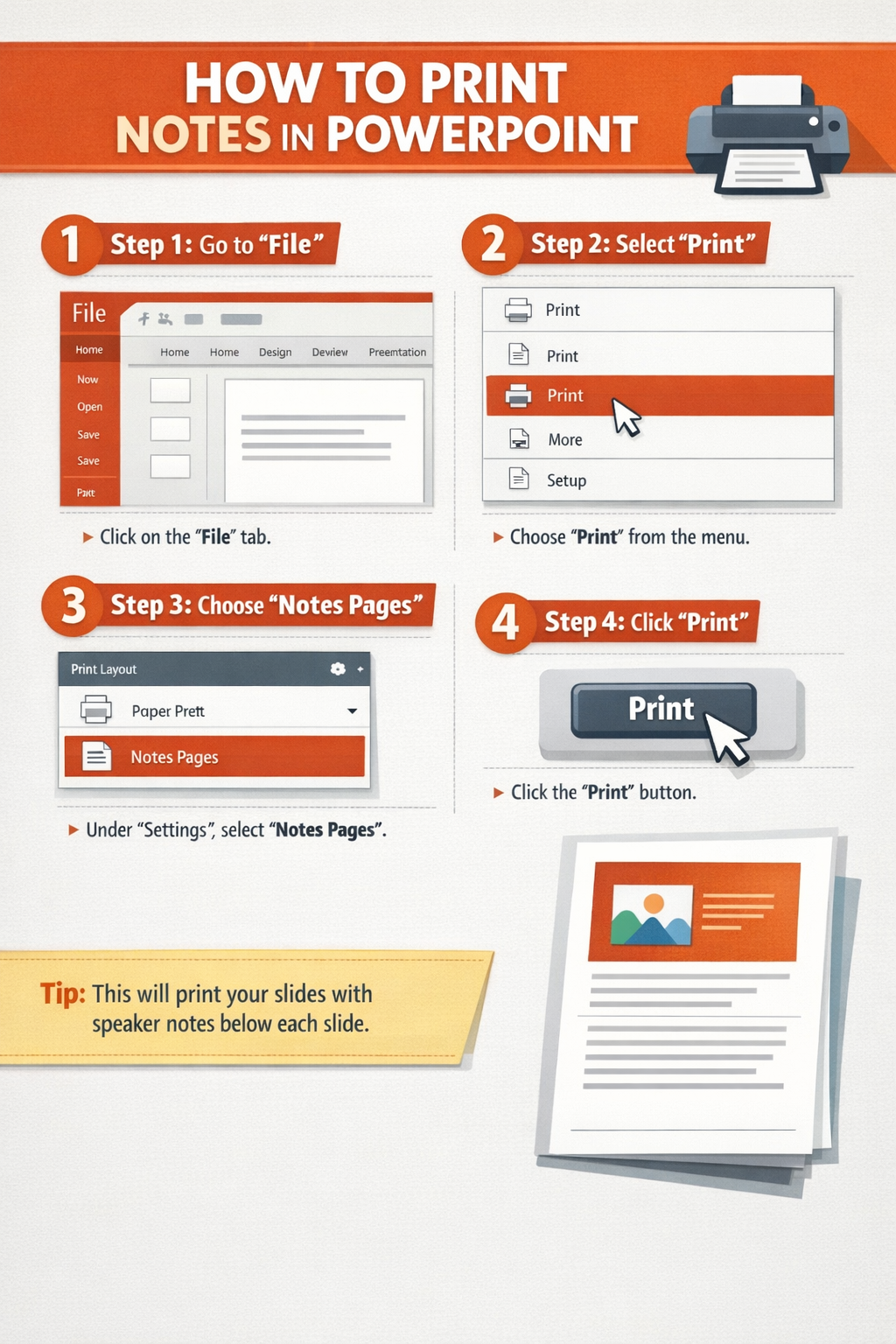
In simple terms, to print PowerPoint with notes, you open the Print menu, choose “Notes Pages” in the layout settings, and then print the presentation. This option works on both Windows and Mac and ensures each slide appears with its corresponding notes.
This guide will walk you through exact step-by-step instructions for Windows and Mac, plus troubleshooting tips, common mistakes to avoid, and helpful tips for printing multiple slides with notes.
What Are PowerPoint Speaker Notes?
Speaker notes in PowerPoint allow presenters to add extra information beneath slides. These notes are not visible to the audience during a presentation but are helpful reminders for the presenter.
Common uses include:
- Key talking points
- Detailed explanations
- Data references
- Reminders during presentations
When printed using Notes Pages, each page shows:
- One slide at the top
- Speaker notes underneath
- A clean layout designed for presenters
How to Print PowerPoint with Notes on Windows
If you’re using PowerPoint on a Windows computer, follow these steps.
Step 1: Open Your PowerPoint Presentation
Open the presentation you want to print.
Make sure your speaker notes are already written under each slide in the Notes pane.
To check notes:
- Click a slide.
- Look at the Notes section at the bottom of PowerPoint.
- Add or edit your notes if needed.
Step 2: Open the Print Menu
- Click File in the top-left corner.
- Select Print.
You will now see PowerPoint’s print settings screen.
Step 3: Change the Print Layout to Notes Pages
Under the Settings section:
- Find the Full Page Slides dropdown.
- Click it.
- Select Notes Pages.
This tells PowerPoint to print slides together with their notes.
Step 4: Preview the Layout
Before printing, check the preview panel on the right.
You should see:
- The slide at the top
- Notes text below the slide
If the notes look cut off, adjust margins or scale settings.
Step 5: Print the Presentation
- Choose your printer.
- Select the number of copies.
- Click Print.
Your slides will now print with notes attached.
How to Print PowerPoint with Notes on Mac
Printing notes on Mac is very similar, but the menu layout is slightly different.
Step 1: Open the Presentation
Launch PowerPoint and open your presentation.
Confirm your notes are written under each slide in the Notes pane.
Step 2: Open the Print Window
- Click File in the menu bar.
- Select Print.
Alternatively, press:
Command + P
This opens the print settings window.
Step 3: Select Notes Pages Layout
In the print settings:
- Look for the Layout dropdown.
- Choose Notes or Notes Pages.
This option prints slides with speaker notes below them.
Step 4: Review the Print Preview
Always check the preview before printing.
Make sure:
- The slide appears at the top
- Notes are fully visible underneath
If the notes look cut off, try adjusting paper size or scaling options.
Step 5: Print Your Slides with Notes
Select your printer and click Print.
PowerPoint will generate a page for each slide including the notes section.
Tips for Printing Multiple Slides with Notes
Sometimes presentations contain many slides, and printing everything with notes can use a lot of paper. Here are some practical tips.
Print Only Selected Slides
If you only need notes for certain slides:
- Open File → Print
- In the Slides box, type slide numbers.
Example:
1-5, 8, 10
This prints only those slides with notes.
Export Notes to PDF First
Instead of printing immediately:
- Go to File → Print
- Choose Notes Pages
- Select Print to PDF
Benefits:
- Easy to share digitally
- Saves paper
- Lets you review formatting before printing
Print Double-Sided
If your printer supports duplex printing:
- Enable Print on Both Sides
This reduces paper usage when printing large presentations.
Increase Notes Font Size Before Printing
If your notes are difficult to read:
- Go to View → Notes Page
- Highlight the notes text
- Increase the font size
This makes printed notes easier to read during presentations.
Troubleshooting: PowerPoint Notes Not Printing
If PowerPoint isn’t printing notes correctly, try these fixes.
1. Wrong Print Layout Selected
The most common issue is choosing the wrong layout.
Fix:
Make sure Notes Pages is selected instead of:
- Full Page Slides
- Handouts
- Outline
2. Notes Section Is Empty
If the printed page shows a slide but no notes:
Check the Notes pane in PowerPoint.
If no text exists, PowerPoint has nothing to print.
3. Notes Are Cut Off
Sometimes long notes get cut off during printing.
Solutions:
- Increase page margins
- Reduce notes font size
- Export to PDF first
4. Printer Is Set to Grayscale
If colors disappear or formatting looks strange:
- Open Printer Properties
- Disable Grayscale printing
This ensures slides appear correctly.
5. Outdated Printer Driver
If printing fails or formatting looks wrong:
Update your printer driver from the manufacturer’s website.
This often resolves formatting and compatibility issues.
Common Mistakes When Printing PowerPoint with Notes
Avoid these mistakes to prevent printing problems.
Choosing Handouts Instead of Notes Pages
Handouts print multiple slides per page but do not include speaker notes.
Always choose Notes Pages.
Forgetting to Check Print Preview
Many users skip previewing the document.
Preview helps confirm:
- Notes are visible
- Slides are correctly aligned
- No text is cut off
Printing the Entire Presentation Accidentally
Large presentations can waste paper quickly.
Always double-check the slide range before printing.
Writing Notes That Are Too Long
Very long notes may extend beyond the printable area.
Try to keep notes concise for better formatting.
FAQ: Printing PowerPoint Notes
How do I print PowerPoint slides with notes only?
Select File → Print → Notes Pages.
This prints one slide per page with speaker notes underneath.
Can I print multiple slides per page with notes?
No. PowerPoint prints one slide per page when using Notes Pages.
If you need multiple slides per page, you must use Handouts, which removes notes.
How do I print notes without slides?
PowerPoint does not provide a direct option to print notes alone.
Workaround:
- Export Notes Pages to Word
- Delete slide images
- Print the notes text.
Why are my notes not printing?
Usually because Notes Pages was not selected in the print layout.
Go to File → Print → Layout → Notes Pages.
Can I save PowerPoint with notes as a PDF?
Yes.
- Go to File → Print
- Choose Notes Pages
- Select Save as PDF
This creates a PDF containing slides and notes.
Conclusion
Printing PowerPoint with notes is simple once you know where to find the correct layout option. By selecting Notes Pages in the Print settings, PowerPoint prints each slide along with its speaker notes, making it perfect for presenters and detailed handouts.
To summarize:
- Open File → Print
- Select Notes Pages
- Review the preview
- Print or export to PDF
Whether you’re using Windows or Mac, this process ensures your slides and notes are printed clearly and professionally.
By following the steps and tips in this guide, you can print PowerPoint presentations with notes efficiently, avoid common mistakes, and produce presentation-ready documents every time.