
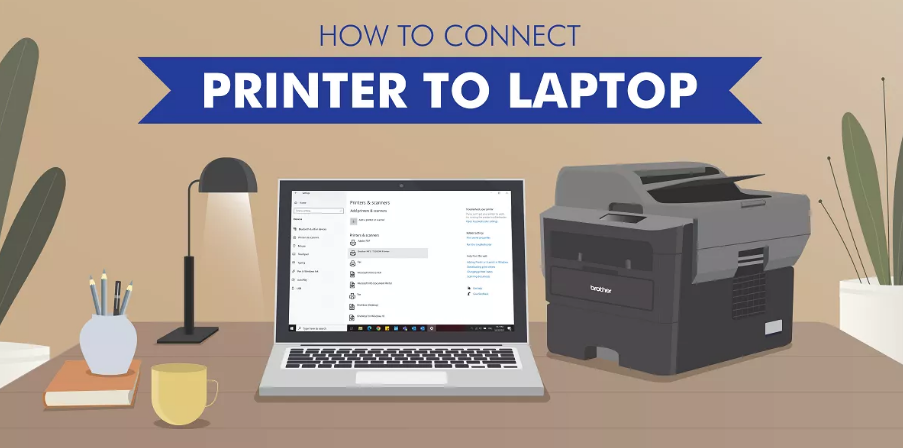
In today’s connected world, printers are expected to work seamlessly with computers, smartphones, tablets, and cloud services. However, connection issues remain one of the most common frustrations for both home users and businesses. Whether you’re installing a new printer or trying to fix a device that keeps going offline, understanding how printer connectivity works can save time and prevent unnecessary headaches.
Printer Connectivity Guide is your trusted resource for everything related to printer connections. From Wi-Fi setup and USB installation to network troubleshooting and mobile printing, this guide will help you get your printer connected and running smoothly.
What Is Printer Connectivity?
Printer connectivity refers to the methods a printer uses to communicate with devices such as desktops, laptops, smartphones, and tablets. Modern printers support multiple connection options, allowing users to print from almost anywhere.
The most common connection types include:
- Wireless (Wi-Fi)
- USB
- Ethernet (Wired Network)
- Bluetooth
- Wi-Fi Direct
- Cloud Printing
- Mobile Printing
Choosing the right connection depends on your environment, the number of users, and the devices you use most often.
Types of Printer Connections
1. Wi-Fi Connection
Wireless printing is the most popular option for homes and small offices.
Benefits
- No cables required
- Print from multiple devices
- Easy sharing across a network
- Supports mobile printing
Common Issues
- Printer not connecting to Wi-Fi
- Weak signal strength
- Incorrect Wi-Fi password
- Network interruptions
2. USB Connection
USB is one of the simplest and most reliable ways to connect a printer.
Advantages
- Stable communication
- Fast setup
- No internet required
- Excellent for single-computer use
Common Problems
- Faulty USB cable
- Driver installation failure
- Damaged USB ports
3. Ethernet Connection
Businesses often use Ethernet because of its speed and reliability.
Advantages include:
- Stable network connection
- Faster communication
- Better for multiple users
- Reduced wireless interference
4. Bluetooth Printing
Bluetooth is commonly found on portable and photo printers.
Best for:
- Quick mobile printing
- Small portable printers
- Short-range connections
5. Wi-Fi Direct
Wi-Fi Direct allows devices to connect directly to a printer without using a wireless router.
Ideal for:
- Travel
- Temporary printing
- Guest users
How to Connect a Printer to Wi-Fi
Follow these general steps:
Step 1
Power on your printer.
Step 2
Navigate to the Wireless or Network Settings menu.
Step 3
Select your wireless network (SSID).
Step 4
Enter your Wi-Fi password.
Step 5
Wait for the confirmation message.
Step 6
Install the printer software on your computer or mobile device.
Most manufacturers also offer setup apps that simplify the process.
Connecting a Printer to Windows
Windows makes adding printers relatively simple.
- Open Settings.
- Select Bluetooth & devices.
- Click Printers & Scanners.
- Choose Add device.
- Wait for Windows to locate your printer.
- Complete the installation.
If Windows cannot detect the printer:
- Restart both the printer and computer.
- Verify that both devices are connected to the same network.
- Reinstall the printer driver.
- Run the Windows Printer Troubleshooter.
Connecting a Printer to macOS
Mac users can connect printers in just a few steps.
- Open System Settings.
- Select Printers & Scanners.
- Click the + button.
- Choose your printer.
- Install available drivers if prompted.
macOS often installs compatible drivers automatically.
Mobile Printer Connectivity
Modern printers support printing directly from smartphones and tablets.
Popular technologies include:
- Apple AirPrint
- Mopria Print Service
- Manufacturer mobile apps
Many printer brands also provide dedicated apps that allow users to:
- Print documents
- Scan files
- Monitor ink levels
- Update firmware
- Manage printer settings
Why Printers Lose Their Connection
Several factors can interrupt communication between a printer and your device.
Common causes include:
- Weak Wi-Fi signal
- Router reboot
- Power outages
- Driver corruption
- Firewall restrictions
- IP address conflicts
- Firmware bugs
- Sleep mode settings
Identifying the root cause is the first step toward resolving the issue.
How to Troubleshoot Printer Connectivity Problems
Restart Everything
Restart:
- Printer
- Computer
- Router
- Modem
Many temporary connection issues disappear after a restart.
Check the network.
Ensure:
- The printer is connected to the correct Wi-Fi network.
- Your computer uses the same network.
- Airplane mode is disabled on laptops.
- The router is functioning properly.
Update Printer Drivers
Outdated drivers often cause the following:
- Missing printers
- Offline errors
- Communication failures
- Slow printing
Download drivers from the printer manufacturer’s official support website for the latest compatibility and performance improvements.
Update Printer Firmware
Firmware updates can fix:
- Wireless connectivity bugs
- Security vulnerabilities
- Compatibility issues
- Performance problems
Many printers allow firmware updates through their companion apps or control panel.
Verify IP Address Settings
Network printers rely on IP addresses to communicate.
If the printer’s IP address changes unexpectedly:
- Remove and re-add the printer.
- Assign a static IP address if supported.
- Restart your router.
Improving Wireless Printer Performance
To maintain a reliable connection:
- Place the printer close to the router.
- Reduce interference from walls or electronic devices.
- Use the 2.4 GHz band if recommended by the manufacturer.
- Avoid congested Wi-Fi channels.
- Keep router firmware updated.
Best Practices for Reliable Printer Connectivity
Follow these tips to minimize future issues:
- Keep drivers and firmware updated.
- Use strong Wi-Fi passwords.
- Restart networking equipment periodically.
- Avoid unplugging the printer during updates.
- Replace damaged USB cables promptly.
- Use high-quality networking hardware.
- Keep the printer powered on if multiple users need access.
Frequently Asked Questions
Why won’t my printer connect to my Wi-Fi?
This is often caused by an incorrect password, weak signal, outdated firmware, or the printer being connected to a different network.
Why does my printer keep showing offline?
The printer may have lost its network connection, entered sleep mode, or experienced a driver issue. Restarting the printer and checking the network usually resolves the problem.
Is Wi-Fi better than USB?
Wi-Fi is more convenient for multiple devices and shared printing, while USB offers a more stable connection for a single computer.
How do I reconnect my printer after changing my router?
Reconnect the printer to the new wireless network using its setup menu, then update the printer settings on any connected devices.
Should I assign a static IP address to my printer?
If your printer is shared across multiple devices or used in an office, assigning a static IP address can improve reliability and reduce connection issues.
Final Thoughts
Reliable printer connectivity is essential for productive printing, whether you’re working from home, managing a small business, or printing school assignments. Understanding the different connection methods and knowing how to troubleshoot common problems can save time and reduce frustration.
At Printer Connectivity Guide, you’ll find practical tutorials, setup instructions, and troubleshooting tips to help you connect printers with confidence. Whether you’re using Wi-Fi, USB, Ethernet, Bluetooth, or mobile printing, our goal is to make every print job as smooth and dependable as possible.