
How to Print PowerPoint with Notes (Step-by-Step Guide for Windows & Mac)
Introduction
If you want to print notes from PowerPoint, the easiest way is to use the Notes Pages layout in the print settings. This option prints each slide along with its speaker notes, making it perfect for presentations, study material, or handouts.
how to print notes from powerpoint
In this guide, you’ll learn exactly how to print PowerPoint notes on both Windows and Mac, along with helpful tips, common mistakes to avoid, and troubleshooting solutions.
Understanding PowerPoint Notes Printing
What Are Notes Pages?
PowerPoint allows you to add speaker notes beneath each slide. When printing, you can choose to include these notes using the Notes Pages format.
When Should You Print Notes?
Printing notes is useful for:
- Presenters who need talking points
- Students reviewing lectures
- Trainers creating handouts
- Meetings where detailed explanations are needed
How to Print Notes from PowerPoint on Windows
Step-by-Step Instructions
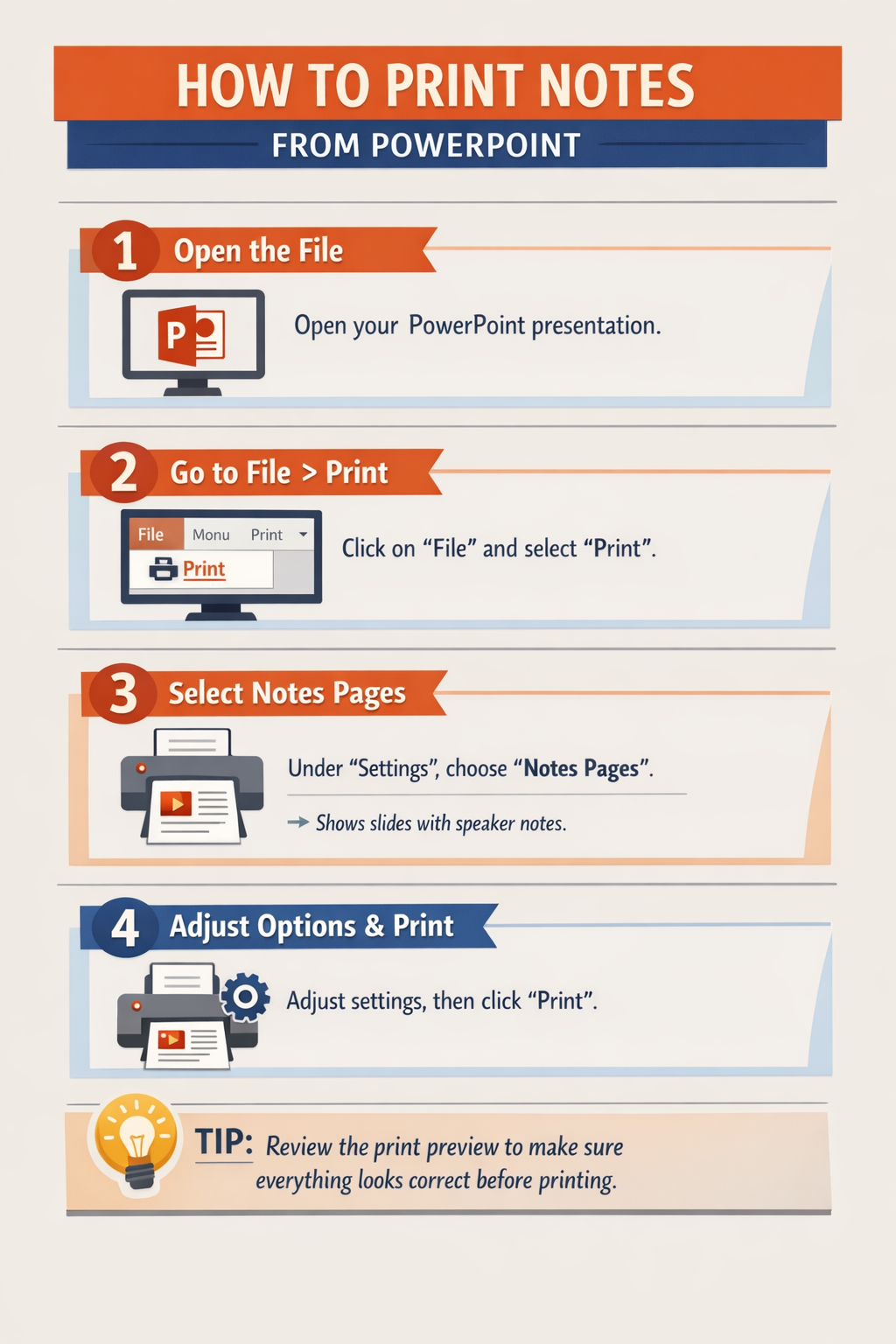
- Open your PowerPoint presentation
- Click File in the top-left corner
- Select Print
- Under Settings, click the dropdown that usually says Full Page Slides
- Choose Notes Pages
- Select your printer
- Adjust settings (color, copies, etc.)
- Click Print
Pro Tip
Before printing, use Print Preview to confirm that notes are visible and properly formatted.
How to Print PowerPoint Notes on Mac
Step-by-Step Instructions
- Open your presentation in PowerPoint
- Click File > Print
- In the print dialog, find the layout dropdown
- Select Notes or Notes Pages
- Adjust printer settings as needed
- Click Print
Important Note
On Mac, you may need to click Show Details to see all print options.
How to Print Multiple Slides with Notes
Can You Print Multiple Slides Per Page with Notes?
PowerPoint does not directly support multiple slides with notes on one page. However, you can use a workaround:
Workaround Method
- Export slides as PDF (File > Export)
- Use a PDF editor or printer settings
- Choose “multiple pages per sheet”
- Print the file
This reduces paper usage while keeping notes included.
Adjusting Notes Before Printing
Edit Notes for Better Output
- Keep notes concise
- Avoid very small fonts
- Use bullet points for readability
Change Notes Page Layout
- Go to View > Notes Page
- Adjust text size and positioning
- Save changes before printing
Troubleshooting Printing Issues
Notes Not Showing When Printing
- Ensure Notes Pages is selected (not Full Page Slides)
- Double-check notes are actually added to slides
Formatting Looks Incorrect
- Adjust layout in Notes Page view
- Check printer margins
Text Cut Off
- Reduce font size
- Adjust page scaling in print settings
Printer Not Responding
- Restart printer
- Update printer drivers
- Try saving as PDF first
Common Mistakes to Avoid
- Selecting Full Page Slides instead of Notes Pages
- Forgetting to add notes before printing
- Using fonts that are too small
- Skipping print preview
- Printing without checking margins
Frequently Asked Questions (FAQ)
1. Can I print notes only without slides?
No, PowerPoint always prints notes alongside their slides. You can copy notes into another document if needed.
2. Why are my notes missing when printed?
You likely selected the wrong layout. Choose Notes Pages in print settings.
3. Can I customize how notes appear?
Yes, use Notes Page view to edit layout, font size, and spacing.
4. Is it possible to print in black and white?
Yes, choose grayscale or black-and-white in printer settings.
5. Can I save notes as a PDF?
Yes, select Save as PDF instead of printing.
Conclusion
Printing notes from PowerPoint is simple once you know where to look. By selecting Notes Pages, you can quickly create printed materials that include both slides and speaker notes. Whether you’re on Windows or Mac, following the steps above ensures clean, readable results every time.