
How to Print PowerPoint with Notes (Step-by-Step Guide for Windows & Mac)
Introduction
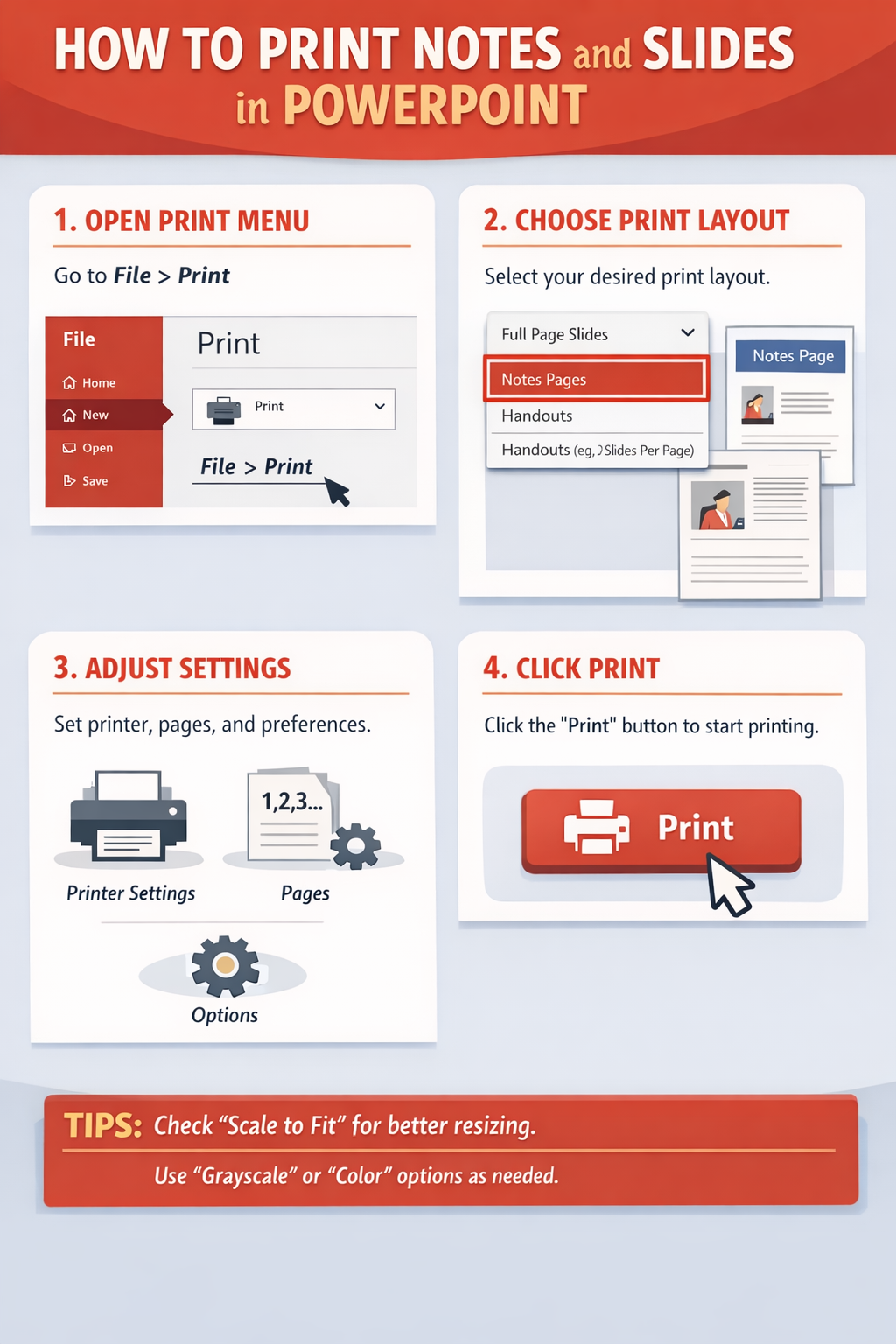
If you want to print PowerPoint slides along with speaker notes, the easiest way is to use the built-in “Notes Pages” layout in PowerPoint. This option prints one slide per page with its corresponding notes underneath. Whether you’re preparing for a presentation, teaching, or reviewing content offline, this guide will walk you through exactly how to print notes and slides in PowerPoint on both Windows and Mac.
how to print notes and slides in powerpoint
H2: Understanding PowerPoint Print Layouts
Before printing, it’s important to choose the correct layout.
H3: Notes Pages vs Handouts
- Notes Pages: Prints one slide with its notes below (best for presenters)
- Handouts: Prints multiple slides per page (notes are NOT included)
👉 If your goal is to include notes, always choose Notes Pages.
H2: How to Print Slides with Notes on Windows
Follow these steps in Microsoft PowerPoint on Windows:
H3: Step-by-Step Instructions
- Open your PowerPoint presentation
- Click File → Print
- Under Settings, locate the layout dropdown (usually says “Full Page Slides”)
- Click the dropdown and select Notes Pages
- Choose your printer
- Adjust settings (color, copies, orientation)
- Click Print
H3: Preview Before Printing
Always check the print preview on the right side to ensure:
- Notes appear below slides
- Text is readable
- Nothing is cut off
H2: How to Print Notes and Slides on Mac
The process is slightly different on macOS.
H3: Step-by-Step Instructions
- Open your presentation in PowerPoint
- Click File → Print
- In the print dialog, click Show Details (if hidden)
- Locate the Layout or Copies & Pages dropdown
- Select Microsoft PowerPoint
- Under Print What, choose Notes Pages
- Select your printer and settings
- Click Print
H3: Mac Tip
If “Notes Pages” doesn’t appear, ensure you selected PowerPoint-specific settings, not system print settings.
H2: Printing Multiple Slides with Notes (Workarounds)
PowerPoint does not natively support printing multiple slides with notes on one page. However, here are alternatives:
H3: Option 1 – Export to Word
- Go to File → Export → Create Handouts
- Choose Notes next to slides
- Open in Word
- Print multiple slides per page from Word
H3: Option 2 – PDF Scaling
- Save as PDF
- Use print scaling to fit multiple pages onto one sheet
H2: Troubleshooting Printing Issues
H3: Notes Not Printing
- Ensure “Notes Pages” is selected
- Check that notes exist in the Notes pane
H3: Text Cut Off
- Switch to Portrait orientation
- Reduce font size in notes
H3: Printer Not Responding
- Restart printer
- Update drivers
- Try printing as PDF
H3: Layout Missing
- Reset print settings
- Restart PowerPoint
H2: Common Mistakes to Avoid
- Selecting Handouts instead of Notes Pages
- Forgetting to add notes before printing
- Not previewing the layout
- Printing in landscape when notes require portrait
- Using very small fonts in notes
H2: FAQ
H3: Can I print slides with notes on one page?
Yes, by choosing Notes Pages, which prints one slide with notes below.
H3: Can I print multiple slides with notes per page?
Not directly in PowerPoint. Use Word export or PDF workaround.
H3: Why are my notes not showing?
You may have selected the wrong layout or your notes section is empty.
H3: Can I edit notes before printing?
Yes, edit them in the Notes pane under each slide.
H3: Can I print in black and white?
Yes, select grayscale or black & white in print settings.
Conclusion
Printing notes and slides in PowerPoint is simple once you select the correct layout. The “Notes Pages” option ensures your speaker notes appear clearly under each slide. For advanced layouts like multiple slides with notes, exporting to Word is the best workaround. Always preview before printing to avoid mistakes and ensure professional results.