
How to Print PowerPoint with Notes (Step-by-Step Guide for Windows & Mac)
Introduction
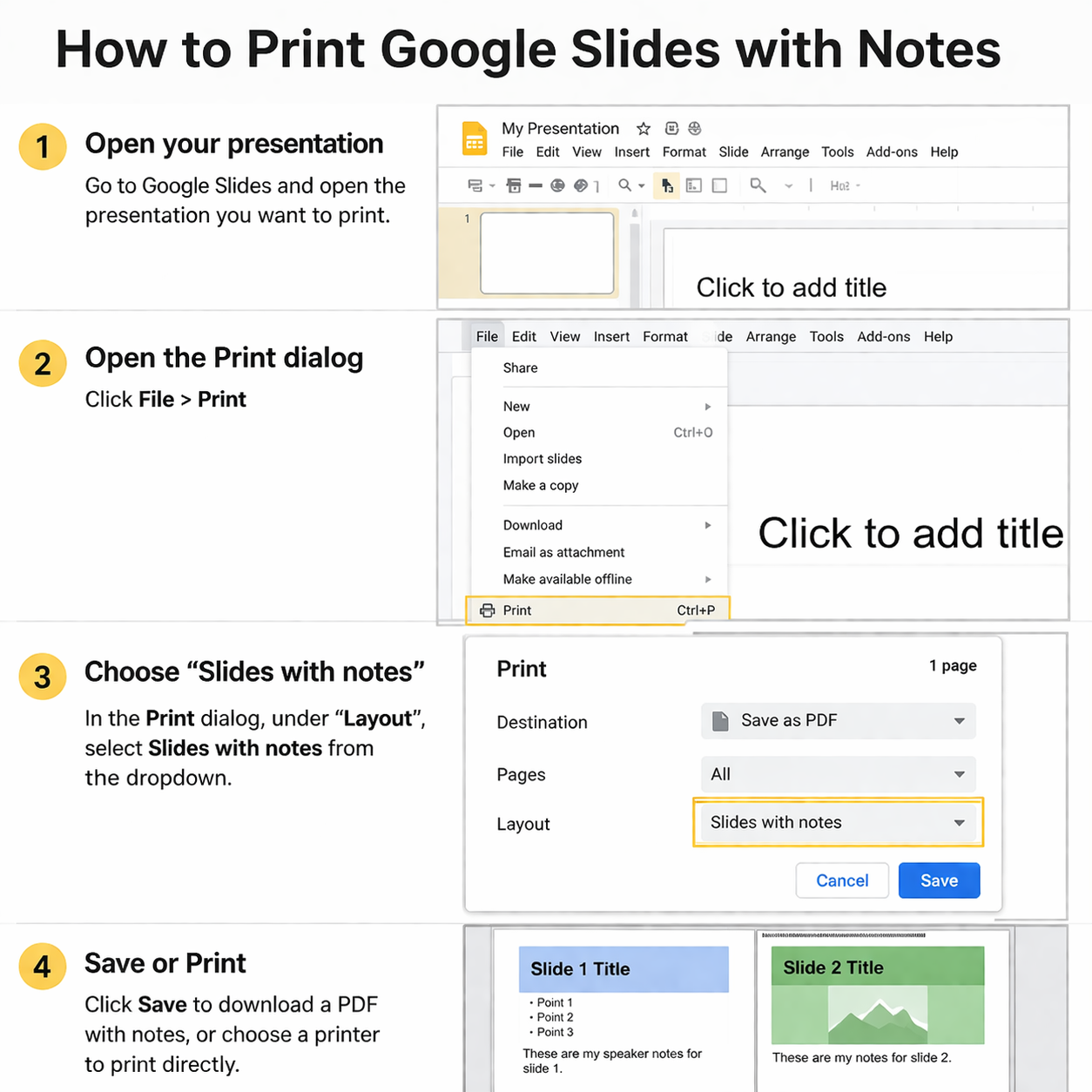
If you want to print your Google Slides presentation along with speaker notes, the process is simple once you know where to look. Google Slides includes a built-in option called “1 slide with notes”, which allows you to print each slide along with its notes underneath.
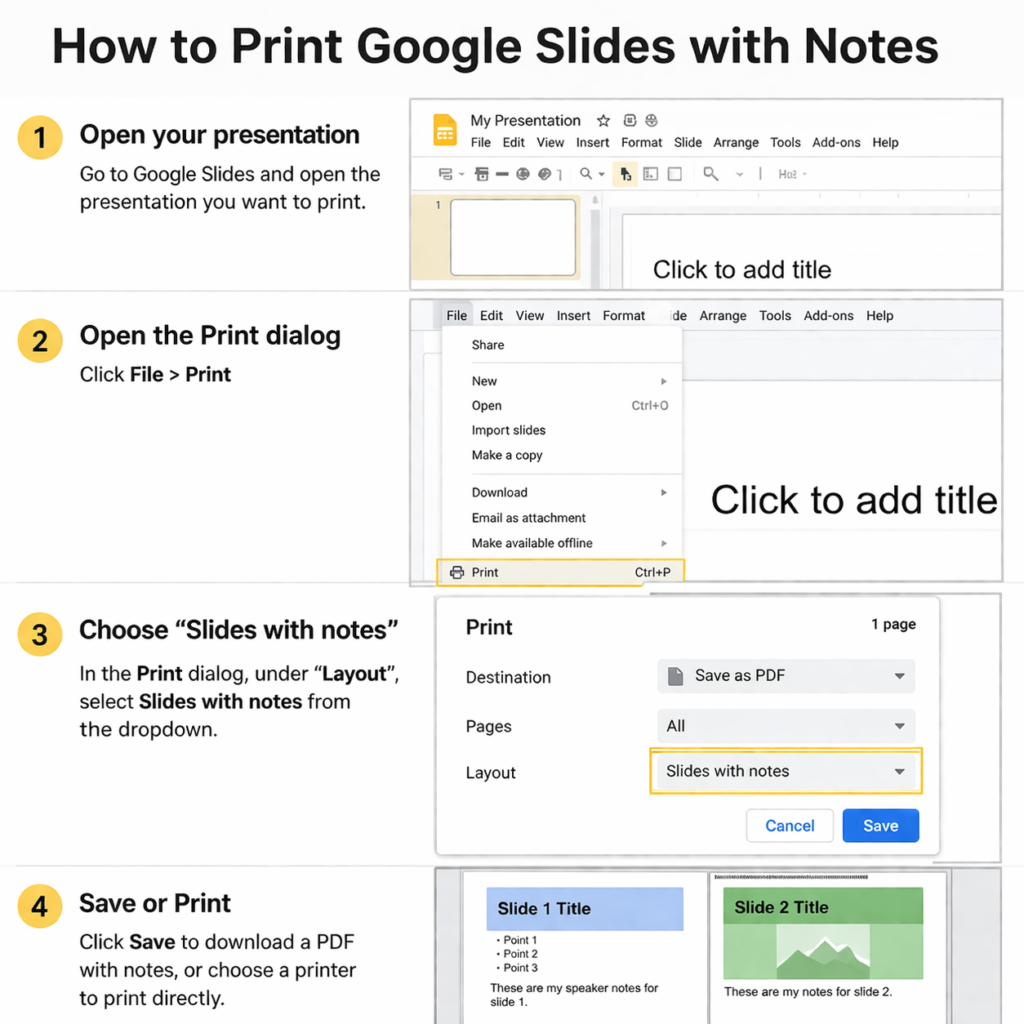
This guide will walk you through exactly how to print Google Slides with notes on both Windows and Mac, along with troubleshooting tips and common mistakes to avoid.
Understanding How Notes Printing Works in Google Slides
Before printing, it’s important to know how Google Slides formats notes.
What Are Speaker Notes?
Speaker notes are text you add below each slide to help guide your presentation. They are not visible during the slideshow unless you use presenter view.
How Notes Appear When Printed
When printed, each page includes:
- One slide at the top
- Notes displayed beneath it
- Clean formatting for readability
Step-by-Step: Print Google Slides with Notes (Windows & Mac)
The steps are nearly identical on both operating systems because Google Slides runs in your browser.
Step 1: Open Your Presentation
- Go to Google Slides
- Open the presentation you want to print
Step 2: Access the Print Settings
- Click File
- Select Print settings and preview
Step 3: Choose “1 Slide with Notes”
- In the toolbar, find the layout dropdown
- Select 1 slide with notes
Step 4: Adjust Additional Settings
You can customize:
- Orientation (portrait or landscape)
- Paper size
- Margins
- Headers/footers
Step 5: Print the Slides
- Click Print
- Choose your printer
- Confirm settings
- Click Print again
Printing Google Slides with Notes on Windows
Using Chrome or Edge
- Open your presentation in Chrome or Edge
- Follow the steps above
- In the print dialog:
- Select your printer
- Set pages and copies
- Click Print
Extra Tip for Windows Users
If formatting looks off:
- Change Scale to “Fit to page”
- Disable headers/footers if unnecessary
Printing Google Slides with Notes on Mac
Using Safari or Chrome
- Open Google Slides in your browser
- Go to Print settings and preview
- Choose 1 slide with notes
- Click Print
Mac-Specific Tip
- Use Preview option before printing
- Ensure paper size matches your printer settings (Letter or A4)
Tips for Printing Multiple Slides with Notes Efficiently
Print Only Selected Slides
- Enter slide numbers in the print dialog (e.g., 1–5, 8, 10)
Use PDF First
- Save as PDF before printing
- Helps prevent formatting errors
Batch Printing
- Print multiple copies in one go instead of repeating the process
Optimize Readability
- Keep notes concise
- Avoid overly long paragraphs
Troubleshooting: Google Slides Not Printing Notes
Problem: Notes Not Showing
Solution:
- Make sure “1 slide with notes” is selected
- Refresh the preview
Problem: Blank Pages
Solution:
- Check if notes actually exist
- Verify printer settings
Problem: Formatting Looks Wrong
Solution:
- Adjust margins
- Change scale to 100% or Fit to page
Problem: Printer Not Responding
Solution:
- Restart printer
- Update printer drivers
- Try saving as PDF first
Common Mistakes to Avoid
Selecting the Wrong Layout
Many users forget to choose “1 slide with notes”, which results in slides printing without notes.
Skipping Print Preview
Always preview before printing to catch layout issues.
Using Unsupported Browsers
Older browsers may not display print settings correctly.
Overloading Notes Section
Too much text can make printed pages hard to read.
FAQ
1. Can I print multiple slides with notes on one page?
No, Google Slides only supports one slide with notes per page.
2. Why are my notes cut off when printing?
Your notes may be too long. Try shortening them or adjusting margins.
3. Can I export slides with notes as PDF?
Yes, use the print option and choose “Save as PDF.”
4. Do speaker notes print automatically?
No, you must select the correct layout manually.
5. Can I edit notes before printing?
Yes, update notes directly in Google Slides before printing.
Conclusion
Printing Google Slides with notes is straightforward once you know where to find the correct layout option. By selecting “1 slide with notes”, adjusting print settings, and previewing your document, you can ensure clean and readable output.
Follow the steps in this guide for both Windows and Mac, and use the troubleshooting tips if anything goes wrong.