
Introduction
Need a printed version of your presentation that includes your talking points? PowerPoint makes it possible to print slides together with speaker notes, but the option isn’t always obvious.
In this guide, you’ll learn exactly how to print PPT with speaker notes, including platform-specific steps, helpful tricks, and solutions for common problems.
how to print ppt with speaker notes
What You Should Know Before Printing
Where Speaker Notes Are Stored
Speaker notes are written in the notes pane below each slide. These notes don’t appear during slideshow mode unless you use Presenter View.
How PowerPoint Formats Notes for Printing
PowerPoint uses a dedicated layout where:
- The slide appears at the top
- Notes are displayed underneath
This layout is essential for printing notes correctly.
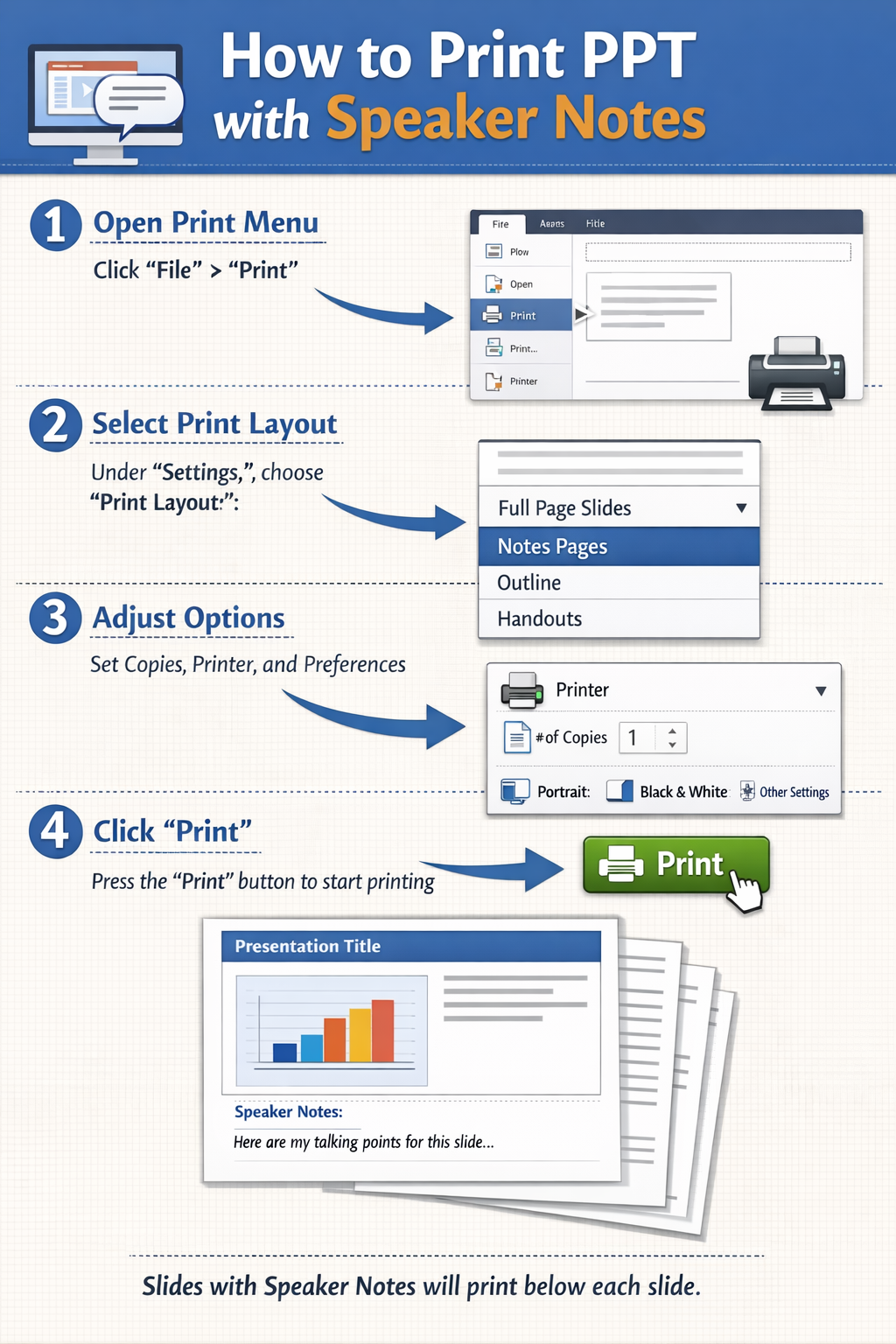
Printing PowerPoint with Notes on Windows
Quick Walkthrough
- Launch your PowerPoint file
- Click File > Print
- Look for the layout dropdown
- Select Notes Pages
- Choose printer and preferences
- Click Print
Extra Tip
If you want to test the layout, print just one page first.
Printing PowerPoint with Notes on Mac
Simple Steps
- Open your presentation
- Go to File > Print
- Expand settings using Show Details
- Under layout, choose Notes
- Confirm settings
- Print the file
Mac-Specific Tip
Make sure your macOS print dialog is fully expanded—otherwise, the notes option may not appear.
Alternative Method: Print Using PDF
Why Use PDF First?
Printing via PDF gives you more control over layout and scaling.
Steps
- Go to File > Export
- Choose PDF
- Select Notes Pages
- Save the file
- Open the PDF and print
This method helps avoid formatting issues.
How to Print Multiple Slides with Notes (Advanced Tip)
Limitation in PowerPoint
PowerPoint only allows one slide with notes per page.
Workaround
To print multiple slides with notes:
- Export as PDF (Notes Pages)
- Open the PDF
- Select Multiple pages per sheet in print settings
This reduces paper usage while keeping notes visible.
Fixing Common Printing Problems
Notes Are Missing
- Double-check Notes Pages selection
- Ensure notes are actually written
- Try exporting to PDF
Layout Looks Misaligned
- Reset slide size
- Avoid custom page dimensions
- Check printer scaling settings
Text Is Too Small
- Increase notes font size
- Avoid printing multiple pages per sheet
Printer Errors
- Reconnect the printer
- Restart your system
- Update drivers
Common Mistakes People Make
Choosing Handouts Instead of Notes Pages
Handouts show multiple slides but do not include notes.
Overloading Notes
Too much text can become unreadable when printed.
Ignoring Page Setup
Incorrect paper size can distort formatting.
Not Testing Output
Printing everything at once can waste paper if settings are wrong.
FAQ
1. Can I print speaker notes only?
Not directly in PowerPoint. You need to copy notes into another document.
2. What’s the difference between Notes Pages and Handouts?
Notes Pages include speaker notes; Handouts do not.
3. Why does my print preview look different?
Printer settings or scaling may be applied automatically.
4. Can I edit notes before printing?
Yes, use the Notes pane in Normal view.
5. Is there a way to automate note printing?
You can use macros, but most users rely on built-in print settings.
Conclusion
Printing PowerPoint slides with speaker notes doesn’t require advanced skills—just the right setting. By selecting Notes Pages, you can easily produce a clean, presenter-friendly document.
For better results:
- Use PDF export for flexibility
- Keep notes concise
- Always preview before printing
Once you understand the process, printing PPT with notes becomes quick and reliable every time.