
How to Print PowerPoint with Notes (Step-by-Step Guide for Windows & Mac)
Printing PowerPoint slides with notes is useful when you want to present while having your speaker notes available on paper. Whether you’re preparing for a meeting, lecture, or training session, printing slides with notes allows you to keep your talking points organized.
The good news is that Microsoft PowerPoint makes it easy to print slides together with speaker notes. In this guide, you’ll learn exact step-by-step instructions for Windows and Mac, tips for printing multiple slides with notes, common mistakes to avoid, and troubleshooting solutions if printing doesn’t work.
Why Print PowerPoint Slides With Notes?
Speaker notes in Microsoft PowerPoint are designed to help presenters remember key talking points without putting too much text on the slides.
Printing slides with notes can help you:
- Follow your presentation without memorizing everything
- Use printed notes during meetings or lectures
- Share presentation notes with colleagues or students
- Prepare a backup if your computer fails during a presentation
Each printed page will typically include one slide at the top and the speaker notes underneath.
How to Print PowerPoint With Notes on Windows
If you’re using PowerPoint on Windows, follow these steps.
Step 1: Open Your PowerPoint Presentation
- Launch Microsoft PowerPoint.
- Open the presentation file you want to print.
Step 2: Check Your Speaker Notes
Before printing, confirm that your notes are added.
- Go to the Normal View.
- At the bottom of the slide, locate the Notes pane.
- Type or review the notes you want printed.
If you don’t see the notes section:
- Click View
- Select Notes
Step 3: Open the Print Menu
- Click File in the top-left corner.
- Select Print.
This opens the print settings panel.
Step 4: Choose the Notes Layout
In the Settings section:
- Click the dropdown that usually says Full Page Slides.
- Select Notes Pages.
This layout prints:
- One slide per page
- Speaker notes below the slide
Step 5: Select Your Printer
Choose the printer you want to use. For example, you might select an Epson, HP, or Canon printer.
Adjust settings if necessary:
- Color or grayscale
- Paper size
- Number of copies
Step 6: Print the Presentation
Click Print.
Your presentation will print with slides and notes on each page.
How to Print PowerPoint With Notes on Mac
The process on Mac is similar but includes a few interface differences.
Step 1: Open the Presentation
- Open Microsoft PowerPoint on your Mac.
- Load your presentation.
Step 2: Verify Your Notes
- Switch to Normal View.
- Look for the Notes area under the slide.
- Add or edit notes if necessary.
Step 3: Open Print Settings
- Click File in the menu bar.
- Select Print.
A print dialog window will appear.
Step 4: Change the Layout to Notes Pages
In the print dialog:
- Locate Layout or Print What.
- Select Notes Pages.
This option ensures each slide prints with its notes.
Step 5: Adjust Print Preferences
You can change:
- Number of copies
- Orientation
- Color settings
- Page size
Make sure the preview shows slides with notes underneath.
Step 6: Print
Click Print to start printing your presentation with notes.
Tips for Printing Multiple Slides With Notes
Sometimes you may want to print only certain slides or multiple slides with notes.
Here are some practical tips:
Print Specific Slides Only
In the print settings:
- Go to Slides.
- Enter slide numbers (example:
1-5,8,10-15).
This prints notes only for those slides.
Print Multiple Copies for Meetings
If you need handouts for a team:
- Set Copies to the number you need.
- Print Notes Pages so everyone gets the slide and notes.
Convert to PDF Before Printing
You can export to PDF first:
- Click File
- Select Save As
- Choose PDF
This allows you to preview notes pages before printing.
Adjust Notes Size
If your notes are too small:
- Go to View
- Select Notes Page
- Increase the font size.
This improves readability when printed.
Troubleshooting: PowerPoint Notes Not Printing
Sometimes notes may not appear in the printed output. Here are common solutions.
Problem 1: Notes Are Missing
Cause: Wrong print layout selected.
Fix:
- Go to Print settings
- Select Notes Pages instead of Full Page Slides
Problem 2: Notes Are Cut Off
Cause: Notes text is too long.
Fix:
- Edit the notes
- Reduce text
- Adjust formatting in Notes Page View
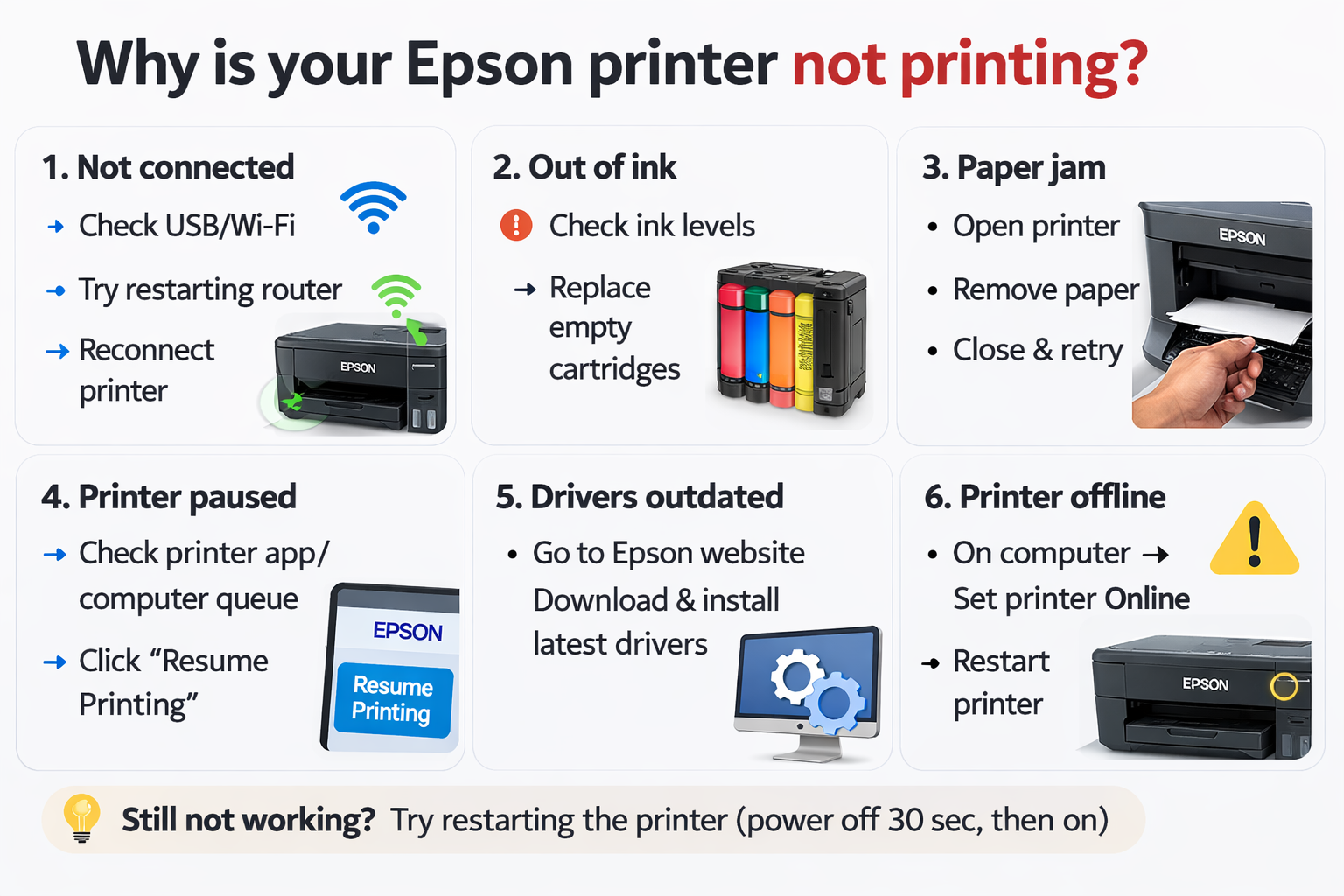
Problem 3: Printer Not Printing Correctly
Sometimes the issue is with the printer rather than PowerPoint.
Try these steps:
- Restart the printer
- Check paper and ink
- Update printer drivers
- Reinstall the printer
This can resolve issues with printers like Epson, Canon, or HP devices.
Problem 4: Print Preview Doesn’t Show Notes
If preview shows slides only:
- Open Print settings
- Change Print Layout to Notes Pages
Common Mistakes When Printing PowerPoint With Notes
Avoid these mistakes to save time and paper.
1. Selecting the Wrong Print Layout
Many users accidentally print Full Page Slides, which removes notes.
Always choose Notes Pages.
2. Forgetting to Add Notes
If the notes section is empty, nothing will print under the slide.
Always review your notes before printing.
3. Not Checking Print Preview
Print preview helps you confirm:
- Slide position
- Notes visibility
- Page formatting
Skipping preview can lead to wasted paper.
4. Using Small Font Sizes
Notes with very small text may be difficult to read when printed.
Use 12–16 pt font for better readability.
5. Printing Entire Presentations Unnecessarily
Large presentations may contain dozens of slides.
Instead:
- Print only the slides you need.
FAQ
1. Can I print multiple slides per page with notes?
No. In Microsoft PowerPoint, the Notes Pages layout prints one slide per page with notes below it.
If you need multiple slides per page, you must choose Handouts, but notes will not appear.
2. How do I print notes only without slides?
PowerPoint does not have a direct “notes only” option.
However, you can:
- Go to Notes Page View
- Copy notes
- Paste them into a document like Microsoft Word
- Print from there.
3. Why are my PowerPoint notes not showing in print preview?
Most likely the print layout is set to Full Page Slides.
Change it to Notes Pages in the print settings.
4. Can I export PowerPoint notes to PDF?
Yes.
Steps:
- Click File
- Choose Export
- Select Create PDF
- Set layout to Notes Pages
This saves the presentation with notes included.
5. Can I print PowerPoint notes from Google Slides?
Yes, but the process is different in Google Slides.
You must use File → Print settings and preview → Include speaker notes before printing.
Conclusion
Printing PowerPoint slides with notes is a simple but powerful feature that helps presenters stay organized and confident. By selecting the Notes Pages layout in Microsoft PowerPoint, you can easily print each slide with its speaker notes underneath.
Whether you’re using Windows or Mac, the process only takes a few steps: open the print menu, choose Notes Pages, review the preview, and print. Remember to check your notes, verify the layout, and use print preview to avoid mistakes.
With the tips and troubleshooting steps in this guide, you should be able to print PowerPoint presentations with notes quickly and reliably for meetings, classes, and presentations.