
How to Print PowerPoint with Notes (Step-by-Step Guide for Windows & Mac)
Printing slides with notes is one of the most useful features in PowerPoint when you want a physical copy of your presentation along with speaker notes. Instead of printing slides alone, PowerPoint allows you to print each slide with the notes you wrote underneath it.
This is especially helpful for presenters, teachers, students, and professionals who want a printed version of their talking points while presenting.
how to print slides with notes
In this guide, you’ll learn how to print PowerPoint with notes step-by-step on Windows and Mac, along with troubleshooting tips, common mistakes, and practical advice for printing multiple slides efficiently.
Why Print PowerPoint Slides with Notes?
Printing slides with notes gives you a presenter-friendly version of your slides. The slide appears at the top of the page, while your notes appear below it.
Benefits include:
- Helps presenters remember talking points
- Makes it easier to rehearse presentations
- Useful for meetings and lectures
- Provides detailed handouts for reference
- Keeps important explanations alongside slides
Instead of relying on memory, you can follow your printed notes while presenting.
Understanding PowerPoint Notes Pages
Before printing, it’s helpful to understand how PowerPoint organizes notes.
Each slide has a Notes pane where you can type speaker notes. When you print using the Notes Pages layout, PowerPoint prints:
- One slide per page
- The slide at the top
- Your speaker notes underneath
If your notes are long, they will automatically wrap and continue within the notes section.
How to Print PowerPoint with Notes on Windows
Follow these steps if you’re using PowerPoint on a Windows computer.
Step 1: Open Your PowerPoint Presentation
Open the PowerPoint file you want to print.
Make sure your speaker notes are already added to each slide.
To check notes:
- Open the presentation.
- Select a slide.
- Look for the Notes pane at the bottom.
- Add or edit notes if needed.
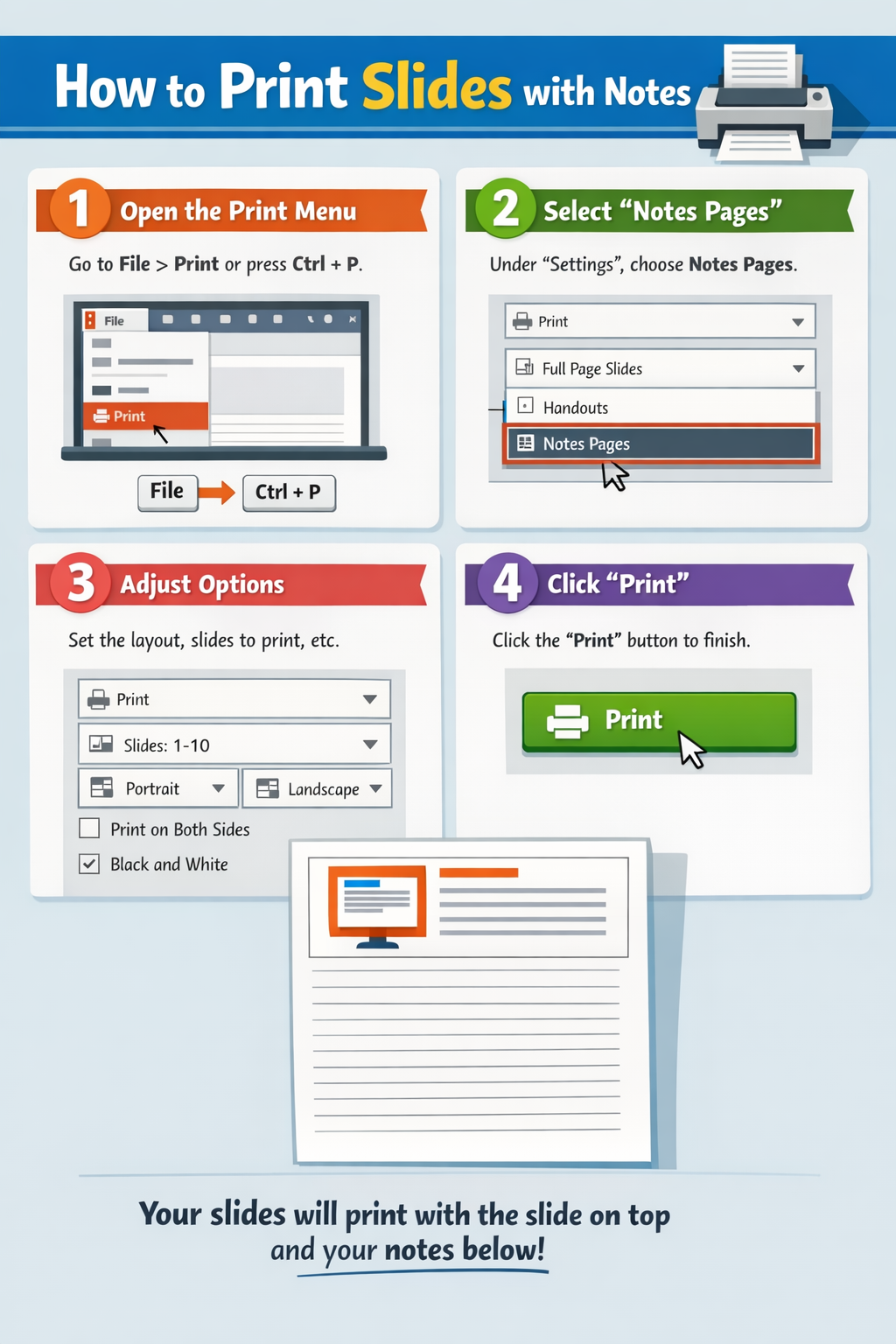
Step 2: Open the Print Menu
- Click File in the top-left corner.
- Select Print.
You will now see the PowerPoint print settings panel.
Step 3: Choose “Notes Pages”
Under Settings, locate the layout dropdown menu.
By default, it may show Full Page Slides.
- Click the dropdown.
- Select Notes Pages.
This option prints one slide with notes per page.
Step 4: Select Your Printer
Choose your printer from the Printer dropdown list.
If you want to save the file instead of printing:
- Choose Microsoft Print to PDF
This creates a PDF version of your slides with notes.
Step 5: Adjust Print Settings
You can customize several options before printing:
- Color / Grayscale / Black & White
- Orientation (Portrait or Landscape)
- Number of copies
- Print specific slides
Example:
- Print slides 1–5 only
- Print multiple copies
Step 6: Print the Slides
Once everything looks correct:
- Click Print
- Your slides will print with notes underneath.
How to Print PowerPoint with Notes on Mac
The process on Mac is very similar, but the interface looks slightly different.
Step 1: Open Your PowerPoint File
Launch PowerPoint and open your presentation.
Confirm your notes are present in the Notes section below each slide.
Step 2: Open the Print Window
- Click File
- Select Print
Or press:
Command + P
This opens the Mac print dialog box.
Step 3: Choose “Notes”
In the print options:
- Locate the Layout or Print What dropdown
- Select Notes
This setting prints:
- One slide
- Notes underneath
Step 4: Review the Preview
PowerPoint will show a preview of the printed page.
Check:
- Slide visibility
- Notes formatting
- Page orientation
Step 5: Print the Presentation
After reviewing:
- Choose your printer
- Click Print
Your slides will print with speaker notes included.
How to Print Multiple Slides with Notes
A common question is whether you can print multiple slides with notes on the same page.
Unfortunately, PowerPoint’s built-in feature prints only one slide with notes per page.
However, there are workarounds.
Method 1: Print to PDF First
- Print using Notes Pages
- Select Print to PDF
- Save the file
Then you can use a PDF tool to print multiple pages per sheet.
Method 2: Use Word for Custom Layout
Another option is exporting the presentation to Word.
Steps:
- Click File
- Select Export
- Choose Create Handouts
- Send to Microsoft Word
This lets you create custom note layouts and print multiple slides.
Troubleshooting: PowerPoint Notes Not Printing
Sometimes users encounter issues where notes do not appear in print.
Here are common solutions.
Problem: Notes Are Missing
Solution:
Make sure Notes Pages is selected instead of Full Page Slides.
Incorrect layout settings are the most common cause.
Problem: Notes Are Cut Off
Solution:
- Edit notes to make them shorter
- Increase page margins
- Print in Portrait orientation
Long notes may not fit properly on the page.
Problem: Printer Is Not Printing
If nothing prints:
- Check printer connection
- Restart the printer
- Update printer drivers
- Try printing to PDF
Printer issues are often unrelated to PowerPoint itself.
Problem: Formatting Looks Strange
If text looks compressed or misaligned:
- Use Print Preview
- Adjust margins
- Change orientation
Preview helps avoid wasted paper.
Common Mistakes When Printing PowerPoint with Notes
Many users struggle with printing notes because of simple mistakes.
Here are the most common ones.
1. Selecting the Wrong Layout
Many people leave the setting on Full Page Slides, which prints slides without notes.
Always choose Notes Pages.
2. Not Checking Print Preview
Skipping preview can cause:
- Cropped notes
- Wrong orientation
- Missing slides
Always check the preview first.
3. Forgetting to Add Notes
If notes are empty, nothing will appear beneath slides.
Always confirm notes exist in the Notes pane.
4. Printing Too Many Pages
Printing large presentations with notes can quickly use a lot of paper.
Example:
- 60 slides = 60 printed pages
Consider printing selected slides only.
5. Ignoring Printer Settings
Some printers default to:
- Two-sided printing
- Grayscale
Always confirm printer preferences before printing.
Tips for Printing PowerPoint Notes Efficiently
Here are practical tips to save time, paper, and effort.
Print to PDF First
Creating a PDF version of notes pages allows you to:
- Review formatting
- Share digitally
- Archive presentations
Use Black and White
If color isn’t necessary, choose grayscale to save ink.
This is especially useful for long presentations.
Print Selected Slides Only
Instead of printing everything:
Enter slide ranges like:
1–10, 15, 20–25
This prints only the slides you need.
Shorten Long Notes
Keep notes concise.
Long paragraphs can make pages look cluttered and harder to read.
Use High-Quality Paper for Presentations
If you’re presenting to clients or executives, using higher-quality paper can improve readability and professionalism.
FAQ: Printing PowerPoint with Notes
Can I print slides and notes on one page?
Yes. Choose Notes Pages in the print settings. This prints one slide with notes underneath on a single page.
Why are my PowerPoint notes not printing?
This usually happens when Full Page Slides is selected instead of Notes Pages in the print layout options.
Can I print multiple slides with notes per page?
PowerPoint does not support this directly. You must print to PDF first, then print multiple pages per sheet from the PDF viewer.
Can I save slides with notes as a PDF?
Yes. Choose Print, then select Print to PDF as your printer. This saves slides with notes in a PDF file.
How do I edit notes before printing?
Open the Notes pane below each slide in PowerPoint and edit the text. Any changes will appear when printing Notes Pages.
Conclusion
Printing PowerPoint slides with notes is a simple but powerful way to make presentations easier to deliver. By selecting Notes Pages in the print settings, you can print each slide along with the speaker notes beneath it.
The process works similarly on both Windows and Mac, requiring only a few steps in the print menu. Reviewing the print preview, choosing the correct layout, and optimizing printer settings will ensure your notes print correctly every time.
If you want more flexibility, you can also print to PDF or export to Word to customize layouts or print multiple slides per page.
With the right setup, printed notes can help you stay organized, present confidently, and keep your key talking points readily available.