
How to Print PowerPoint with Notes (Step-by-Step Guide for Windows & Mac)
Printing PowerPoint slides with speaker notes is a helpful way to present more effectively. Instead of relying on memory, you can print each slide with the notes underneath so you have key talking points during your presentation.
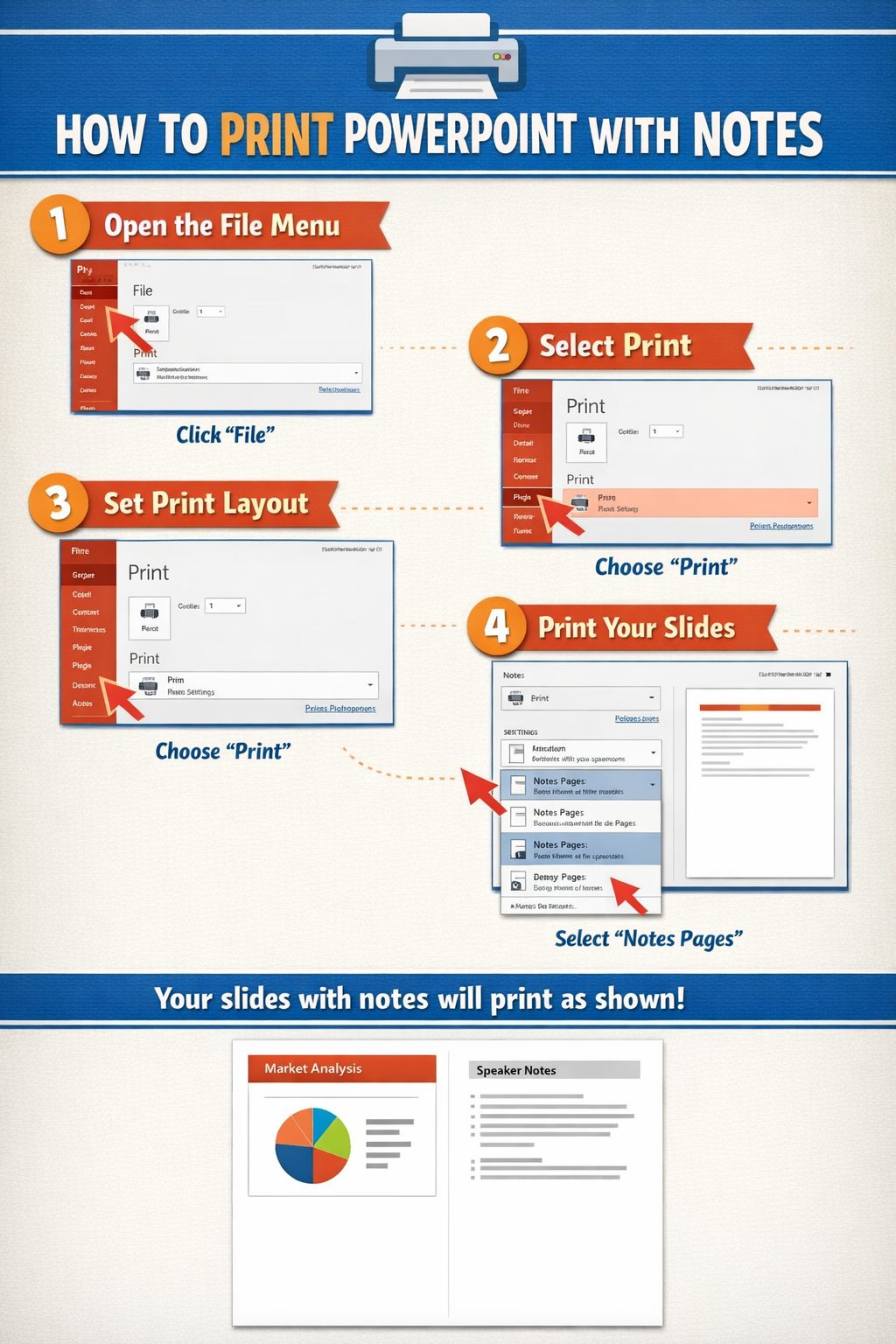
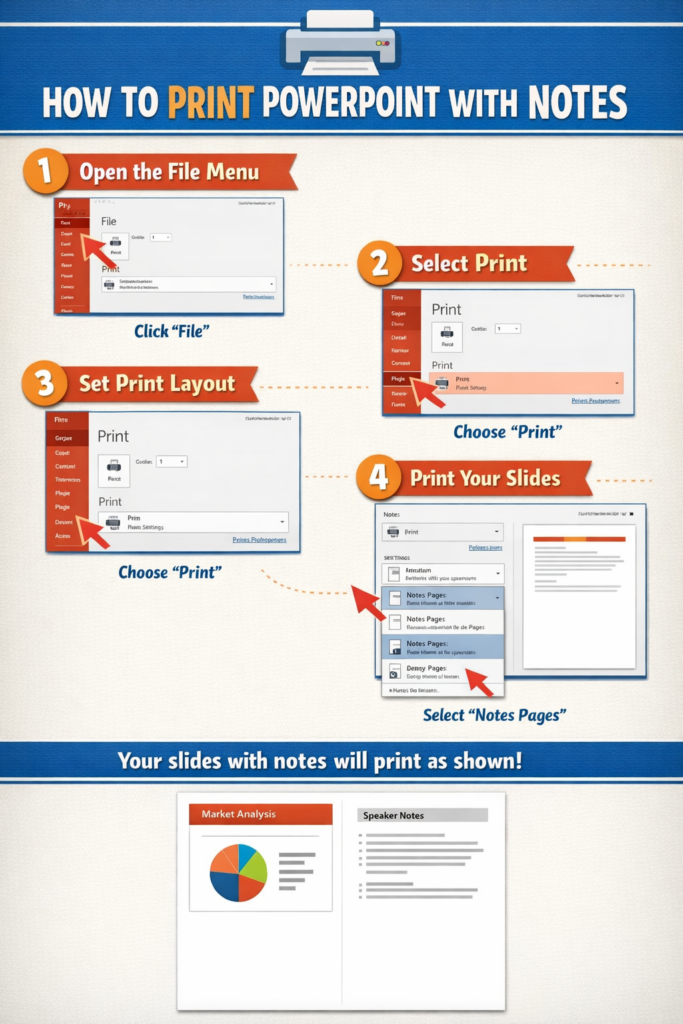
To print PowerPoint with notes, you simply select “Notes Pages” in the print layout settings before printing. This option prints one slide per page with the speaker notes displayed below the slide.
How Do You Print Powerpoint With Notes
In this step-by-step guide, you’ll learn exactly how to print PowerPoint with notes on both Windows and Mac, along with troubleshooting tips, common mistakes to avoid, and practical printing tips.
Why Print PowerPoint Slides with Notes?
Speaker notes in PowerPoint help presenters remember key points, explanations, or additional details that are not shown on the slide.
Printing slides with notes is useful when:
- You want presentation cues during a speech
- You need study or review materials
- You’re preparing handouts for meetings
- You prefer offline notes instead of Presenter View
Each printed page typically includes:
- The slide image
- Speaker notes below the slide
This layout makes it easy to follow along while presenting.
How to Print PowerPoint with Notes on Windows
If you are using PowerPoint on Windows, printing slides with notes only takes a few steps.
Step 1: Open Your PowerPoint Presentation
Open your presentation in Microsoft PowerPoint and make sure your notes are added.
To check notes:
- Click View
- Select Notes Page or look at the Notes pane under each slide
Add any speaker notes you want printed.
Step 2: Open the Print Menu
- Click File
- Select Print
This opens the print settings window where you can customize how the slides will print.
Step 3: Change the Print Layout
In the Settings section:
- Click the dropdown that usually says Full Page Slides
- Select Notes Pages
This option prints:
- One slide per page
- Speaker notes underneath the slide
Step 4: Preview the Output
Before printing, look at the Print Preview on the right side.
Check that:
- The slide appears correctly
- Your notes are visible under the slide
- The layout looks correct
Step 5: Print the Presentation
- Choose your printer
- Select the number of copies
- Click Print
Your PowerPoint slides will now print with notes included.
How to Print PowerPoint with Notes on Mac
The process on Mac is very similar but the menu layout looks slightly different.
Step 1: Open the Presentation
Open your file in Microsoft PowerPoint for Mac.
Confirm that notes are added under each slide.
Step 2: Open the Print Window
- Click File
- Select Print
Alternatively, press:
Command + P
Step 3: Choose Notes Layout
In the print dialog:
- Locate Layout
- Select Notes
This layout prints:
- One slide per page
- Speaker notes below the slide
Step 4: Review the Preview
Always check the preview to confirm:
- Slides are visible
- Notes appear under each slide
- Nothing is cut off
Step 5: Print
Click Print to complete the process.
Your slides and notes will now print together.
How to Print Multiple Slides with Notes (Best Methods)
By default, PowerPoint only allows one slide per page when printing notes. However, there are a few ways to print more efficiently.
Option 1: Export Notes Pages to PDF
You can save the notes pages as a PDF and print later.
Steps:
- Click File
- Select Export
- Choose Create PDF
- Select Notes Pages
This gives you a printable document with slides and notes.
Option 2: Use Word for Better Layout Control
PowerPoint can export notes to Microsoft Word.
Steps:
- Click File
- Select Export
- Choose Create Handouts
- Open in Microsoft Word
In Word, you can:
- Resize slides
- Format notes
- Print multiple pages per sheet
This method gives you more flexibility.
Option 3: Print Multiple Pages Per Sheet
After exporting notes pages to PDF:
- Open the PDF
- Select Print
- Choose Multiple pages per sheet
This allows you to print 2–4 slides with notes on one page.
Troubleshooting: PowerPoint Notes Not Printing
Sometimes notes may not appear when printing. Here are common fixes.
Problem: Notes Are Missing
Solution:
Make sure you selected Notes Pages instead of Full Page Slides.
Problem: Notes Are Cut Off
Solution:
- Reduce text size in the notes section
- Adjust page margins
- Use landscape orientation if necessary
Problem: Printer Prints Only Slides
Solution:
Double-check the layout setting in the print menu.
It must be set to Notes Pages.
Problem: Notes Look Too Small
Solution:
Export the presentation to Word and adjust formatting before printing.
Problem: Print Preview Doesn’t Match Output
This sometimes happens due to printer drivers.
Try:
- Updating the printer driver
- Printing as a PDF first
- Printing from the PDF file
Common Mistakes When Printing PowerPoint Notes
Avoid these common issues to save time and paper.
1. Choosing the Wrong Print Layout
Many users forget to change Full Page Slides to Notes Pages.
This results in slides printing without notes.
2. Not Checking Print Preview
Always review the preview before printing.
This helps catch formatting errors.
3. Adding Too Much Text to Notes
Very long notes can get cut off.
Keep notes concise and readable.
4. Forgetting Page Orientation
Portrait orientation works best for notes pages.
Landscape may cause formatting issues.
5. Printing Without Testing
Always print one test page first before printing the entire presentation.
Helpful Tips for Printing PowerPoint Notes
These practical tips make printing easier and more efficient.
Use Larger Font for Notes
Small text can be hard to read during presentations.
Try:
- 14–18 pt font size for notes
Print in Grayscale
If color isn’t necessary:
- Choose Grayscale printing
This saves ink.
Print Double-Sided
If your printer supports duplex printing:
- Enable Print on both sides
This reduces paper use.
Export to PDF for Sharing
If you want to send slides with notes to others:
- Export as PDF
- Choose Notes Pages
Recipients can easily print or read them.
Keep Notes Concise
Speaker notes should be short prompts, not full paragraphs.
This makes them easier to read while presenting.
FAQ: Printing PowerPoint with Notes
How do I print PowerPoint slides with notes only?
Go to File → Print, then select Notes Pages under layout. This prints each slide with its speaker notes below it.
Can I print multiple slides with notes on one page?
PowerPoint does not support this directly. The best method is to export notes pages to PDF and print multiple pages per sheet.
Why are my PowerPoint notes not printing?
This usually happens when Full Page Slides is selected instead of Notes Pages in the print settings.
Can I print notes without the slides?
Yes. Export the presentation to Word, then remove the slide images and print only the notes.
Is it possible to edit notes before printing?
Yes. You can edit speaker notes directly in PowerPoint using the Notes pane below each slide.
Conclusion
Printing PowerPoint slides with notes is simple once you know where to find the correct layout setting. By selecting Notes Pages in the print menu, PowerPoint automatically prints each slide with its speaker notes below it.
Whether you’re presenting in a meeting, studying from lecture slides, or creating speaker handouts, printing notes can make your presentation much easier to follow.
To get the best results, always check the print preview, keep notes concise, and consider exporting to PDF if you need more flexible printing options.
With the steps in this guide, you can confidently print PowerPoint presentations with notes on both Windows and Mac.